Connect your AI agent
Ask your own AI assistant about your ChatGPT ads, in your own words: "How did my ads do last week?", "Which products are not being sent, and why?", "Is my tracking healthy?". The assistant reads the answer from the app.
It works through an MCP server. MCP (Model Context Protocol) is the standard way an AI assistant connects to another tool. You add one URL to your assistant, approve the connection in your Shopify admin, and that's it.
An agent can only read. It can't create, pause or change a campaign, a budget or any setting. It never sees your customers, single orders or your OpenAI API keys.
What an agent can read
| Area | What it gets |
|---|---|
| Performance | Spend, impressions, clicks and conversions from OpenAI, beside the orders and revenue your store recorded, with ROAS. By campaign, by day and by product. Delivery can also be split by country, device or platform. |
| Campaigns | Your campaigns with their status, budget and serving problems, one campaign in detail, and how spend is pacing against your target. |
| Product feed | The feed's status and last send, and the product issues with the reason for each. |
| Tracking | Whether the pixel and the Conversions API are working, and how many Shopify orders reached OpenAI. |
| Alerts | The alerts that are open now. |
When the app couldn't read a number, the agent is told "could not check". It is never given a zero in its place. Money always comes with its currency and is never converted.
Before you start
- The app is installed and your ChatGPT Ads account is connected.
- Your AI assistant can add a custom MCP server (some call it a custom connector). ChatGPT, Claude, Claude Code and many other assistants can. Whether your plan includes it is decided by the assistant, not by this app.
Connect an agent
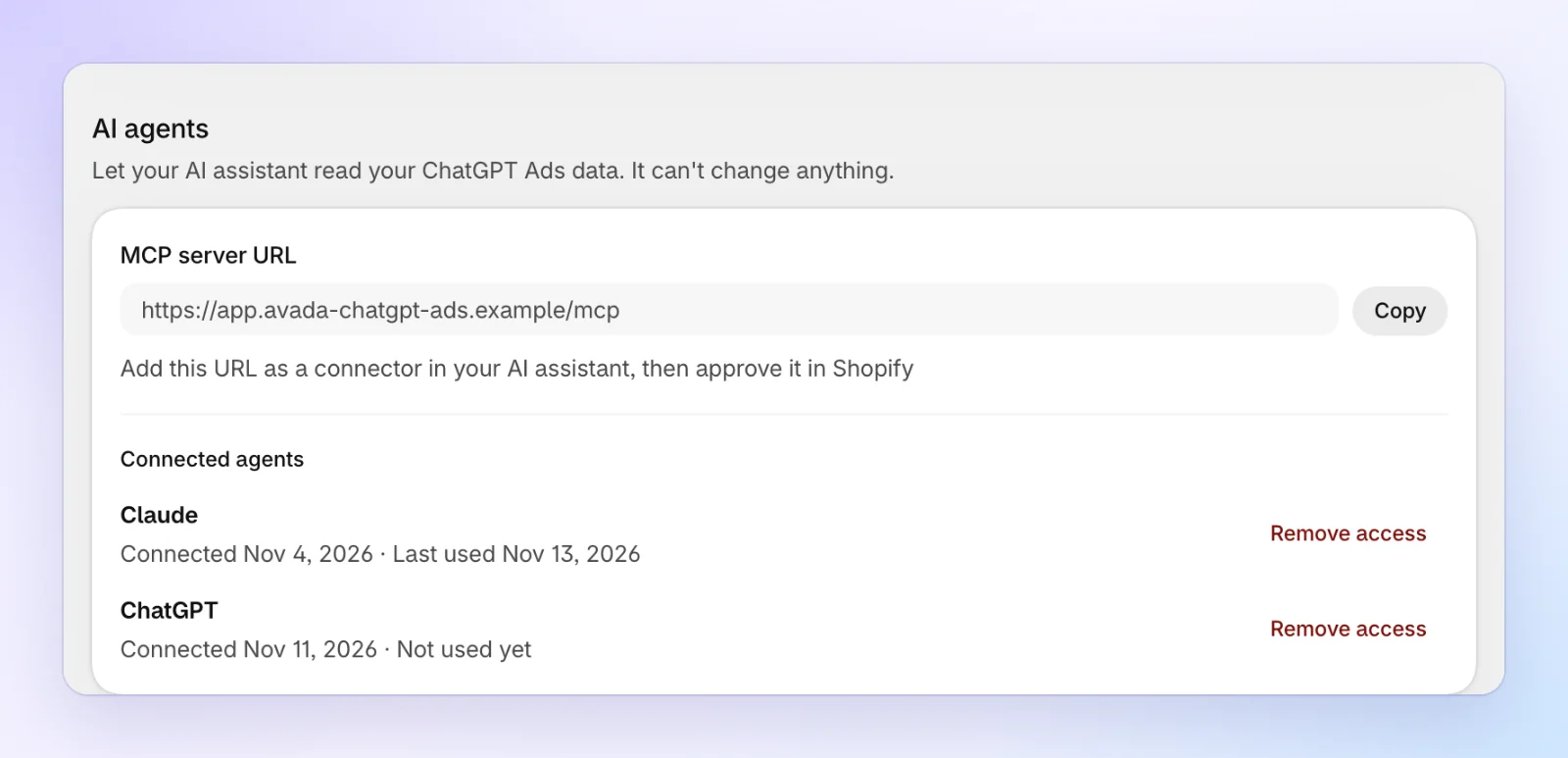
Copy the MCP server URL
In the app, go to Settings and scroll to AI agents. Click Copy beside MCP server URL.
Add it to your assistant
Open your assistant's settings for connectors or MCP servers, add a custom one, and paste the URL. If it asks how to sign in, choose OAuth. Menu names differ between assistants and change over time, so follow your assistant's own help page for the exact clicks.
In Claude Code it is one command:
claude mcp add --transport http avada-chatgpt-ads <the URL you copied>Enter your store
Your assistant opens a browser tab that asks for your store's address, for example your-store.myshopify.com. Enter it and continue. Shopify may ask you to log in.
Approve in your Shopify admin
The app opens inside your Shopify admin on the page Connect an AI agent. Check two things before you approve:
- The name of the agent. The agent chose this name itself, so it proves nothing on its own.
- Your data goes to: the address that receives the answer. For ChatGPT it is
chatgpt.com, for Claude it isclaude.ai. An assistant that runs on your own computer shows "An app on this computer".
Click Approve. The tab goes back to your assistant, and it can now read your data.
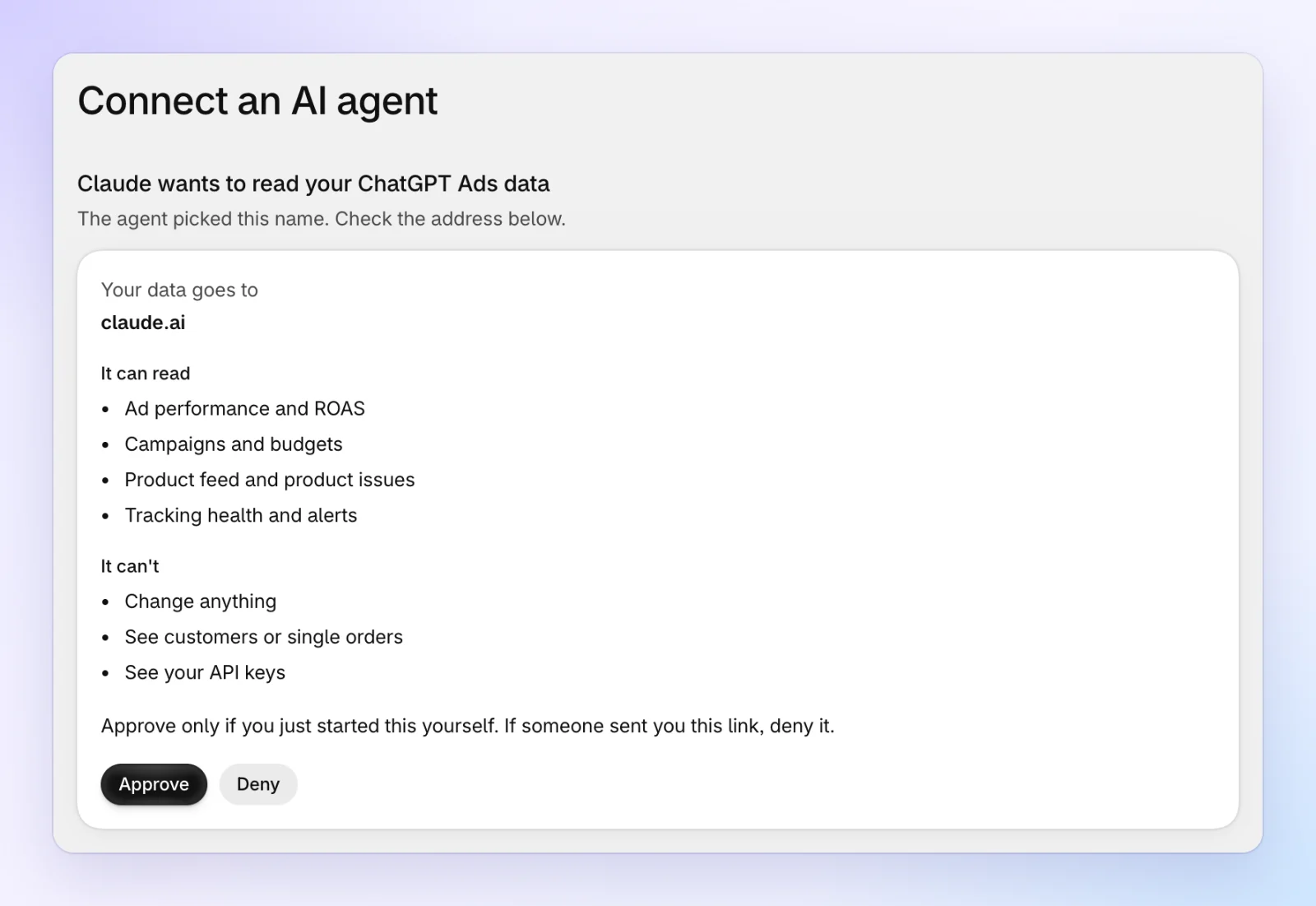
Approve only when you started the connection yourself, a moment ago. If someone sent you a link to this page, or the address under "Your data goes to" is one you don't know, click Deny.
A request waits for 10 minutes. After that the page says "This request has expired": start the connection again from your assistant.
Things to ask
- "How did my ChatGPT ads do in the last 7 days compared with the 7 days before?"
- "Which campaign has the best ROAS this month, and which one spends without orders?"
- "List the products that are not sent to ChatGPT and what I should fix first."
- "Is my tracking healthy? How many Shopify orders reached OpenAI this week?"
- "Am I on pace to stay inside my monthly spend target?"
Your assistant may ask you to confirm before it uses a tool. That is your assistant's own safety setting.
See and remove connected agents
Settings → AI agents lists every agent that has access, with the day it was connected and the day it was last used.
To stop an agent, click Remove access and confirm. It stops reading your data right away. To use it again, connect it again and approve it.
Uninstalling the app removes every agent's access.
Use an API key for dashboards and scripts
Some tools can't sign in the way an AI assistant does: a Looker Studio or Google Sheets dashboard, a script on your server, or an agent you run yourself. Give them an API key instead. A key reads the same data as a connected agent, from the same store, and it can't change anything either.
Create a key
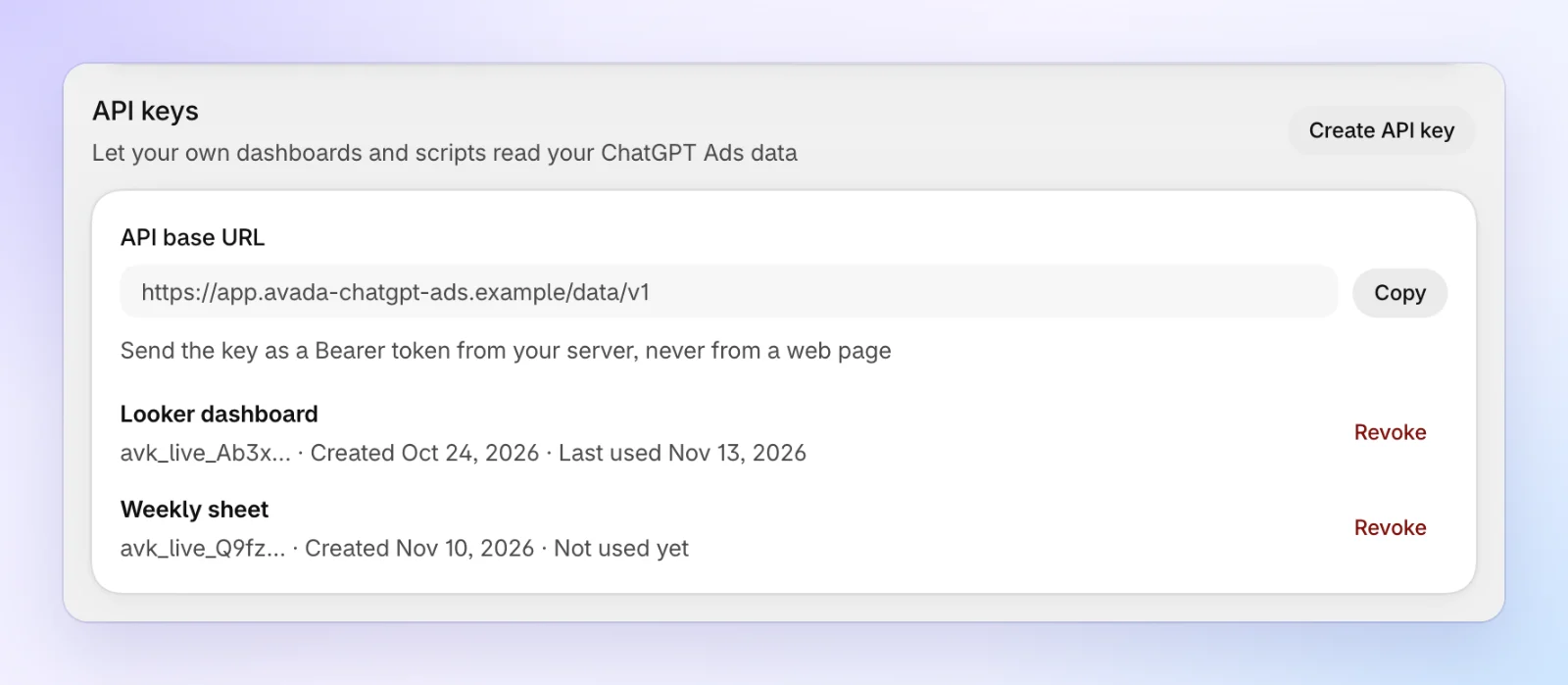
In Settings → API keys, click Create API key, give it a name you'll recognize (for example "Looker dashboard"), and click Create.
Copy it now
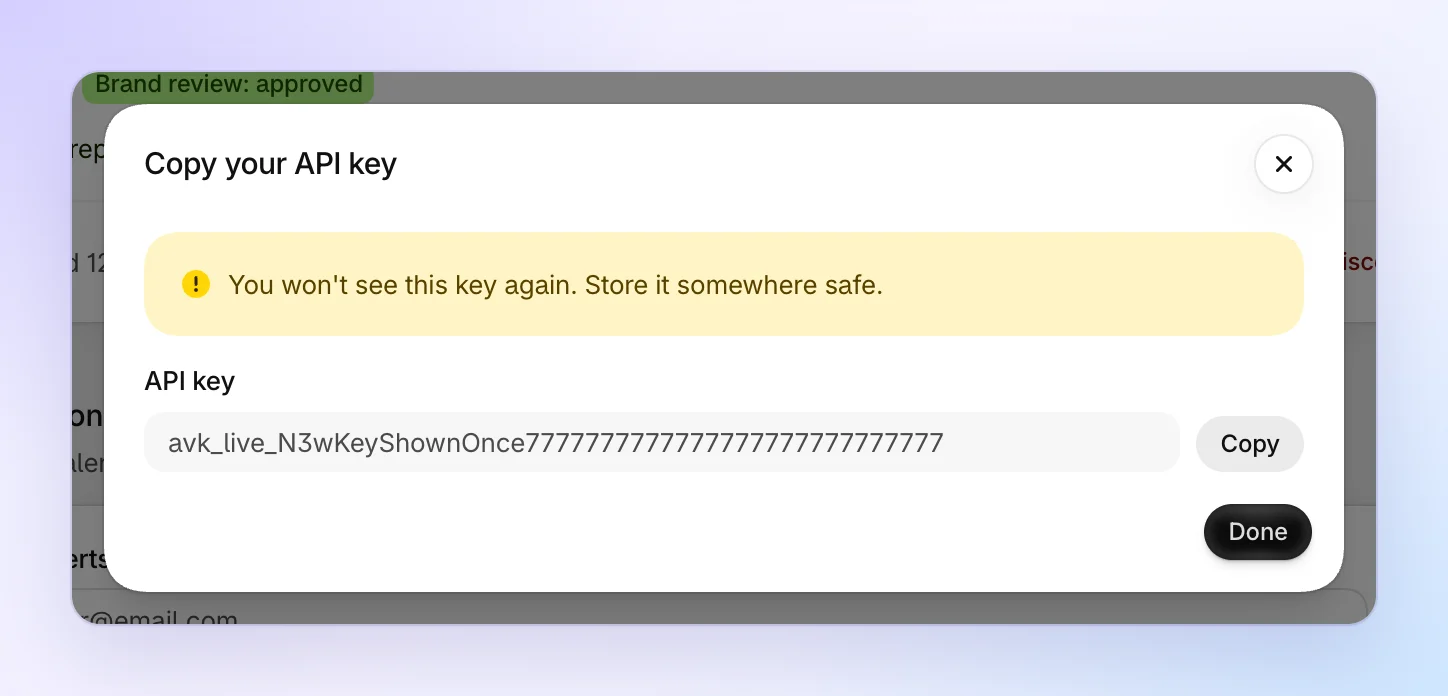
The key starts with avk_live_. It is shown only once: click Copy and store it somewhere safe, such as your tool's secret settings. If you lose it, revoke it and create a new one.
Use it
Send the key in the Authorization header, never in a link. Add the name of what you want to read after the API base URL:
curl -H "Authorization: Bearer $AVADA_API_KEY" "<API base URL>/get_setup_status"The answer is JSON. An MCP client can use the key too: add the MCP server URL with the header Authorization: Bearer <your key>.
Anyone who has the key can read this store's ads data. Keep it on a server or in your tool's secret settings. Don't put it in a web page, a shared sheet or a chat.
Your measured numbers (orders, true ROAS, tracking health) need the app embed turned on in your theme. Ask get_setup_status first: it says what is missing and links to the page that fixes it.
To stop a key, click Revoke beside it and confirm. Anything using it stops right away. A store can hold 10 keys. Uninstalling the app revokes every key.
Limits
- Each agent or API key can make 30 requests a minute.
- Your store can make 100 requests a minute in all, across every agent and API key together.
- Heavy reports have a lower limit, so a busy agent or dashboard may be told to wait a moment. The answer then says how many seconds to wait.
- Each agent reads only the store that approved it. To use an agent with two stores, connect it once for each store.
- The data is the same data you see in the app. The agent's own summary of it can be wrong, as with any AI answer: check a number in Performance before you act on it.
Questions
Can an agent spend my money or change my campaigns?
No. The server has no tool that writes. Creating, activating, pausing and editing campaigns happen only in the app, by your own click.
What does my AI assistant's company receive?
The answers to the questions your agent asks: ad results, campaign names and settings, product titles and feed issues, tracking counts. No customer names, emails, addresses or single orders, and no API key. What your assistant does with that data is covered by its own terms and privacy policy.
I don't see AI agents in Settings.
AI agents and API keys are the last two sections of Settings, below Language, and they appear a moment after the rest of the page. If they still aren't there, reload the page. If that doesn't help, contact us at [email protected].
The page says it couldn't find the request.
The link is old, incomplete, or was already answered from another store. Start the connection again from your assistant.