Campaigns
Instead of switching to Ads Manager to check every campaign, see all of them in one list, with what stops each one from serving and the button that fixes it.
What you can do here
The Campaigns page lists every campaign in your connected ad account. That includes the ones you made in Ads Manager, marked Made in Ads Manager.
| Made in this app | Made in Ads Manager | |
|---|---|---|
| See status, review and issues | ✅ | ✅ |
| Preview ad | ✅ | ✅ |
| Activate and Pause | ✅ | ✅ |
| Change budget (daily budget) | ✅ | ✅ |
| Archive | ✅ | — |
| Settings and A/B test tabs, Duplicate | ✅ | — |
| History tab | ✅ | ✅ |
Edit the ads of an Ads Manager campaign, or archive it, in Ads Manager. A campaign with a total budget instead of a daily one shows ... in total. Change that budget in Ads Manager too.
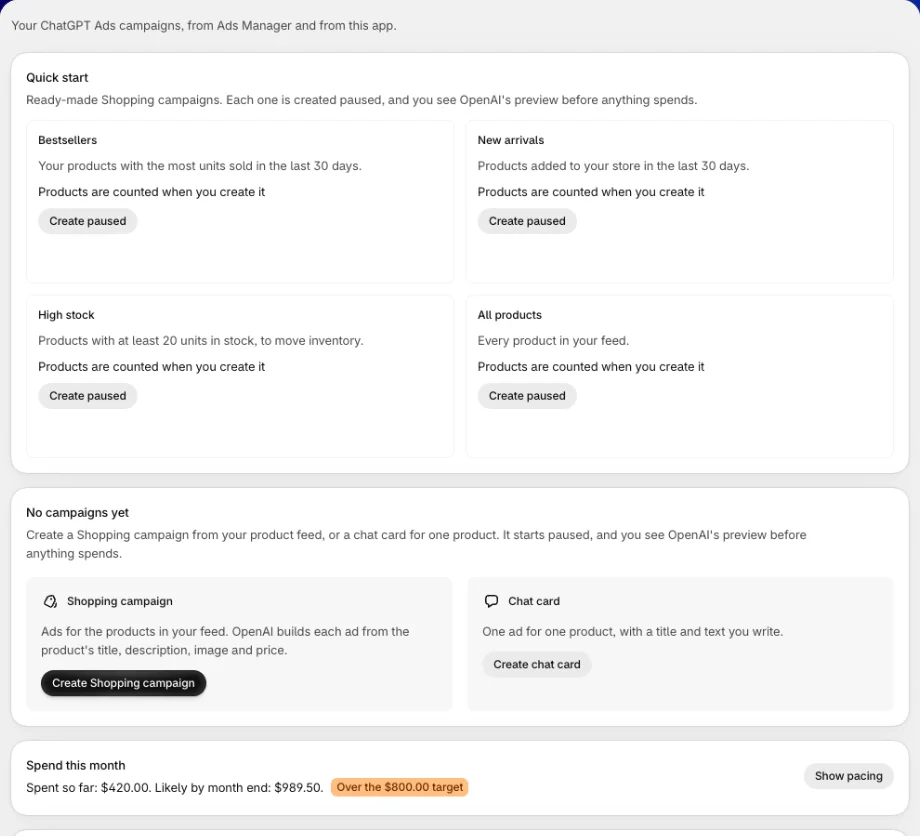
Campaigns you create here always start paused. Nothing spends until you see OpenAI's preview and press Activate. No rule or automation in the app ever activates a campaign.
To create a campaign, click Create campaign, or use a Quick start preset. See Create a campaign.
Read the campaign list
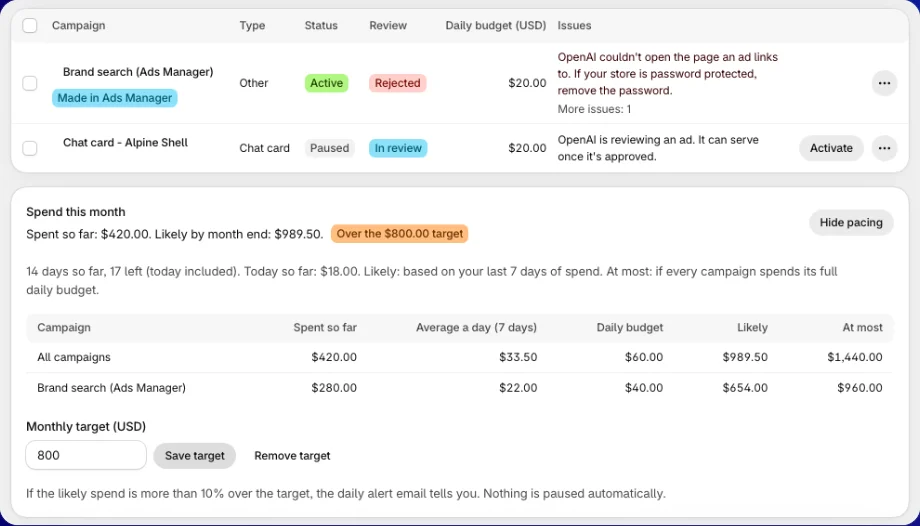
| Column | What it shows |
|---|---|
| Campaign | The campaign name. Click it to open the details. |
| Type | Shopping, Chat card or Other (a type the app doesn't build). |
| Status | Active, Paused, Archived, or Not reported when OpenAI didn't say. |
| Review | OpenAI's review of the ads: Approved, In review, Rejected or Not reported. |
| Daily budget | In your ad account's currency. |
| Issues | What stops the campaign from serving, in plain words. No issues reported when OpenAI flags nothing. |
The ⋯ menu on each row holds View details, Preview ad, Activate, Pause, Change budget and Archive, as far as they apply to that campaign. Click Refresh at the top to read the list again from OpenAI.
If OpenAI reports a problem with the whole ad account, like billing or a brand review, a banner reads OpenAI reports problems with your ad account above the list. Click Open Ads Manager to fix it there.
OpenAI reports account problems only on campaigns. An ad account with no campaign yet shows none, even if billing isn't set up.
Fix serving issues
Each issue comes with the next step. Where the fix lives in the app, a button takes you there: Open Product feed, Change budget or Open store preferences. Otherwise Open Ads Manager opens your ad account.
| Issue you see | What to do |
|---|---|
| OpenAI is reviewing an ad. It can serve once it's approved. | Nothing. Wait for the review. |
| OpenAI rejected an ad in its review. Open the details to see why. | Open the campaign. The Overview tab shows OpenAI's reason. Fix it, then edit the ad or appeal in Ads Manager. |
| OpenAI couldn't open the page an ad links to. | If your store is password protected, remove the password in Open store preferences. |
| Today's budget is spent. | The campaign serves again tomorrow. Click Change budget to serve sooner. |
| No ad group in this campaign is ready to serve. | For a Shopping campaign, check that its products are in your feed and accepted by OpenAI on the Product feed page. |
| Your product feed has nothing OpenAI can show yet. | Open Product feed and fix the feed first. |
| The ad account has no advertiser name, or no brand icon. | Add them in Ads Manager. |
| OpenAI's policy blocks or limits the ads in the countries this campaign targets. | Change the countries in the campaign's Settings tab, or check the policy in Ads Manager. |
| The campaign's start date hasn't come yet, or its end date has passed. | Change the dates in the campaign's Settings tab. |
When an ad is rejected or an active campaign stops serving, the app also raises an alert. See Alerts.
Pause, change budget or archive
- Pause stops the campaign's ads until you activate it again.
- Change budget sets a new daily budget, in your ad account's currency. The new amount replaces the old one. OpenAI refuses an amount under its minimum for your currency.
- Archive ends a campaign this app created. An archived campaign can't be activated again. This can't be undone.
- Activate always opens OpenAI's preview first, then asks Start spending? before anything changes.
Change many campaigns at once
Select the campaigns
Tick the box on each row you want to change.
Choose the action
Click Pause or Set daily budget above the list.
For a budget, pick Set an amount to give each campaign the same daily budget. Or pick Change by a percentage, like 20 to raise each budget by 20% or -20 to lower it. The percentage goes from -90 to 200.
Apply and check the result
Click Pause campaigns or Apply. The app changes each campaign on its own and tells you how many were updated. A campaign OpenAI refused, for example under the minimum budget, keeps its old budget and is listed with the reason.
There is no bulk Activate. Each campaign starts only from its own preview.
Campaign details
Click a campaign name to open its page. Campaigns made in this app have four tabs. Ads Manager campaigns have Overview and History.
| Tab | What it's for |
|---|---|
| Overview | Ad groups, ads with their review status and OpenAI's reason for a rejection, the products a Shopping campaign shows, and the countries. Click Preview to see an ad as OpenAI renders it. |
| Settings | Change Name, Schedule (Start date and Last day), Countries, Web placements, Bidding, Products (Shopping), Context hints (chat card) and Ad text. Each setting has its own Save. |
| A/B test | Test other wording for the ad. See Test your ad copy. |
| History | Changes OpenAI recorded to the campaign, its ad groups and ads, including those made in Ads Manager. |
New ad text goes back to OpenAI review. The ad can't serve until the review passes. Saving settings never starts or stops spending.
Duplicate at the top of the page copies a campaign this app made. The copy is created paused and opens its preview, like any new campaign.
Quick start
Quick start gives you four ready-made Shopping campaigns. It shows once OpenAI has processed your product feed.
| Preset | Products it shows |
|---|---|
| Bestsellers | Your products with the most units sold in the last 30 days. |
| New arrivals | Products added to your store in the last 30 days. |
| High stock | Products with at least 20 units in stock, to move inventory. |
| All products | Every product in your feed. |
Click Create paused on a preset, enter a Daily budget (the app suggests one), then click Create paused campaign. The campaign bids for the most clicks, runs in the countries OpenAI allows for your ad account, and uses OpenAI's product details for the ad. OpenAI's preview opens next, and you choose whether to activate it.
Spend this month
The Spend this month card shows what your ad account has spent so far this month, and what it will likely spend by month end.
Click Show pacing to see each active campaign:
| Column | What it means |
|---|---|
| Spent so far | Spend this calendar month. |
| Average a day (7 days) | Average daily spend over the last 7 days. |
| Daily budget | The campaign's current daily budget. |
| Likely | Month-end spend if the last 7 days continue. |
| At most | Month-end spend if every campaign spends its full daily budget. |
To set a goal, enter a Monthly target and click Save target. The card then shows Within the ... target or Over the ... target. If the likely spend is more than 10% over the target, the daily alert email tells you. Nothing is paused automatically.
If you turned on Autopilot's Monthly spending cap, that cap is used as the target.
When spend can't be read, the card says No forecast and why. It never shows a guess or a zero.
Autopilot
Autopilot cuts spend on campaigns and products that don't sell. It only ever pauses a campaign or stops showing a product. It never starts a campaign, raises a budget or adds a product back.
It judges complete days, and the orders the app attributes to ChatGPT ads. It only touches campaigns this app made.
| Rule | What it does |
|---|---|
| Pause campaigns with a low ROAS | Pauses a campaign that spent at least your amount with a true ROAS under your floor. |
| Pause campaigns with no orders | Pauses a campaign that spent at least your amount with no order. |
| Monthly spending cap | Once your ad account spent the cap this calendar month, pauses every active campaign this app made. |
| Stop products that do not sell | Takes a product out of the app's Shopping campaigns once OpenAI reports at least your amount spent on it with no sale. |
Turn on a rule
Click Set up on the Autopilot card. Tick a rule and fill in its amounts. Pick the period in Over the last: 7, 14 or 30 days.
Choose how it acts
Under When it finds one, choose Suggest it to me or Act on its own. Every rule starts off, and suggests until you choose otherwise. To let a rule act on its own, tick the confirmation box.
Save and preview
Click Save rules. Click Preview today to see what the rules would change if they ran now. The preview changes nothing.
Suggestions appear under Autopilot suggestions. Click Apply or Dismiss. A suggestion you don't act on expires after 3 days.
Every change is listed under Recent actions. Click Undo to reverse one. Undoing a pause doesn't restart the campaign: it opens the normal preview, and you press Activate yourself.
Autopilot leaves a campaign alone for 24 hours after you change it in the app. When it can't judge a rule, for example because true ROAS isn't available or OpenAI didn't answer, it skips the rule and says why. It never treats missing figures as zero.
Test your ad copy
The A/B test tab on a campaign's page tests up to three versions of the ad's words. Each new version is created paused.
Add versions
Write a new title and text, then click Add version.
Check and start the test
Click Start test. Check each version in OpenAI's preview, then click Start the test. The new versions turn on and go through OpenAI review. The campaign's own status doesn't change: a paused campaign stays paused.
Keep the winner
The results table shows Impressions, Clicks, CTR, Spend, and your Shopify Orders, Revenue and ROAS for each version. The app tells you when one version is ahead and the difference is unlikely to be chance. Click Keep this one on the version you want. The others are paused.
Nothing is paused or turned on until you choose.
FAQs
Can the app start a campaign without me?
No. Every campaign the app creates starts paused. It starts only when you press Activate after OpenAI's preview, then Start spending. Autopilot can pause, but it never activates.
Why is my campaign active but not showing ads?
Look at the Issues column. Common reasons are an ad still in review, a rejected ad, a spent daily budget, or a missing payment method on the ad account. Each issue says what to do.
Why can't I archive a campaign?
The campaign was made in Ads Manager. The app can pause, activate and change the daily budget of those campaigns. Archive them in Ads Manager.
Can I undo an archive?
No. An archived campaign can't be activated again. To run it again, create a new campaign, or Duplicate it first if you made it in the app.
Does editing the ad text stop my campaign?
The campaign stays on, but the edited ad goes back to OpenAI review. It can't serve until the review passes.
Why are my budgets in a different currency from my store?
Budgets are always in your ad account's currency, which OpenAI sets. The app never converts between currencies.
Still have questions?
Chat with us from the app, any time.