Home
Instead of checking five pages to see if your ads are ready and paying off, open Home. It shows what is left to set up, what you spent, and what your ads earned.
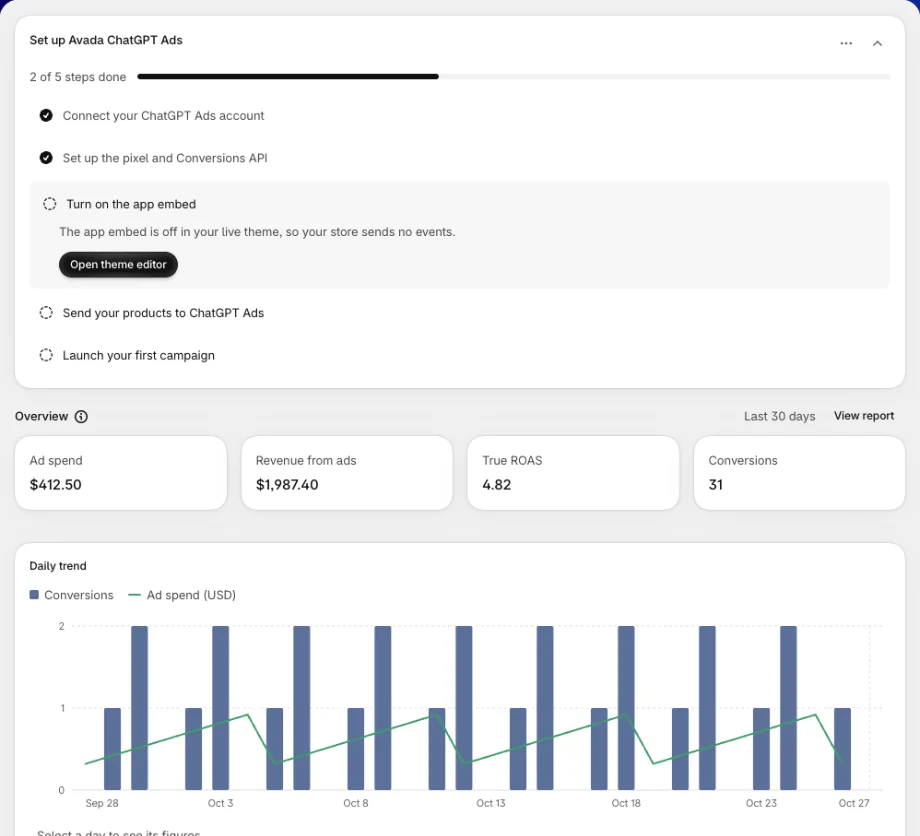
From top to bottom, Home shows:
- A store check banner, only when something on your store blocks ChatGPT Ads.
- The setup guide, until every step is done.
- The Overview: your results for the last 30 days.
- The health strip: your account, Conversions API, product feed and alerts.
- Help and support and User guide.
Run OpenAI's own ChatGPT app on your store too? Click Using OpenAI's own app? at the top of the page. See Already using OpenAI's own app?.
Store check
A banner appears at the top only when the app can prove that your store blocks ChatGPT Ads. When the app can't check, it shows nothing rather than guess.
| Banner | What it means | Button |
|---|---|---|
| Your store is password protected | OpenAI can't open product pages behind a password, so it can't review your products or ads. | Open preferences |
| Your store doesn't sell to a country | Your product feed serves a country that none of your markets includes. | Open Markets |
| Your store doesn't ship to a country | Your product feed serves a country that none of your shipping zones covers. | Open shipping settings |
Each button opens the matching page of your Shopify admin in a new tab. You can also pick other countries when you set up your feed on Product feed.
Set up Avada ChatGPT Ads
The setup guide walks you through the five things your ads need. It shows how many steps are done, with a progress bar, and opens the first step that isn't finished. Each open step has one button that moves it on.
| Step | Done when | Button while it isn't |
|---|---|---|
| Connect your ChatGPT Ads account | Your Ads API key is saved and OpenAI accepts it | Connect account, or Replace API key if OpenAI no longer accepts the key |
| Set up the pixel and Conversions API | The pixel is on, and OpenAI accepted the last Conversions API check | Set up pixel, or Open pixel to fix a pixel that is off or failing |
| Turn on the app embed | The app embed is on in your live theme | Open theme editor |
| Send your products to ChatGPT Ads | OpenAI processed your product file | Set up feed, or Open feed when an upload failed or hasn't been sent |
| Launch your first campaign | At least one campaign is active | Create campaign, or Open Campaigns when all your campaigns are paused |
The guide reads every step fresh each time you open Home, so nothing is remembered from last time. If a key stops working or the app embed is turned off, that step opens again on its own.
What each state means
- Waiting on OpenAI. Some steps have no button because OpenAI is working on them. For example, "OpenAI is reviewing the account, and there is nothing to do until the review ends", or "OpenAI received your product file and is processing it".
- Available once your account is connected. The pixel, feed and campaign steps wait for the first step.
- We couldn't check this step. Try again. A failed check is never counted as done or as not done. Click Retry to check again.
- Partly accepted. The feed step counts as done when OpenAI accepted some products and rejected others. The rejected count shows in the health strip and on Product feed.
- Created, not launched. A campaign starts paused. The last step is done only after you click Activate on a campaign. See Create a campaign.
Turn on the app embed
Click Open theme editor. The app opens your theme editor in a new tab and says: "Turn on Avada ChatGPT Ads pixel under App embeds, then press Save." Turn it on, save, and come back to the app tab. The step updates as soon as you return.
Use the ... menu in the guide's header to Dismiss guide, or the arrow to collapse it. A dismissed guide stays hidden in this browser. The guide also hides itself once all five steps are done.
Overview
The Overview shows what your ChatGPT ads cost and what they brought in, over the Last 30 days.
| Card | What it shows |
|---|---|
| Ad spend | What you spent on ChatGPT ads, in your ad account's currency |
| Revenue from ads | The value of the Shopify orders the app attributes to your ChatGPT ads |
| True ROAS | Revenue from ads divided by ad spend |
| Conversions | The conversions OpenAI reports |
Under the cards, the Daily trend chart shows conversions as bars and ad spend as a line. Click View report to open Performance on the same 30 days.
True ROAS uses your own Shopify orders, not only OpenAI's numbers. The app never converts currencies. When a figure can't be shown, the card shows a dash and a line under the cards says why:
- Your store sells in one currency and your ad account pays in another.
- Your orders were paid in more than one currency.
- The app only counts orders from a date later than the start of the 30 days.
- The app couldn't read your orders.
The chart also says when there is nothing to draw yet:
- Connect your account to see results, with Connect account, before you connect.
- No ad activity in the last 30 days, with Create campaign, before a campaign runs.
- We couldn't load your results., with Retry, when the read failed. Nothing is shown as 0.
Health strip
Four tiles tell you whether everything is still working after setup. Each tile has a status badge, one line of detail and a button.
| Tile | What it checks | Button |
|---|---|---|
| ChatGPT Ads account | Whether OpenAI reports a problem on your account, such as a missing payment method or a rejected brand review | Open account |
| Conversions API | Whether OpenAI accepted the last Conversions API check | Open pixel |
| Product feed | The result of your latest product file, with accepted and rejected counts | Open feed |
| Alerts | How many alerts are active, split into critical and warning | View alerts |
OpenAI reports account issues only once you have a campaign. Until then the account tile says "Connected. Account issues show here once you have a campaign."
A tile that couldn't be read shows Couldn't check with Retry. The strip is hidden until you connect your account. See Alerts for what each alert means.
Help and support
- Help and support: click Get help to chat with our team. The message box opens with a first line typed in for you.
- User guide: click View guide to open these help pages.
FAQs
Why does a step I finished show as not done again?
The guide checks your store live each time. If a key was deleted in Ads Manager, the app embed was turned off, or a feed upload failed, that step reopens with the button that fixes it.
Why is True ROAS a dash?
The app shows true ROAS only when your store and your ad account use the same currency and your orders could be read. It never converts currencies. The line under the cards says which reason applies.
Why is the last step not done after I created a campaign?
New campaigns are created paused, so nothing spends until you choose. The step is done once at least one campaign is active. Open Campaigns and click Activate when you are ready.
Can I bring back a dismissed setup guide?
Not with a button. The guide stays hidden in the browser where you dismissed it, and shows again in another browser. Your steps are still checked, and the health strip and Alerts still warn you when something breaks.
Still have questions?
Chat with us from the app, any time.