Product issues
Instead of guessing why a product never shows in ChatGPT, see every problem in one list and fix it in Shopify without leaving the app.
What is the Product issues tab?
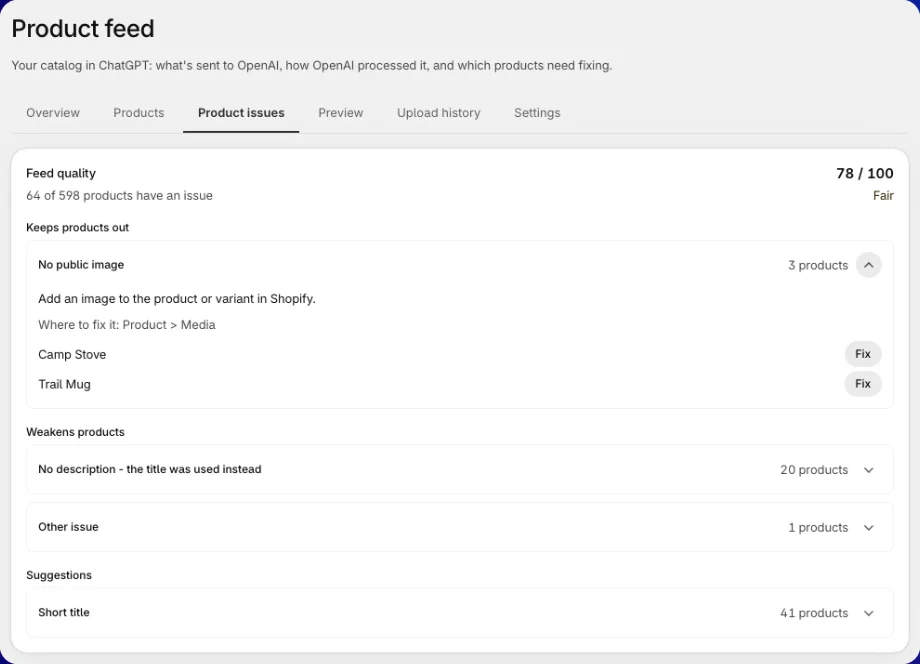
Go to Product feed → Product issues. The number in the tab name, like Product issues (61), is how many issues the last send found. The tab has two parts:
- Feed quality: a score from 0 to 100, with your issues grouped by how much they cost you. Each issue has a Fix button.
- Product issues: every product the app found a problem with during the last send, with how to fix each one.
Accepted and rejected products
Two checks decide whether a product can be advertised:
| Check | Who does it | Where you see it |
|---|---|---|
| Before sending | The app checks each product. A product missing something OpenAI needs, like a price or an image, is left out | Product issues, marked Left out |
| After sending | OpenAI reviews the file and accepts or rejects each product | Overview: Products accepted and Products rejected. Upload history: OpenAI's diagnostics |
The app catches most problems before OpenAI sees them. That's why the issue list is the fastest place to start.
Feed quality score
The score shows how ready your products are for ChatGPT. The app works it out every time your feed is built.
| Score | Shown as |
|---|---|
| 90 to 100 | Good |
| 70 to 89 | Fair |
| Below 70 | Needs work |
Each product gets its own score, and your feed score is the average:
- A product with any issue under Keeps products out scores 0.
- Otherwise, it starts at 100 and loses 15 points for each issue under Weakens products and 5 points for each issue under Suggestions.
Products you left out on purpose, and draft or archived products, aren't scored. Those are your choices, not quality problems.
Issue groups
| Group | What it means | Fix first? |
|---|---|---|
| Keeps products out | The product can't be sent until this is fixed | ✅ |
| Weakens products | The product is sent, but with less for ChatGPT to show or match | ✅ |
| Suggestions | Optional details that help shoppers find and buy the product | — |
Click an issue to open it. You see what to do, Where to fix it in Shopify (like Product > Media), and up to 5 example products, each with a Fix button.
Fix a product in Shopify
Fix edits the product in your Shopify store itself, so the fix lasts and every sales channel gets it.
Click Fix
In Feed quality, open an issue and click Fix next to a product. A window opens with only the field that issue is about.
Allow editing in Shopify (first time only)
The first time you fix something, the window shows Allow editing in Shopify. Click Allow access. Shopify asks for the permission once.
The app only asks here, when you first need it. If you don't allow it, nothing changes, and you can still fix the product in Shopify yourself.
Make the change
Edit the field, for example add images or type a barcode.
Click Save to Shopify
The product is saved in Shopify, and the issue shows Fixed in Shopify. The feed picks up the change on the next send.
Save to Shopify changes your real product in Shopify, not only the feed. To change how a product looks in ChatGPT only, use the Products tab instead. See Product feed.
What you can fix
| Field | What you can do |
|---|---|
| Title | Rewrite the product title |
| Description | Add or rewrite the description. It's saved as plain text, so formatting from the Shopify editor is replaced |
| Vendor | Set the vendor. ChatGPT shows it as the brand |
| Category | Use Search categories to pick a product category |
| Images | Click Add images to upload JPG, PNG, WebP or GIF files under 20 MB, or Remove one |
| Sales channels | Tick the channels the product is published to, such as your Online Store |
| Barcode | Set the barcode per variant: GTIN, UPC, EAN or ISBN |
| Price | Set the price per variant |
| Stock | Set the quantity per variant at a location. Inventory tracking must be on in Shopify |
Setting stock and sales channels asks for one more permission each, the first time you use them.
Issues fixed in your store settings
Some issues aren't about a product, like a store with no name or no public address. For these, Fix opens How to fix this with the steps and an Open in Shopify button. The app can't change store settings for you.
The Product issues list
Under Feed quality, the Product issues list shows each product with a problem from the last send. Filter it with All, Left out or Warnings.
| Column | What it shows |
|---|---|
| Product | The product, and the variant if only one is affected |
| Result | Left out: not sent. Sent with warning: sent, but weaker. Fixed by the app: the app corrected it, nothing to do |
| Problem and fix | What's wrong and what to change in Shopify |
Click Load more to see more products.
Common issues
No public image
The product or variant has no image OpenAI can show, so it's left out of the feed.
Price missing or zero
The variant has no price, or a price of 0. A product can't be advertised without a price, so it's left out.
Active but not published to your Online Store
The product is active, but it isn't on your Online Store. It has no page for ChatGPT to link to, so it's left out.
No vendor - your store name was used as the brand
The product has no vendor, so the app sent your store name as the brand. The product is sent, but OpenAI asks for a real brand.
No description - the title was used instead
The product has no description, so the app sent the title in its place. ChatGPT has little to show shoppers about the product.
Barcode isn't a valid GTIN, so the app didn't send it
The barcode in Shopify isn't a valid GTIN, the standard product number on the package. The product is sent without it.
No barcode or MPN
The variant has no barcode (GTIN) and no manufacturer part number. This is a suggestion: the product is still sent.
Short title
The title is under 20 characters, which gives ChatGPT little to match with what shoppers ask for.
No product page address
The product has no page address for ChatGPT to link to, so it's left out. This usually means the product isn't published, or your store has no public address.
FAQs
Does Fix change my product in Shopify?
Yes. Save to Shopify edits the product in your store. To change only what ChatGPT shows, use the Products tab on the Product feed page.
Why does the app ask for permission to edit my products?
The app only reads your products until you choose to fix one from here. Shopify asks you once, the first time you click Fix. If you don't allow it, nothing changes.
I fixed a product. When does the issue go away?
The issue shows Fixed in Shopify right after you save. The list and score update after the next send.
Why is my score low when only a few products have issues?
A product with an issue under Keeps products out scores 0, which pulls the average down hard. Fix those first.
OpenAI rejected some products, but my issue list is empty. Why?
The issue list shows what the app found before sending. OpenAI's own rejections show on the Overview tab under Needs attention, and in Upload history with OpenAI's diagnostics.
Why do I see Open in Shopify instead of a fix form?
The issue is in your store settings, not on a product, like your store name or address. The app can't change those, so it opens the right Shopify page for you.
Still have questions?
Chat with us from the app, any time.