Step 5: Launch a campaign
A Shopping campaign shows the products from your feed as ads in ChatGPT. The app creates it paused. You check OpenAI's preview of the ad first, and nothing spends until you confirm.
Your product feed must be processed first (step 4). Until then, the builder says what it's waiting for.
Open Campaigns
On Home, click Create campaign on Launch your first campaign. On Campaigns, under Create your first campaign, click Create Shopping campaign.
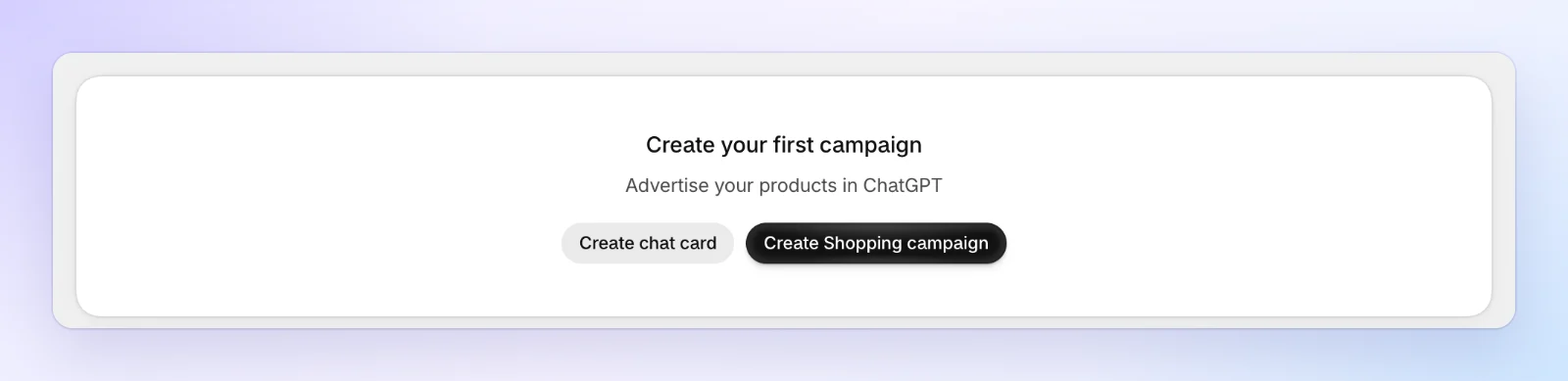
A Chat card is the other kind: one ad for one product, with a title and text you write. See Create a campaign.
Choose the products
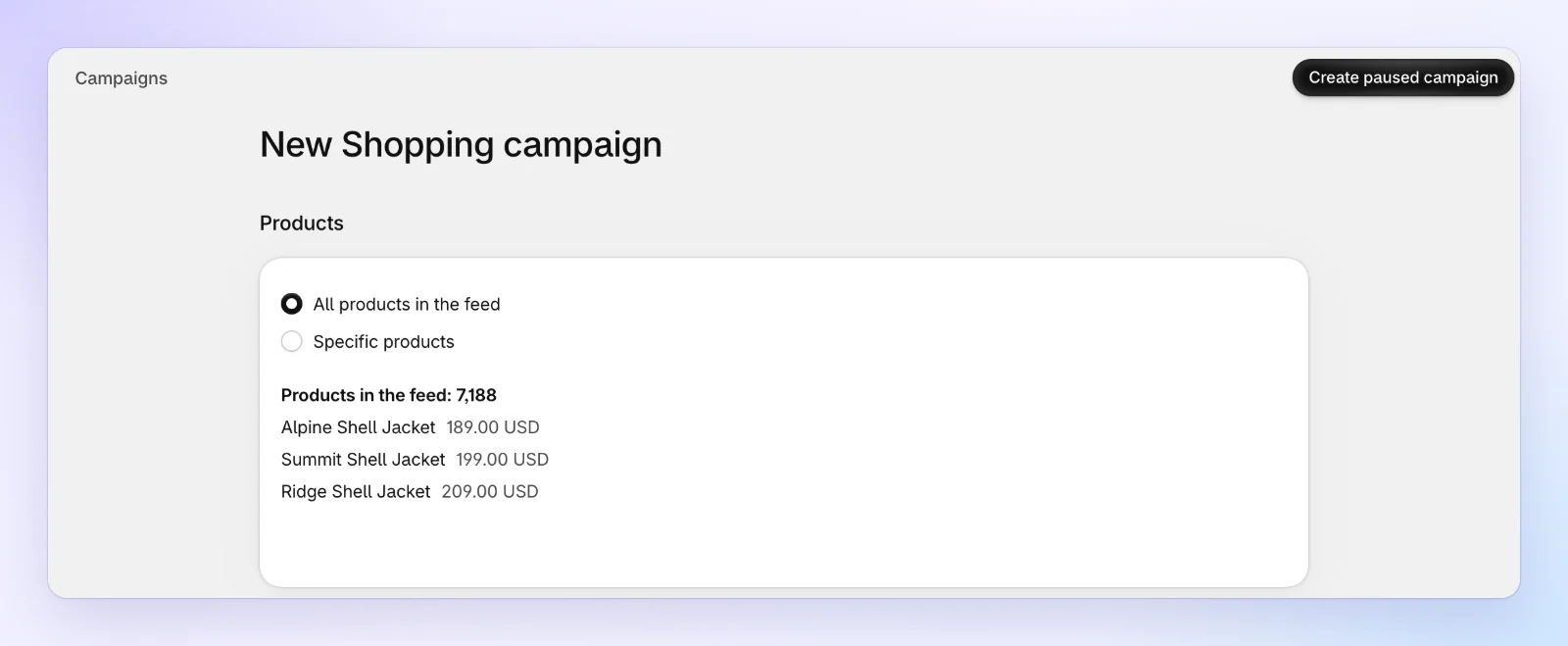
Under Products, keep All products in the feed, or pick Specific products to choose by custom label, brand or item ID. The section shows how many products match.
Write the ad
Under Ad, the Title template is the title every product ad uses, filled in with each product's details. The Text template is fixed: each ad shows its product's own description. You can keep the default title. When AI suggestions are available for your store, Suggest with AI offers ideas.
Set the budget and create the campaign
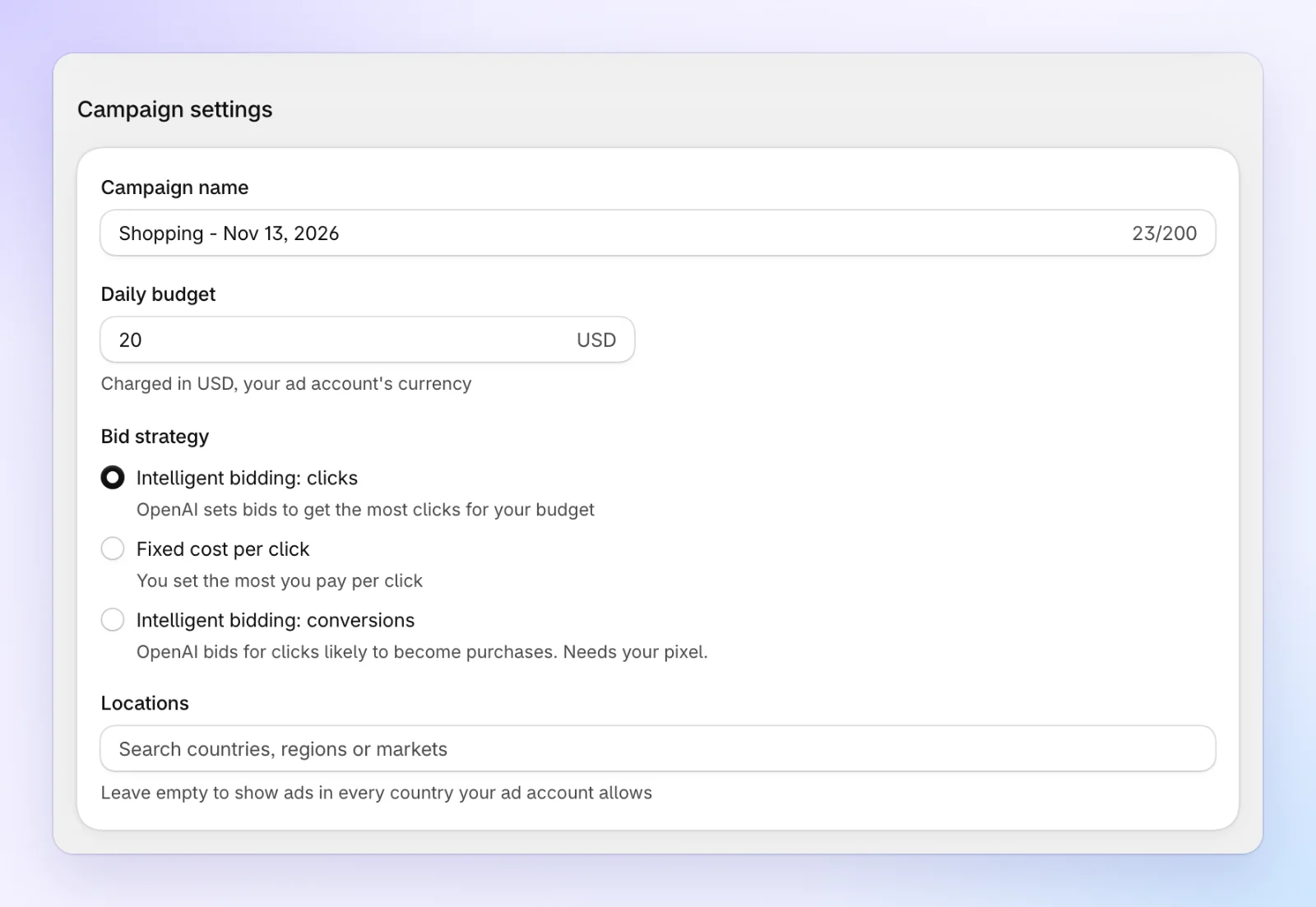
Under Campaign settings:
- Campaign name: only you see it.
- Daily budget: in your ad account's currency. OpenAI may spend a little more on some days and less on others.
- Bid strategy: Intelligent bidding: clicks is a good start.
- Locations: leave it empty to show ads in every country OpenAI allows for your ad account. You can also pick countries, regions or metro areas.
Then click Create paused campaign at the top of the page. Creating it at OpenAI can take up to a minute, so keep the page open.
Check OpenAI's preview
Campaign created, paused shows the preview OpenAI made of your ad. It may look different in a chat. If the preview stays blank, click Preview blank? Open it in a new tab.
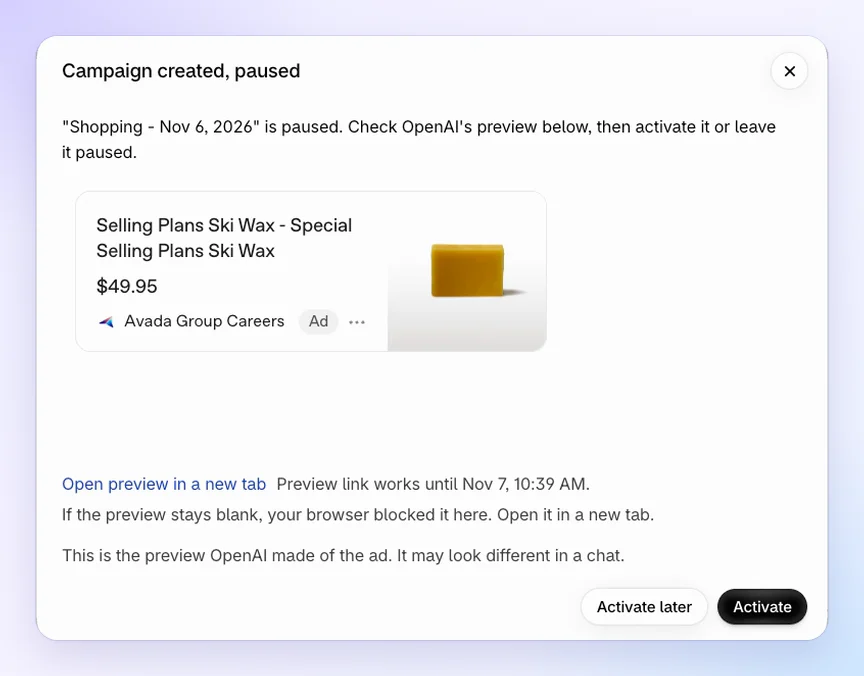
Not ready yet? Click Activate later. The campaign stays paused, and you can activate it from Campaigns any time.
Activate it
Click Activate. Start spending? shows the daily budget, and anything that keeps the campaign from serving, such as a missing payment method or an ad OpenAI is still reviewing.
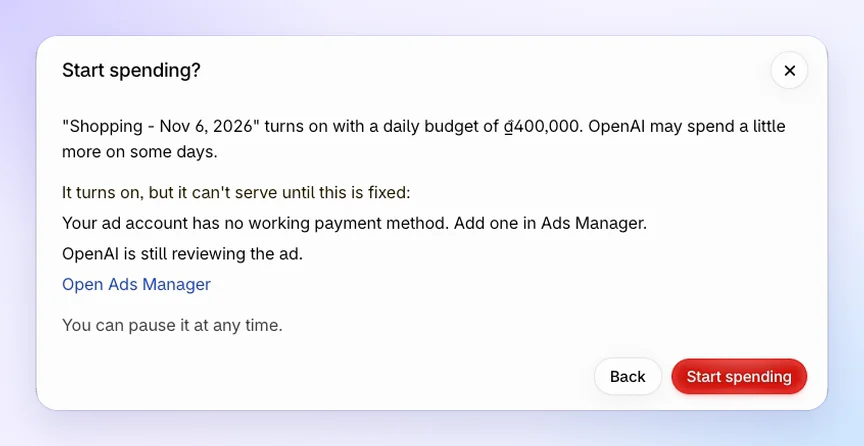
Click Start spending to turn the campaign on, or Back to leave it paused. You can pause it at any time.
A campaign can only serve once your ad account has a payment method and OpenAI has approved your brand and the ad. Start spending? lists what's missing, with a link to Ads Manager. The campaign turns on anyway and starts serving once it's fixed.
FAQs
Can a campaign start spending without me?
No. Every campaign the app creates starts paused. It turns on only when you click Activate and then Start spending.
How do I stop a campaign?
On Campaigns, click Pause in the campaign's ⋯ menu, or open the campaign and click Pause at the top of its page. See Campaigns.
Why does the Home step still say not done?
The step is done once at least one campaign is active. A paused campaign doesn't count.