Step 2: Set up the pixel
The pixel tells ChatGPT Ads what shoppers do on your store: page views, product views, carts, checkouts and purchases. You only choose the pixel. The app sets up its Conversions API and the conversion events for you, then checks them with OpenAI.
Open the pixel card
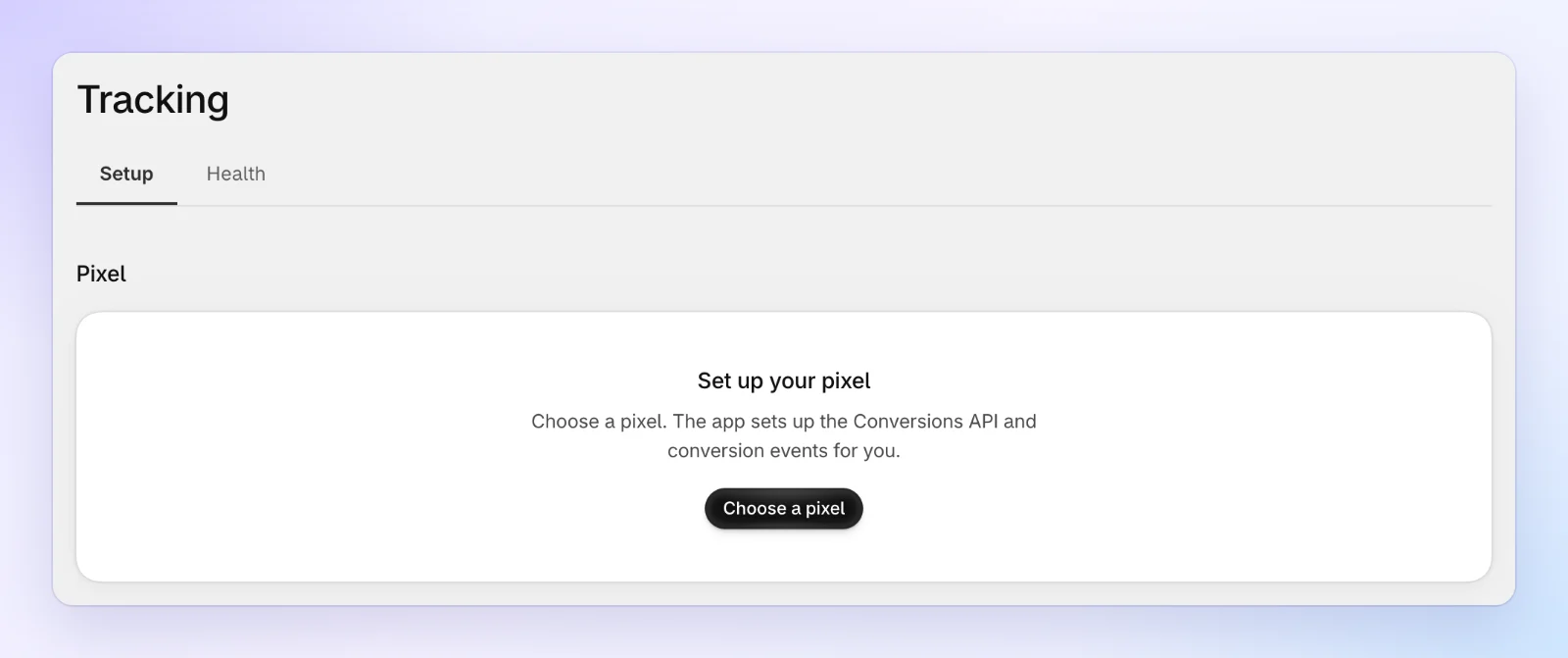
On Home, click Set up pixel on Set up the pixel and Conversions API. The Tracking page opens. Until a pixel is chosen, it shows one card, Pixel, with Set up your pixel. Click Choose a pixel.
Pick a pixel, or create one
Choose a pixel lists the Pixels in your ad account. Select the one your store should measure to and click Use this pixel.
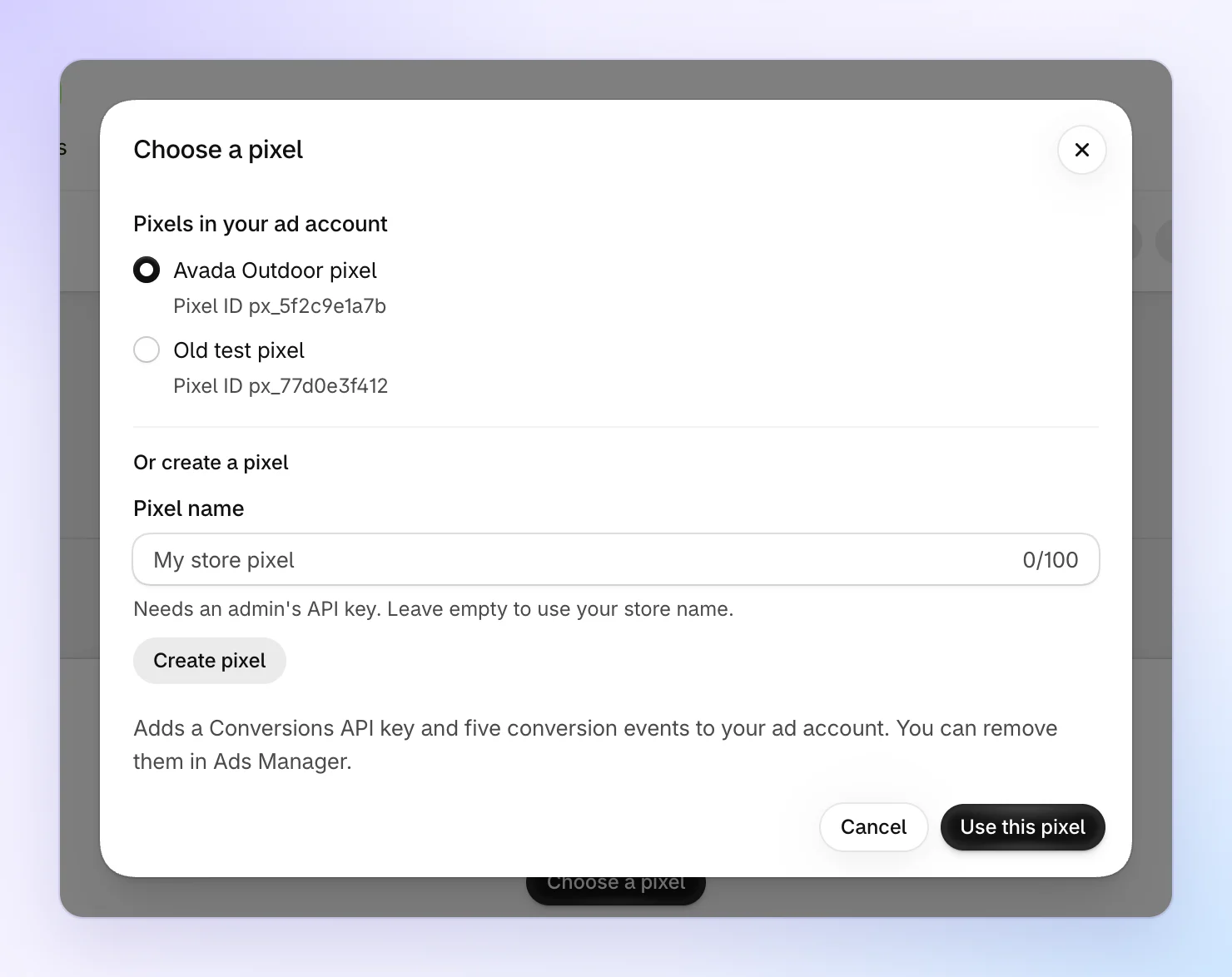
No pixel yet? Under Or create a pixel, type a Pixel name and click Create pixel. If you leave the name empty, the app names it after your store. Creating a pixel needs an ad account admin's API key.
Either way, the app sets the pixel up for you. In your ad account, it creates a Conversions API key for the pixel and five conversion events: page view, product view, add to cart, checkout started and purchase.
Check that it's verified
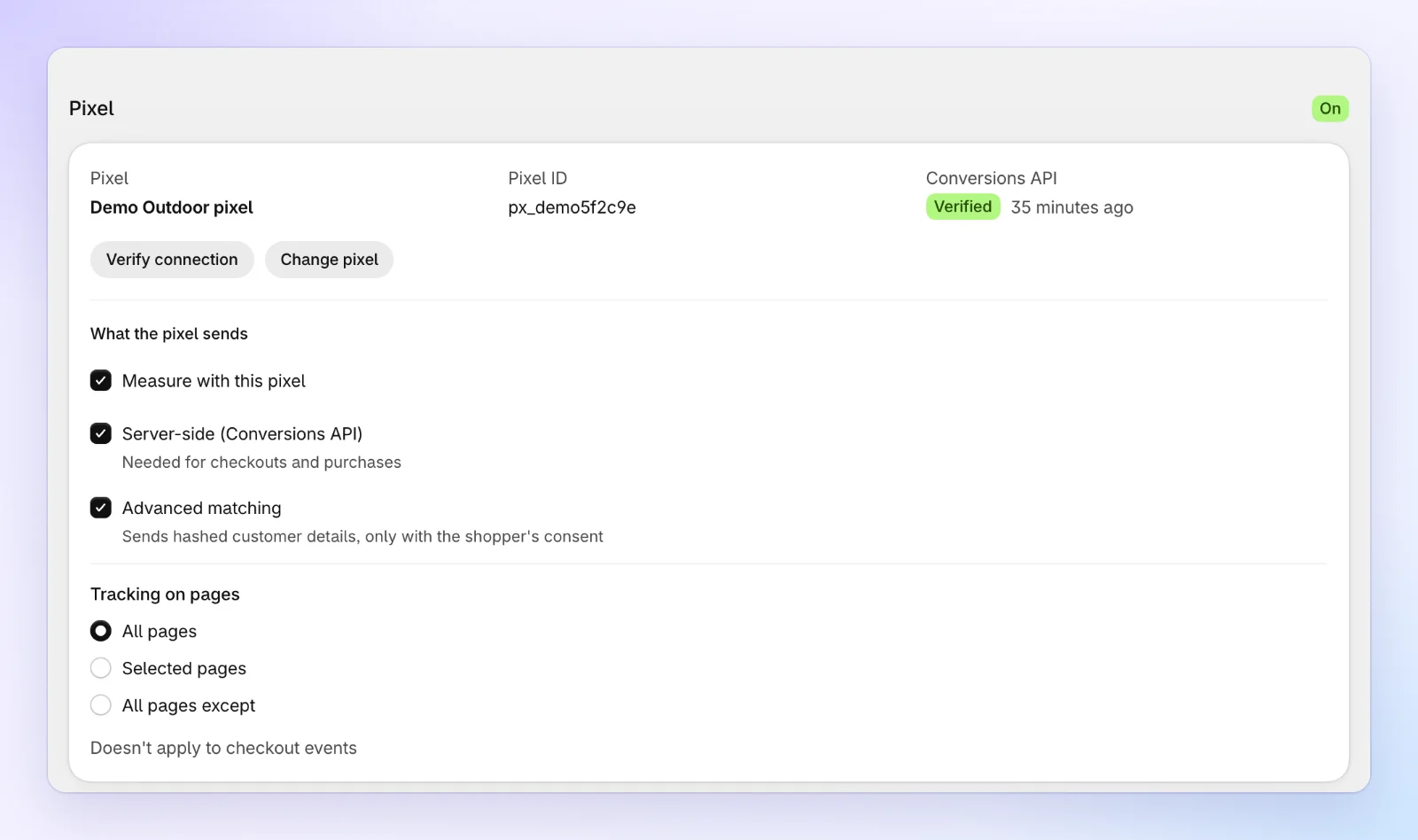
The app sends OpenAI a test event with the pixel's Conversions API key. When OpenAI accepts it, the app says Pixel ready. The Pixel card shows an On badge, and Verified under Conversions API. The test event is not recorded as a conversion.
Back on Home, the step is checked off.
What the pixel sends
In the Pixel card, under What the pixel sends, three checkboxes decide what reaches OpenAI:
- Measure with this pixel: sends your store's events to OpenAI, from shoppers' browsers and from the server. Unticked, nothing is sent.
- Server-side (Conversions API): sends events from the server too. Checkouts and purchases can only reach OpenAI this way, so keep it on.
- Advanced matching: sends hashed customer details (email, phone, name, address) with events, only with the shopper's consent, so OpenAI can match more conversions to ad clicks.
Events go to OpenAI only when the shopper allows marketing in your cookie banner. The cards below, Tracking events, Order value and Attribution, are fine as they are for a first setup. See Tracking for every setting on this page.
OpenAI doesn't let apps delete a Conversions API key or conversion events. If you stop using a pixel, you can remove them yourself in Ads Manager.
If the check fails
| The card says | What to do |
|---|---|
| OpenAI refused the Conversions API key | Click Verify connection to check again. If it still fails, click Change pixel, then Set up again to give the pixel a new key. |
| The pixel is set up, but we couldn't confirm its Conversions API key yet. | OpenAI didn't answer. Click Verify connection in a minute. |
| Only an ad account admin can create a pixel. | Create the pixel in Ads Manager (Conversions) and choose it here, or connect an admin's API key. |
FAQs
Which pixel should I choose?
The pixel your ChatGPT Ads campaigns report to. If your ad account has only one, choose that. A store measures to one pixel at a time, and you can change it later with Change pixel.
Does the test event count as a sale?
No. OpenAI checks the test event and records nothing.