Product feed
Instead of building a product file in OpenAI's format and uploading it by hand, set up the feed once. The app sends your catalog to ChatGPT and keeps it up to date every day.
What is the product feed?
The product feed is your product list at OpenAI. It gives ChatGPT the titles, prices, stock and images it shows to shoppers. Your Shopping campaigns advertise the products in it.
Open Product feed in the app menu. The page has six tabs:
| Tab | What you do there |
|---|---|
| Overview | See the feed status, send products now, and see what needs attention |
| Products | Change how one product appears in ChatGPT, or leave it out |
| Product issues | See your feed quality score and fix products. See Product issues |
| Preview | See your first products as the next send will deliver them |
| Upload history | See recent uploads and OpenAI's results for each |
| Settings | Choose which products are sent, add custom labels, set the daily send time |
Set up the feed
You do this once. The countries you pick here are fixed for this feed.
Choose which products to send (optional)
Open the Settings tab before setup if you don't want to send your whole catalog. By default the app sends All active products. Click Save when you're done.
The Set up feed button is greyed out while you have unsaved settings, because setup sends what's saved.
Choose the countries you sell to
In the Send your products to ChatGPT card, use Countries you sell to. Leave it empty to sell to the United States.
Click Set up feed
Click Set up feed. The app reads your catalog from Shopify and sends it right away.
Wait for OpenAI's review
OpenAI processes each product file in about 6 to 8 minutes. The results show on the Overview tab. You can leave the page; the app keeps working.
You can't change the countries later without a new feed. Prices are always sent in your store currency and never converted. If shoppers in those countries pay in another currency, the app warns you on the Overview tab.
Which products are sent
Each variant of a product is one item in the feed. In Settings → Products to send, choose:
- All active products, or Products in selected collections. Click Choose collections to pick them.
- Leave out products tagged: add tags, like
no-ads. A product with any of these tags isn't advertised. - Leave out products from vendors: add vendor names. Their products aren't advertised.
Draft and archived products are never sent. A product must also be published to your Online Store, so it has a page to link to. Out-of-stock products stay in the feed, marked out of stock.
Products you leave out are still sent, marked as not for ads, so ChatGPT stops showing them. A product that simply disappears from the file can stay at OpenAI for up to 14 days.
Other settings
| Setting | What it does |
|---|---|
| Custom labels | Five labels the app adds to every product, so a campaign can target a group: one product type, one vendor, one price band, sale items, or a tag you choose |
| Out of stock but still for sale | For variants set to keep selling when out of stock in Shopify. Send them as Send as backorder or Send as in stock |
| My SKUs are manufacturer part numbers | Sends each SKU as the manufacturer part number. Leave it off unless your SKUs are the maker's own numbers |
| Product title format | Builds the title shoppers see, from your title, vendor, product type, variant or an option like Color. The title must be part of it |
| Push the full catalog every day | Sends your whole catalog once a day. Pick the hour in Time of the daily push |
| Organic ChatGPT search | Lets your products appear in ChatGPT's own shopping results, not only in ads. See below |
Some custom label choices, like Availability and On sale, show can go stale. OpenAI keeps the value from the product's first upload, so a campaign can keep matching a product that has changed since.
Send products and check the result
The daily send is on from setup. To send right away, click Send now on the Overview tab.
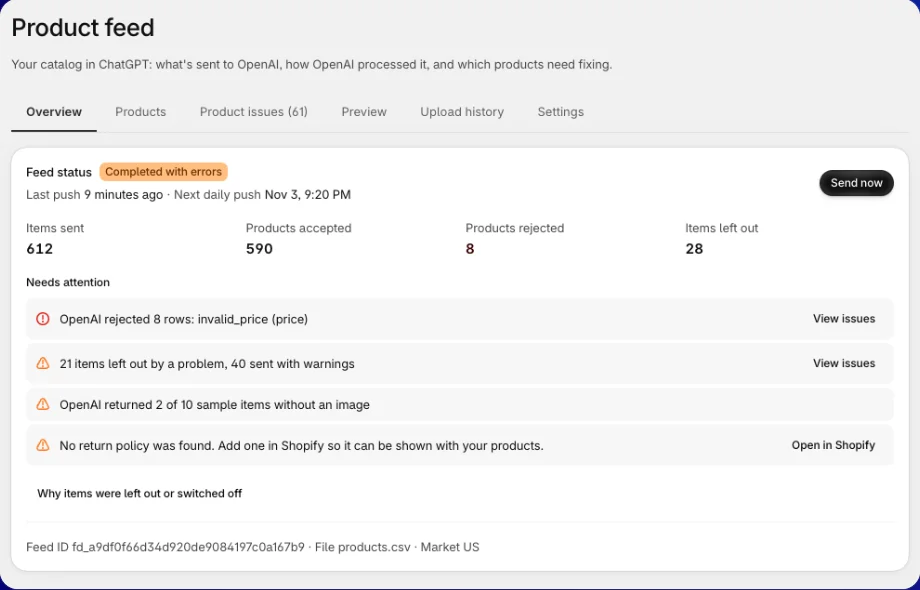
The Feed status badge tells you where the latest send is:
| Status | What it means |
|---|---|
| Reading catalog | The app is reading your products from Shopify. Large catalogs can take a few minutes |
| Processing | The file is uploaded, and OpenAI is processing it |
| Completed | OpenAI accepted the file |
| Completed with errors | OpenAI processed the file but rejected some products. Open Product issues to fix them |
| Skipped | OpenAI skipped the file without processing it. Click Send now to send a new one |
| Failed | The send failed. The reason shows under the badge |
| Not confirmed | The app stopped checking before OpenAI finished. Click Check upload to ask again |
| Not uploaded | The last send didn't upload a file. The reason shows under the badge |
Under the badge you see Items sent, Products accepted, Products rejected and Items left out. A count OpenAI hasn't reported yet shows as a dash, never as 0.
Needs attention lists everything you may need to act on, worst first. Each line has a button, like View issues or Open in Shopify. Open Why items were left out or switched off to see why products weren't sent, such as Excluded by tag or Not published to the Online Store.
If your online store is password protected, OpenAI can't open your product pages and rejects ads that link to them. Remove the password in Shopify before you advertise.
Price and stock changes
You don't need to send anything when a price or stock level changes. The app sends the change to OpenAI as it happens, and the daily send catches anything else.
OpenAI keeps the price and title it first received for a product, even when a later file changes them. So after each upload, the app compares what OpenAI holds with your store, and sends a correction for each product that differs. The Prices and titles at OpenAI card on the Overview tab shows what it compared, found and sent.
If OpenAI hasn't turned on product updates for your account yet, the Overview tab says so. New products still arrive, but changes to existing products may wait. Nothing to do on your side.
Upload history
Upload history lists recent uploads as OpenAI reports them: Uploaded, Status and OpenAI's diagnostics. Diagnostics use OpenAI's own words, such as invalid_price, so you can quote them to OpenAI support. To see which products are affected, open Product issues.
Preview
Preview shows the first products of your catalog as the next send will deliver them: image, title, price, availability and custom labels. Nothing is uploaded. The preview uses your saved settings, so save your changes first.
Organic ChatGPT search
Organic search lets your products appear in ChatGPT's own shopping results, for free, not only in your ads. It's a setting of your feed at OpenAI.
In Settings → Organic ChatGPT search, click On or Off. The change is sent to OpenAI right away. The card shows OpenAI's current value, like On at OpenAI, and when it was checked. If the app couldn't read the value, it says Unknown rather than guessing.
If someone changes this setting in Ads Manager, the card tells you. The app doesn't overwrite that change.
Stop sending products
To stop the automatic sends, turn off Push the full catalog every day in Settings. The app then sends products only when you click Send now. Products already at OpenAI stay.
If you uninstall the app, the feed is paused. When you come back, the Overview tab says when it was paused, and the feed resumes on your next send.
Edit a product for ChatGPT only
Change how one product appears in ChatGPT without touching your Shopify store.
Find the product
Open the Products tab and use Search products. Click Edit on the product.
Make your changes
Empty fields use the value from Shopify. You can change:
- Title in ChatGPT. Where available, click Suggest titles for AI ideas, then Use the one you like.
- Description in ChatGPT, plain text up to 5,000 characters.
- Brand.
- GTIN per variant, the product barcode.
- Leave this product out of the ChatGPT feed, to hide it in ChatGPT after the next update.
The card shows the title Now and With your edits, so you can compare.
Save
Click Save. Edited products show an Edited badge, and left-out products show Not in feed. To undo your edits, click Use Shopify values.
Nothing changes in your Shopify store. New titles reach OpenAI within minutes. Description and brand changes don't update for products OpenAI already has, but title changes do. You can edit up to 5,000 products.
Already using OpenAI's own app?
If OpenAI's own ChatGPT app (or another app through Shopify) also sends a feed to the same ad account, the Overview tab shows Another feed for this store is in your ad account. Running both can list your products twice. Click Read the guide, or see Already using OpenAI's own app?.
FAQs
How long until my products show in ChatGPT?
OpenAI processes each product file in about 6 to 8 minutes. Your products can then be used by your campaigns. Ads only run once OpenAI approves them and you click Activate on a campaign.
Can I change the countries after setup?
No. The countries are fixed when the feed is created. Changing them needs a new feed. Contact us in the app chat if you need one.
Does the app convert prices to the shopper's currency?
No. Prices are sent in your store currency, never converted. The app warns you when your feed's countries use another currency.
Do I need to send the feed again after a price change?
No. The app sends price and stock changes to OpenAI as they happen, and sends your whole catalog once a day.
Are out-of-stock products removed?
No. They stay in the feed, marked out of stock, so they come back as soon as you restock.
Why are fewer items sent than my store has?
Draft, archived and unpublished products aren't sent, and products with a problem, like no price or no image, are left out. Open Why items were left out or switched off on the Overview tab to see the reasons.
Does editing a product in the Products tab change my store?
No. Edits in Products only change the feed. To change the product in Shopify itself, use Fix on the Product issues tab.
Still have questions?
Chat with us from the app, any time.