Branding
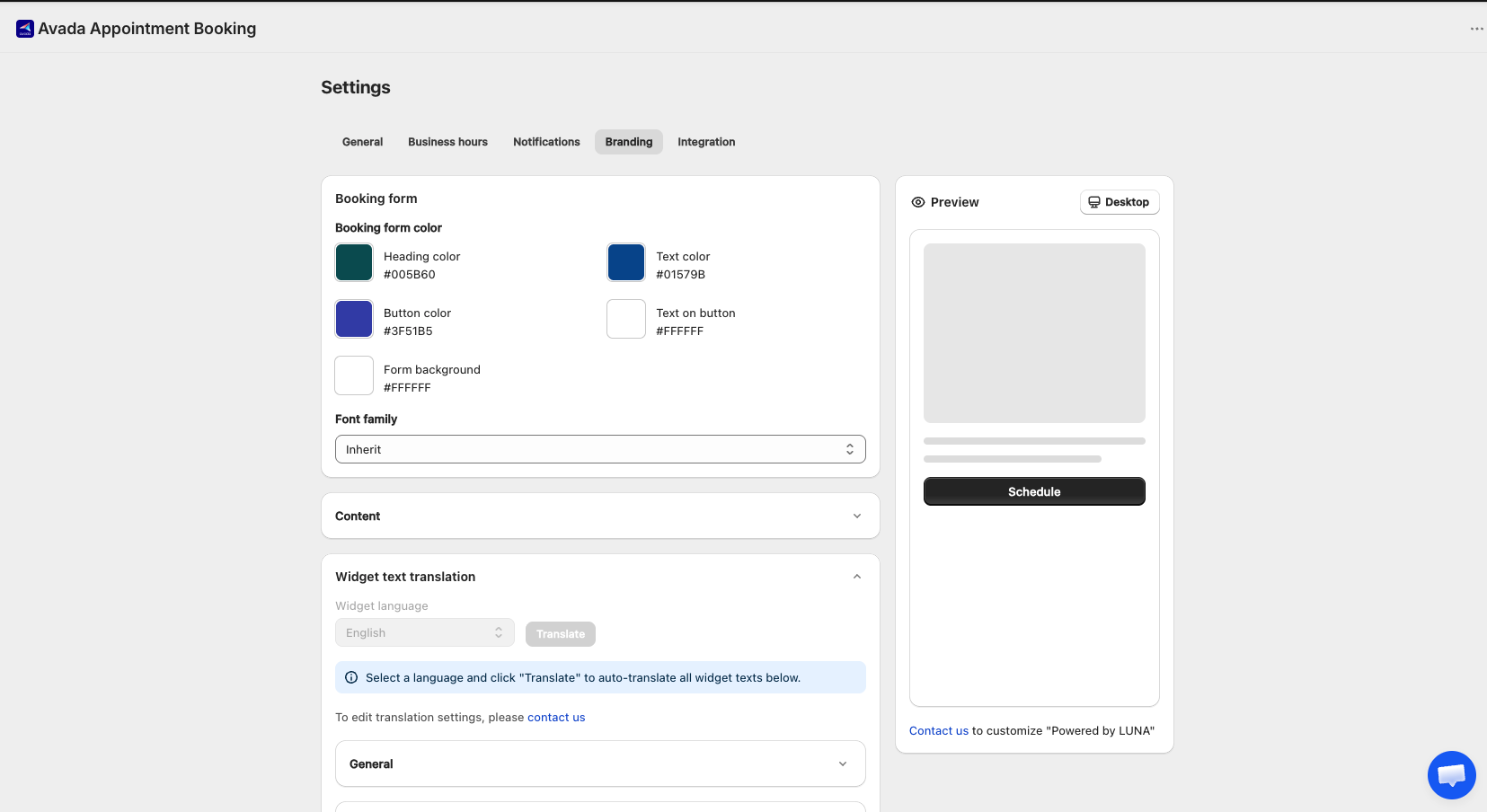
How to Access
- Go to Settings
- Click the Branding tab
Page Structure
The Branding tab has four sections:
- Booking form
- Advanced settings
- Widget text translation
- Preview (live, on the right)
A Save bar appears whenever you change a setting. Saving shows a success toast: "Updated successfully."
1. Booking form
Booking form colors
| Field | Required | Default | Affects (at 100% opacity) |
|---|---|---|---|
| Heading color | Yes | #005B60 | Service name · "Booking confirmed" · "Booking added to cart" · final time slot · "LUNA" in Powered by |
| Text color | Yes | #303030 | All widget text · input / selector text · banner text · "Back" button text — excludes button text |
| Button color | Yes | #02929A | Button background · selected timeslot background · "Today" underline · i icon on banner |
| Text on button | Yes | #FFFFFF | Button text · text on selected time slot · "slot left" border |
| Form background | Yes | #FFFFFF | Background of every screen in the booking form |
Each color is a HEX value. Click a swatch to open the color picker; the HEX code is shown below.
Lower-opacity uses (Text color): borders / dividers 15% · icons 85% · placeholder 30% · weekday letters 50% · "Powered by" 50% · disabled text 30% · disabled background 4% · secondary button background 8%.
Lower-opacity uses (Button color): banner background 15%.
Font family
| Field | Required | Default | Notes |
|---|---|---|---|
| Font family | Yes | Inherit | Options: Inherit · Inter · Roboto · Open Sans · Lato. Inherit picks up your store theme's font — refreshed when the app loads and on every save |
Content
| Field | Required | Default | Notes |
|---|---|---|---|
| Show timezone selector | Checkbox | Checked | Show / hide the timezone selector on the booking form |
| Lock timezone | Checkbox | Unchecked | Lock the timezone to your store timezone — customer can't change it. Only enabled when "Show timezone selector" is checked. |
| Show end time | Checkbox | Unchecked | Show / hide the appointment end time |
| Show available slots left | Checkbox | Unchecked | Show / hide the "X slots left" indicator |
| Remove "Powered by LUNA" | Checkbox | Unchecked, disabled | Permanently disabled. Help text: "Contact us to verify your store and remove our branding" |
2. Advanced settings
A collapsible card (expanded by default).
| Field | Required | Default | Notes |
|---|---|---|---|
| Custom CSS | Textarea | Empty | Developer zone. Monospace font, no character limit. Accepts any input |
Help text: "Chat with us to styling fit with your theme."
3. Widget text translation
Translate the booking widget's labels and messages into another language. Pick a language and click Translate — the system auto-translates every text field in the General and Standard Booking groups below. Each field can also be edited manually after translating.
| Field | Required | Default | Notes |
|---|---|---|---|
| Widget language | Dropdown | English | Pick the target language for auto-translation |
| Translate button | Button | – | Auto-translates all widget texts below into the selected language |
Info banner: "Select a language and click 'Translate' to auto-translate all widget texts below."
General
Common widget labels and messages, used across all booking flows.
| Label | Default text |
|---|---|
| Time not found message | "No times available" |
| Book now button text | "Book now" |
| Capacity title | "Capacity" |
| Confirm button text — No checkout | "Confirm" |
| Add to cart button text — Checkout | "Add to cart" |
| Staff label | "Staff" |
| Total label | "Total" |
Standard Booking
Labels specific to the Standard Booking flow (booking with checkout / no-checkout variants).
| Label | Default text |
|---|---|
| Checkout notice title — Checkout | "Appointment will be scheduled after checkout" |
| Confirm booking title | "Booking Confirmed" |
| Description — Checkout | "Your booking has been added to cart. Complete the checkout process to confirm your booking." |
| Description — No Checkout | "A booking invitation with all the details is being emailed to you" |
| When slot is fully booked | "This time slot is fully booked. Please choose another time." |
| Note label | "Note" |
| Note placeholder | "Write something for merchant" |
4. Preview
The right column shows a live preview of the booking widget that updates as you change settings.
- Desktop button — top of the preview card; switches between preview modes (Phase 2)
- Sample data used: Sample service ·
bookingType: instant·maxAttendees: 5·limitQuantity: false - Custom CSS changes are not reflected in the preview — verify them on your storefront