Availability
How to Access
- Go to Services
- Open a service (Create service or the pencil icon)
- Switch to the Availability tab
Service type can't be changed after creation. If you need a different type, duplicate the service and pick a new type on the copy.
Page Structure
The tab has two groups of settings:
- Common sections — apply to every service type
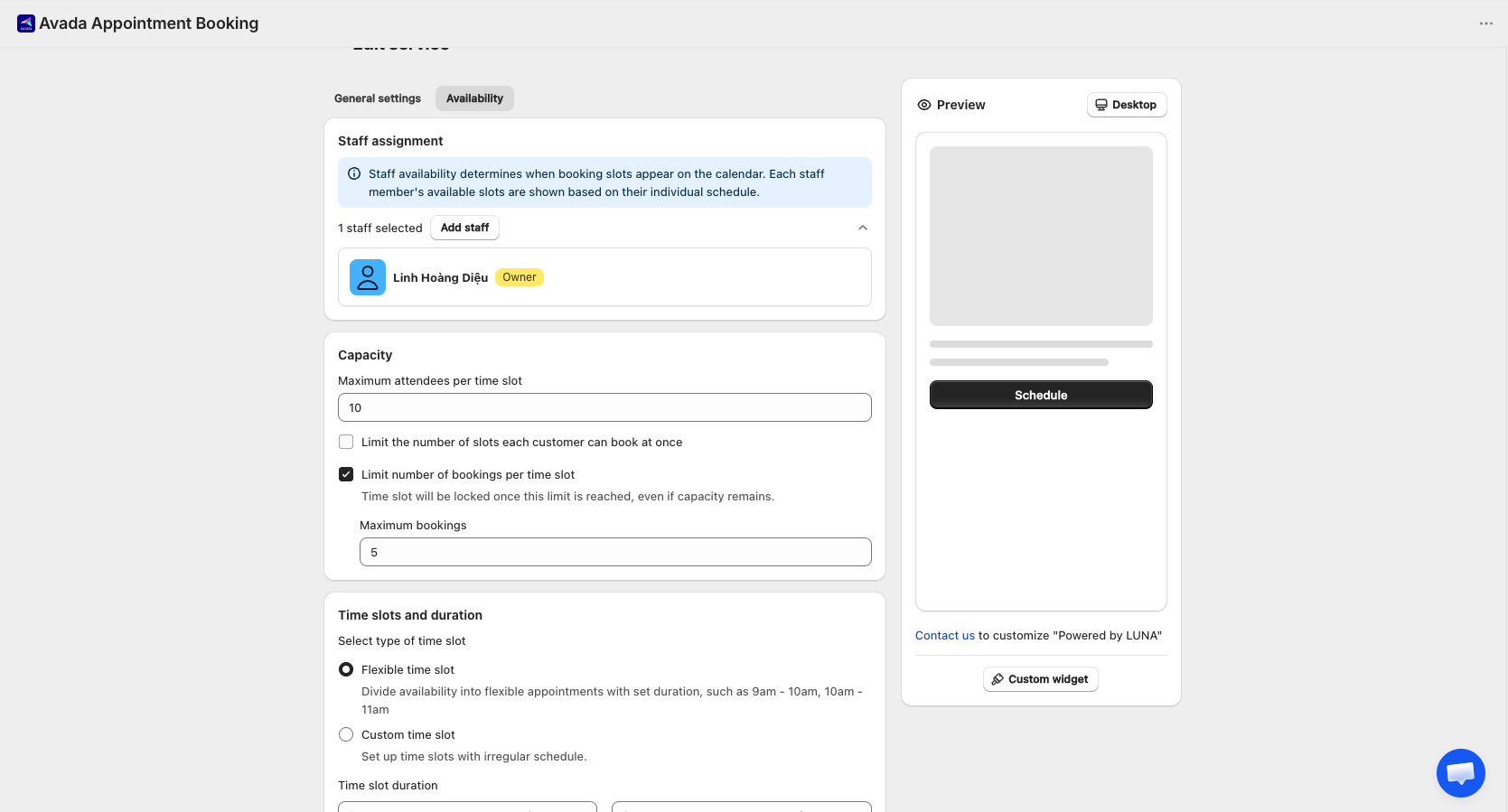
- Staff assignment
- Capacity
- Advanced availability settings
- Booking type specific — different fields for Hours / Full-day / Multi-day
Common Sections
1. Staff Assignment
A service can be assigned to one or more staff members. Available time slots are the combined (union) availability of every assigned staff member — each one's slots are based on their own individual schedule.
Adding Staff
Click Add staff to open the picker:
- Search by staff name
- Only active staff appear in the list
- Select one or more staff → click Apply
The card shows "[N] staff selected" with each staff member listed below.
Removing Staff
Click the remove icon next to a staff member:
- If they have no conflicting upcoming appointments, they're removed immediately
- If they have upcoming appointments for this service, you're asked to either reassign those appointments to another staff member first, or mark the staff as pending remove — they stay on the service (and keep their existing appointments) until those appointments are completed, then they're removed automatically. You can cancel a pending removal at any time from the same card
- At least one staff member must remain — add another staff before removing the last one
2. Capacity
Maximum attendees per time slot — the number of customers who can share one booking slot. Default is 1.
Capacity means different things depending on service type:
| Service type | Capacity applies to |
|---|---|
| Hours | Each time slot |
| Full-day | Each day |
| Multi-day | Each booking (the whole date range) |
Example: A 1-hour yoga class set to capacity 10 → up to 10 customers can book the same 10:00 slot.
Once capacity is above 1, two more options appear:
Limit the number of slots each customer can book at once
Caps how many spots a single customer can take in one booking, so one person can't fill an entire time slot. Set Minimum slots and Maximum slots per booking.
Limit number of bookings per time slot
A separate cap on the number of separate bookings a slot accepts — not the number of people. Set a Maximum bookings value; the time slot will be locked once this limit is reached, even if capacity remains.
Example: Capacity 20, Maximum bookings 5 → the slot can take up to 5 separate bookings (e.g., 5 families), even though there's capacity left for more people. This is different from limiting slots per customer — it limits the number of bookings, not people per booking.
3. Advanced Availability Settings
When Can Customers Book?
| Option | Behavior |
|---|---|
| Until a specific number of days | Customers can only book up to X days ahead (e.g., 30 days) |
| Within a date range | Bookings allowed only within a fixed window (e.g., May 1 – May 31) |
| Any dates in the future | No upper limit — customers can book as far ahead as they like |
Minimum Notice Before Booking
How much time must be between now and the appointment start. Entered in minutes.
Example: Setting 60 means customers can't book a 3:00 PM appointment after 2:00 PM.
Use this to give yourself prep time before each appointment.
Booking Type Specific
Hours Booking
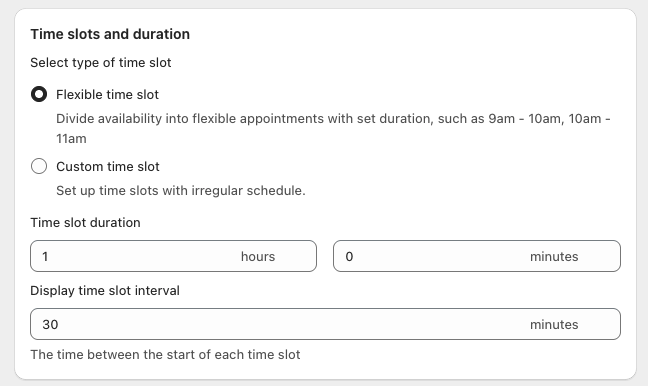
Customers pick a date and a specific time slot.
Time Slot Type
Choose how slots are generated:
- Flexible (recommended) — the system generates slots automatically from the staff's working hours, the duration, and the interval
- Custom — you define slots manually, day by day (see below)
Flexible fields:
| Field | Required | Notes |
|---|---|---|
| Time slot duration | Yes | Length of each appointment (e.g., 30 min, 1 hour) |
| Display time slot interval | Yes | Spacing between slot start times. Must be ≤ duration |
Example: Duration 60 min, interval 30 min → slots at 9:00, 9:30, 10:00, 10:30, … (slots overlap in terms of start time, but only one customer books each).
Custom Time Slots
When you pick Custom, a day-by-day grid appears:
- Use the checkbox on each day to mark it as available (default: Monday–Friday)
- For each active day, click Edit to open the time-slot editor
- Add, edit, or remove slots — each slot has a start and end time. Start times must be unique within a day
- Click Save
Copying slots between days — click Duplicate on a day:
- Pick the source day (the day to copy from)
- Pick one or more target days (the days to copy to)
- Click Duplicate
If a day is active but has no time slots, a warning appears: "No time slots available."
Full-Day Booking
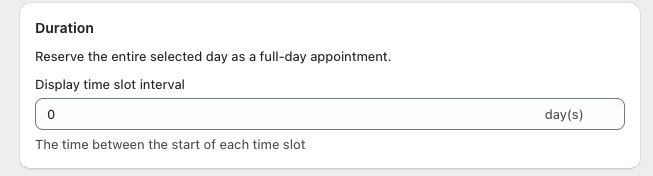
Customers pick a single day — no time slot selection. The booking occupies the entire day.
| Field | Required | Notes |
|---|---|---|
| Display time slot interval | No | Spacing between available start dates |
Behavior:
- Customer picks one date → the whole day is reserved for them (or capacity × customers, if capacity > 1)
Example: A photography studio rented for the day
Multi-Day Booking
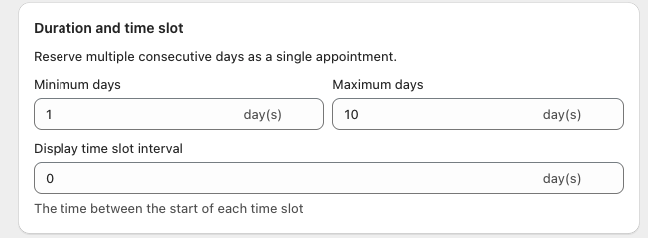
Customers pick a start date and end date — the booking spans multiple consecutive days.
| Field | Required | Notes |
|---|---|---|
| Minimum days | Yes | Shortest allowed stay (e.g., 2 days) |
| Maximum days | Yes | Longest allowed stay. Must be ≥ minimum |
| Display time slot interval | No | Spacing between available start dates |
Behavior:
- Customer picks a date range → every day in that range is reserved
- If any day in the range is already unavailable, the whole range is disabled — customers can't book partial ranges
Example: A 3-day retreat with day 1 to day 3.
When to Use Each Type
Quick rule of thumb:
| Customer chooses... | Pick |
|---|---|
| A specific time on a specific day | Hours |
| A single whole day | Full-day |
| A range of consecutive days | Multi-day |
Important Rules
- Capacity must be ≥ 1 — Save is blocked otherwise
- At least one active staff member is required
- Hours — interval can't be longer than duration
- Full-day — check-out must be later than check-in if both are set
- Multi-day — minimum days can't exceed maximum days
- Multi-day — a range is fully disabled if any single day inside it is unavailable
- Removing a staff member never rewrites past appointments — existing bookings stay assigned to them