Manage Staff
How to Access
Go to Staffs in the main navigation.
Staff List
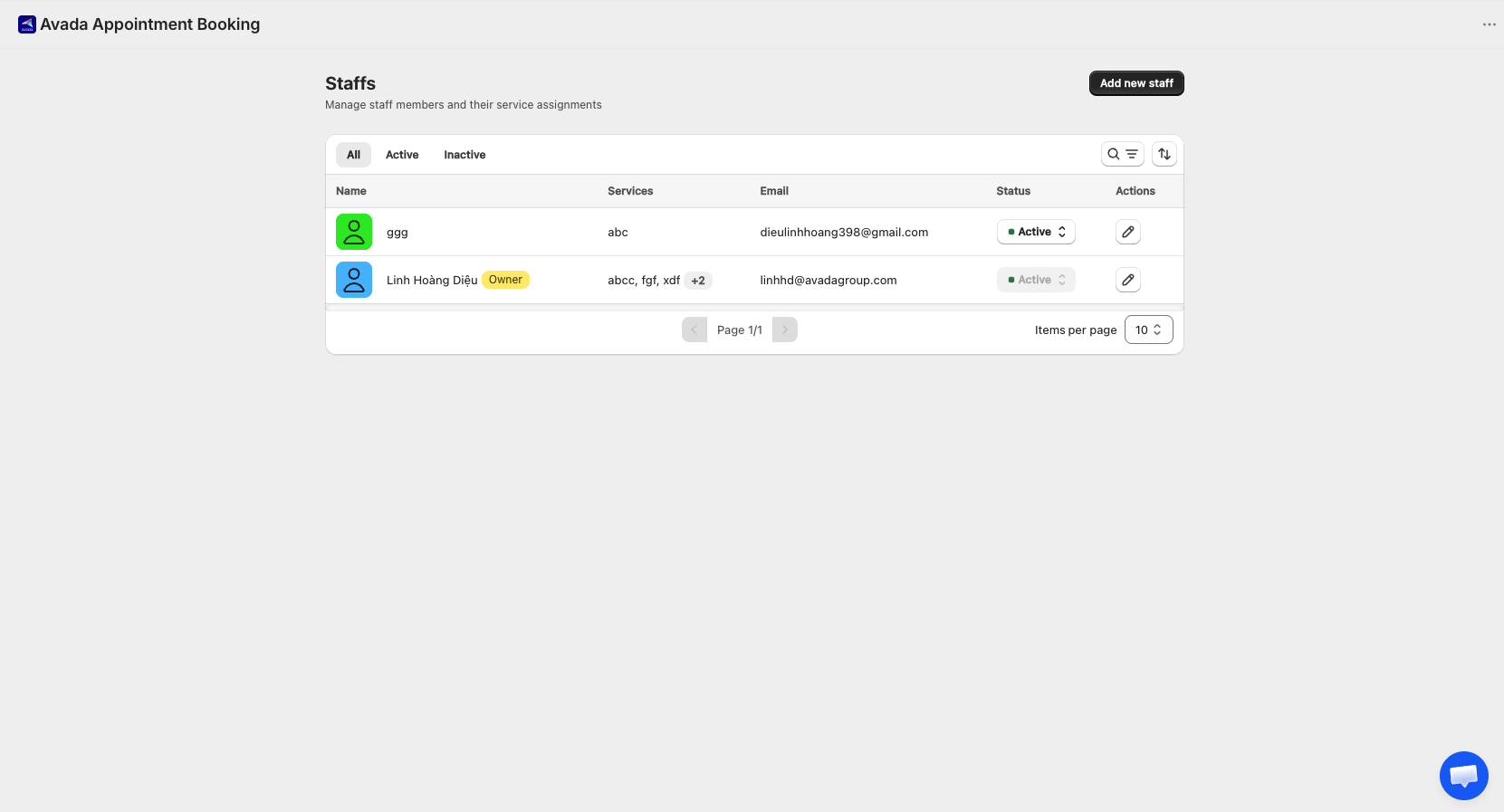
The list shows every staff member plus the owner. Each row includes:
- Avatar — profile picture (or placeholder)
- Name — staff full name
- Services — services currently assigned to this staff member (empty if none)
- Email — login and contact email
- Status — Active or Inactive
- Actions — Edit and Delete buttons
The owner account shows only the Edit action and cannot be deleted.
Filtering and Searching
- Status tabs — All / Active / Inactive
- Search — find a staff member by name or email
- Filter — narrow the list by status and by service
Status Management
- Active — staff is available for new bookings
- Inactive — staff is hidden from assignment, but past data is preserved
When you mark a staff Inactive, any services they were assigned to fall back to the owner. A confirmation modal is shown before the change is applied.
Adding a Staff
Click Add new staff to open the Add Staff page. See Add / Edit Staff for details.
Editing a Staff
Click the pencil (Edit) icon on any row to open the Edit Staff page. Personal information, service assignments, and Team Portal permissions can all be updated there.
Deleting a Staff
Click the trash (Delete) icon. A confirmation modal appears warning you that services assigned to this staff will fall back to the owner.
Effect on appointments:
| Appointment type | Behavior |
|---|---|
| Upcoming | Warning modal shown. On confirmation, the assignee switches to the owner |
| Past | Preserved with the deleted staff's name still shown (for history integrity) |
Bulk Actions
Use the checkboxes to select multiple staff and apply actions in bulk.