General
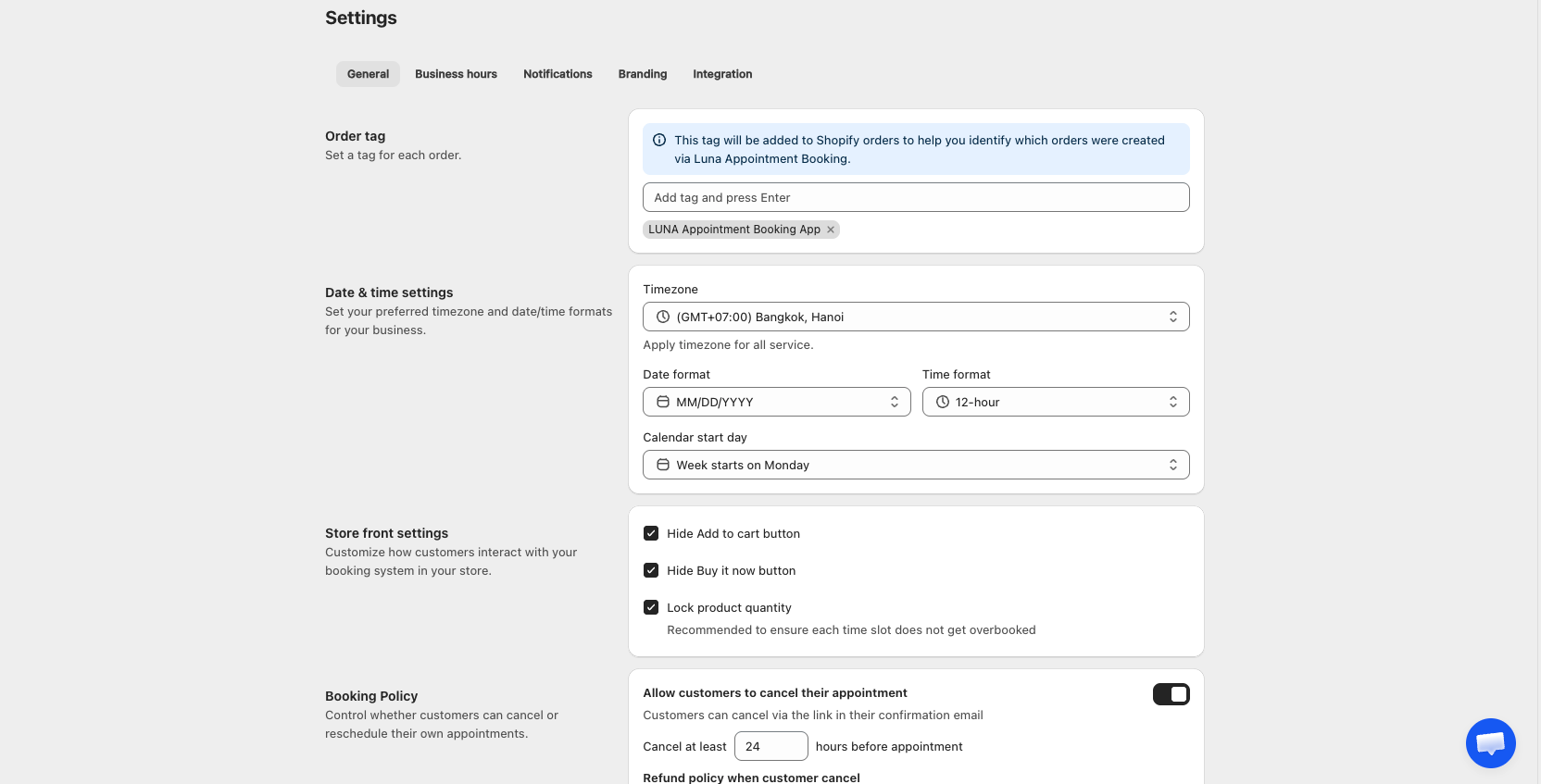
How to Access
- Go to Settings
- The General tab is selected by default
Page Structure
The General tab has five sections:
- Order tag
- Date & time settings
- Store front settings
- Booking Policy
- Locations
1. Order tag
Set a tag that's added to every Shopify order created via Luna Appointment Booking. Use it to identify booking-generated orders in your Shopify Orders list, segment them in reports, or trigger Shopify Flow automations.
| Field | Required | Notes |
|---|---|---|
| Add tag | No | Type a tag name and press Enter to add. Default: LUNA Appointment Booking App. Click ✕ on a chip to remove it. Multiple tags supported |
Tags are applied to new orders only — existing orders are not retagged.
2. Date & time settings
Set your preferred timezone and date / time formats. These settings apply to all services, both in-app and on the customer-facing booking widget.
| Field | Required | Default | Notes |
|---|---|---|---|
| Timezone | Yes | Store timezone (from Shopify) | Pick from the same timezone list as Shopify. Applies to every service |
| Date format | Yes | MM/DD/YYYY | Options: MM/DD/YYYY · DD/MM/YYYY · MMM DD, YYYY · DD MMM YYYY Affects time slots in-app and on the customer view |
| Time format | Yes | 24-hour | Options: 12-hour (AM/PM) · 24-hour. Affects time slots in-app and on the customer view |
| Calendar start day | Yes | Auto by locale (US → Sunday, other → Monday) | Options: Week starts on Sunday · Week starts on Monday. Affects the in-app Week calendar and the customer view calendar |
3. Store front settings
Customize how customers interact with your booking system on your store.
| Field | Required | Default | Notes |
|---|---|---|---|
| Hide Add to cart button | No | Checked | Hide the Add to cart button on product pages that have an active service |
| Hide Buy it now button | No | Checked | Hide the Buy it now button on product pages that have an active service |
| Lock product quantity | No | Checked | Lock product quantity after the customer selects a time slot. Prevents quantity changes on the cart page. Recommended to avoid overbooking the same slot |
4. Booking Policy
Control whether customers can cancel or reschedule things themselves through the link in their confirmation email — appointments, bundles, and packages each have their own policy.
Appointment policy — Cancellation
| Field | Required | Default | Notes |
|---|---|---|---|
| Allow customers to cancel their appointment | Toggle | OFF | When ON, the cancel link is included in confirmation emails |
| Cancel at least [N] hours before appointment | Number | 24 | Visible only when the toggle is ON. Minimum lead time before appointment start. Value ≥ 1 |
| Refund policy when customer cancels | Radio | Full refund | Visible only when the toggle is ON. Full refund — refunds only the customer's appointment, not their entire order. No refund — customer keeps the charge, no refund issued |
| Also cancel the Shopify order | Toggle | OFF | Visible only when the toggle is ON. ON → cancelling the appointment also cancels the entire Shopify order (including other products purchased alongside). OFF → only the appointment is cancelled, the order stays active |
Appointment policy — Reschedule
| Field | Required | Default | Notes |
|---|---|---|---|
| Allow customers to reschedule their appointment | Toggle | ON | When ON, the reschedule link is included in confirmation emails |
| Reschedule at least [N] hours before appointment | Number | 24 | Visible only when the toggle is ON. Minimum lead time before appointment start. Value ≥ 1 |
Bundle policy
| Field | Default | Notes |
|---|---|---|
| Allow customers to cancel their bundle | — | When ON, the cancel link is included in confirmation emails |
| How long after customer purchase bundle [N] hours | 24 | Visible only when the toggle above is ON |
| Refund policy | Full refund | Full refund — refunds only the customer's bundle, not their entire order. No refund — customer keeps the charge |
Package policy
| Field | Default | Notes |
|---|---|---|
| Allow customers to cancel their package | — | When ON, the cancel link is included in confirmation emails |
| How long after customer purchase package [N] hours | 24 | Visible only when the toggle above is ON |
| Refund policy | Full refund | Full refund — refunds only the customer's package, not their entire order. No refund — customer keeps the charge |
Each policy's window/refund fields only show once its "Allow customers to cancel..." toggle is ON. There's no equivalent policy for Waitlist — the 24-hour window to confirm a proposed slot isn't configurable.
5. Locations
If you run more than one physical location, add them here so you can assign staff and services to specific branches.
| Field | Required | Notes |
|---|---|---|
| Name | Yes | — |
| Address | No | — |
Click Add location to create one, or use the edit/delete actions on any existing location card. Deleting a location removes it from any services that had it selected.
Timezone isn't currently editable per location — every location follows the store's timezone.
Once you have more than one location, you can:
- Assign staff to specific locations (Staff → Works at locations)
- Set a service's meeting location to Store branch and choose which location(s) it's offered at (Create/Edit Service → General settings → Meeting location)