Business Hours
Introduction
Business Hours determine when customers can book appointments. LUNA uses these hours to generate available time slots for all services.
If business hours are not set, no booking times will appear for customers.
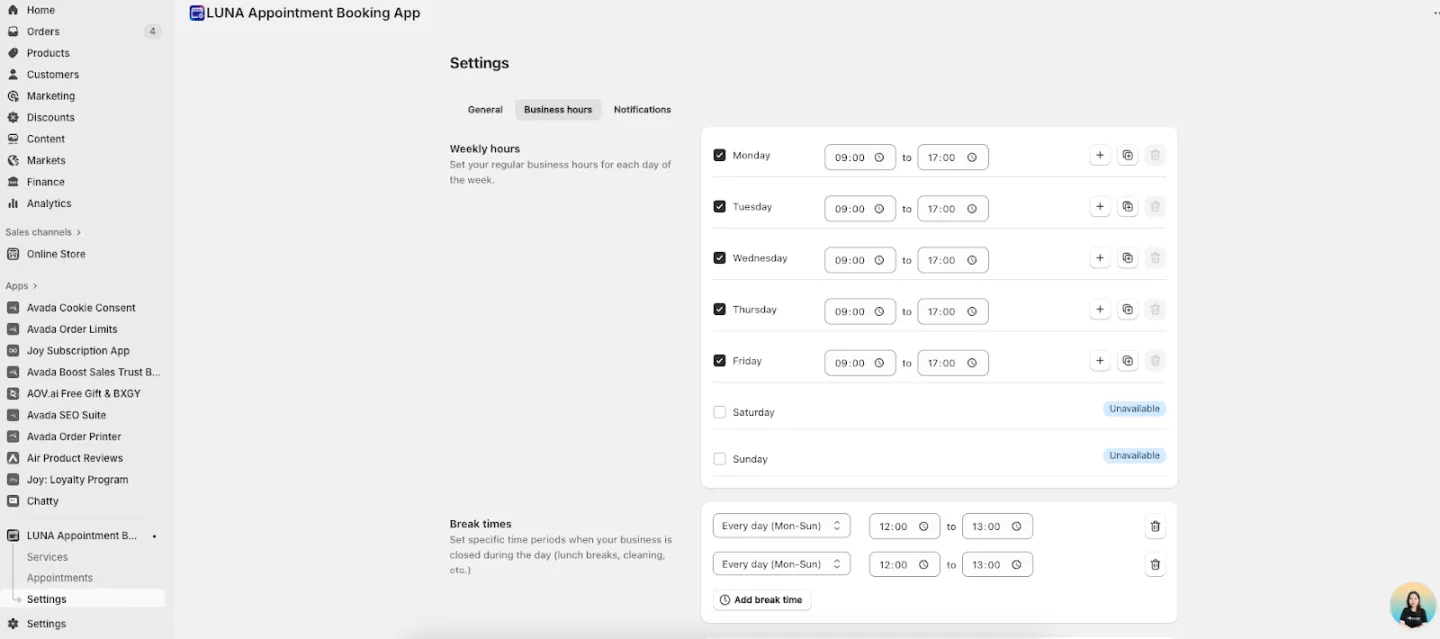
Weekly Hours
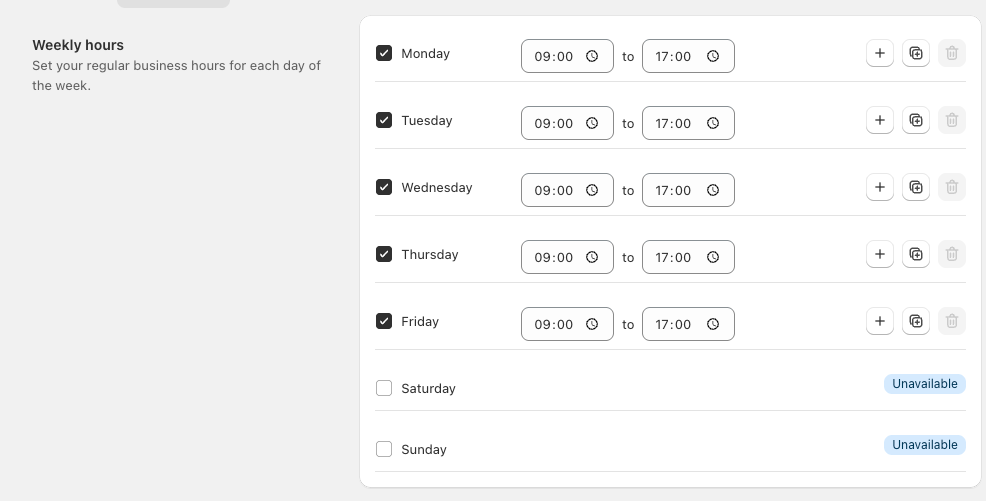
Set your regular opening hours for each day of the week.
Setting Hours for a Day
-
Enable the day. Check the box next to the day name.
-
Set opening time
- Click the start time field
- Use the time picker or type the time
- Click the clock icon to confirm
-
Set closing time
- Click the end time field
- Use the time picker or type the time
- Click the clock icon to confirm
Time format: 24-hour (00:00–23:59)
Action Buttons
- ➕ Add time range: Add another shift for the same day (e.g., morning + evening). Example: 09:00–12:00 and 14:00–17:00.
- ⊕ Copy to other days: Duplicate this time range to multiple days for faster setup.
- 🗑️ Delete: Remove the selected time range. If all ranges are removed, the day becomes unavailable.
Inactive Days (e.g., Saturday & Sunday)
Days without hours appear as:
- Unchecked checkbox
- "Unavailable" label
To make a day available:
- Check the checkbox
- Set opening and closing times
To make a day unavailable:
- Uncheck the checkbox
- The day becomes unbookable
Multiple Time Ranges per Day
Ideal for split shifts or different operating periods.
Example:
Monday:
- 11:00–14:00 (Lunch service)
- 17:00–22:00 (Dinner service)
How to add multiple ranges:
- Set the first time range
- Click ➕ Add time range
- Set the next range
- Repeat if needed
Break Times
Set periods during the day when your business is closed (e.g., lunch break, cleaning time).
Break time setup currently requires contacting support.

- Days: Every day (Mon–Sun)
- Start: 12:00
- End: 13:00
Holidays
Specify dates when your business is closed. These days will not be bookable.

Add from Location
Import standard holidays based on your store's country.
How to import:
- Click "Add from location"
- System detects your location
- Default national holidays are added
- Review and adjust if needed
Benefits:
- Quick setup
- Pre-populated with common holidays
- Fully customizable afterward