Quick start
A. Enable LUNA Booking in Your Theme
Before creating any services, you need to enable LUNA Booking in your Shopify theme. This allows the booking features to appear on your storefront.
Enable the app embed
- In the Setup Guide, click App embed settings.
- You'll be redirected to your Shopify theme editor.
- In the App embeds section, find LUNA Booking App.
- Toggle the switch to ON.
- Click Save in the top-right corner.
- Return to the LUNA app to continue setup.

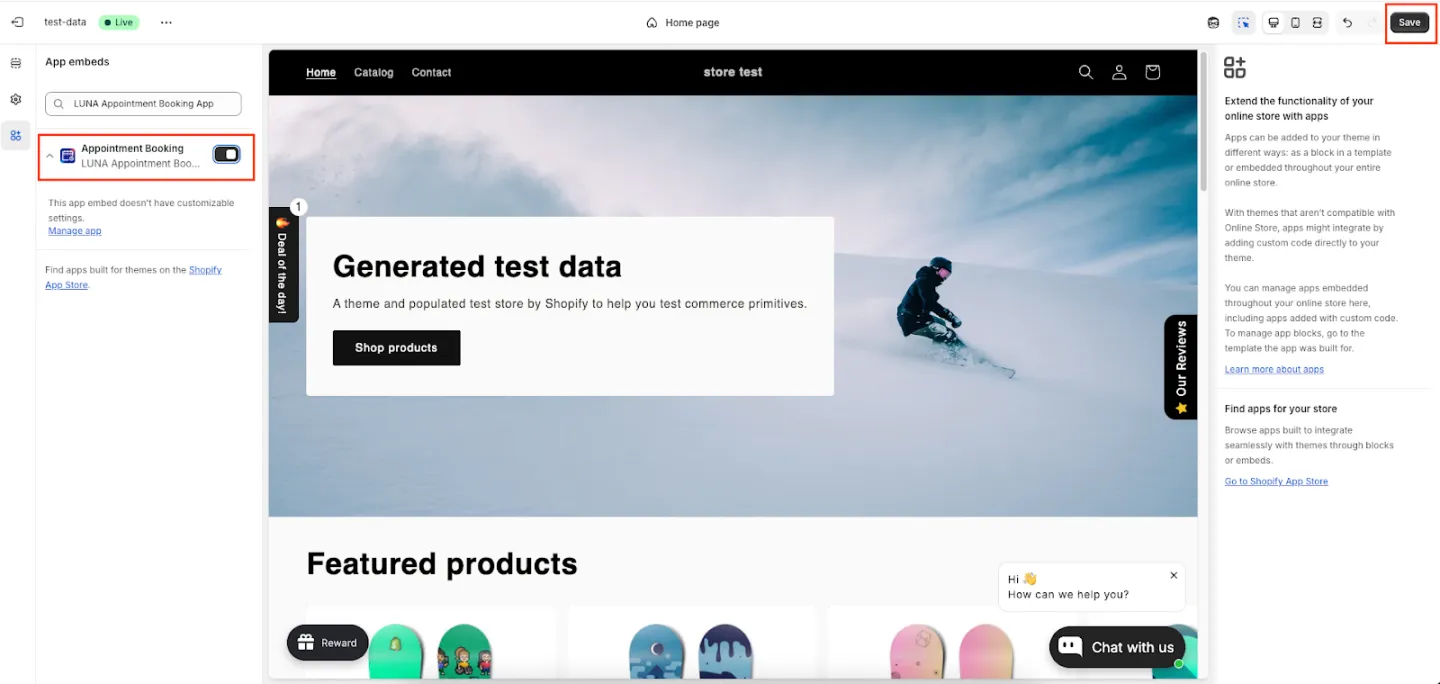
Note: This is a one-time setup and is required for booking to work on your store.
B. Set Up Your Booking System
LUNA only requires 3 core steps to start working on your store.
Step 1: Create your first service
A service connects a Shopify product with a booking schedule.
-
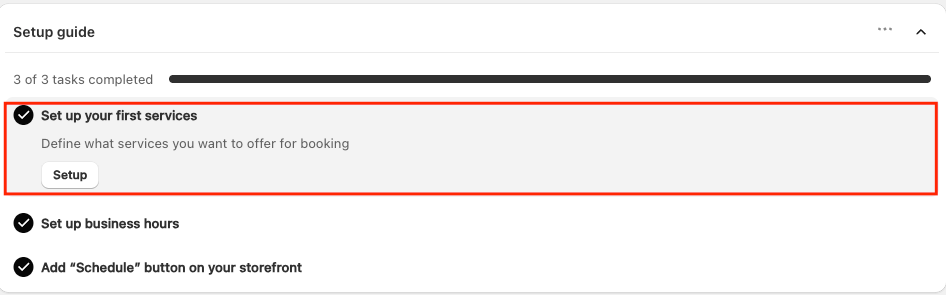
In the Setup Guide, click Setup.
- You'll be taken to the Services page.
-
Select a Shopify product to create a booking service.
- Each product can be linked to one service only.
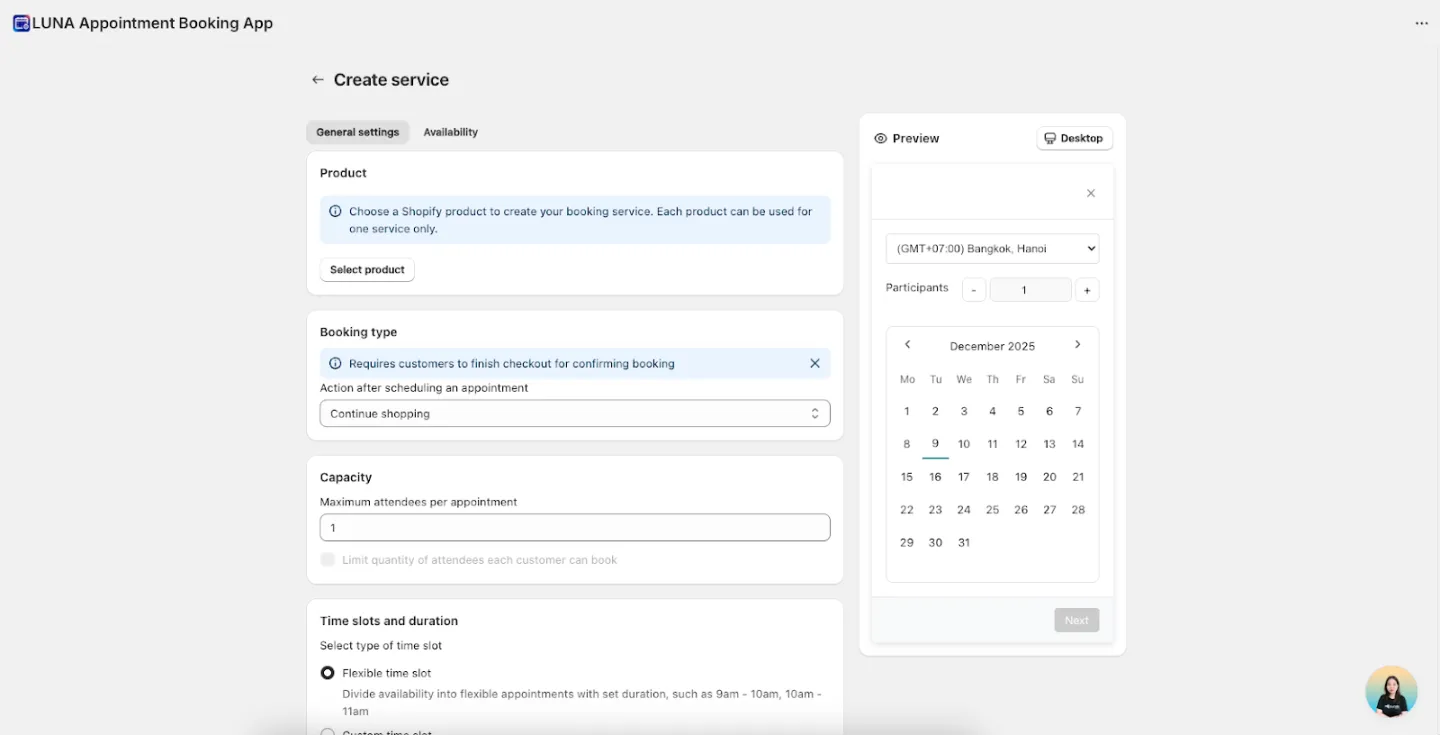
- Configure your service settings.
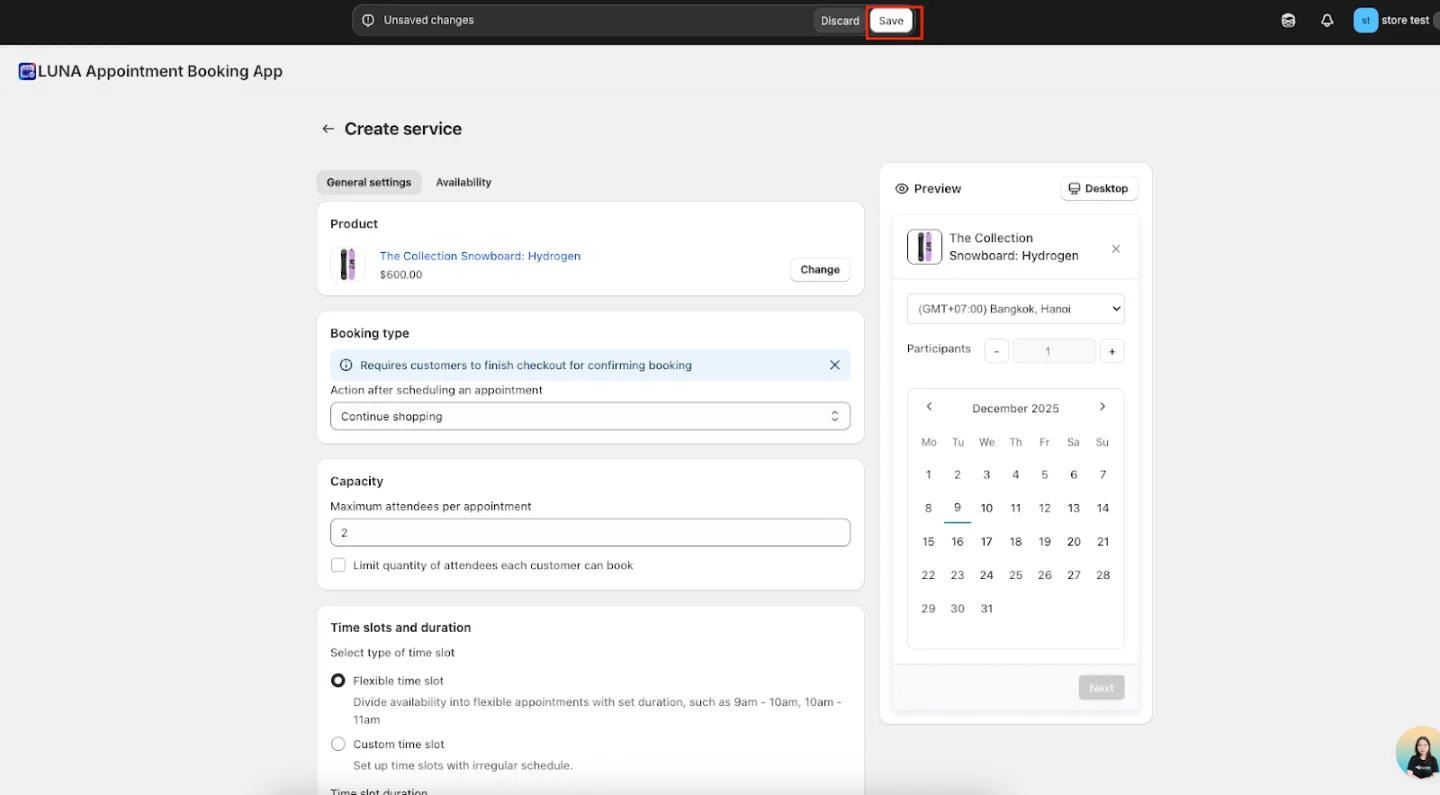
- Click Save to apply your changes.
For more details, see the full guide: How to create a service.
Step 2: Set up business hours
Business hours determine when customers can book appointments.
- In the Setup Guide, click Go to settings under Business hours.
- You'll be taken to Availability settings.
- Set your operating days and time ranges.
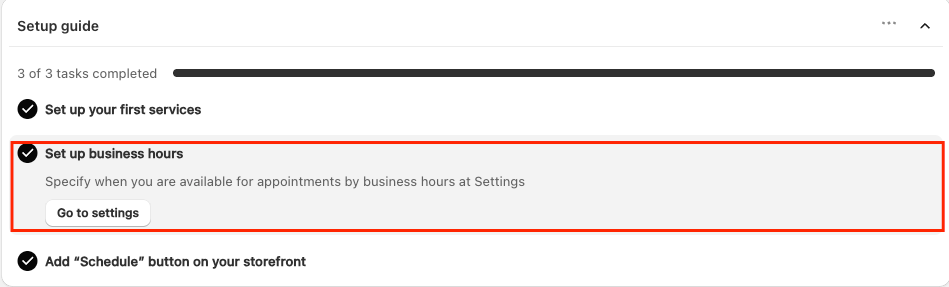
For more details, see the full guide: How to set up business hours.
Step 3: Add the "Schedule" button to your storefront
Now it's time to make booking visible to customers.
- Open the Shopify theme editor.
- Click Add block on the product page.
- Select the Schedule Button block.
- Drag and drop the block to your desired position.
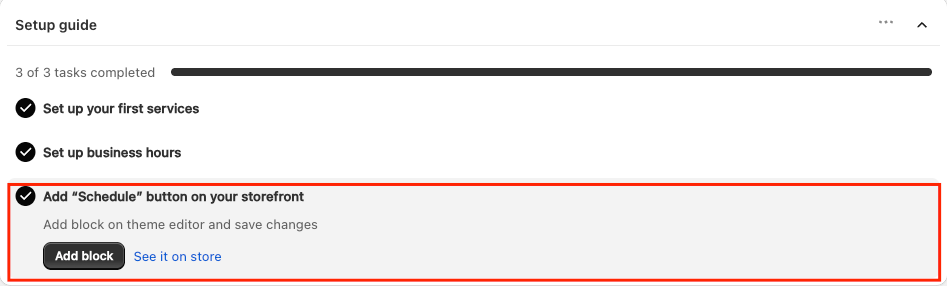
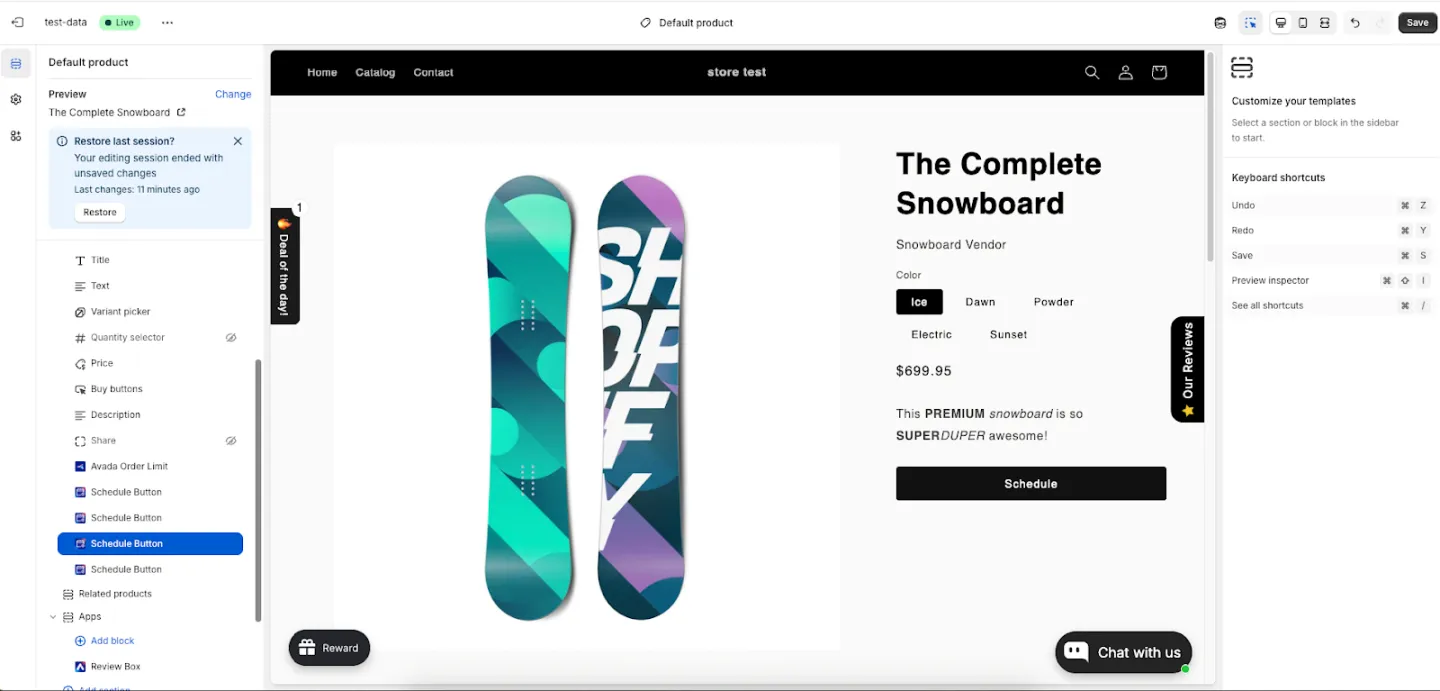
Recommended placement:
- Below the product price, or
- Below the Add to cart button
This placement makes booking easy to find for customers.
- Click Save to publish your changes.
Step 4: Preview your booking experience
Before going live, preview how booking looks on your store.
- In the Setup Guide, click See it on store.
- You'll be redirected to the live product page.
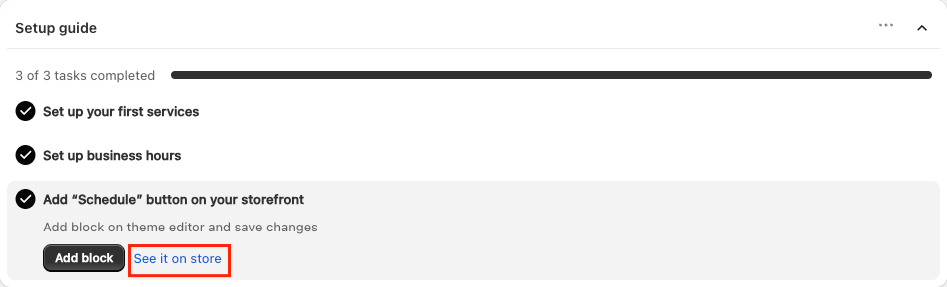
Review the layout
Take a moment to:
- Check the button placement
- Test the booking flow
- Verify that available time slots match your service and business hour settings
This step ensures your booking experience is both functional and visually aligned with your store.
What Customers Will See
Once setup is complete, customers will book appointments as follows:
- Visit a product page
- Click the Schedule button
- Select an available date and time
- See a notice that the booking will be confirmed after checkout
- Click Add to cart and complete checkout
- Receive an automatic booking confirmation email
That's it! Your store is now ready to accept appointments with LUNA.