Manage Appointment – Grid
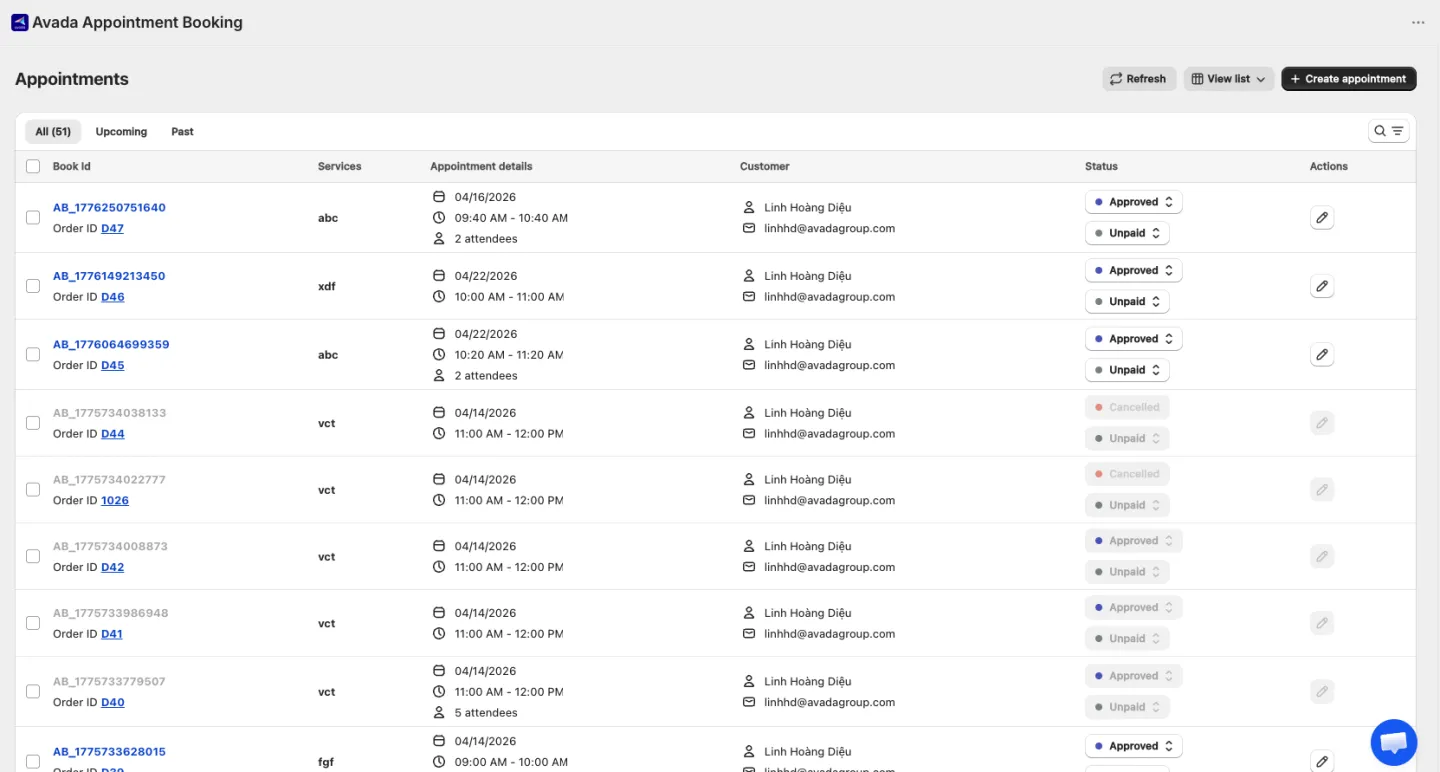
Overview
The Grid view displays all your appointments in a searchable, filterable table — useful for scanning many bookings at once, applying bulk actions, and changing statuses without opening each appointment.
How to Access
- Go to Appointments
- In the top-right view dropdown, choose List view (default)
For visual scheduling, use Calendar Views instead.
Page Header
| Control | Behavior |
|---|---|
| Title | "Appointments" |
| Create appointment | Opens the Create appointment screen |
| Export | Opens the Export dialog (see below). Disabled if there's nothing to export |
| Refresh | Reloads the list |
| View switcher | Toggle between List view (Grid) and Calendar view |
Exporting
Click Export to download the appointments matching your current filters (search, status, payment status, date range). Pick a format:
| Format | Use for |
|---|---|
| CSV (.csv) | Raw data — best for importing into another tool |
| Excel (.xlsx) | Sized columns, ready to read. Opens in Excel or Google Sheets |
| iCalendar (.ics) | Import into Google Calendar, Apple Calendar, or a Shopify calendar page |
Tabs
Filter the list by time:
| Tab | Shows |
|---|---|
| All | Every appointment (Upcoming + Past) |
| Upcoming (default) | End time ≥ current time |
| Past | End time < current time |
Search & Filters
| Filter | Behavior |
|---|---|
| Search | Find by Service name, Booking ID, or Customer info (name / email / phone). Contains-match |
| Status | Approved / Arrived / Completed / No-show / Cancelled |
| Payment status | Paid / Unpaid / Paid partially |
| Date range | Filter by appointment date range |
| Applied filters | Active filters appear as chips — click ✕ on a chip to remove it |
Filters and search compose — combining them narrows results.
Appointment Table
Each row is one appointment:
| Column | Notes |
|---|---|
| Booking ID | Click to open the Appointment details |
| Service | Service name |
| Appointment | Date · time slot (e.g., 8:30 AM — 10:00 AM) · attendee count (shown when > 1) |
| Customer | Name · phone · email |
| Status | Appointment status + payment status badges (see Status Management) |
| Created at | Timestamp the appointment was created, in merchant timezone (MMM DD, YYYY, hh:mm) |
| Actions | Edit button — opens the Appointment details |
- Pagination — 10 rows per page. Result count is shown above the table
- Empty state — "No appointments found" appears when no row matches the current filter
Bulk Actions
Select rows with their checkboxes to reveal bulk action buttons:
| Action | Behavior |
|---|---|
| Send reminder | Send a reminder email to the customers of all selected bookings immediately |
| Mark as completed | Set status of selected bookings to Completed. Skips bookings already in a terminal state (Completed / Cancelled / No-show) |
| Mark as paid | Set payment status of selected bookings to Paid |
Status Management
Appointment Statuses
| Status | Meaning | Set by | Terminal? |
|---|---|---|---|
| Approved | Confirmed booking, awaiting service | System (auto when customer books) | No |
| Arrived | Customer has arrived | Merchant | No |
| Completed | Service finished | Merchant | Yes |
| No-show | Customer didn't show up | Merchant or system (auto) | Yes |
| Cancelled | Appointment was cancelled | Merchant or Customer | Yes |
Terminal statuses are end states — they cannot be changed to anything else.
Status Transitions
Approved ──► Arrived ──► Completed
   │            │
   │            └──► Approved (revert)
   │
   ├──► Cancelled
   └──► No-show
Rules:
Arrivedcannot move to Cancelled or No-show — the customer is already on site- Terminal states (Completed / No-show / Cancelled) cannot transition further
Changing Status
Click the status badge to open the popover:
| Current status | Popover options |
|---|---|
| Approved | Arrived · Cancelled · No-show |
| Arrived | Completed · Revert to Approved |
| Completed / No-show / Cancelled | None — terminal |
Selecting Cancelled opens the Cancel modal to capture a reason. Other transitions apply directly without a modal — see Cancel Appointment for details.
Payment Status
| Payment status | Meaning | Default for |
|---|---|---|
| Paid | Fully paid | Bookings via Shopify checkout |
| Unpaid | Not yet paid | Bookings created outside Shopify checkout |
| Paid partially | Only part of the amount has been paid | – |
Click the payment badge to change the status from the action list.