Manage Appointment – Calendar
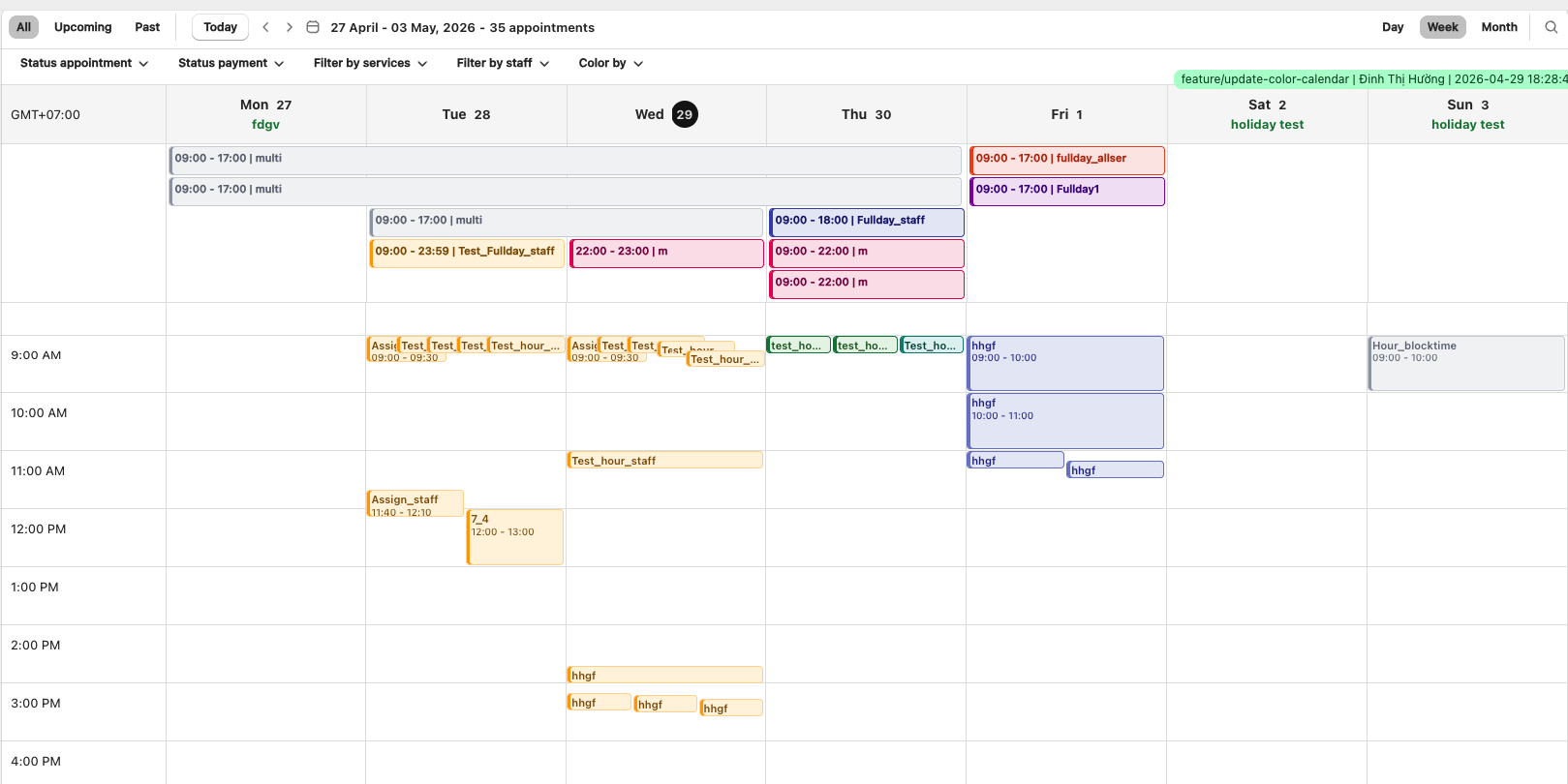
Overview
The Calendar view shows appointments visually instead of as a list, making it easier to spot busy periods, free slots, and overlapping bookings. Three layouts are available:
- Day — a single day in a time-based grid, ideal for managing the daily schedule
- Week — a 7-day horizontal grid for weekly planning and staffing
- Month — a full month overview for long-range planning and spotting busy periods
How to Access
- Go to Appointments
- In the top-right, switch the view dropdown from List view to Calendar view
- Select Day, Week, or Month from the view selector (Week is the default Calendar view)
Common Header Controls
Available in all three views:
| Control | Behavior |
|---|---|
| Today button | Jump back to the period containing today |
| Arrow navigation | Move forward or backward by one day / week / month (matches the active view) |
| Date picker | Click the calendar icon to jump to any date. Day view selects one day; Week and Month views highlight the entire week / month containing the picked day |
| View selector | Switch between Day, Week, Month |
| Search & Filters | Filter by Service, Status, or Payment Status. Search by Booking ID to jump directly to a booking |
Timezone matches Settings → General. Booking cards are automatically converted to this timezone. The timezone label (e.g., GMT+07) is shown above the grid in Day and Week views.
Quick Comparison
| Aspect | Day | Week | Month |
|---|---|---|---|
| Grid | 1 column · time-based rows | 7 columns × time rows | Calendar month grid (Sun–Sat or Mon–Sun) |
| Default time range | 7:00 AM – 3:00 PM (scroll for full 24 h) | Starts 7:00 AM (scroll for full 24 h) | – |
| Card detail | Service · time · customer | Service · time | Time · service · customer |
| Date label format | Single date | 04 — 10 Dec, 2024 (and variants) | December, 2025 |
| Holiday display | Dedicated row at top (empty if none) | Dedicated row at top | Highlighted row inside the day cell |
Overflow before +x more | 5 cards | 2 cards | 3 items (incl. holidays) |
Day View
Each row = 1 hour. Booking cards span their time range.
Booking card shows: service name · time range (e.g., 8:30 AM — 10:00 AM) · customer name.
Overlapping bookings:
| Situation | Display |
|---|---|
| Different start times | The later booking sits on top |
| Same start time, ≤ 5 bookings | All cards shown side by side |
| Same start time, > 5 bookings | First 4 + +x more card → click to open the Overlapping Bookings popup |
Week View
7-day horizontal grid. Day headers show weekday + date (e.g., "Sun 21", "Mon 22"). Today's date is circled.
Week starts on Monday or Sunday depending on your Settings → Business hours configuration.
Date range display:
| Range | Format example |
|---|---|
| Within the same month | 04 — 10 Dec, 2024 |
| Across months, same year | 28 Nov — 03 Dec, 2024 |
| Across years | 28 Dec 2024 — 03 Jan, 2025 |
Booking card shows: service name · time range.
Overlapping bookings:
| Situation | Display |
|---|---|
| Different start times | The later booking sits on top |
| Same start time, ≤ 2 bookings | Both cards shown side by side |
| Same start time, > 2 bookings | First card + +x more → click to open the Overlapping Bookings popup |
Month View
Full month grid with weekday headers. Today's date is circled.
Weekday order (Sun–Sat or Mon–Sun) follows your Settings → Business hours configuration.
Each day cell can show up to 3 lines combining holidays and bookings.
Booking card shows (priority order): time range · service name · customer name.
Month view prioritizes the time slot over other details because cell space is limited.
Holidays: displayed as a highlighted row at the top of the day cell.
Overflow:
| Items in cell | Display |
|---|---|
| ≤ 3 (holidays + bookings combined) | Show all |
| > 3 | First 2 + +x more link → click to open the Overlapping Bookings popup |
Booking Detail Popup
Click any booking card (in any view) to open the detail popup. It shows:
- Service name
- Booking ID and Shopify Order ID (clickable — opens the order in Shopify in a new tab)
- Number of attendees
- Date and time (format: "Nov 10, 2024 | 8:30 AM — 10:00 AM")
- Timezone (e.g., "(GMT+07:00) Bangkok, Hanoi")
- Assigned staff
- Appointment status badge
- Payment status badge
Click the pencil icon to open the full Appointment detail page for editing.
Creating an Appointment
Click Create appointment at the top right (available in all three views) to manually add a booking. See Create Appointment for details.