🚀 WELCOME
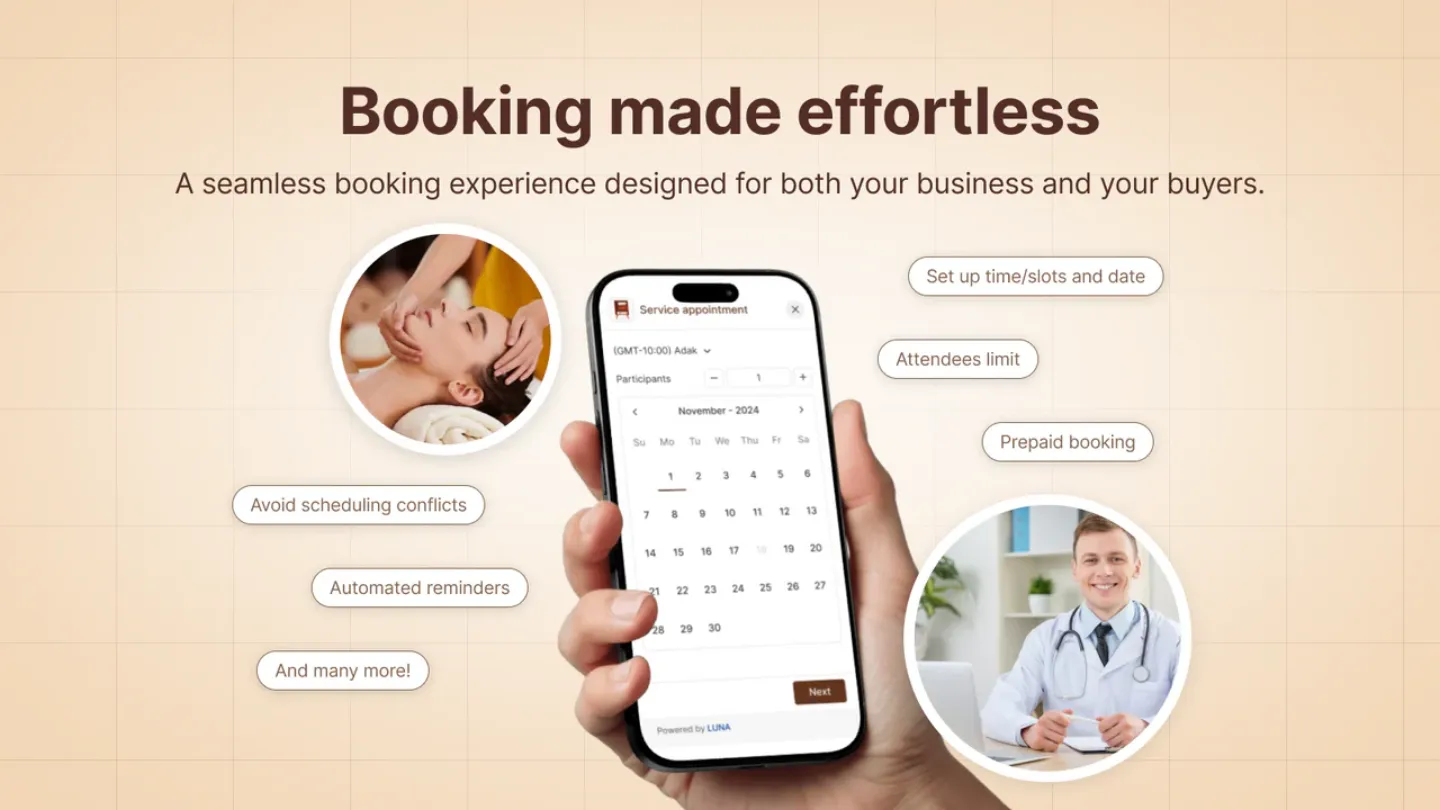
What Is LUNA Appointment Booking?
LUNA is an easy-to-use appointment booking app that adds a customizable calendar to your Shopify store. It handles hour-based appointments, group classes, consultations, and workshops with real-time calendar sync to prevent double bookings and automated emails for confirmations and reminders.
Customers book instantly with the "Schedule Your Time" button while you control service duration, buffer time, and prep time. Perfect for salons, spas, fitness studios, healthcare, restaurants, pet grooming, and any service-based business.
Why should you choose the Luna Appointment Booking app?
📅 Smart Scheduling Management
- Set the exact duration for each service
- Open availability only during the time slots you choose
- Prevent double bookings with real-time schedule sync
⏰ Fully Automated Workflow
- Automatic confirmation emails right after a booking
- Reminder emails to reduce no-shows
- Less manual work — save time on daily operations
💰 More Bookings, More Revenue
- 24/7 online booking — even when you're offline
- Option to skip checkout for higher conversion
- Supports both 1:1 appointments and group bookings
😊 Better Customer Experience
- Book in seconds with a simple, fast interface
- No redirects — fully seamless with your storefront
- Customers can easily view and reschedule appointments
How does the Luna Appointment Booking app work?
Step 1: Attach a service to your product
Choose the product you want to offer scheduling for. Customers will see the booking widget directly on the product page.
Step 2: Create your service
You can configure:
- Service type: Booking
- Booking rules: Service duration, slot interval, attendees per appointment, and more.
Step 3: Customers book their time
Once the service is set up, customers simply select a time → book instantly → receive an automatic confirmation email.
Step 4: Manage your appointments
View and manage all bookings in the Appointments dashboard.
Step 5: Customize your app settings
Adjust your business hours, notification settings, branding options, and more to fit your workflow.
The results you get
More bookings, fewer disruptions, happier customers — and a smoother, more efficient business.