Shopify Customer Privacy Update
Shopify has moved several privacy-related settings to Settings > Customer Privacy in the Shopify Admin. This guide walks you through configuring these settings to work properly with Avada Cookie Consent.
If you have Shopify's built-in cookie banner enabled alongside Avada Cookie Consent, visitors may see two banners. Follow the steps below to remove the Shopify banner and use Avada Cookie Consent exclusively.
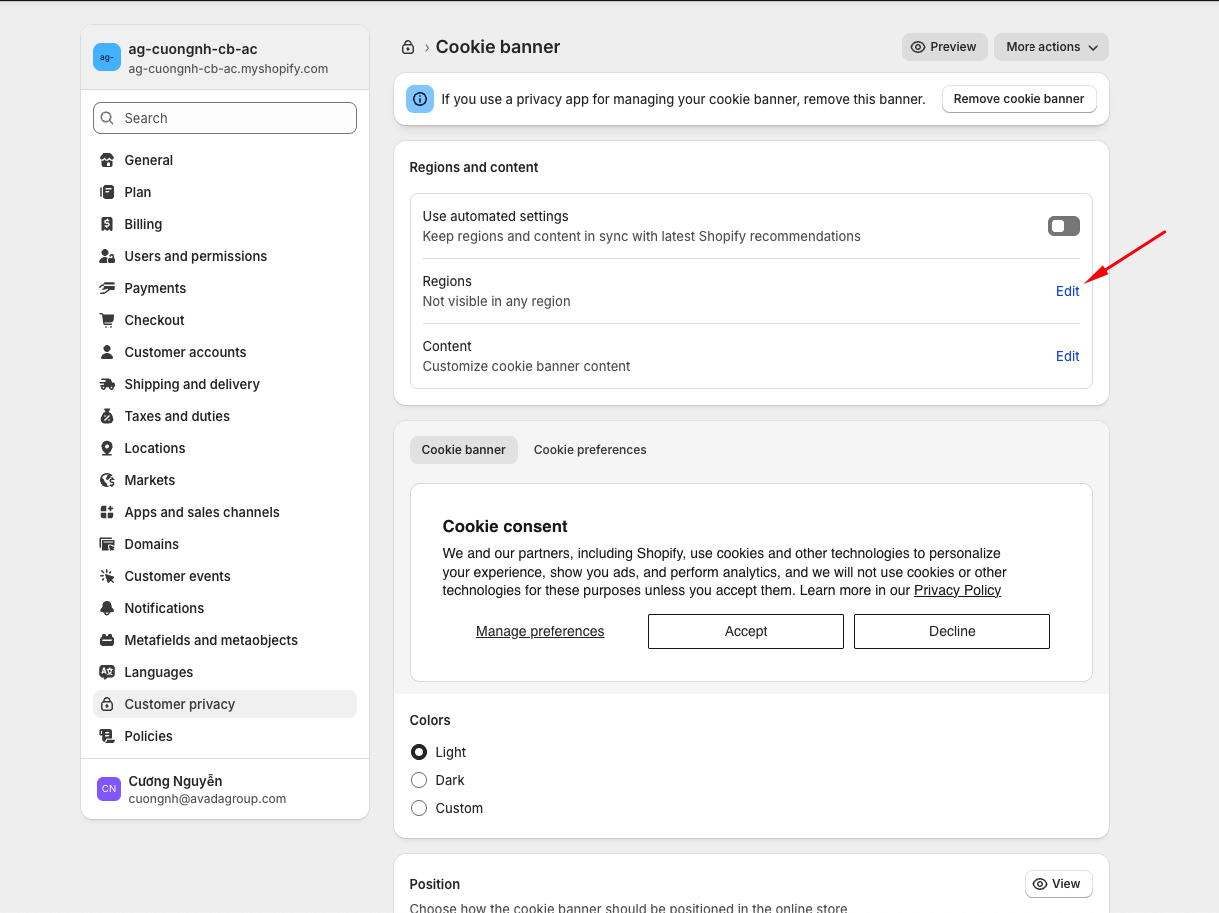
Click Cookie Banner Section
Go to your Shopify Admin and navigate to Settings > Customer Privacy. Scroll down to the Cookie banner section.
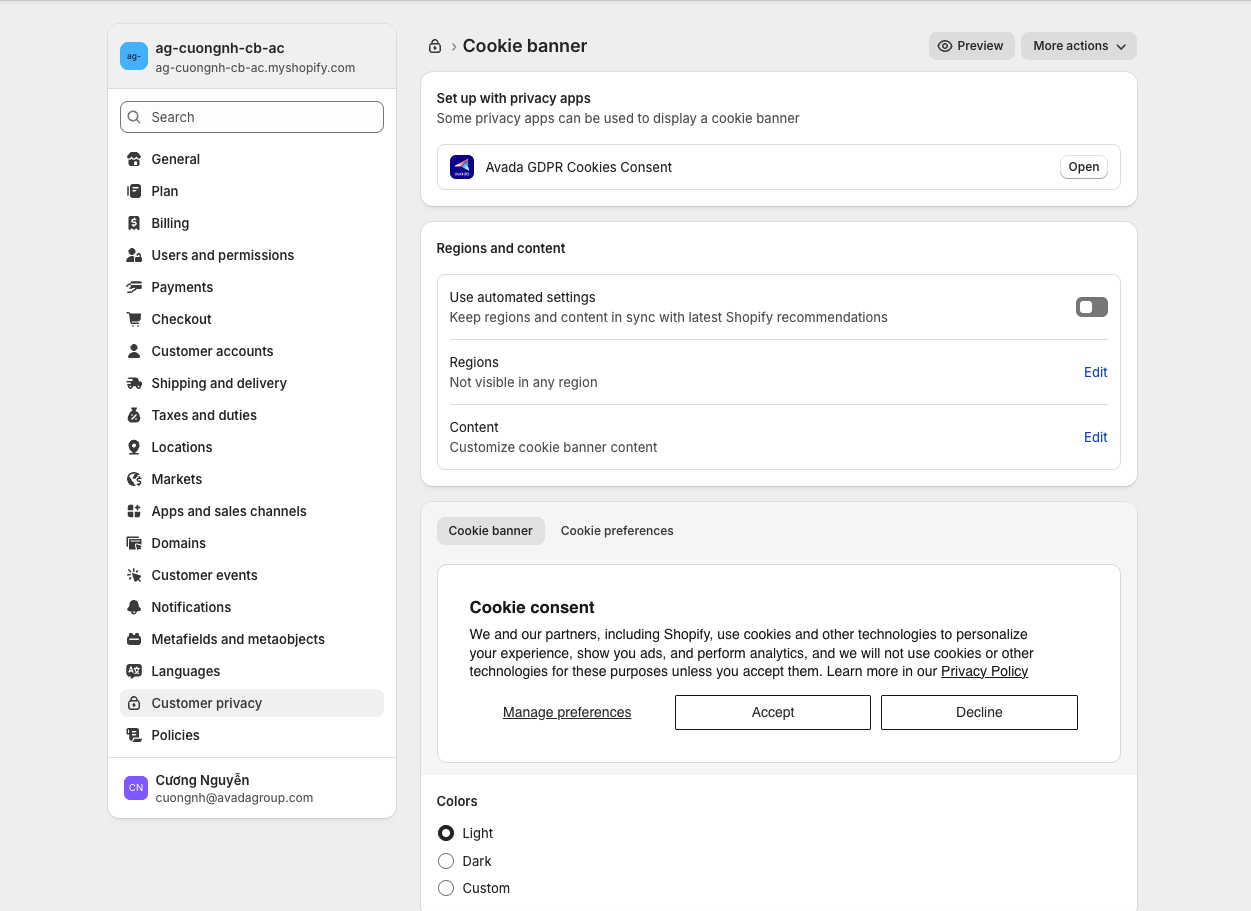
Remove Shopify Banner
If Shopify's default cookie banner is active, you need to remove it. This prevents duplicate banners from appearing on your storefront.
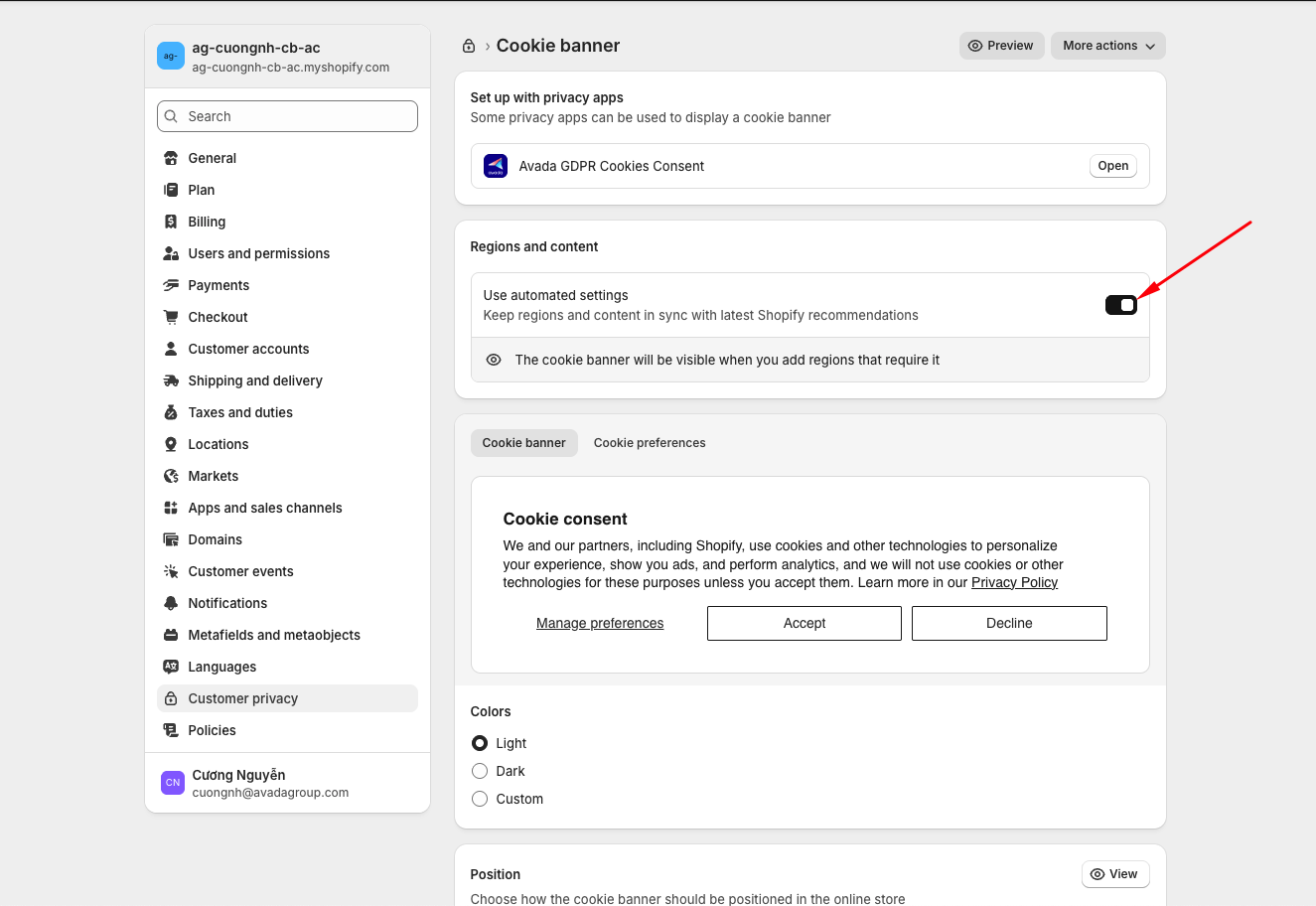
Switch Off Automated Setting
Turn off the automated consent collection setting. Avada Cookie Consent will handle consent collection instead.
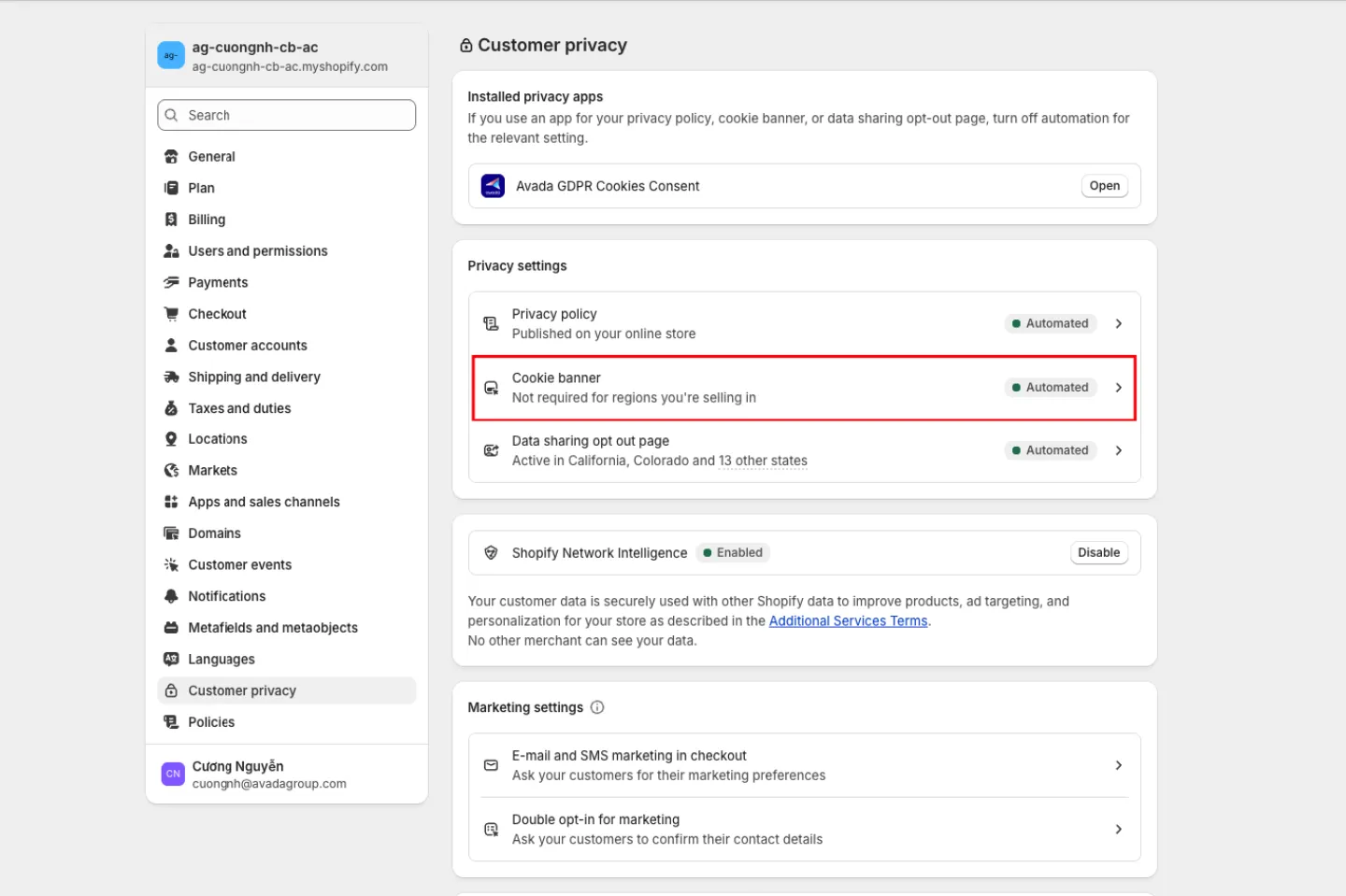
Click Edit for Regions
Click the Edit button next to the region settings to configure which regions require consent.
Select GDPR-Required Regions
Select all GDPR-required regions (EU/EEA countries and UK). If you are using Google tracking services (Google Analytics, Google Ads, etc.), also select Switzerland as it falls under Google's consent requirements.
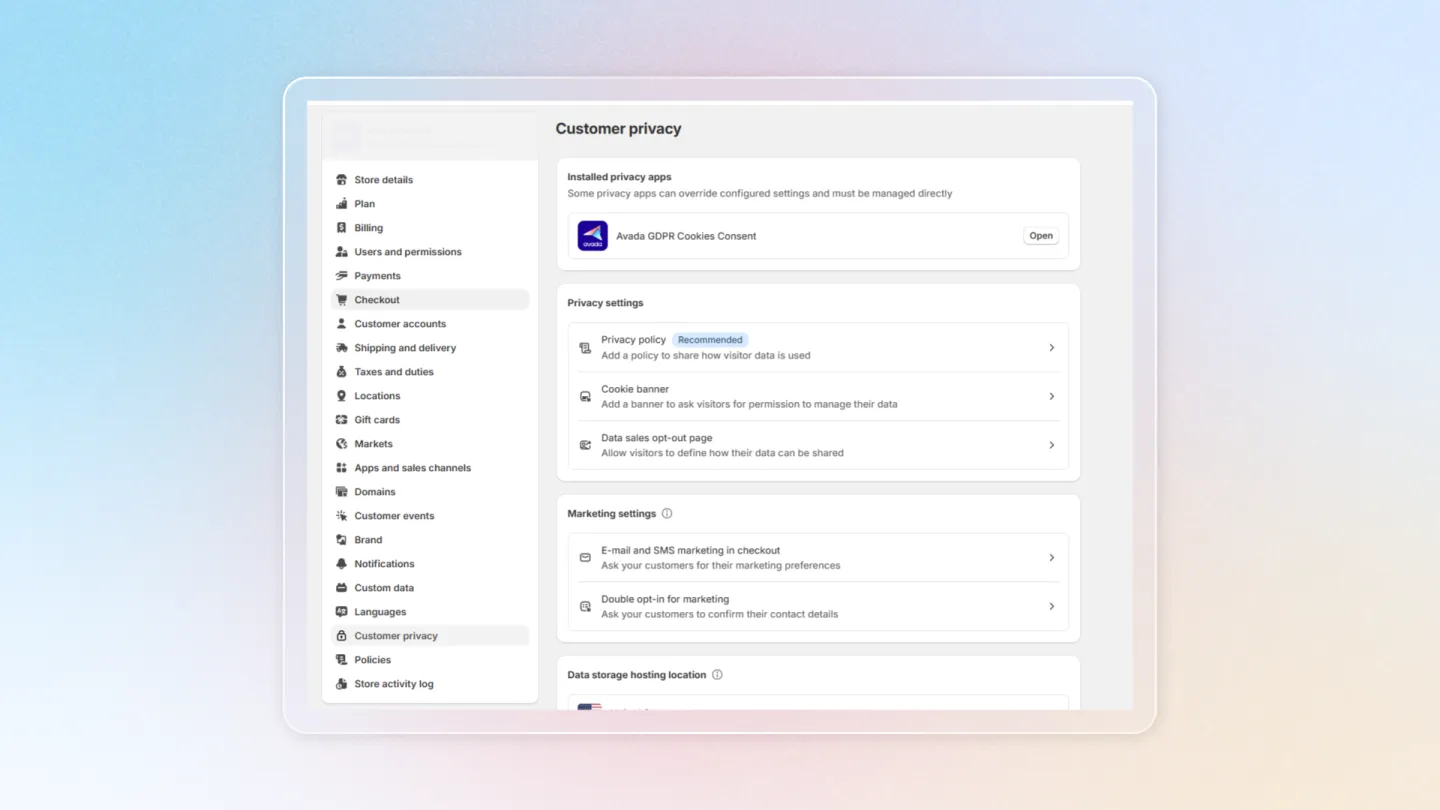
After completing these steps, Avada Cookie Consent will be your primary consent management tool, and Shopify's built-in banner will no longer appear.