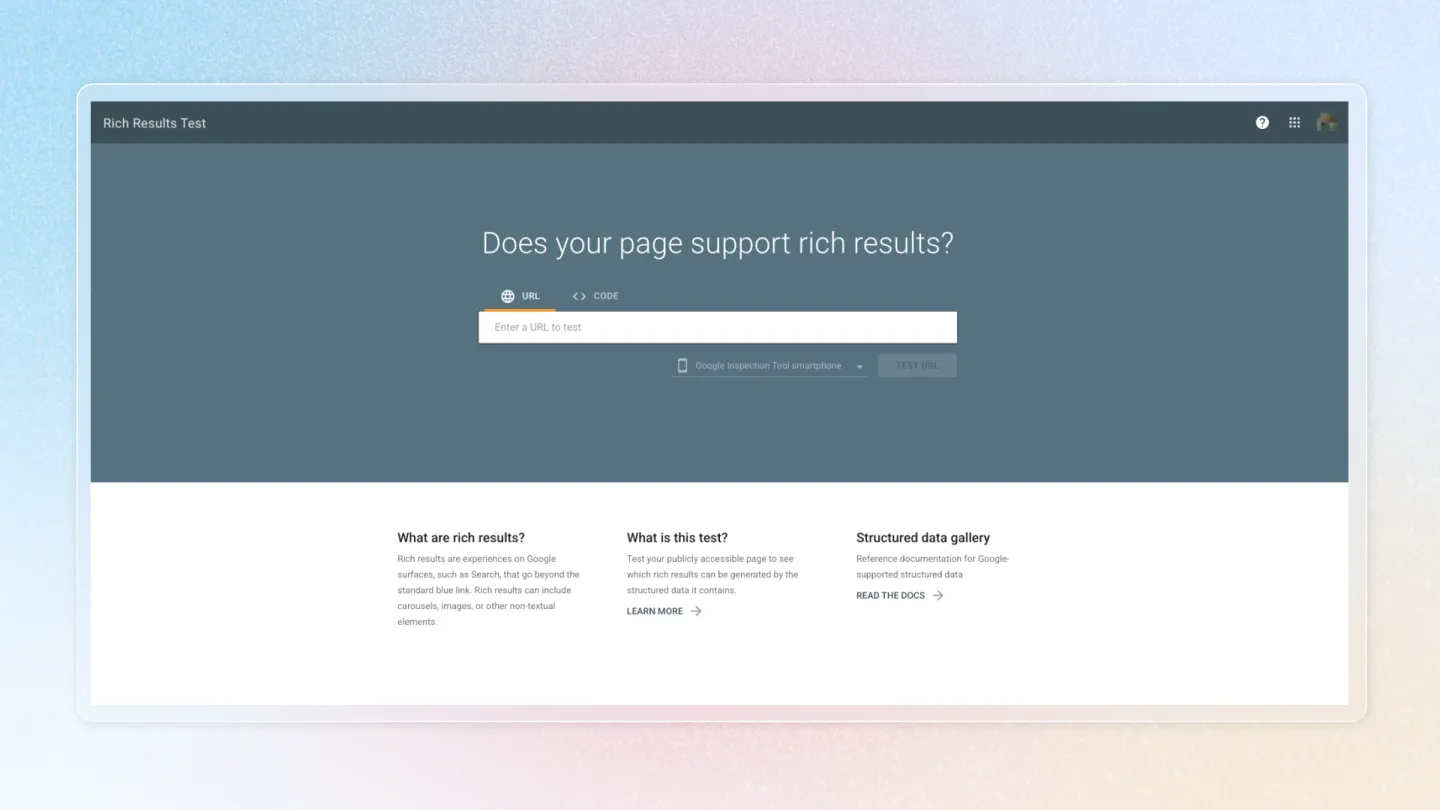
Google structured data
Google uses structured data to understand the content on your page and show it in a richer appearance in search results — known as a rich result. Avada SEO Suite formats your store content following Google's structured data guidelines so your pages become eligible for these rich results.
Watch how to preview, turn on and set up a rich result, using Organization as the example. Click a step under the replay to jump to it, or click the replay to pause.
What is Google structured data
Rich results are experiences on Google surfaces (such as Search) that go beyond the standard blue link. They can include images, ratings, prices, FAQs, breadcrumbs, and more — helping your store stand out on the results page and increase click-through rate.
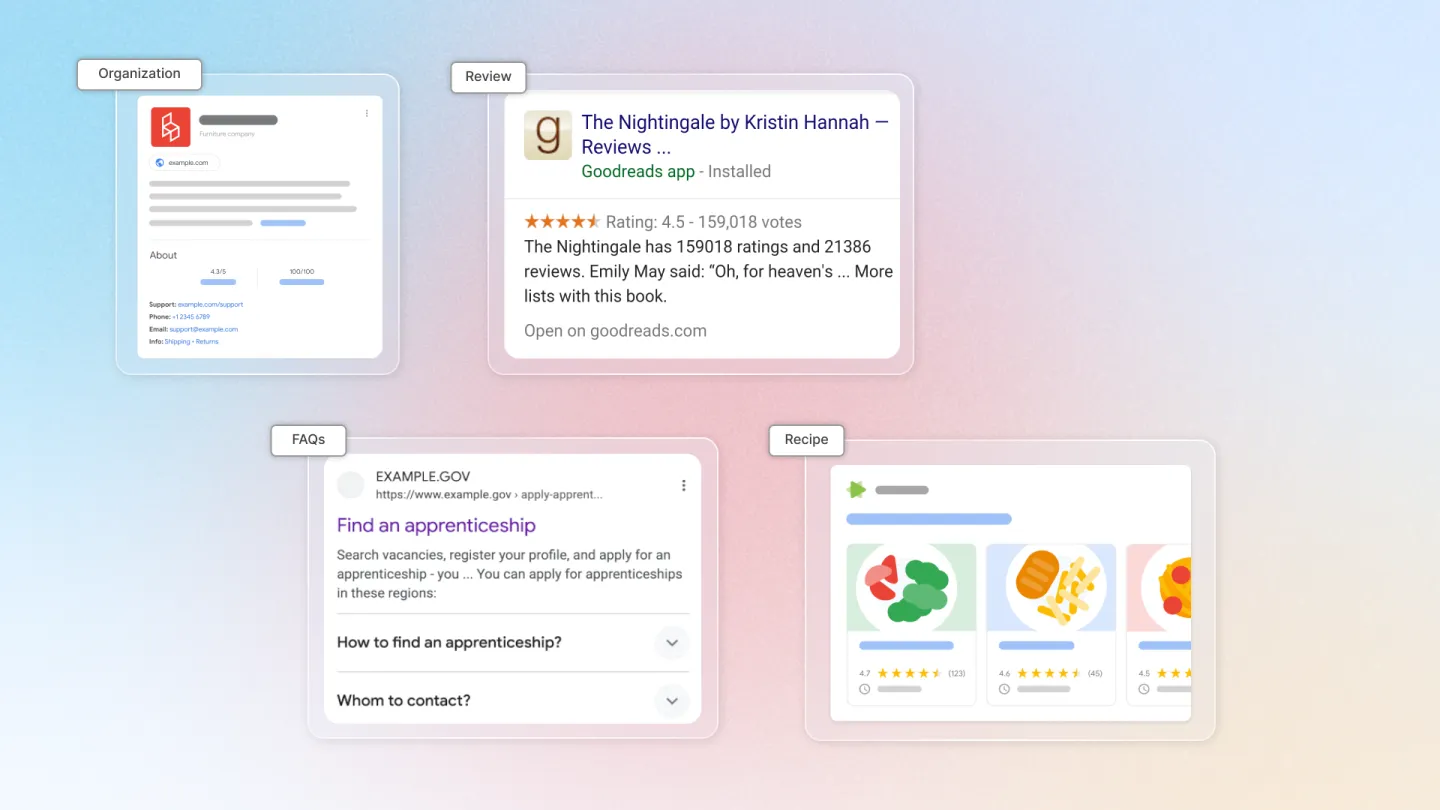
Learn more about Structured data with Google (opens in a new tab).
How does this work
In Avada SEO Suite, we help you set up the rich results most critical for an eCommerce store: organization, local business, product, review snippet, breadcrumb, loyalty program, FAQs, and article.
- From the Avada SEO Suite sidebar, go to Search optimization → Google structured data
- Click Preview to see how your store information will be displayed on Search as rich results
- Toggle on the rich result type you want to enable
- Click Edit to set up your content. Learn about Google's rich result testing tool (opens in a new tab).
Features may work differently across rich result types. See the section below for setup details per rich result.
Rich results we support
1. Organization
Information about your organization, such as your logo, legal name of the organization, address, contact information, and company identifiers. This information can show up in knowledge panels and other visual elements.
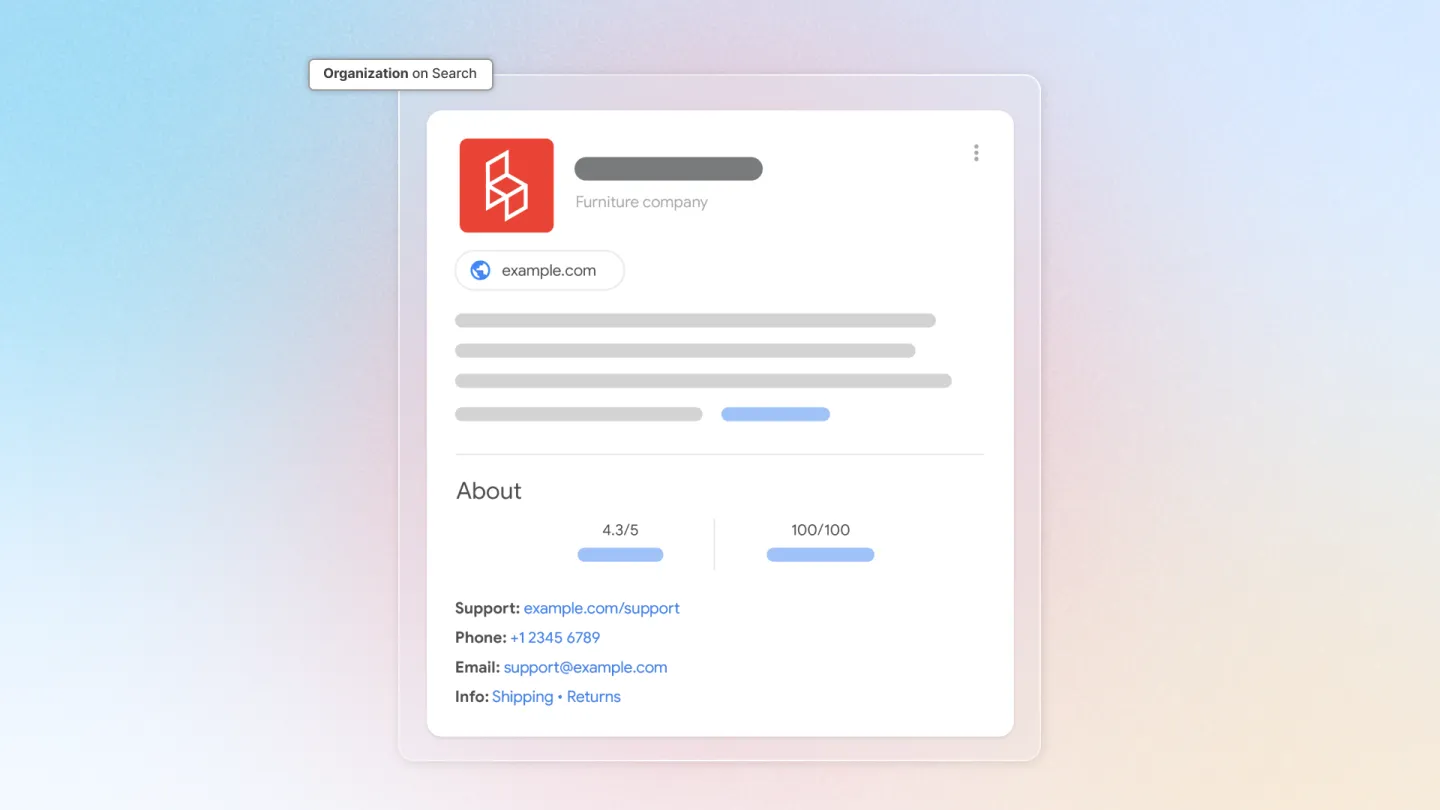
- Go to Google structured data
- In the Organization card, toggle on
- Click Edit to set up your content, which includes store information and social network links
- Click Save
- Click Preview to see how the rich result will appear on Google
Advanced information (Enterprise plan only)
We've added advanced organization details for Enterprise users, offering richer schema data for improved visibility.
Need a more customized schema, such as slogan or founder? Click Contact us at the bottom of the Advanced information section to chat with support.
Reference: Google's Organization structured data documentation (opens in a new tab)
2. Review snippet
A short excerpt of a review or rating from a review website — usually an average of the combined rating scores from reviewers.
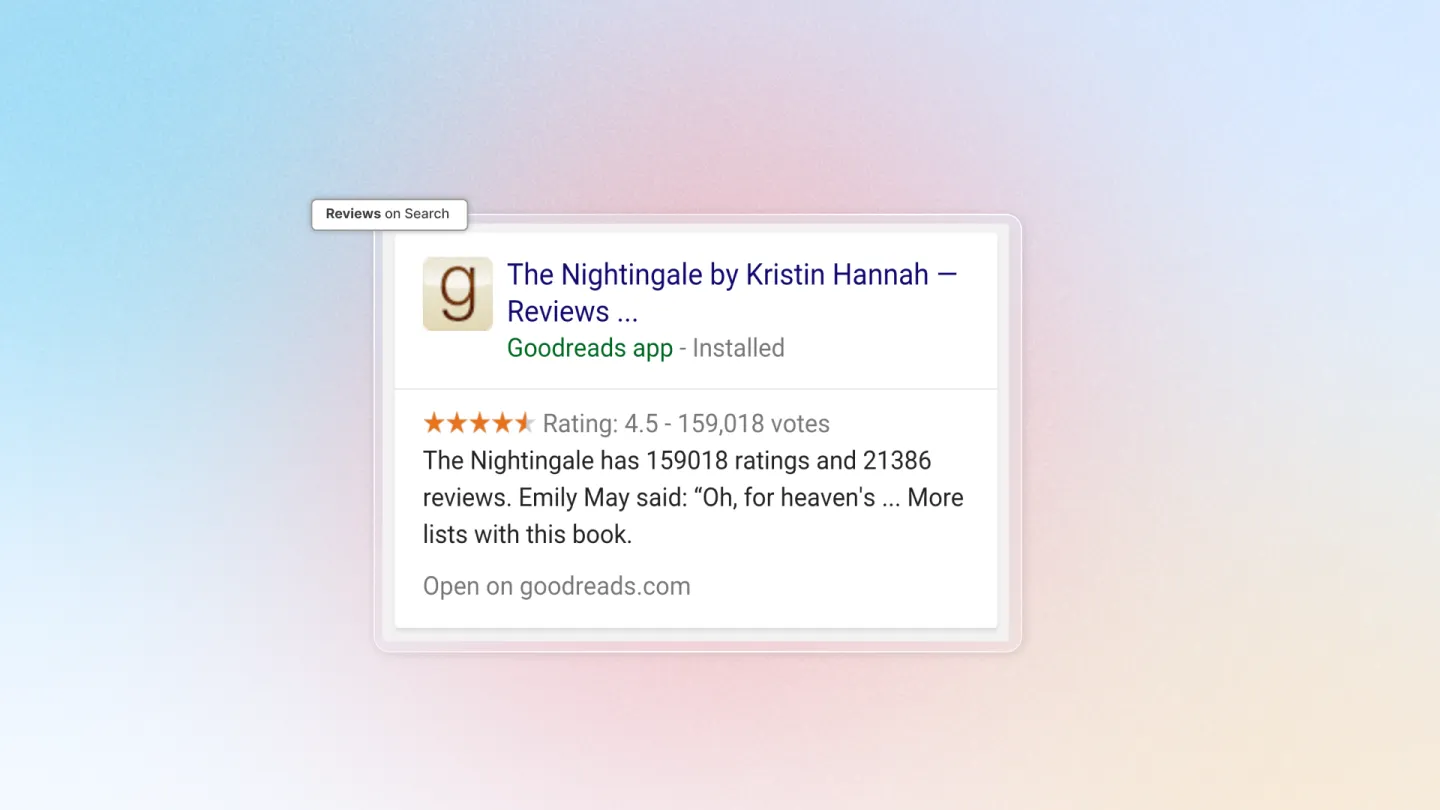
- Go to Google structured data
- In the Review snippet card, toggle on
- Click More options to select a review app to show your reviews. All reviews from the review app will be eligible for the Review rich result.
- Supported review apps: Air Reviews, Judge.me, Growave, Ali Reviews and Loox.
- Click Preview to see how the rich result will appear on Google
Reference: Google's Review snippet structured data documentation (opens in a new tab)
3. Product
Product information displayed in richer ways in search results: price, availability, review ratings, shipping information, and more.
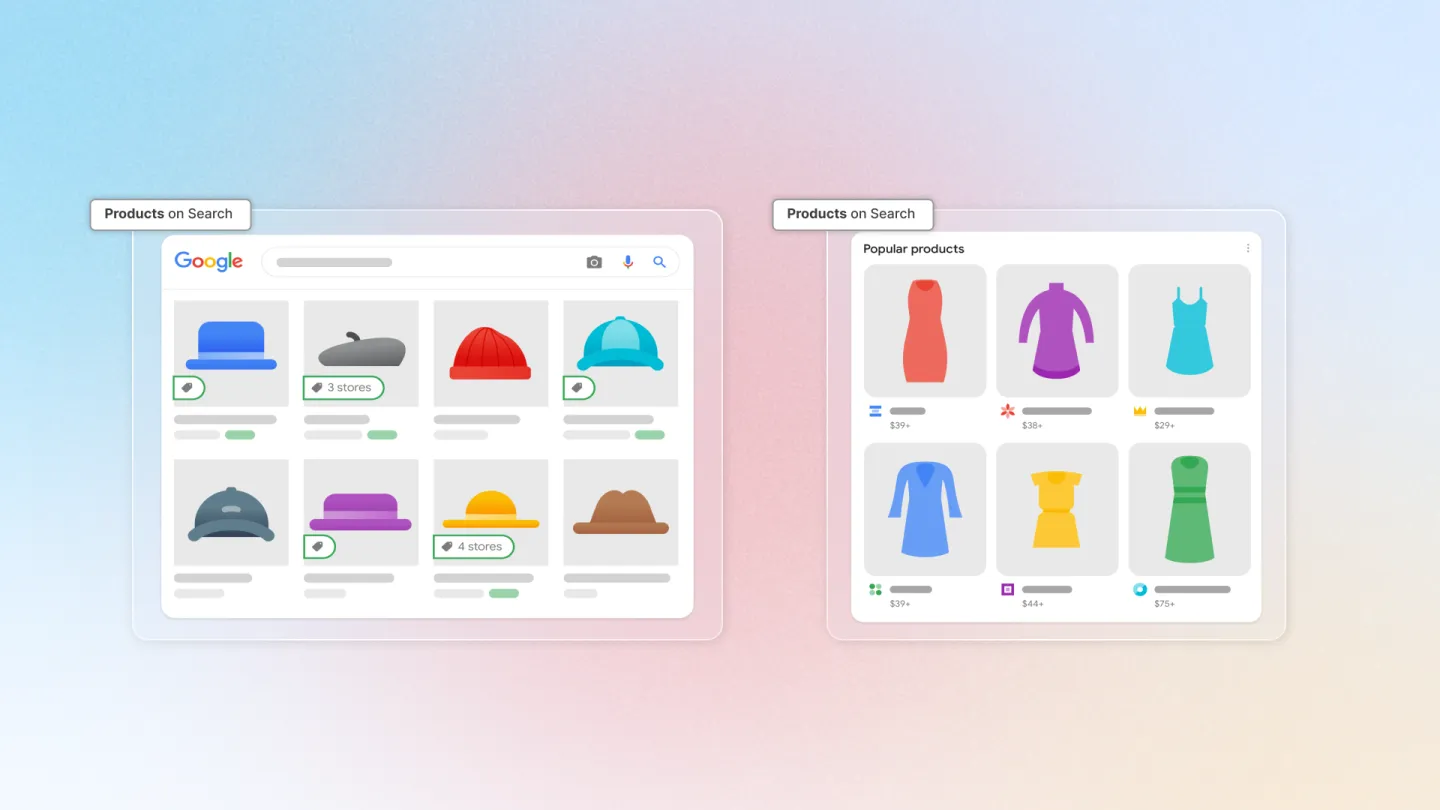
- Go to Google structured data
- In the Product card, toggle on
- Click Edit to set your product information
- Click Save
- Click Preview to see how the rich result will appear on Google
Product information fields
- Offer Schema: Choose between Offer (single offer, one price) or AggregateOffer (multiple offers with a price range — useful for products with variants at different prices)
- Show product's stock status: Display availability (in stock, out of stock, backorder) in Google search results
- Show price valid until: Show an expiration date for the product's current price — useful for flash sales or seasonal discounts
- Show shipping details: Display shipping information (cost, delivery time) in Google search results
- Show return policy: Display your store's return and refund details in Google search results
- Exclude on collection pages: Skip structured data on collection pages to avoid conflicts with other apps or themes that may also inject product schema
Reference: Google's Product structured data documentation (opens in a new tab)
4. Breadcrumb
A breadcrumb on a page indicates its position in the site hierarchy and may help users understand and explore the site more effectively.
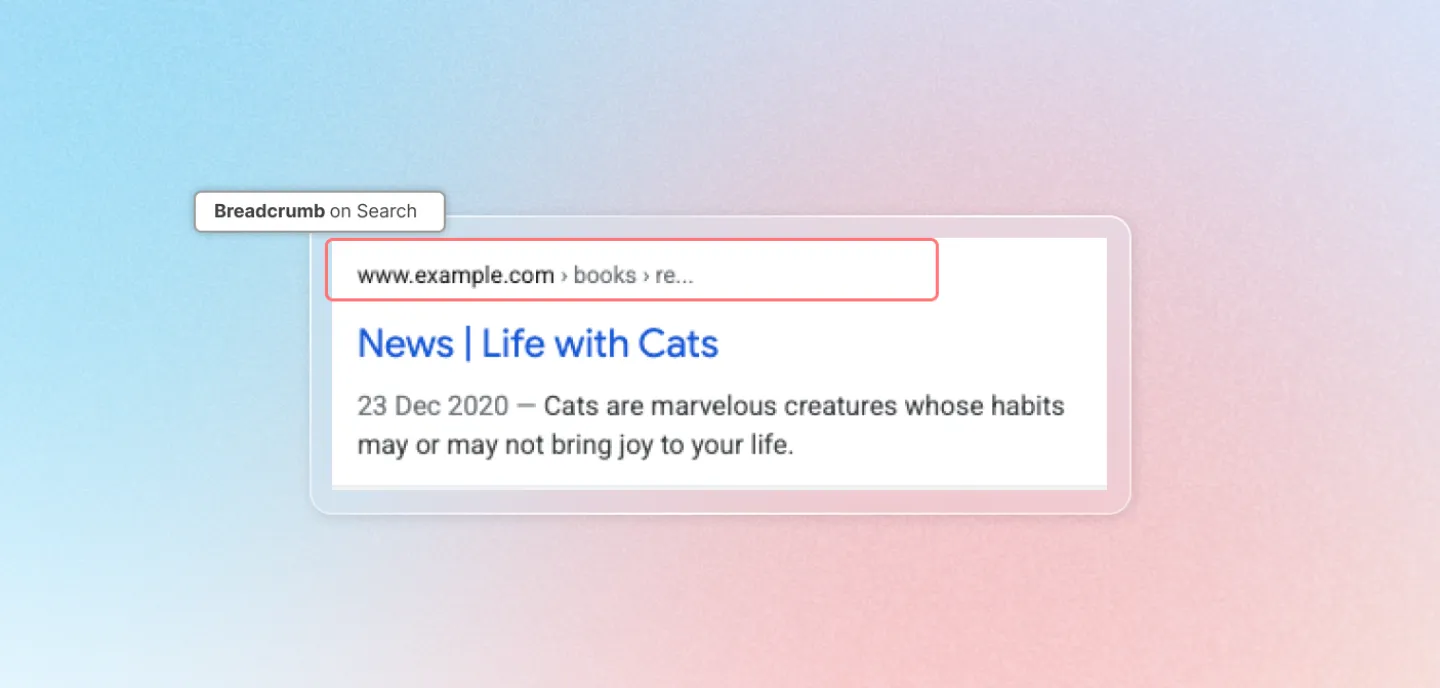
- Go to Google structured data
- In the Breadcrumb card, toggle on
- Click Preview to see how the rich result will appear on Google
Reference: Google's Breadcrumb structured data documentation (opens in a new tab)
5. Local business
Show more information about your store — such as address, store location, opening hours — on the search results page.
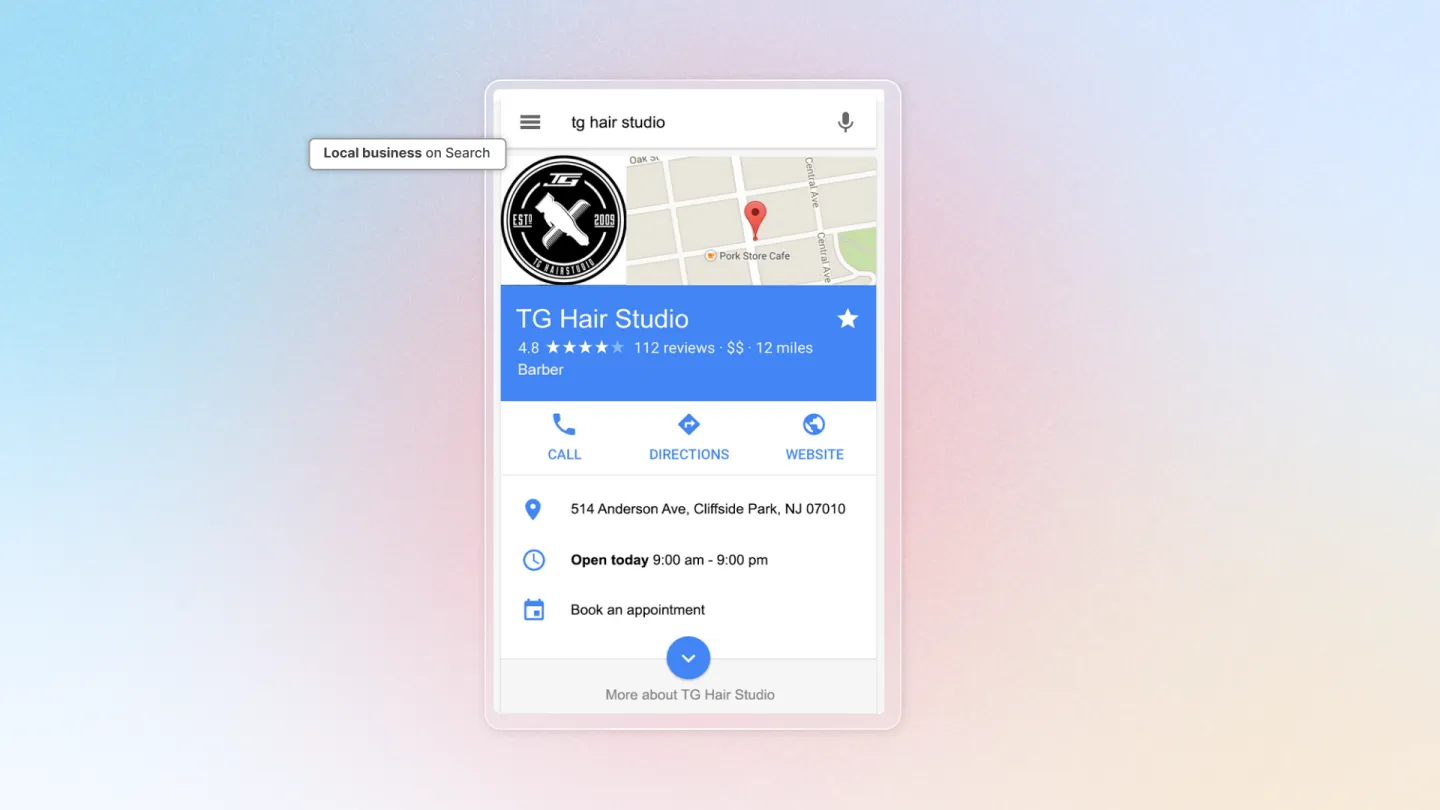
- Go to Google structured data
- In the Local business card, toggle on
- Click Edit to set up store information
- Click Save
- Click Preview to see how the rich result will appear on Google
Configuration options
General information
- Company name: Your business or store name as it should appear on Google
- Image URL: Direct URL to your store logo or representative image
- Phone number: Contact phone number shown in the rich result
- Business type: Select the schema type that matches your business (e.g. AutoBodyShop, Restaurant, Store). See Google's LocalBusiness types list (opens in a new tab)
- Price range: Indicator of typical price level (e.g.
$,$$,$$$)
Location details
- Address: Full street address of your business
- GeoLocation: Coordinates in
latitude, longitudeformat (e.g.20.970634, 105.820044). Click How to get the coordinates of a place if you need help finding them
Service area (optional)
- Click Add service area to specify the geographic areas where your business provides service — cities, regions, or countries. Useful for businesses that serve customers beyond their physical address (e.g. delivery, on-site services)
Opening hours
- Open 24/7: Always open (no schedule needed)
- Schedule time: Set specific opening/closing hours per day of the week
Apply for
- Home page: Show this schema on your storefront homepage
- Other pages: Show this schema on other pages of your store as well
Reference: Google's Local business structured data documentation (opens in a new tab)
6. Frequently asked questions
A Frequently Asked Question (FAQ) page contains a list of questions and answers pertaining to a particular topic.
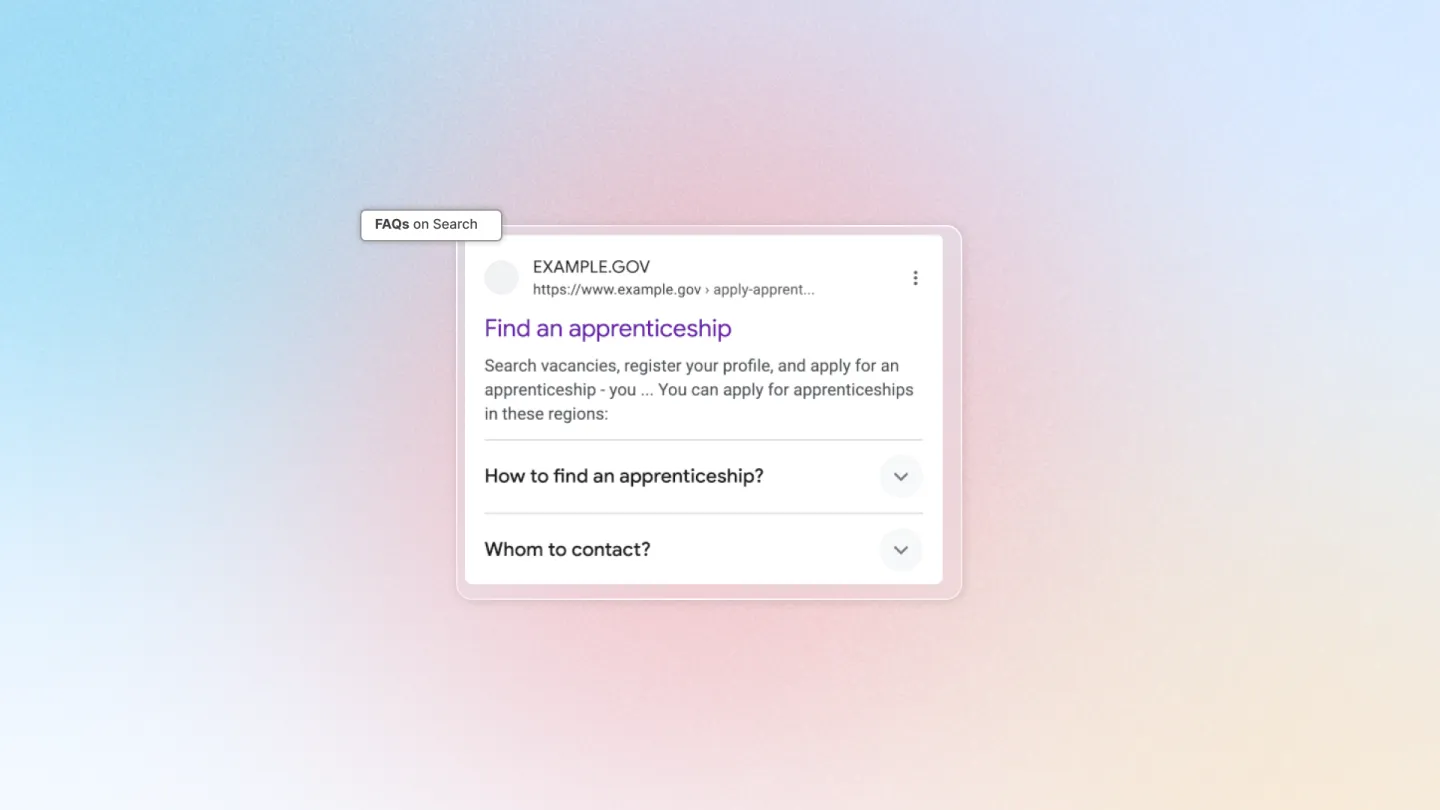
- Go to Google structured data
- In the Frequently asked questions card, toggle on, then click Add FAQ
- Select which page you want to add FAQs to by clicking the page title
- In page settings, toggle on to make your FAQs eligible for Google Structured Data
- To show your FAQ list on the storefront page, tick Show FAQs block
- If unchecked, your questions are still eligible to show on Google search results but not on the storefront
- Click Go to theme editor to add a FAQ block to your page
- In the theme editor, click Add block to insert the FAQ block in your preferred position, then click Save
- You can Add, Edit, and Delete Question–Answer pairs, or reset all to default. Maximum 10 questions per list.
You can also add FAQs to a specific page by:
- Go to On-page SEO audit
- Select the page you want to add FAQs to
- Go to FAQs builder and do the same setup
If you're using Avada FAQs (opens in a new tab), questions and answers are auto-synced from the app. Change content in Avada FAQs.
Reference: Google's FAQ structured data documentation (opens in a new tab)
7. Article
A news, sports, or blog article displayed in various rich result formats — such as the article title and larger-than-thumbnail images.
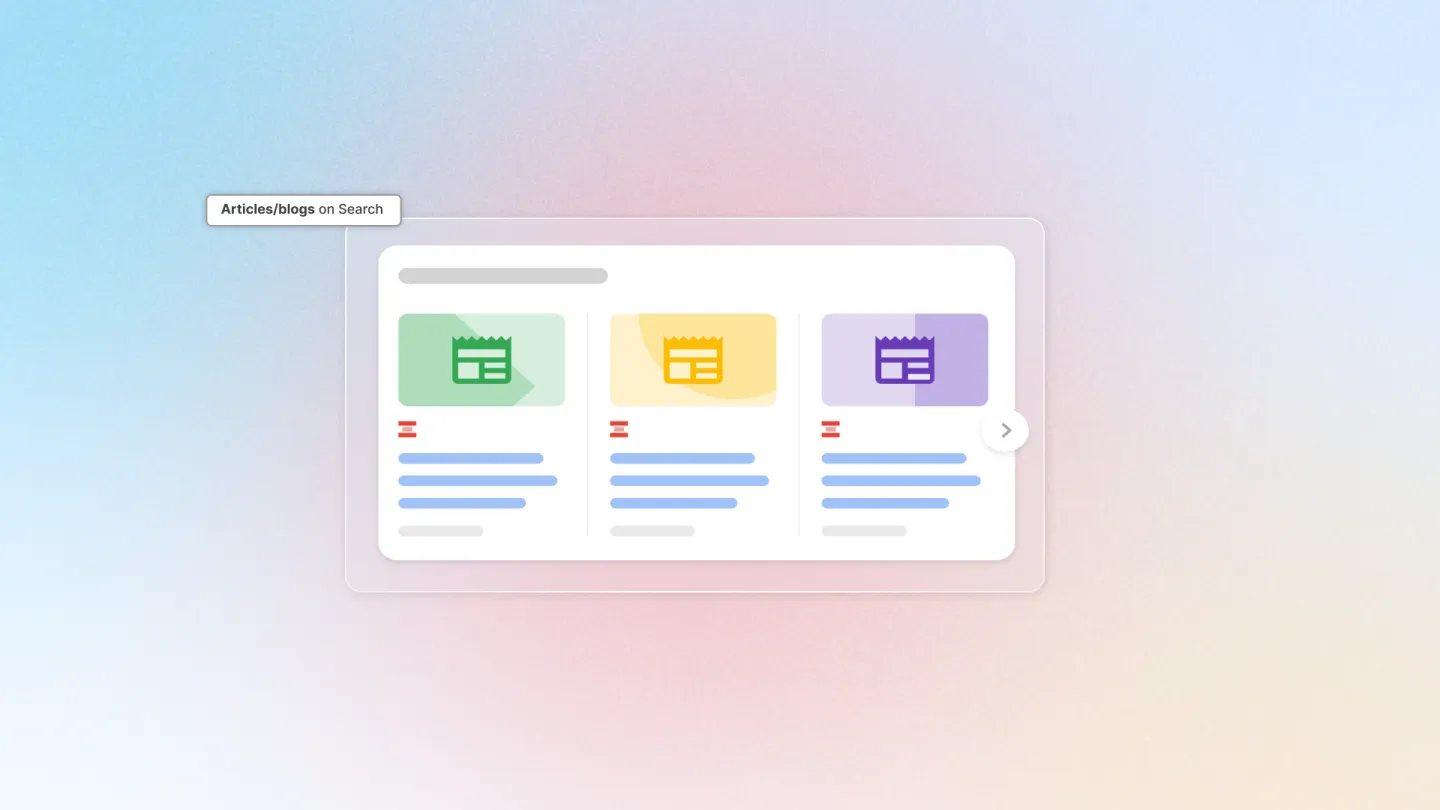
- Go to Google structured data
- In the Article card, toggle on
- Click Preview to see how the rich result will appear on Google
Reference: Google's Article structured data documentation (opens in a new tab)
8. Loyalty program
Showcase your loyalty / membership program in search results — including member tiers, benefits and points earned. Helps loyal customers see "member pricing" and program details directly on Google Search and Shopping, increasing click-through rate for returning customers.
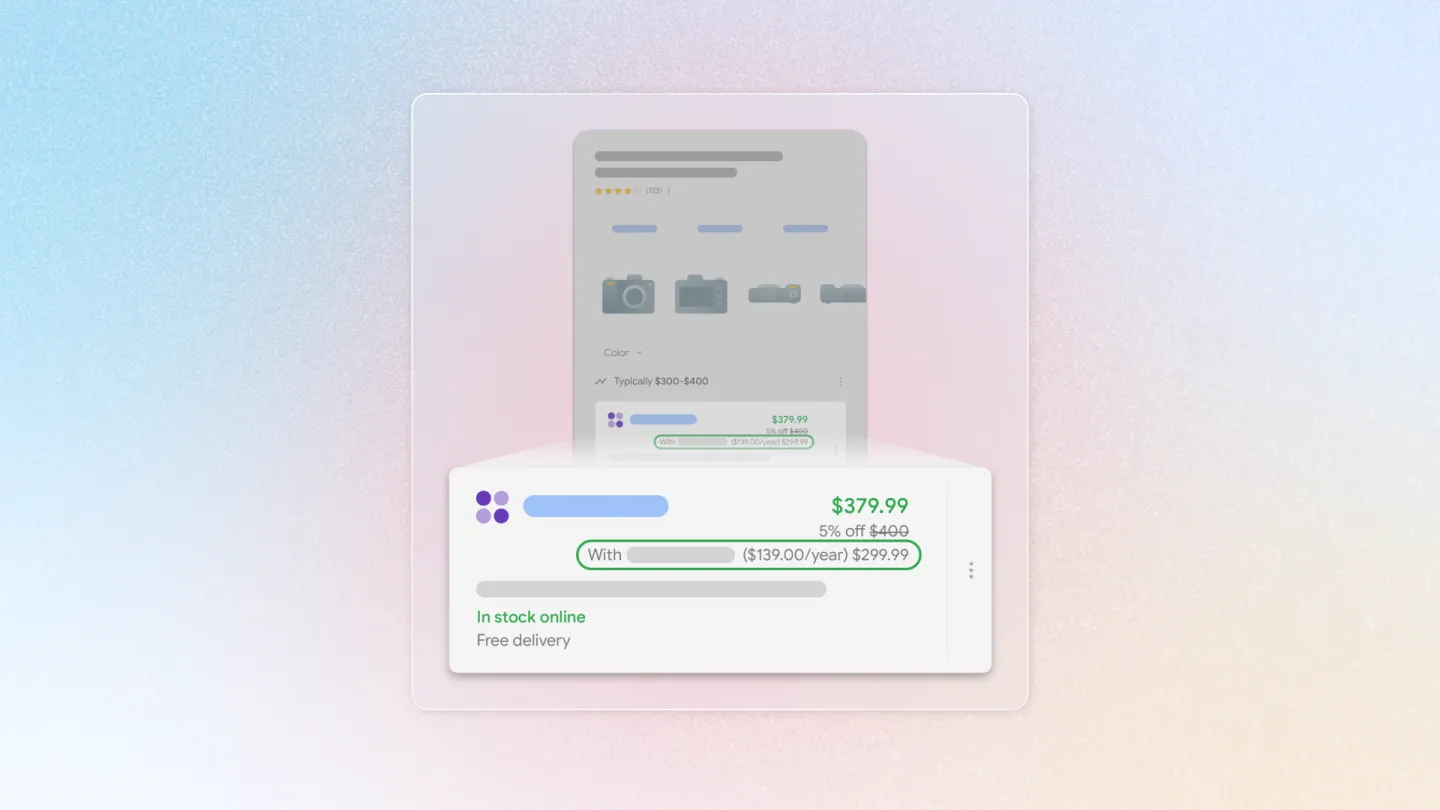
-
Go to Google structured data
-
In the Loyalty program card, toggle on
-
Click Edit to open the configuration
-
Set up Program information:
- Program name, Program URL, Description
-
Add one or more Membership tiers (e.g. Gold, Silver). For each tier you can configure:
- Tier name, Tier ID, Tier URL
- Benefits: tick Loyalty points and/or Loyalty price
- Points earned: number of loyalty points (or miles) earned per spending unit (typically $1). For higher tiers, this can also represent a multiplier vs your base tier — e.g. base tier = 1 point/$, Gold = 5 means Gold members earn 5× the base rate
- Tier requirement — choose one of four types:
- Text — free-text description of how to reach the tier
- Credit card — name of the credit card required
- Monetary amount — minimum spend value + currency
- Subscription fee — recurring membership fee, with billing duration and increment
-
Click Save
-
Click Preview to see how the rich result will appear on Google
Reference: Google's Loyalty program structured data documentation (opens in a new tab)
Test Google structured data
After turning on a rich result type, validate that the schema is correctly generated using Google's official testing tools.
-
Schema Markup Validator — validator.schema.org (opens in a new tab)
- Enter your URL
- Click Run test
- You'll see a list of eligible rich results on your page
- Click Preview to check how it looks on search results
-
Rich Results Test — search.google.com/test/rich-results (opens in a new tab)
- Enter your URL
- Click Test URL
- You'll see a list of eligible rich results on your page
- Click Preview results to check how it looks on search results