SEO checklist
Explore essential tips for understanding and fixing your SEO checklist. Improve your website's visibility and attract more organic traffic with expert insights and actionable strategies.
SEO checklist
There are two types of SEO scores in our app that require your attention: the SEO checklist score and the on-page SEO score. The on-page SEO score focuses on one single page, while the SEO checklist score focuses on SEO best practices for your whole store, grouped into content, accessibility and performance.
In this post, we will cover all the checklist items in our app to help you jumpstart your store and SEO campaign.
A. Content
Canonical tag
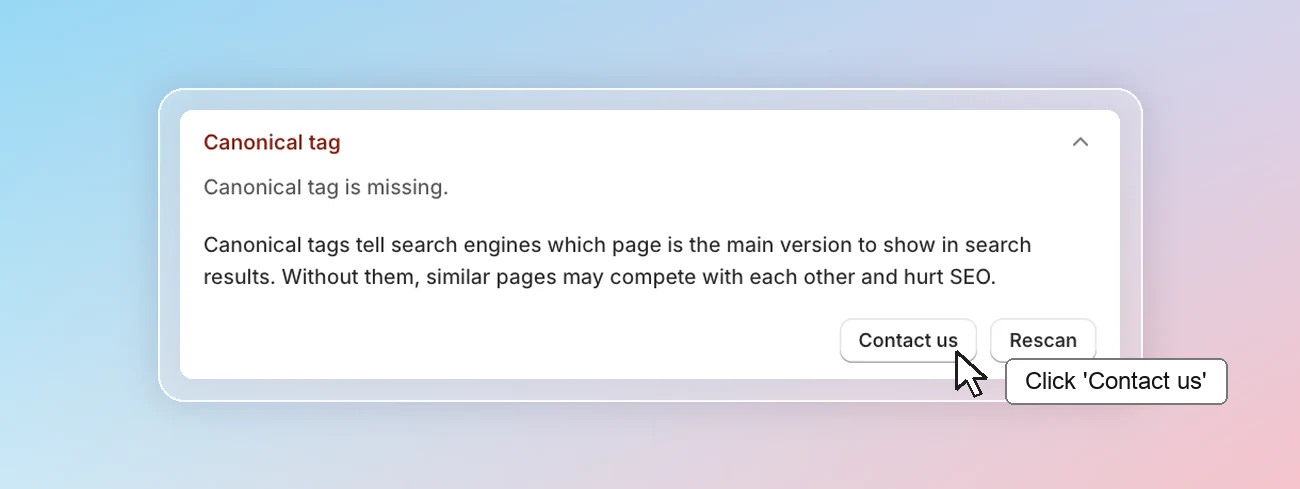
Canonical tag is missing.
The same product can often be reached from several URLs, for example /products/blue-shirt and /collections/sale/products/blue-shirt. A canonical tag tells search engines which URL is the main one. Without it, Google may treat these URLs as duplicate pages, split their ranking between them, or show the less useful URL in search results.
Most Shopify themes already include a canonical tag. It usually goes missing when the theme code was customized and the tag was removed by mistake. To add it back, go to Online Store > Themes > Edit code, open layout/theme.liquid, and add <link rel="canonical" href="{{ canonical_url }}"> before the closing </head> tag.
If you're not comfortable editing theme code, click Contact us so that our Customer Success team can assist you.
Meta title
Some of your pages don't have a meta title.
The meta title is the blue, clickable headline shoppers see for your page in Google. When it's missing, Google creates a title link from other content on the page (opens in a new tab), which is often generic. A clear title that says what the page is about, together with its main keyword, helps the page rank for the right searches and gets more clicks. Follow Google's best practices for page titles (opens in a new tab) when you write them.
We check every page of your store and show how many pages are missing a meta title, grouped by page type.
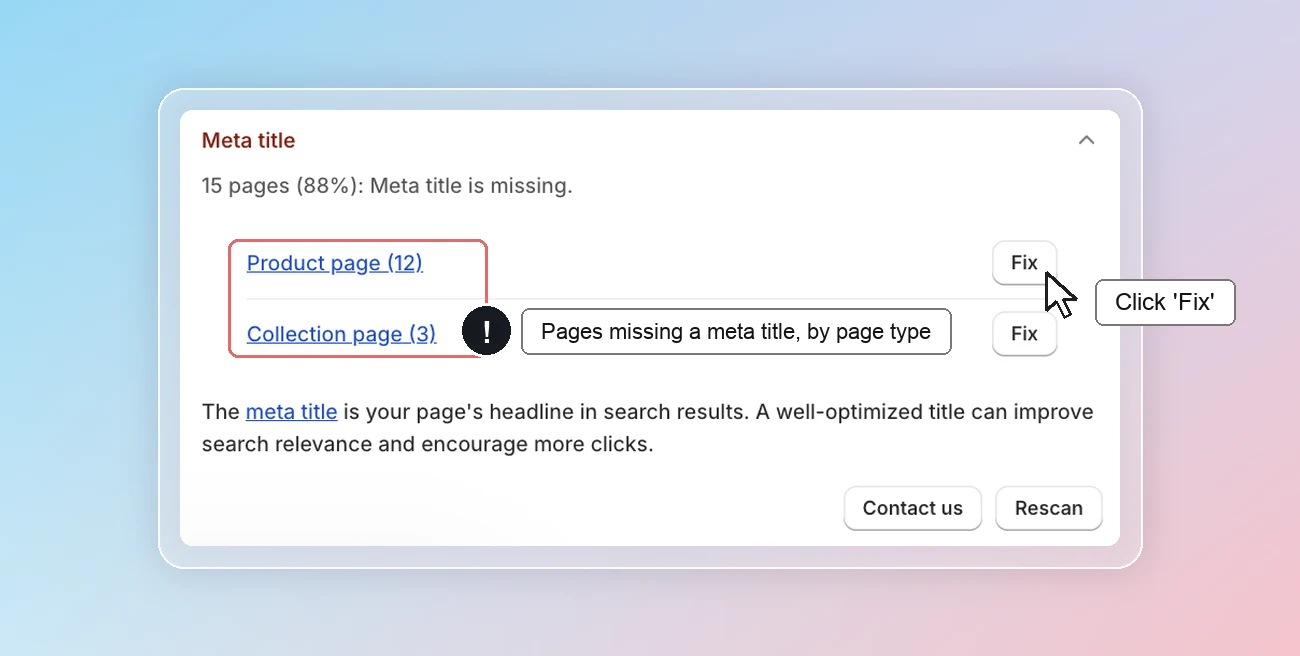
To fix all pages of one type at once, click Fix on that row:
-
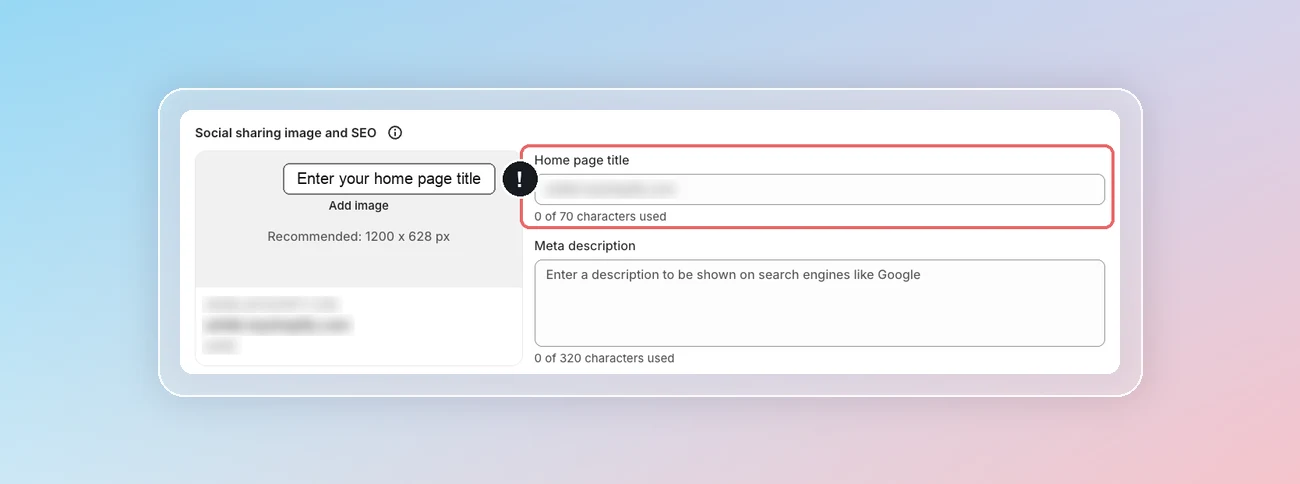
Home page: you're directed to Online store > Preferences in Shopify admin to edit your meta title.
-
Product, collection and blog pages: you're directed to AI content, with the pages missing a meta title selected for you. Click Generate to add meta titles.
To see which pages are affected, click a product, collection or blog page type.
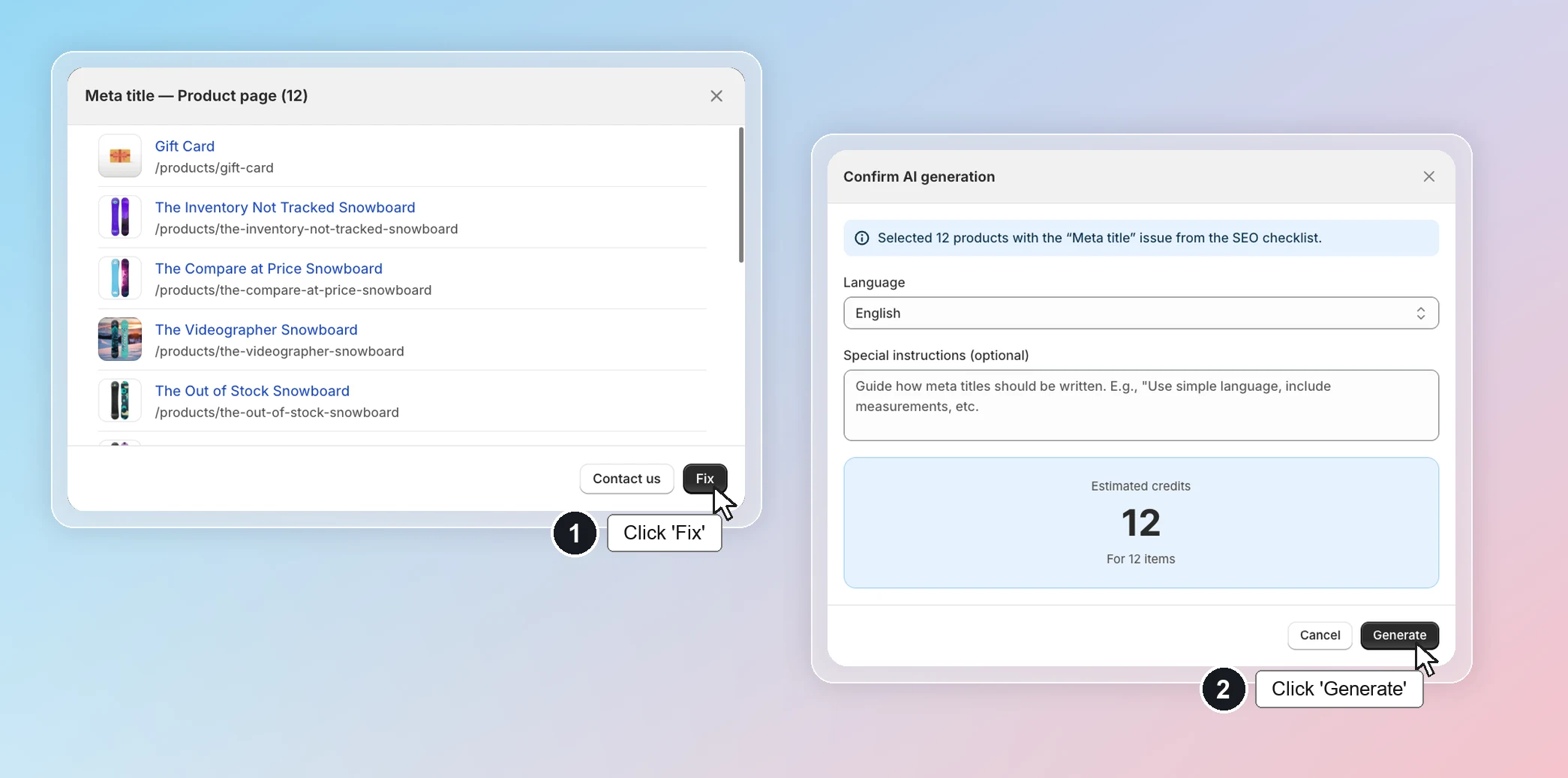
From the list, you can:
- Click a page to open it in On-page audit and write its meta title yourself.
- Click Fix to generate meta titles for all pages in the list with AI content.
Meta title length
Your meta title length is not in the range from 10 - 70 characters.
Google cuts off long titles in search results, so the words at the end may not show. A title that is too short, such as "Home", doesn't tell shoppers what the page offers. Google recommends descriptive, concise titles (opens in a new tab).
We show how many pages have a meta title that is too short or too long, grouped by page type.
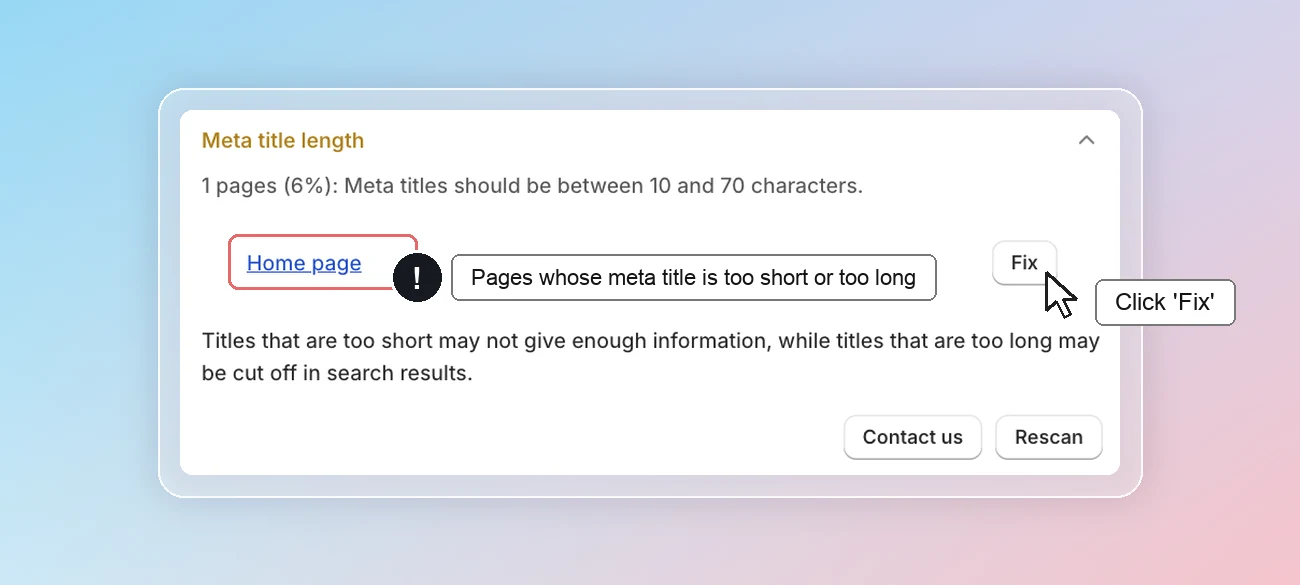
To fix all pages of one type at once, click Fix on that row:
-
Home page: you're directed to Online store > Preferences in Shopify admin to edit your meta title.
-
Product, collection and blog pages: you're directed to AI content, with the pages whose meta title is too short or too long selected for you. Click Generate to write new meta titles.
To see which pages are affected, click a product, collection or blog page type. The list shows each page's current meta title and its length.
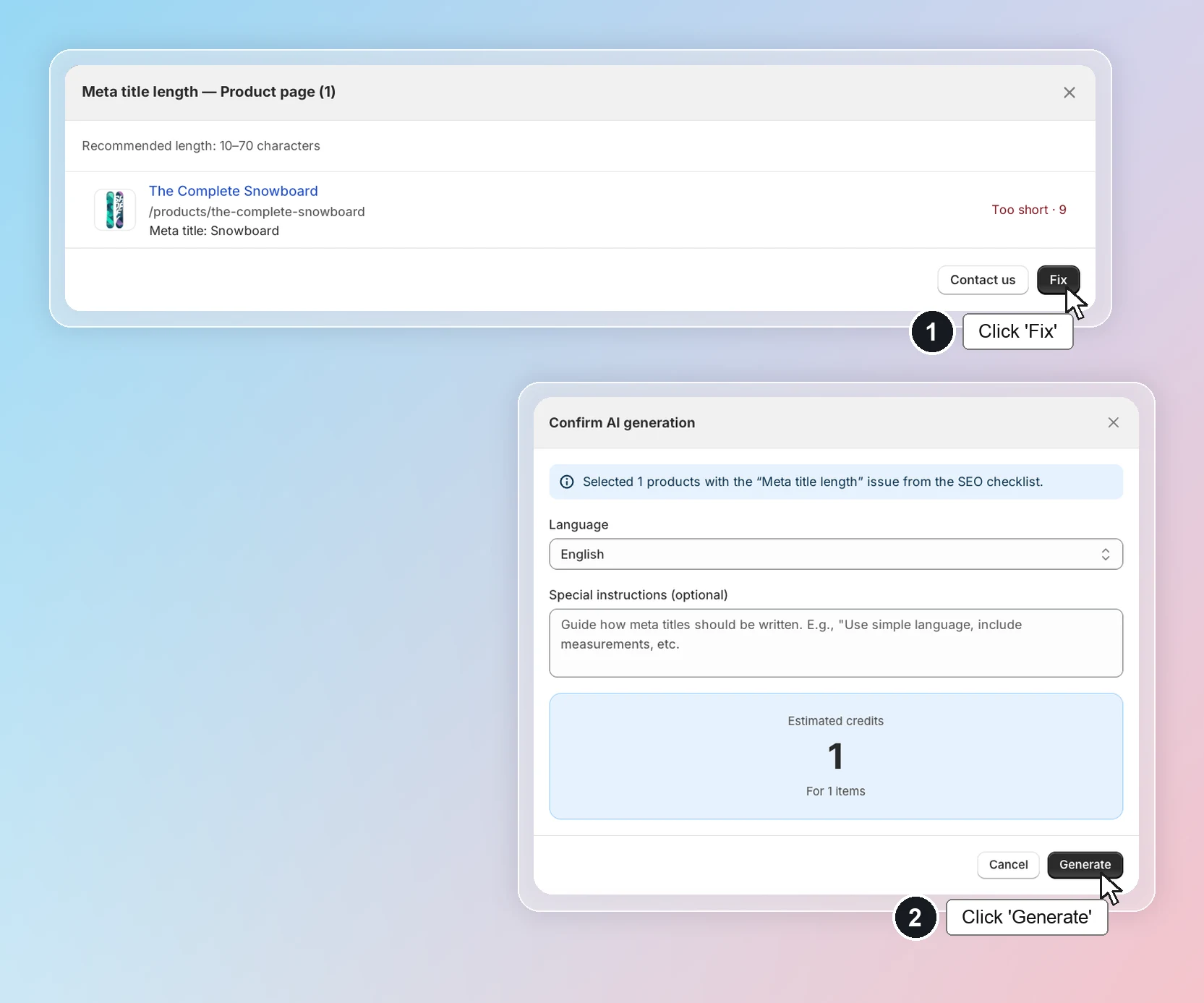
From the list, you can:
- Click a page to open it in On-page audit and edit its meta title yourself.
- Click Fix to write new meta titles for all pages in the list with AI content.
Meta description
Some of your pages don't have a meta description.
The meta description is the short text shown under your page title in Google. When it's missing, Google builds the snippet from the page content itself, which may not be what you want shoppers to read. A description that sums up the page and gives a reason to click can bring more visitors from the same ranking. See Google's best practices for meta descriptions (opens in a new tab) for tips on writing them.
We check every page of your store and show how many pages are missing a meta description, grouped by page type.
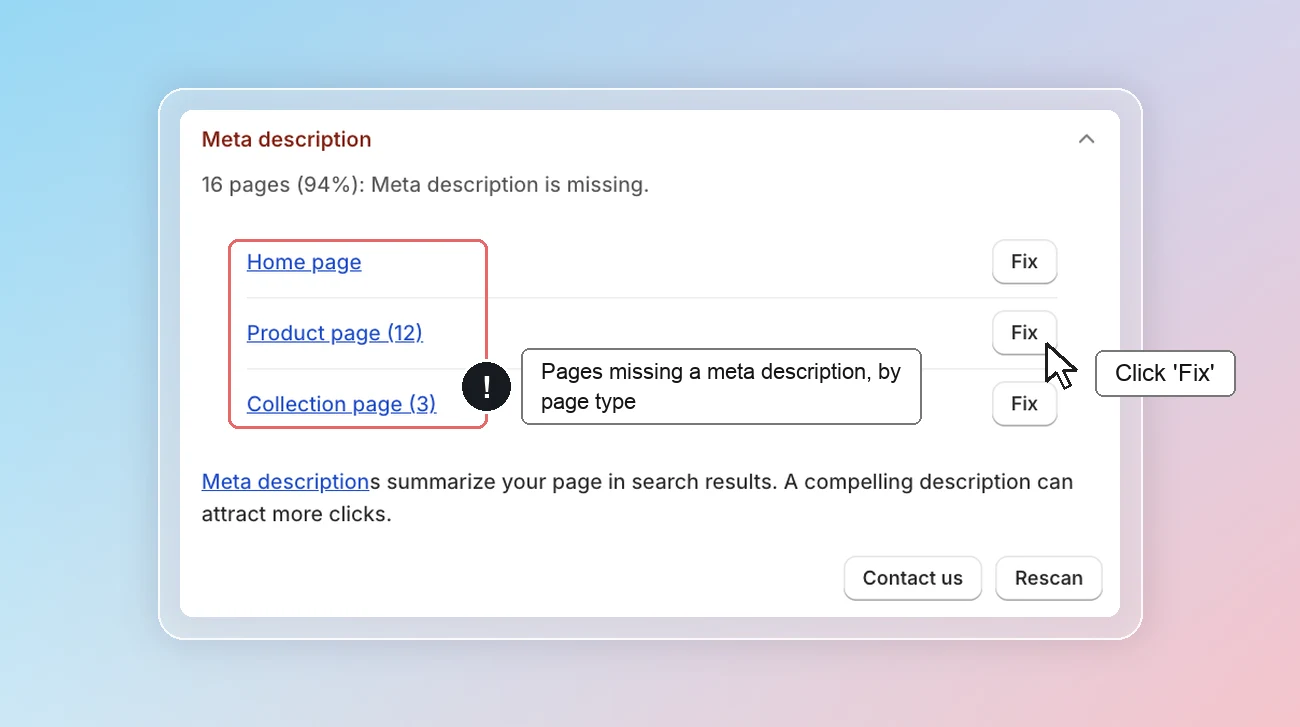
To fix all pages of one type at once, click Fix on that row:
-
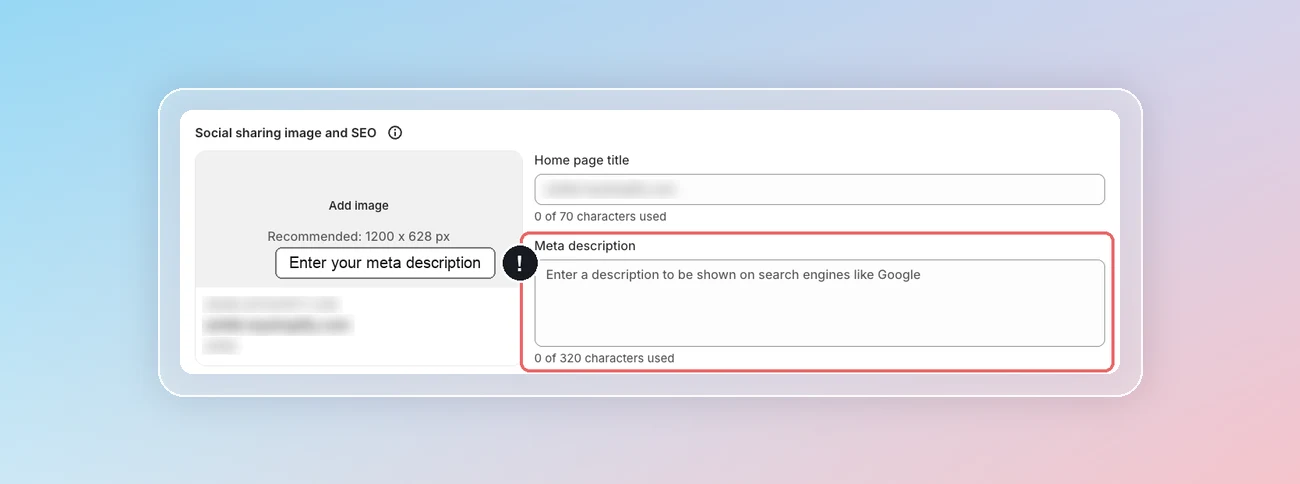
Home page: you're directed to Online store > Preferences in Shopify admin to edit your meta description.
-
Product, collection and blog pages: you're directed to AI content, with the pages missing a meta description selected for you. Click Generate to add meta descriptions.
To see which pages are affected, click a product, collection or blog page type.
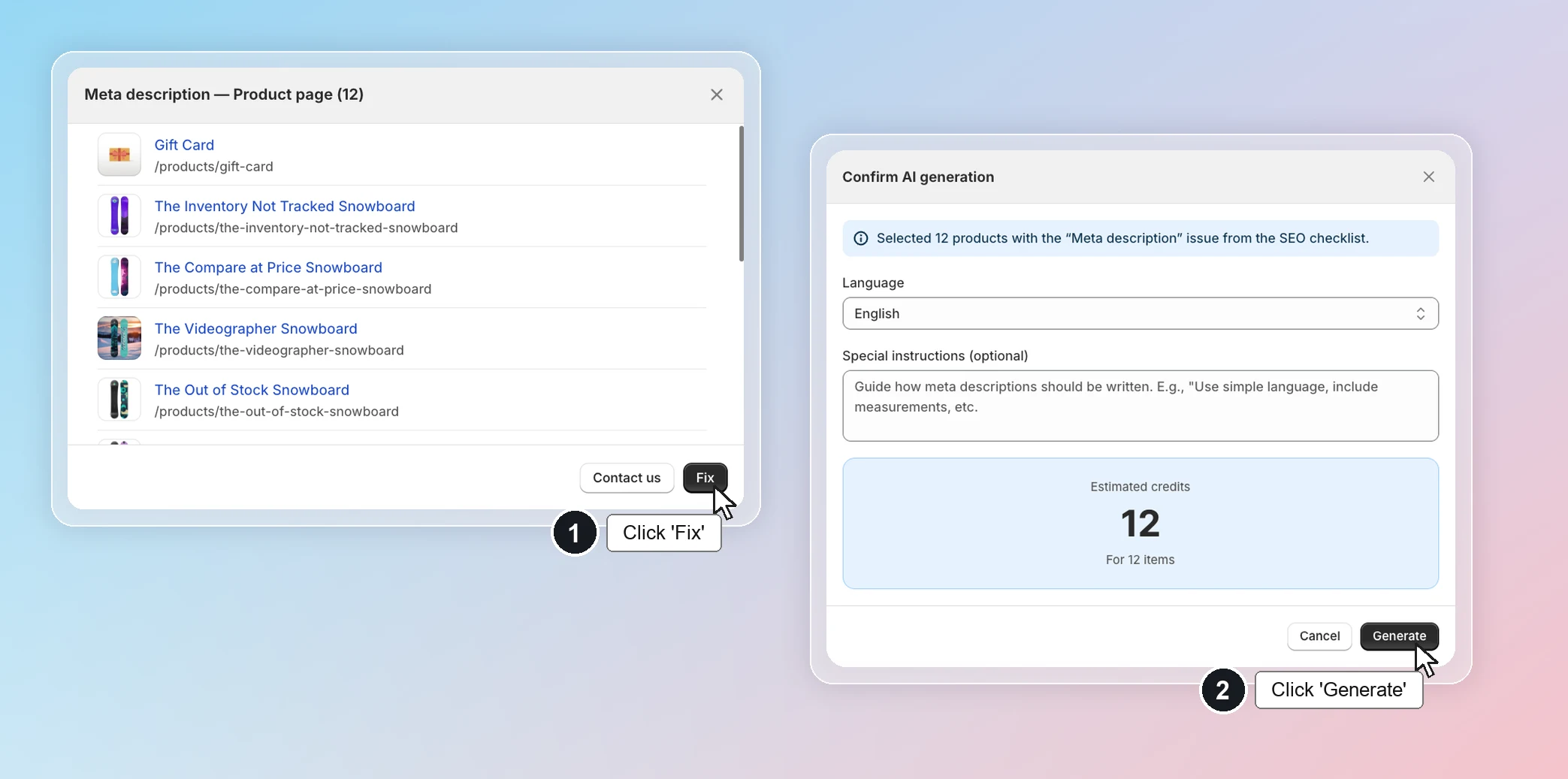
From the list, you can:
- Click a page to open it in On-page audit and write its meta description yourself.
- Click Fix to generate meta descriptions for all pages in the list with AI content.
Meta description length
Your meta description length is not in the range from 50 - 160 characters.
Google cuts off long descriptions in search results, so the key point at the end may not show. A description that is too short gives shoppers little reason to click. Google's meta description guidelines (opens in a new tab) recommend a unique, informative summary for each page.
We show how many pages have a meta description that is too short or too long, grouped by page type.
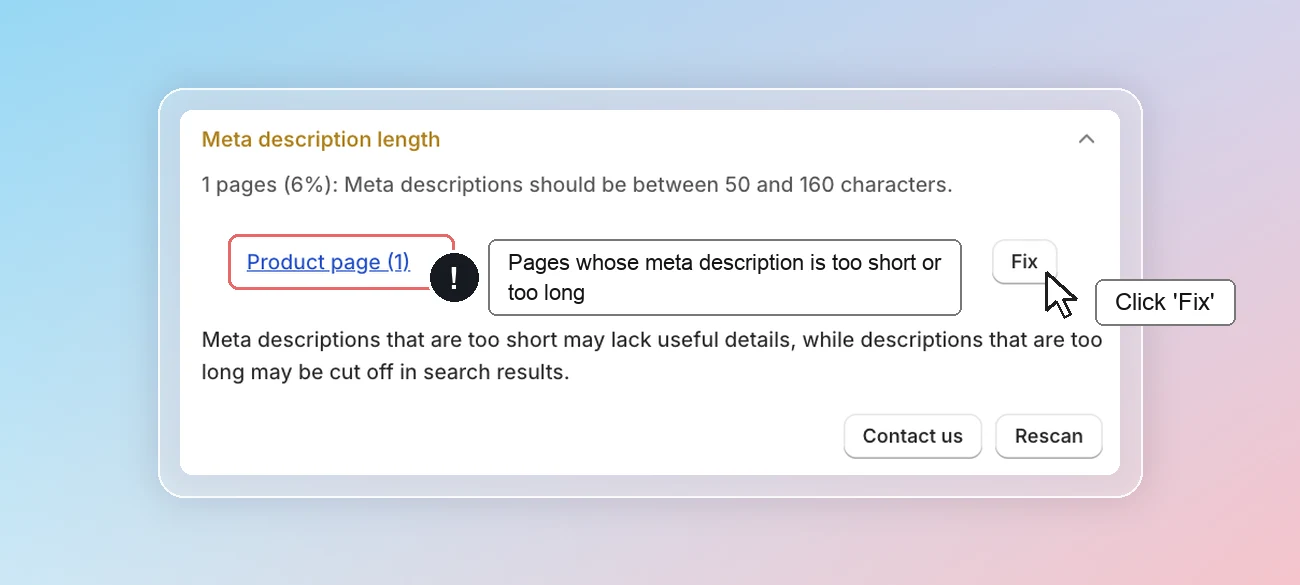
To fix all pages of one type at once, click Fix on that row:
-
Home page: you're directed to Online store > Preferences in Shopify admin to edit your meta description.
-
Product, collection and blog pages: you're directed to AI content, with the pages whose meta description is too short or too long selected for you. Click Generate to write new meta descriptions.
To see which pages are affected, click a product, collection or blog page type. The list shows each page's current meta description and its length.
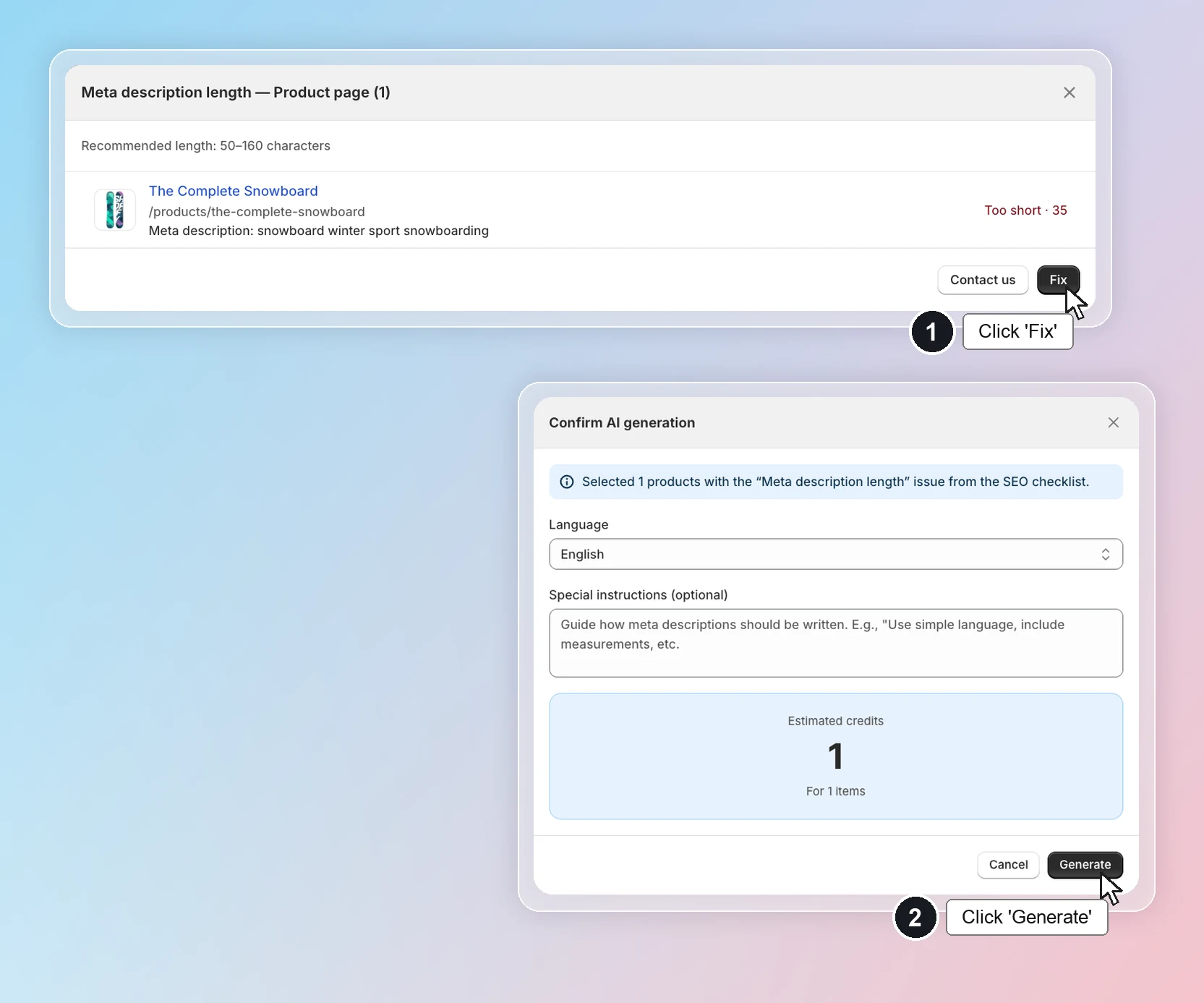
From the list, you can:
- Click a page to open it in On-page audit and edit its meta description yourself.
- Click Fix to write new meta descriptions for all pages in the list with AI content.
Title tag
Some of your pages have no <title> tag, or more than one.
The title tag is where search engines read your page's title from. If a page has none, Google has to guess the title. If it has two, Google may pick the wrong one and show it in search results.
Click a page type to open the affected page. If an app adds the extra title tag, check that app's settings first. Otherwise, go to Online Store > Themes > Edit code and search for <title. Remove the extra title tag added by the app or section, or restore the one in layout/theme.liquid.
If you need help, click Contact us so that our Customer Success team can assist you.
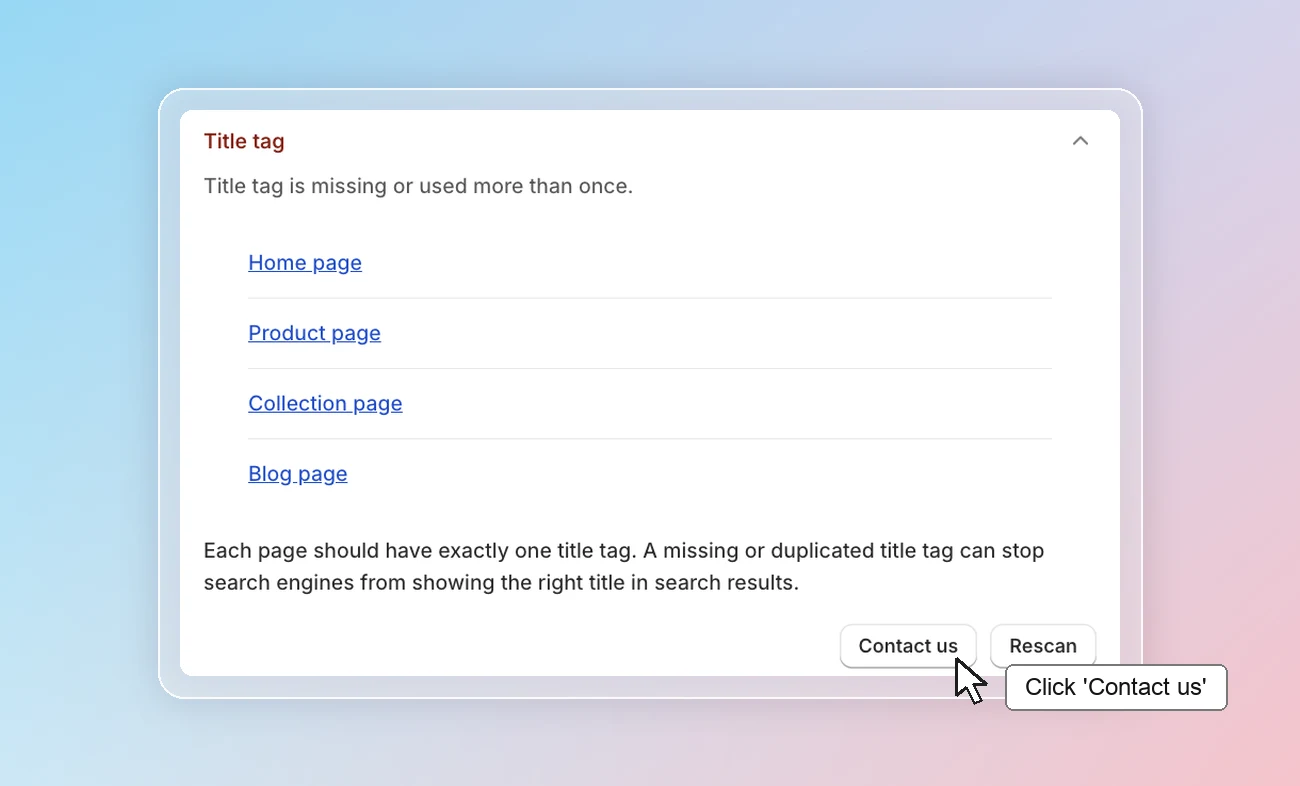
Image alt
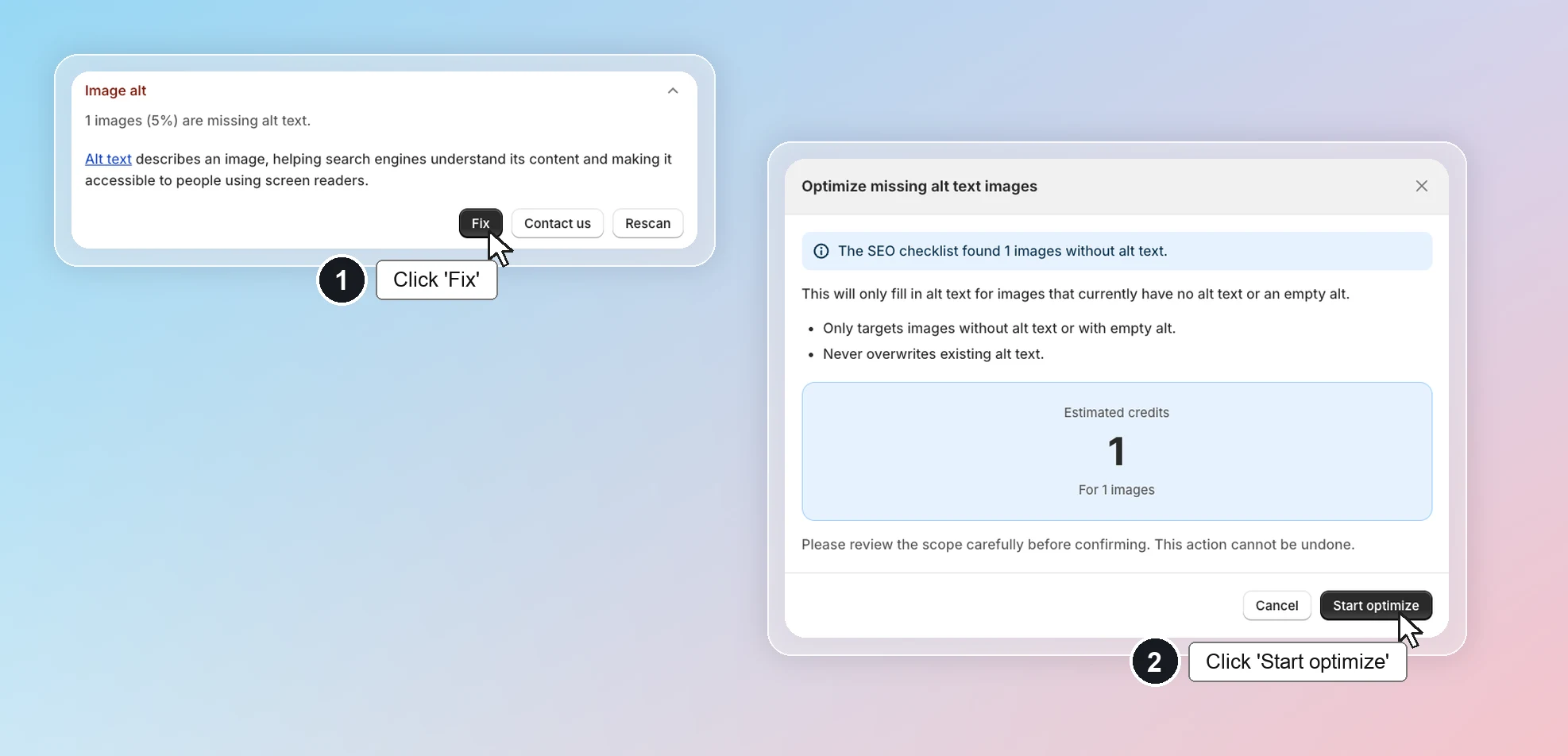
Images on your store do not have alt.
Google can't see images, so it reads the alt text to understand what an image shows. Good alt text helps your product images appear in Google Images, which is another source of shoppers. It is also read aloud to visitors who use screen readers, which makes your store more accessible.
We count all images on your store that are missing alt text. Click Fix -> you're directed to Image alt text optimizer to add alt text to your images automatically.
H1 tag
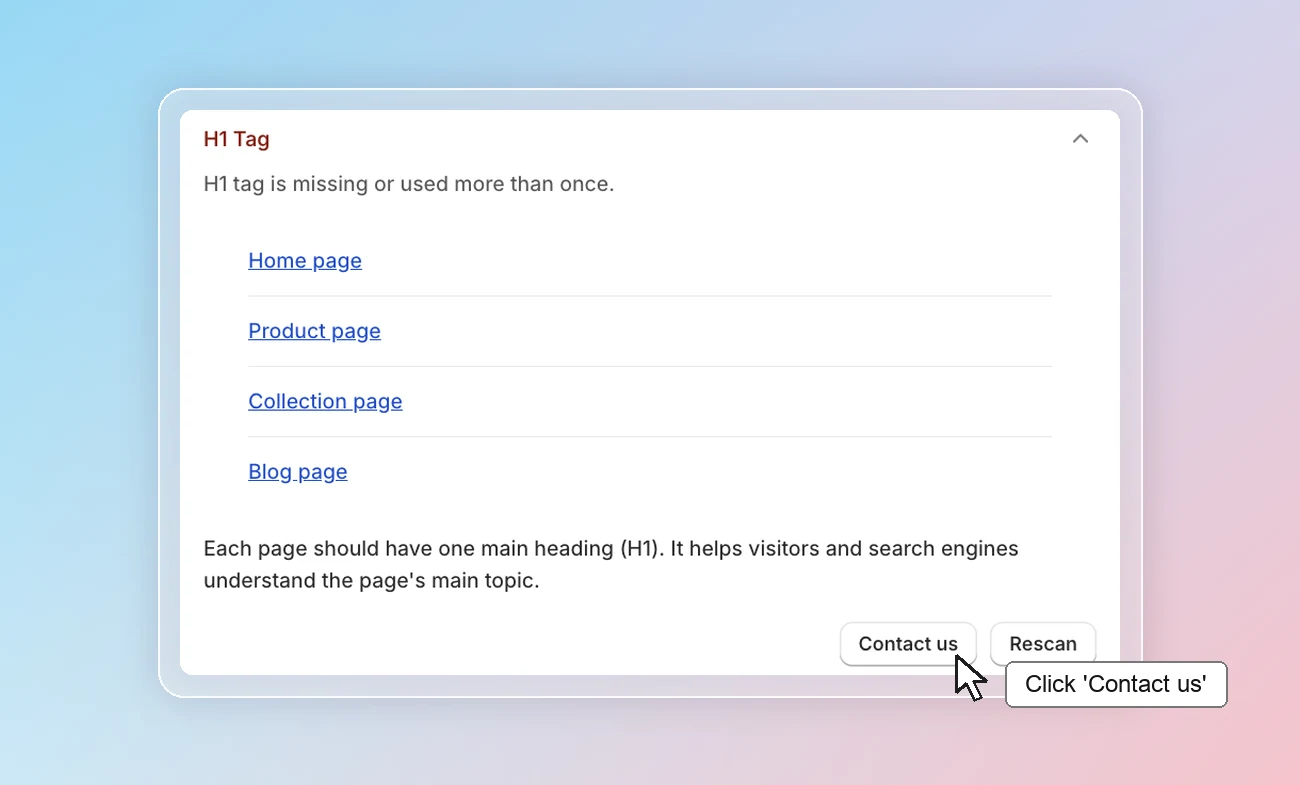
Some of your pages have no H1 tag, or more than one.
The H1 is the main heading of a page, like the title of a chapter. Search engines use it to understand what the page is about. With no H1, that signal is missing. With several H1s, it's unclear which one is the real topic of the page.
Click a page type to open the affected page. Keep one H1 per page, usually the product, collection or article title, and change the other headings to a smaller heading level in the theme editor or theme code.
If you need help, click Contact us so that our Customer Success team can assist you.
After-list Collection content
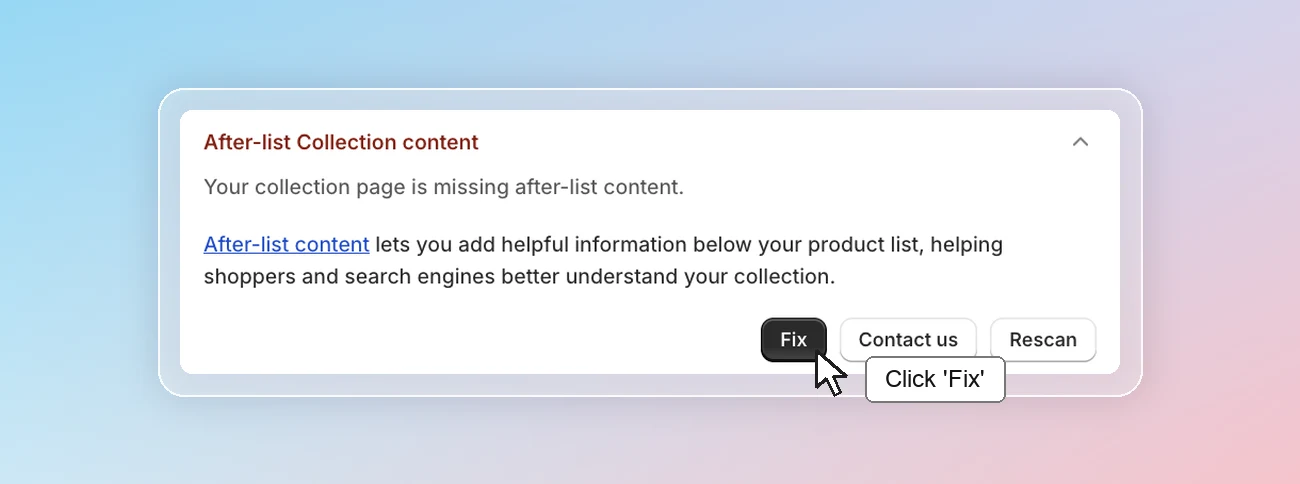
Your collection page is missing after-list content.
Collection pages often show only a grid of products, with little text for Google to understand. A short text block below the product list gives the page more relevant content to rank for and helps shoppers choose.
Click Fix to add collection content.
Blog page
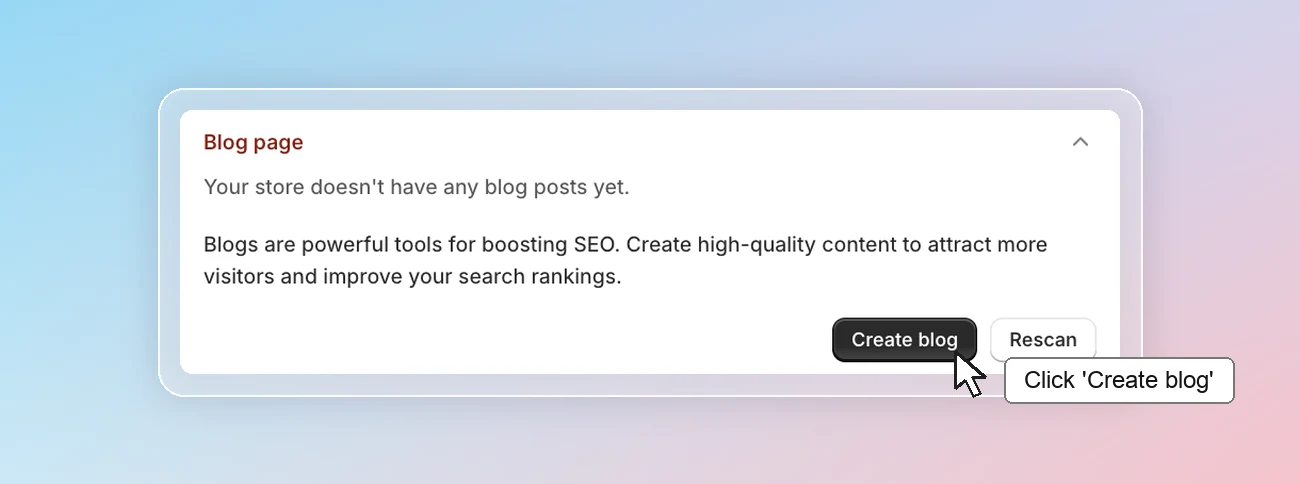
Your store doesn't have any blog posts yet.
Product and collection pages can only rank for searches about those products. Blog posts let you reach shoppers earlier, when they search for ideas, guides or comparisons. They also give you content to link to your products and keep your store active in Google's eyes.
Click Create blog to install Avada Blog (opens in a new tab), our app that writes SEO-ready blog posts with AI, from topic ideas and outlines to full drafts, in multiple languages.
Onpage SEO score
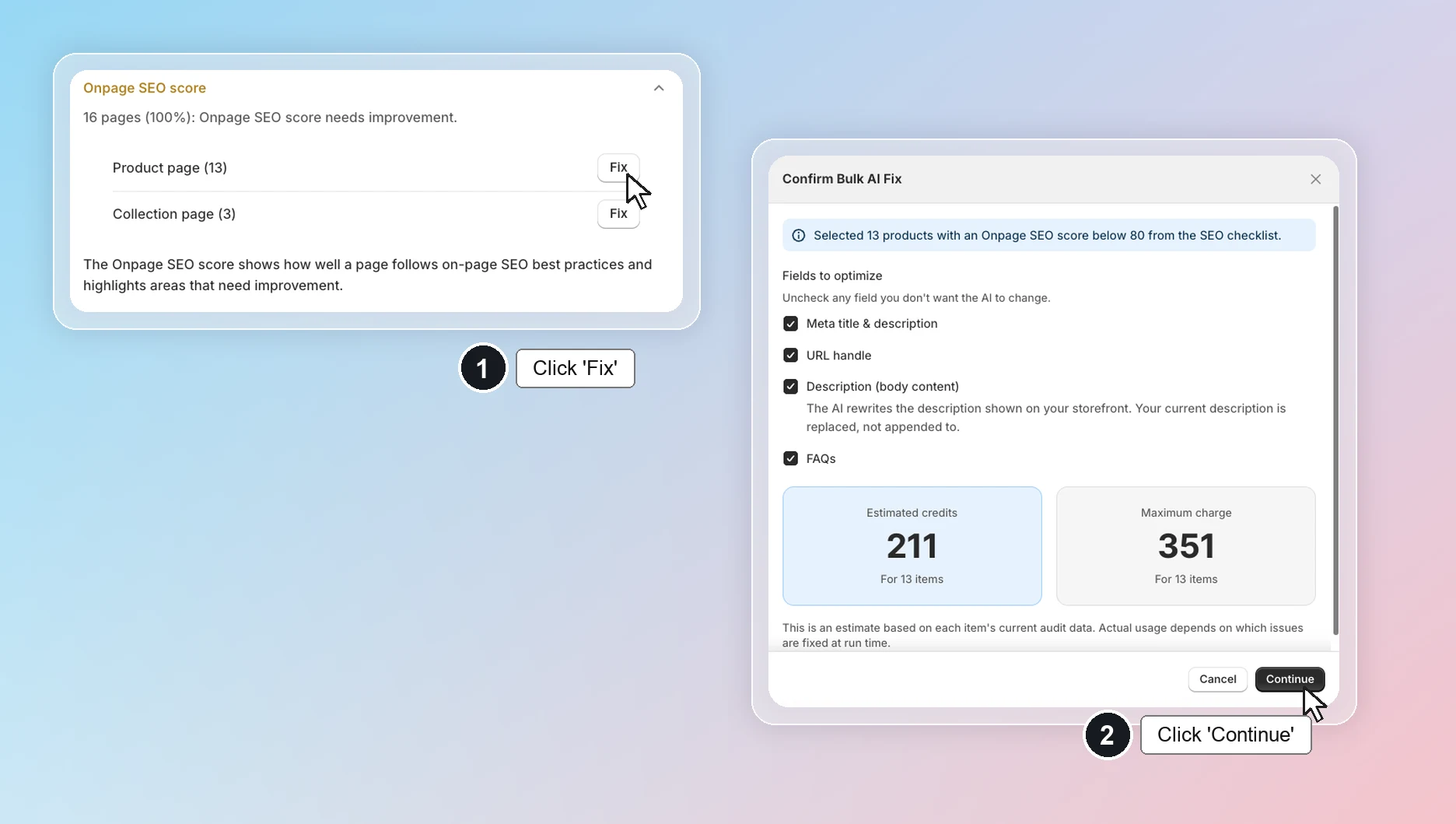
Some of your pages have an on-page SEO score below 80.
The on-page SEO score rates each product, collection and blog post on things like meta title, meta description, headings, content length, image alt and keyword use. A page scoring below 80 is missing some of these basics, which makes it harder to rank, even if your store as a whole is set up well.
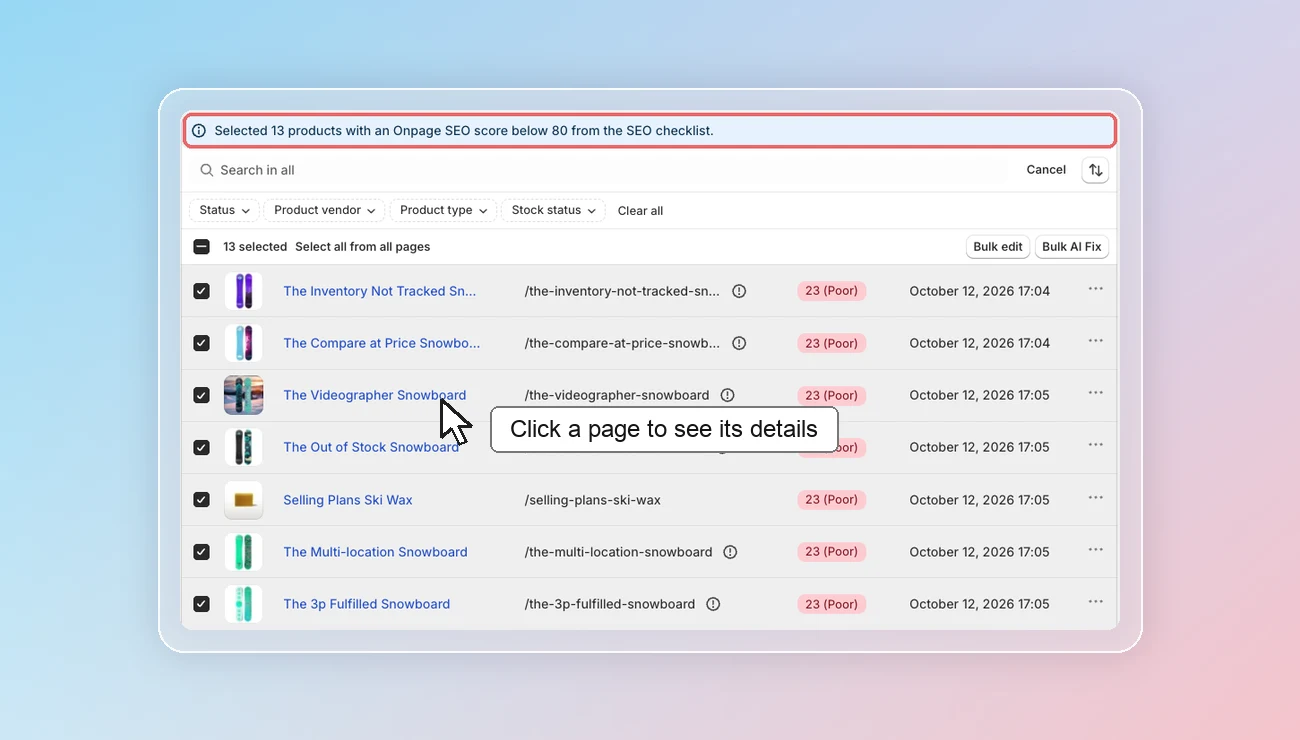
Click Fix on a page type -> you're directed to On-page SEO, with the pages scoring below 80 selected for you. From there, you can:
- Fix them all at once with Optimize in bulk, which uses AI to rewrite their meta title, meta description and content.
- Click a page to see its score details and fix each issue yourself.
B. Accessibility
Store password
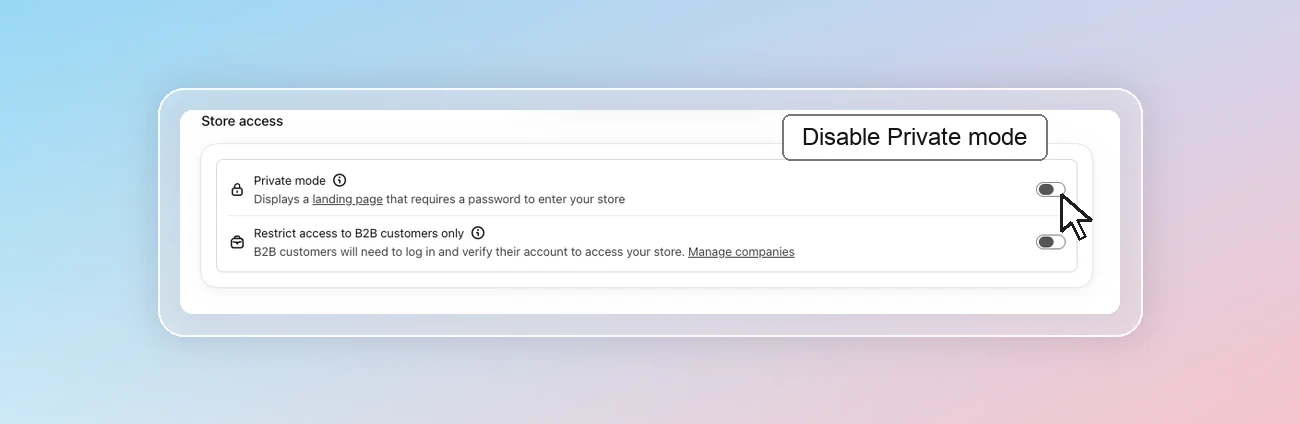
Your store password is blocking search engines from indexing your site.
While your store has a password, search engines can't open any page, so your store can't appear in search results. If the password stays on for a long time, pages that were already indexed may also drop out of Google.
Click Fix -> you're directed to Online store > Preferences in Shopify admin.
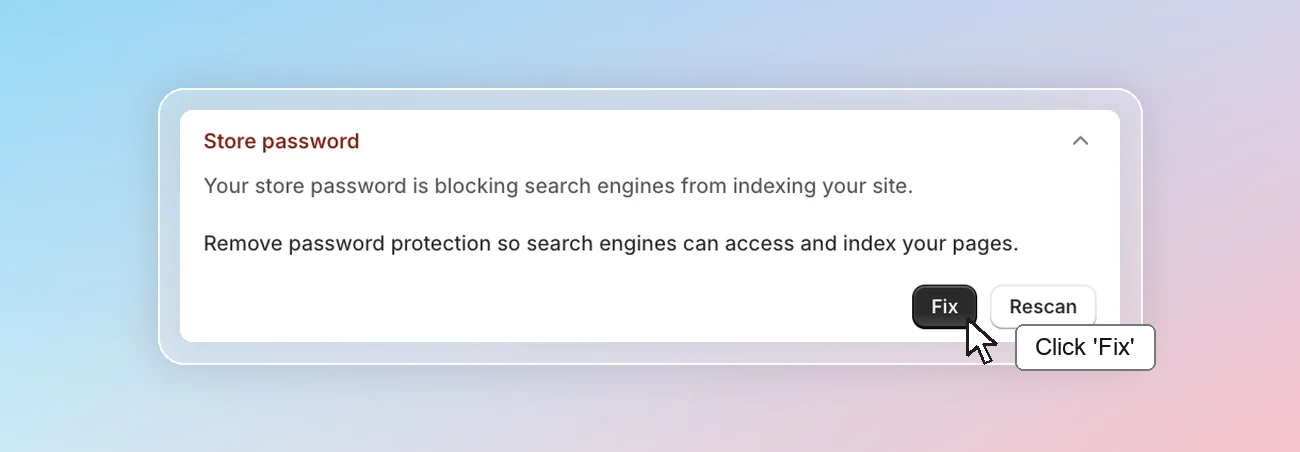
Under Store access, turn off Private mode to remove the password.
Noindex content
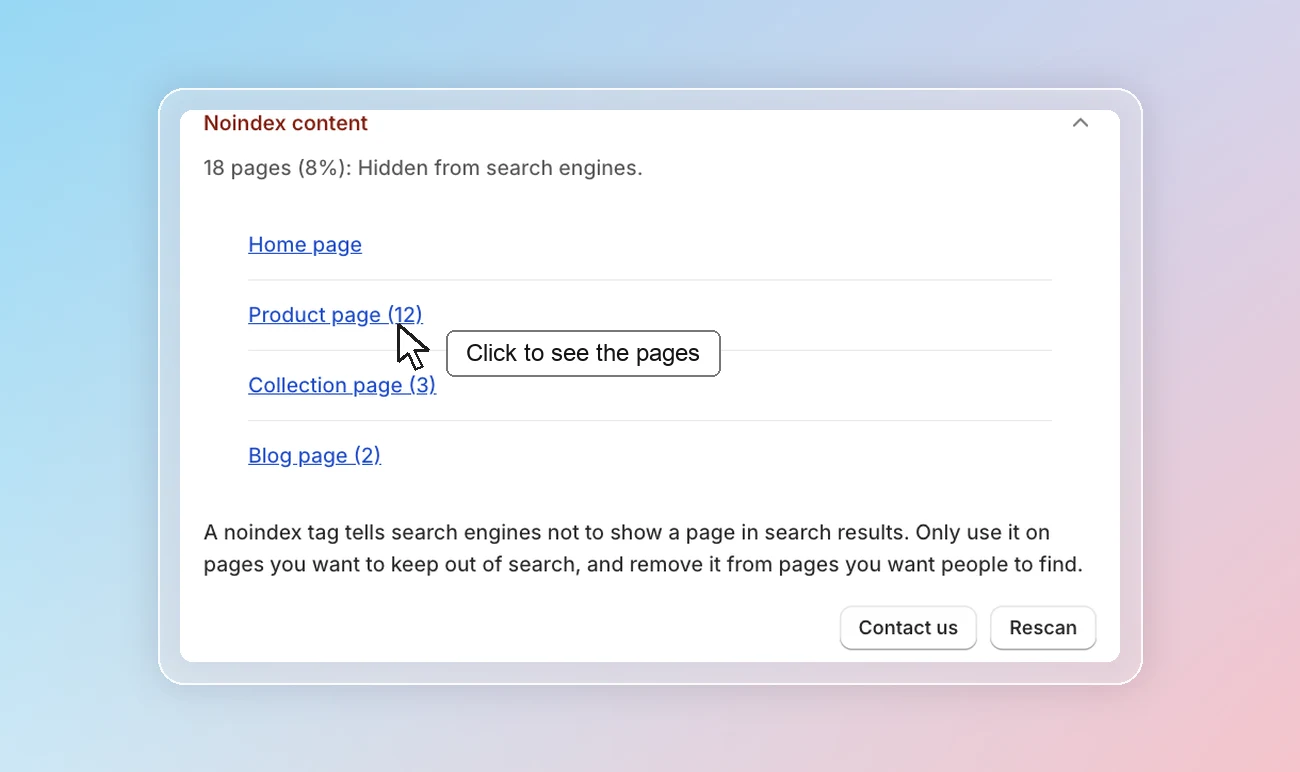
Some of your pages are hidden from search engines.
A noindex tag tells search engines not to show a page in search results. It's useful for pages you want to keep private, such as a thank-you page. But when it's set on products or collections by mistake, those pages disappear from Google and stop bringing in visitors, without any visible sign on your store. See Shopify's guide on hiding pages from search engines (opens in a new tab) to learn how the setting works.
Click a page type to see the list of hidden pages.
Then, for each page you want shoppers to find:
- If it was hidden by an app, turn indexing back on in that app.
- If the theme adds the tag, go to Online Store > Themes > Edit code and remove the
<meta name="robots" content="noindex">line, or the condition that adds it.
If you need help, click Contact us so that our Customer Success team can assist you.
URL broken link
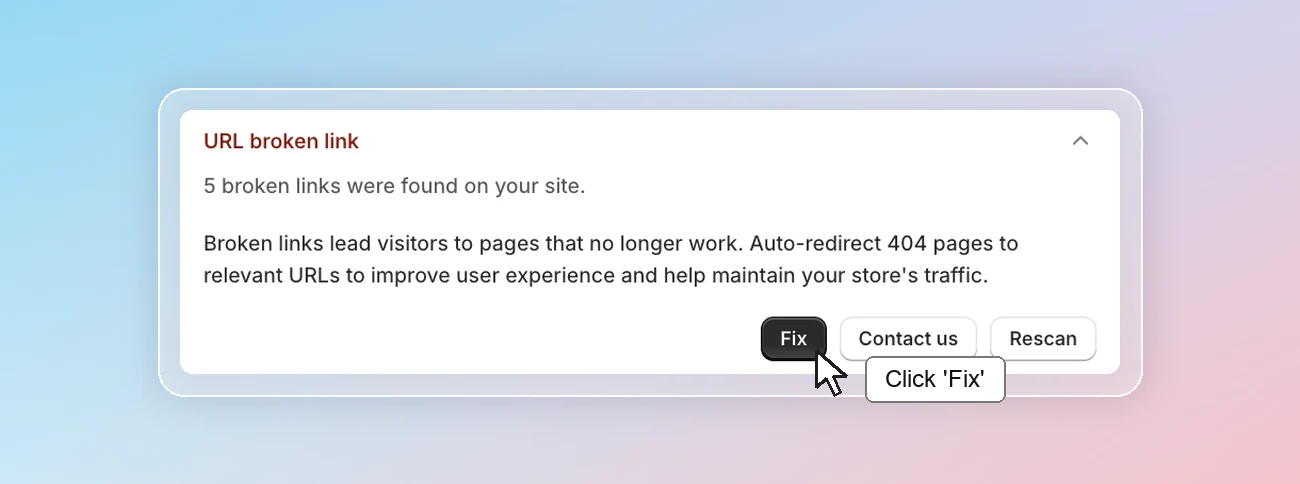
There are 404 links on your site.
A broken link points to a page that no longer exists, often a product you deleted or a URL you renamed. Shoppers who click it land on a 404 error page and may leave your store. Search engines also lose the ranking value that the old URL had built up. Redirecting it to a similar page keeps both the visitor and that value.
Click Fix -> you're directed to Broken link manager. From there, you can:
- Turn on Automated redirect to send all 404 pages to a new URL you choose for each page type.
- Use Custom redirect to redirect each broken link to a page you pick.
Nofollow links
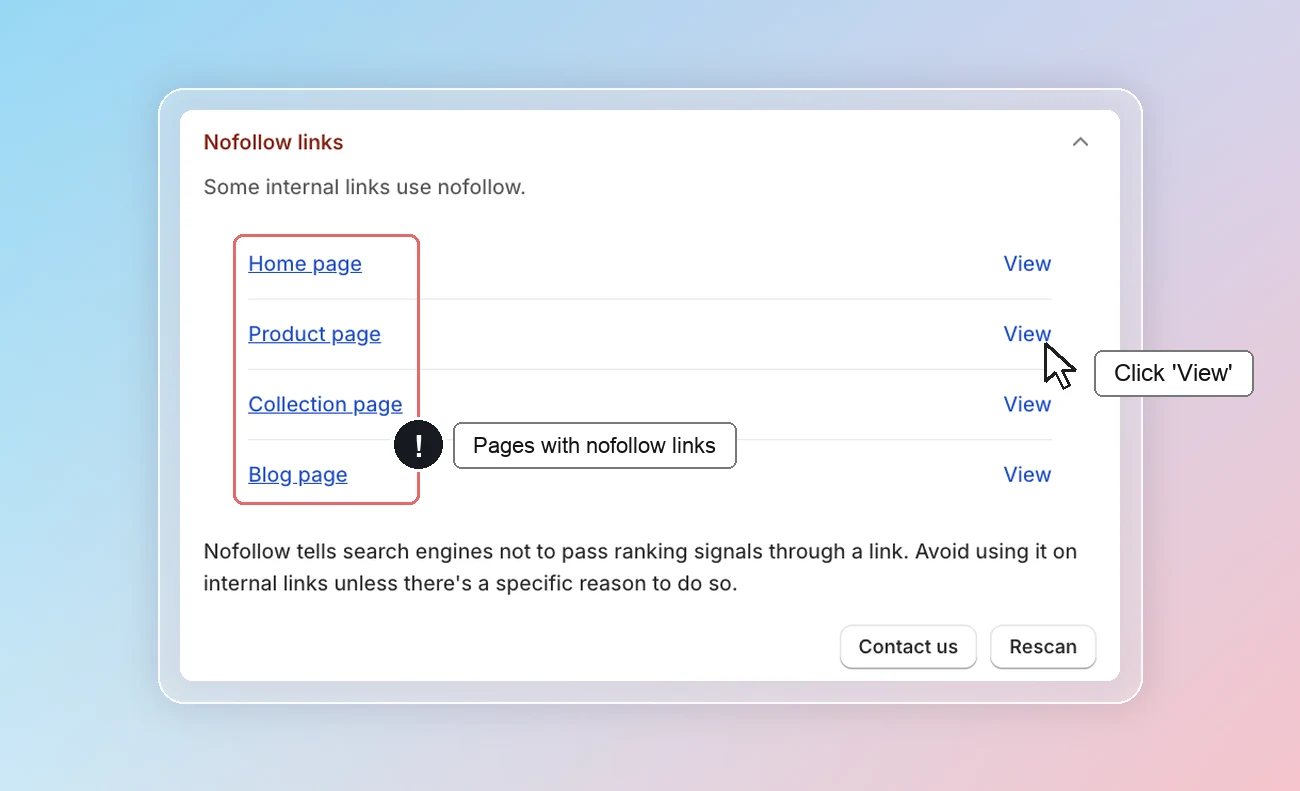
Some internal links on your pages use nofollow.
Search engines follow links on your pages to find your other pages and to judge which ones matter most. A nofollow link tells them not to follow it. When it's used on links to your own products or collections, those pages get less ranking value and may be found more slowly.
Click View next to a page type to see the nofollow links on that page. Links to other websites and to customer account pages aren't counted.
These links usually sit in the menu, the footer or a section added by an app. Remove nofollow from them in your theme code, or in the settings of the app that adds them. If you need help, click Contact us so that our Customer Success team can assist you.
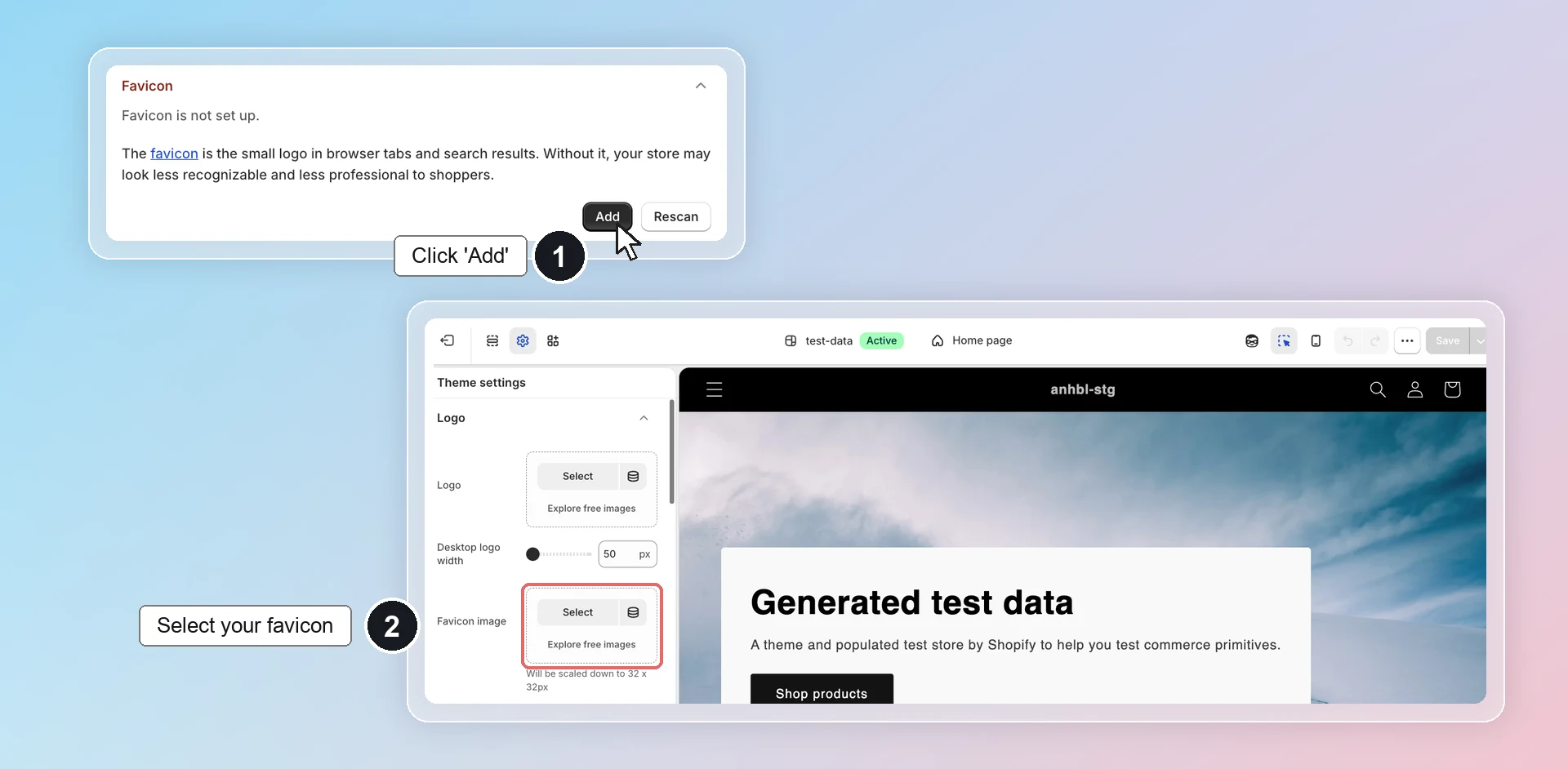
Favicon
Your website hasn't set up a favicon.
The favicon is the small icon shown in the browser tab and next to your store name in Google mobile search results. Without it, a blank or default icon shows instead, which makes your store look less trustworthy and harder to spot when shoppers have many tabs open.
Click Add -> you're directed to your theme editor -> in Logo, select your favicon image -> click Save.
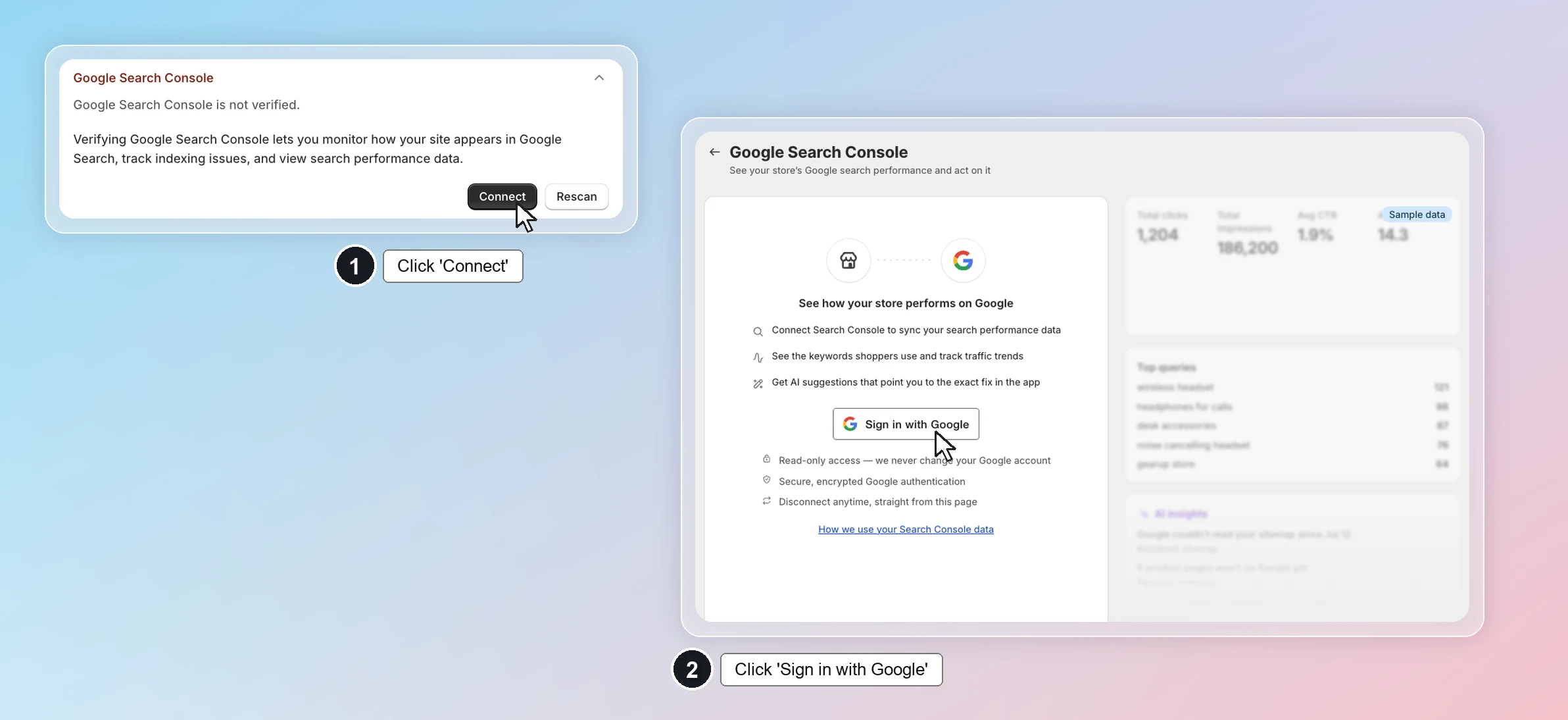
Google Search Console
Google Search Console is not verified.
Google Search Console is Google's free tool that shows how your store performs in search: which keywords bring visitors, how many people click, and which pages Google can't index. Connecting it lets you spot and fix search problems early instead of guessing.
Click Connect to set up Google Search Console.
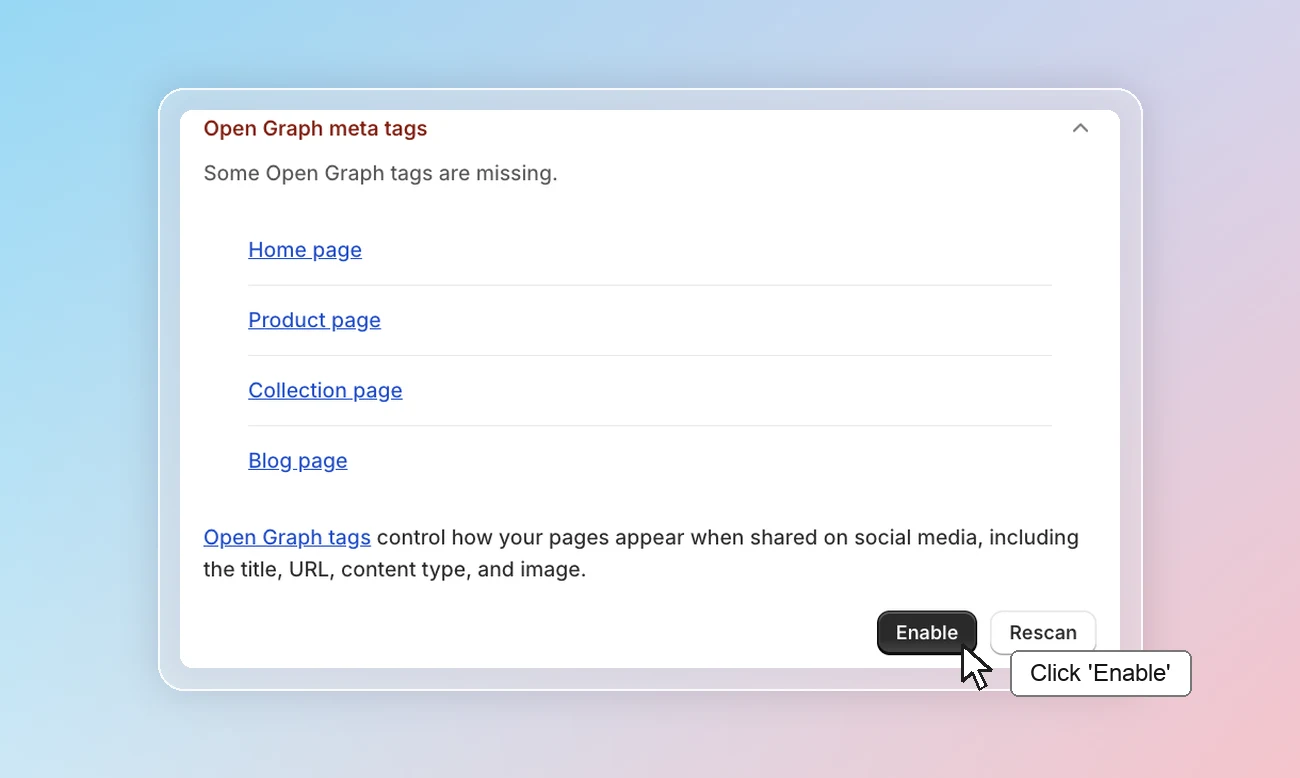
Open Graph meta tags
Some Open Graph tags are missing on your pages.
When someone shares your page on Facebook, Messenger, X or other platforms, Open Graph tags decide the title, image and link shown in the preview. Without them, the platform guesses and may show the wrong image or no image at all, so fewer people click the shared link.
Click Enable to add Open Graph tags in Social networks.
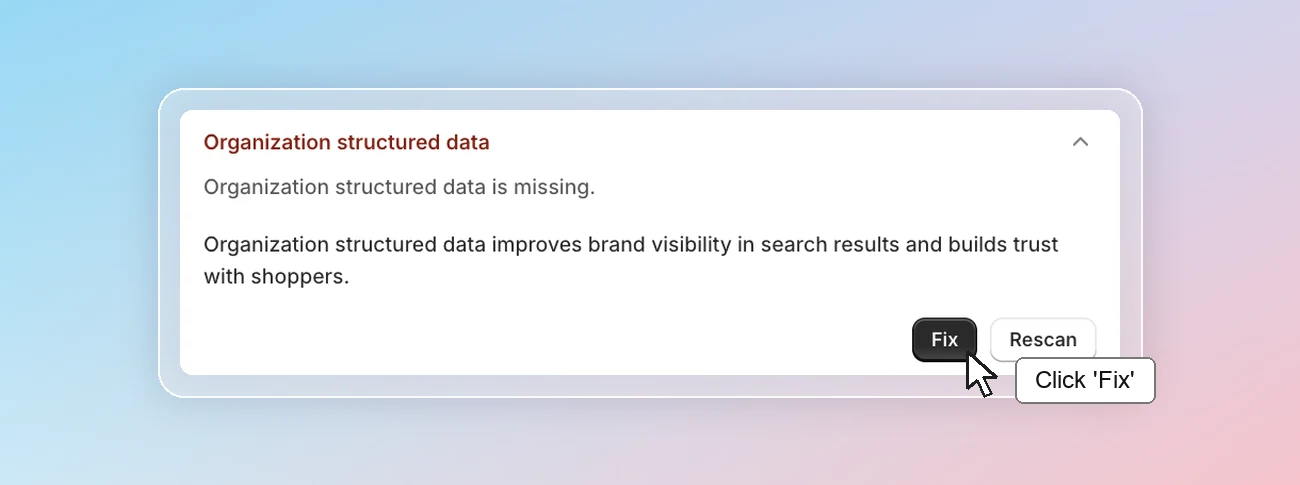
Organization structured data
Organization structured data is missing.
Organization structured data tells Google key facts about your business, such as your store name, logo, URL and social profiles. Google can use it to show your brand correctly in search results.
Click Fix to enable it in Google structured data.
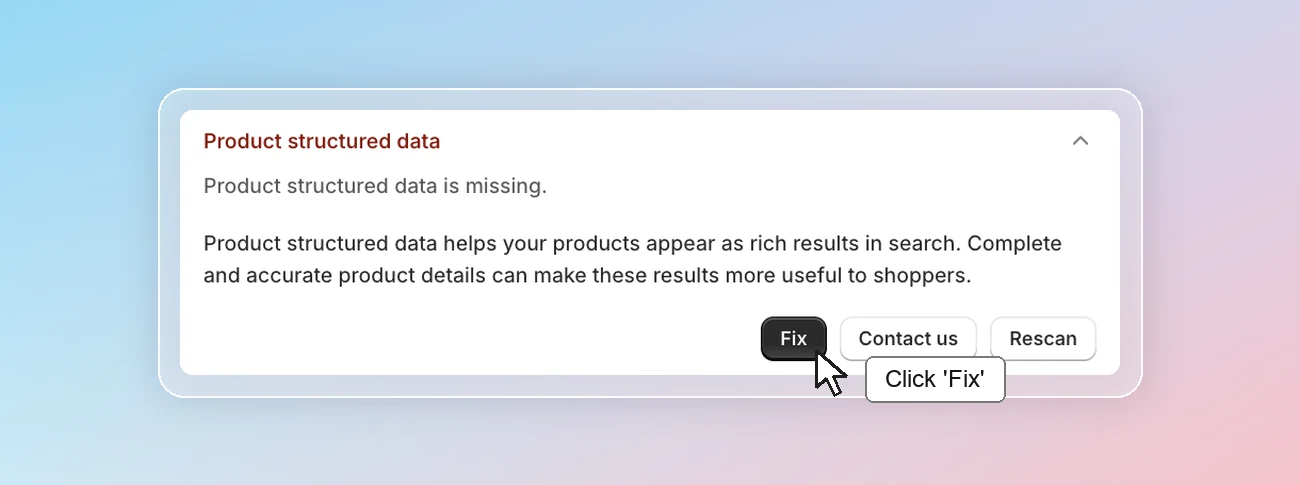
Product structured data
Product structured data is missing or incomplete.
Product structured data gives Google your product details, such as price, availability and reviews, in a format it can read directly. This lets your products appear as rich results with price, stock status and star ratings. Google also recommends adding shipping and return policy details. Without them, your product may be eligible for fewer rich result features.
Click Fix to set it up in Google structured data.
Rating & reviews structured data
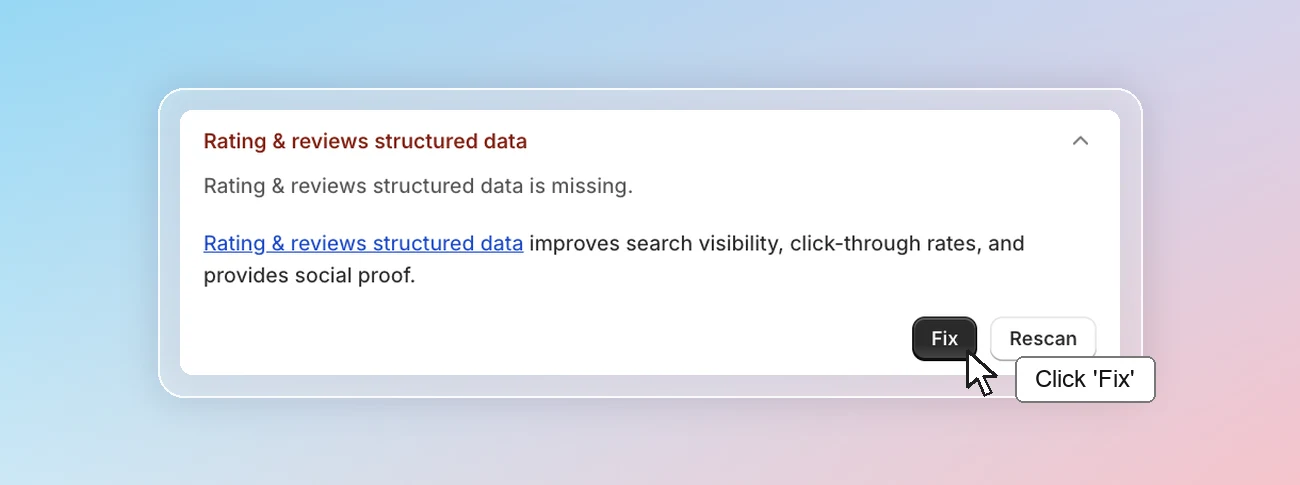
Rating & reviews structured data is missing.
Rating & reviews structured data lets Google show star ratings and the number of reviews under your product in search results. Stars make your result stand out on the page and show social proof before shoppers even visit your store, which often means more clicks.
Stars can only show if your products have reviews. If you don't collect reviews yet, start with a reviews app such as Air Product Review (opens in a new tab). Then click Fix to enable it in Google structured data.
Hreflang tags
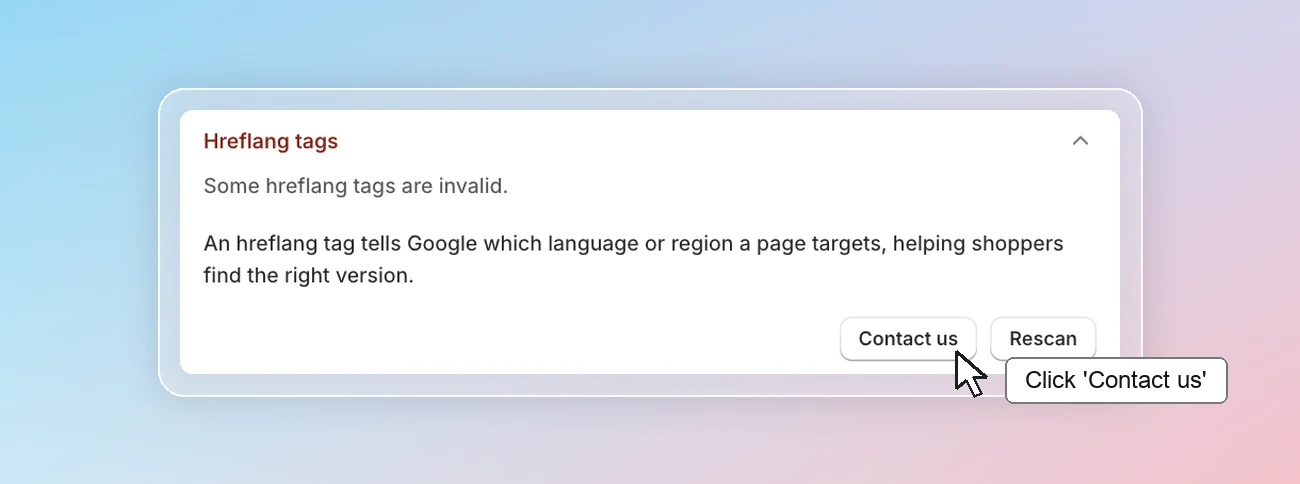
Some hreflang tags on your store are invalid.
If your store sells in several languages, each page has a version for each language. Hreflang tags tell Google which version is for which language or region, so a French shopper sees your French page. When the tags are invalid, Google may ignore them and show the wrong language version in search results.
Tags become invalid when they have a wrong language code or point to a page that doesn't exist. Shopify adds hreflang tags automatically for the languages you publish in Settings > Languages. Invalid tags usually come from extra code added by your theme or a translation app. Remove that code, or check the translation app's settings.
If you need help, click Contact us so that our Customer Success team can assist you.
C. Performance
Improve image delivery
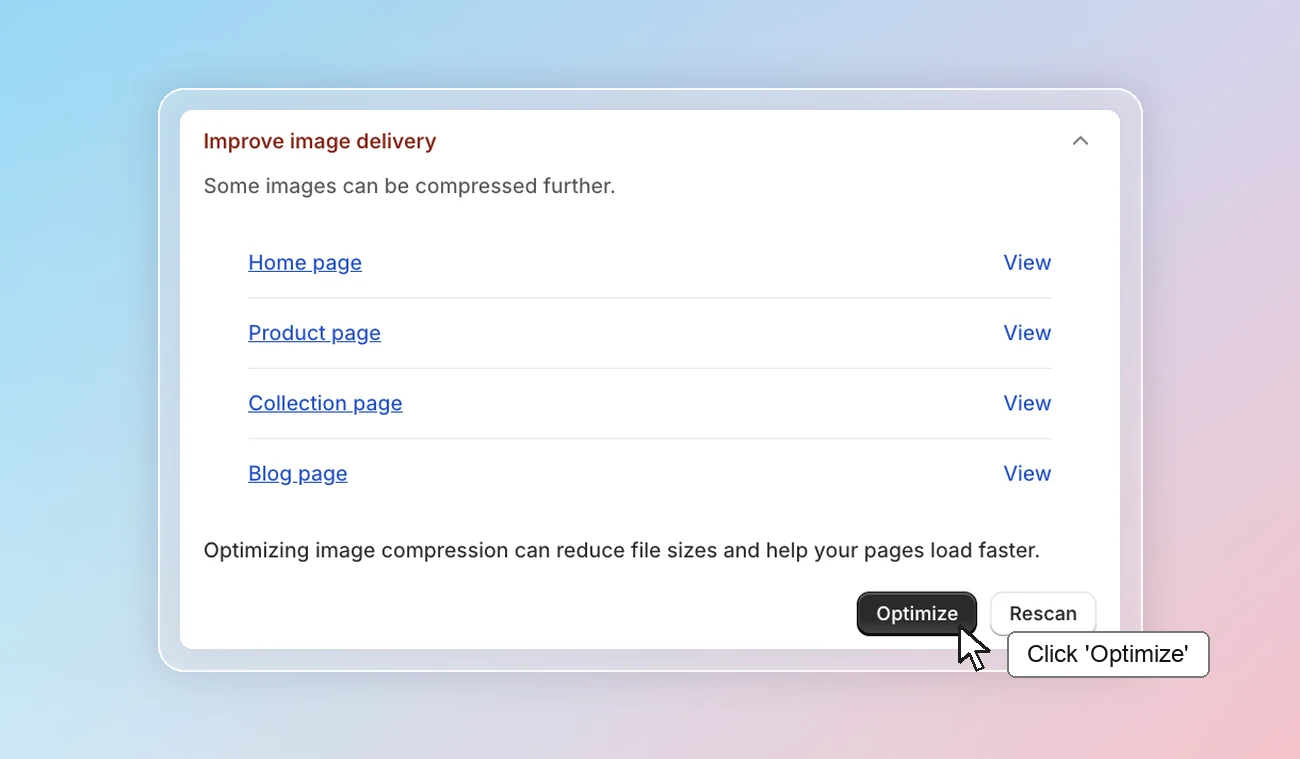
Some images on your pages can be compressed further.
Images are usually the heaviest part of a page. Images that aren't compressed take longer to download, especially on mobile data, which slows down the page and can make shoppers leave. Page speed is also one of the signals Google uses to rank pages.
Click View next to a page type to see the images that can be compressed on that page. Then click Optimize -> you're directed to Image compression to compress them.
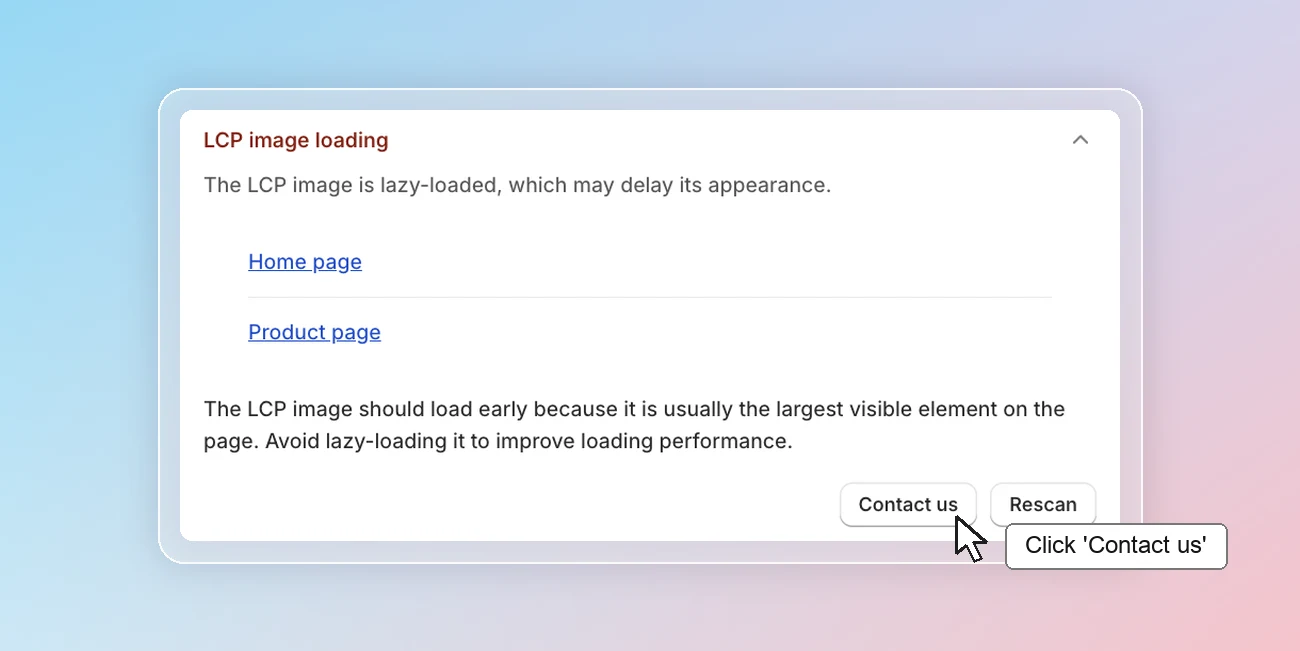
LCP image loading
The LCP image is lazy-loaded, which may delay its appearance.
LCP (Largest Contentful Paint) measures how long it takes for the biggest element on the screen to appear. Google uses LCP as one of its Core Web Vitals to measure page speed. Lazy loading makes the browser wait before loading an image, which is good for images further down the page but delays the main image shoppers see first.
The LCP image is usually the hero banner on the home page or the main product image. Click a page type to open the affected page and find that image. Change loading="lazy" to loading="eager" for it in your theme code, so it loads right away.
If you need help, click Contact us so that our Customer Success team can assist you.
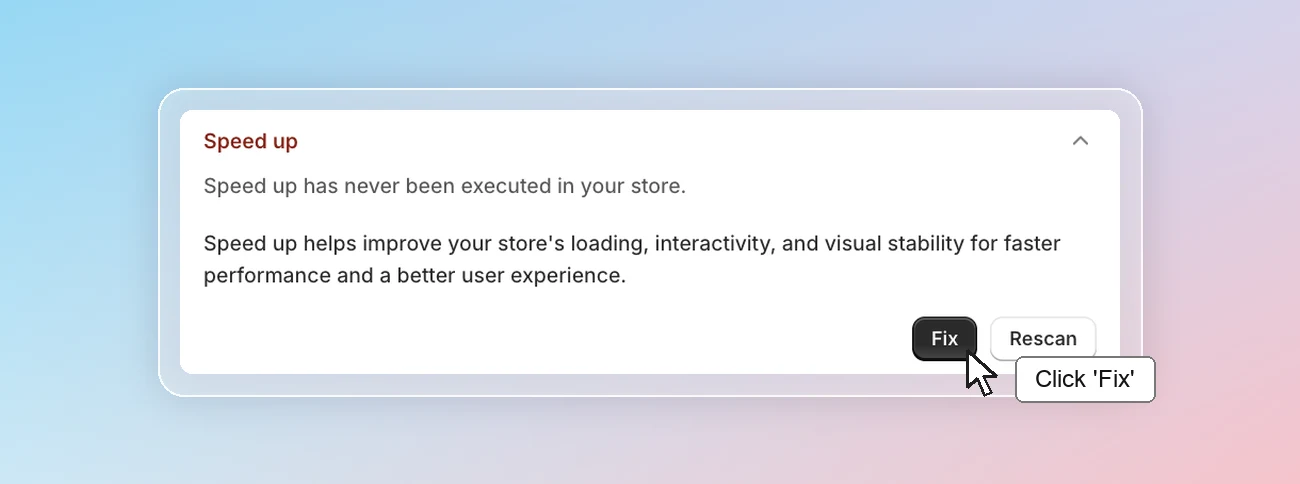
Speed up
Speed up has never been run on your store.
Many Shopify stores load extra code from themes and apps that slows pages down. Speed up applies a set of optimizations to your store's loading, interactivity and visual stability at once, so pages open faster for shoppers and score better on page speed.
Click Fix to run Speed up.
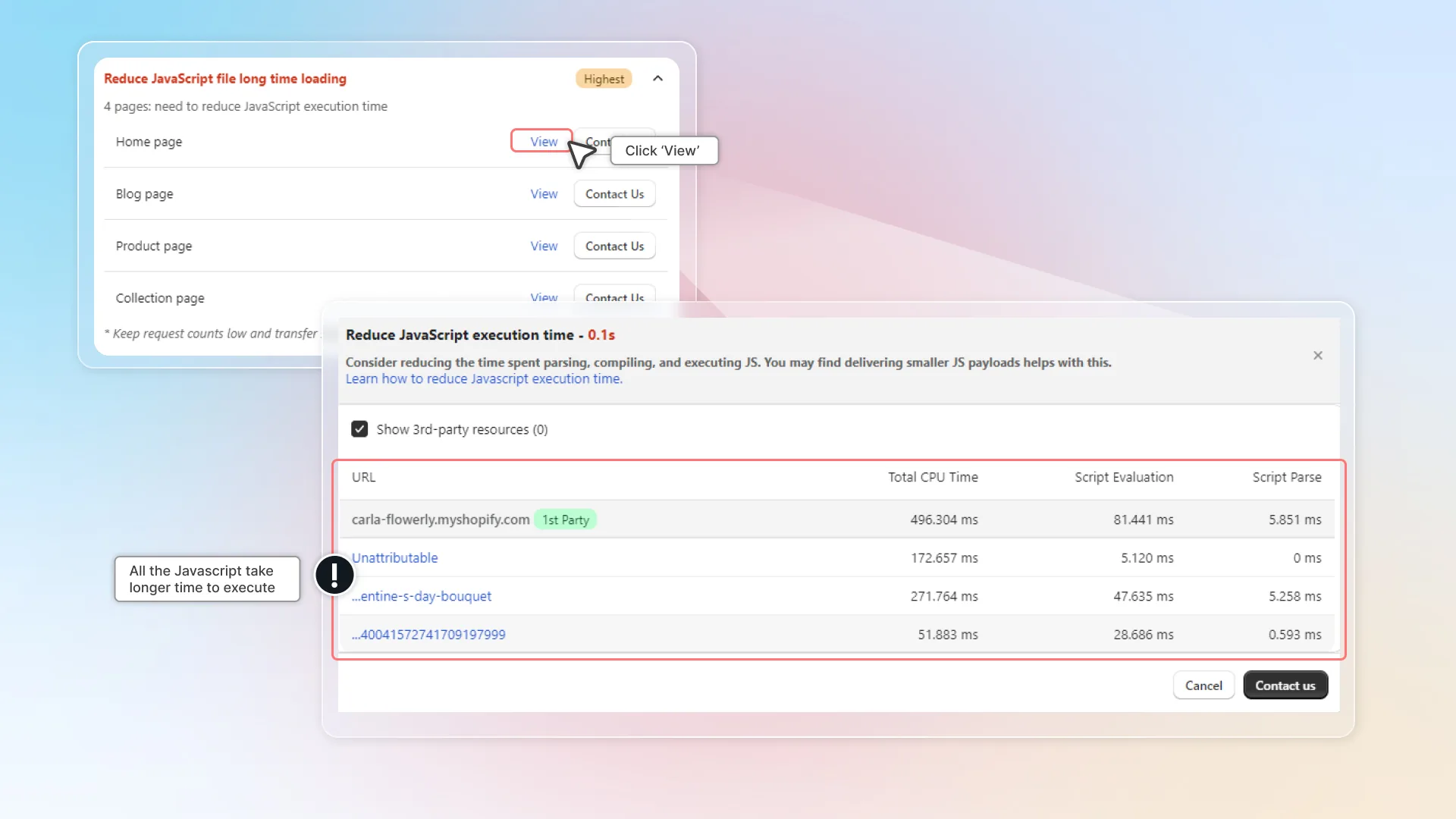
Reduce JavaScript execution time
JavaScript execution time on your pages is too high.
Every theme feature and app adds JavaScript to your pages. When the browser spends too long running it, the page looks loaded but buttons and menus don't respond yet. This delays shoppers' first clicks and lowers your page speed score.
Click View next to a page type to see the slowest files on that page. Then click Fix -> you're directed to JS deferral in Speed up, which delays scripts that aren't needed right away so the page responds sooner. Google's guide on how to speed up JavaScript execution (opens in a new tab) lists other ways to fix it.
If you need help, click Contact us so that our Customer Success team can assist you.
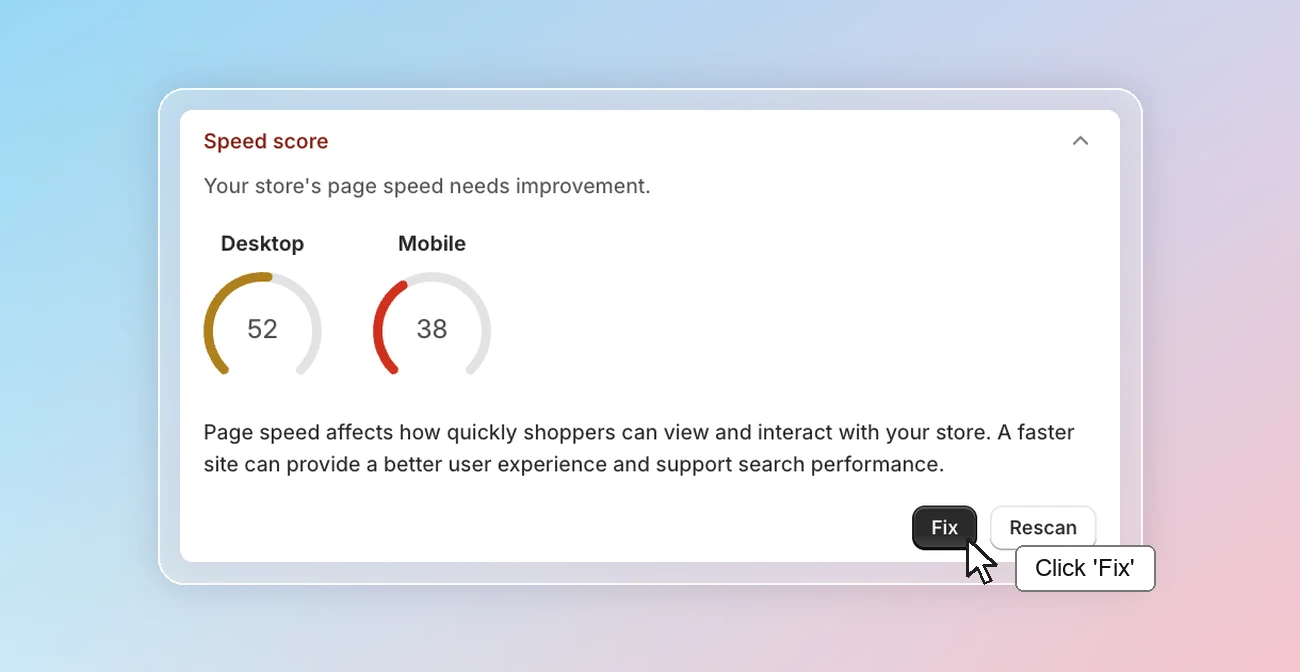
Speed score
Your store's page speed needs improvement.
A slow store makes shoppers wait, and many leave before the page finishes loading. Page speed is also one of the signals Google uses to rank pages.
We use PageSpeed Insights to measure your store's speed on mobile and desktop. Your speed score is good when it reaches 55 or higher on mobile and 70 or higher on desktop. PageSpeed Insights tests mobile on a slow device and connection, so mobile scores are usually lower.
Click Fix -> you're directed to Speed up to speed up your store.
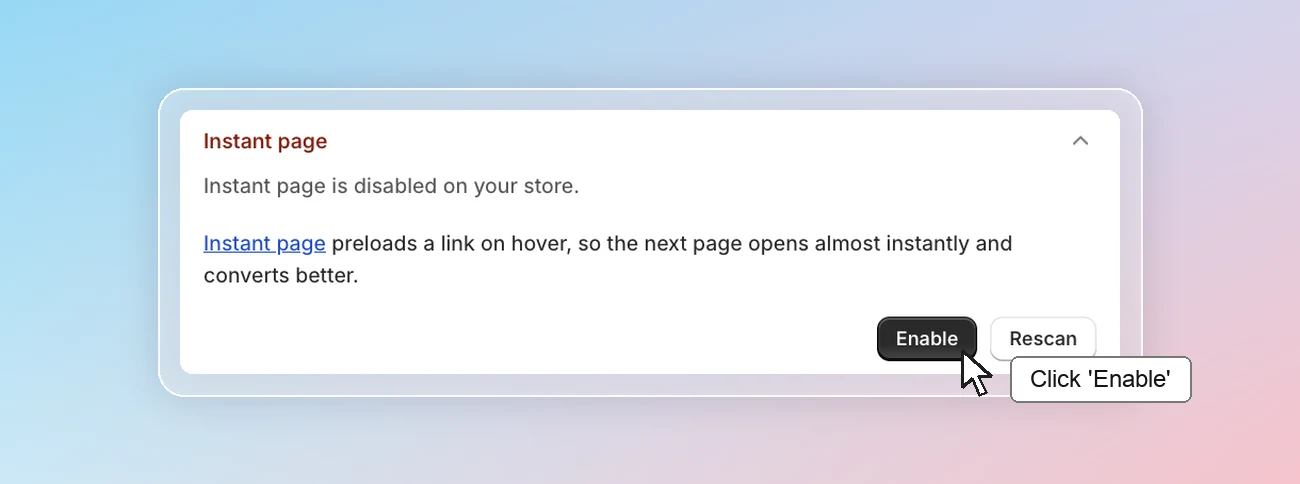
Instant page
Your website hasn't enabled instant page.
Instant page starts loading a page as soon as a shopper hovers over or touches a link, a fraction of a second before they actually click. By the time they click, the page is already partly loaded, so moving between pages feels almost instant.
Click Enable to turn on instant page for your store.
Lazy loading
Your website hasn't enabled lazy loading.
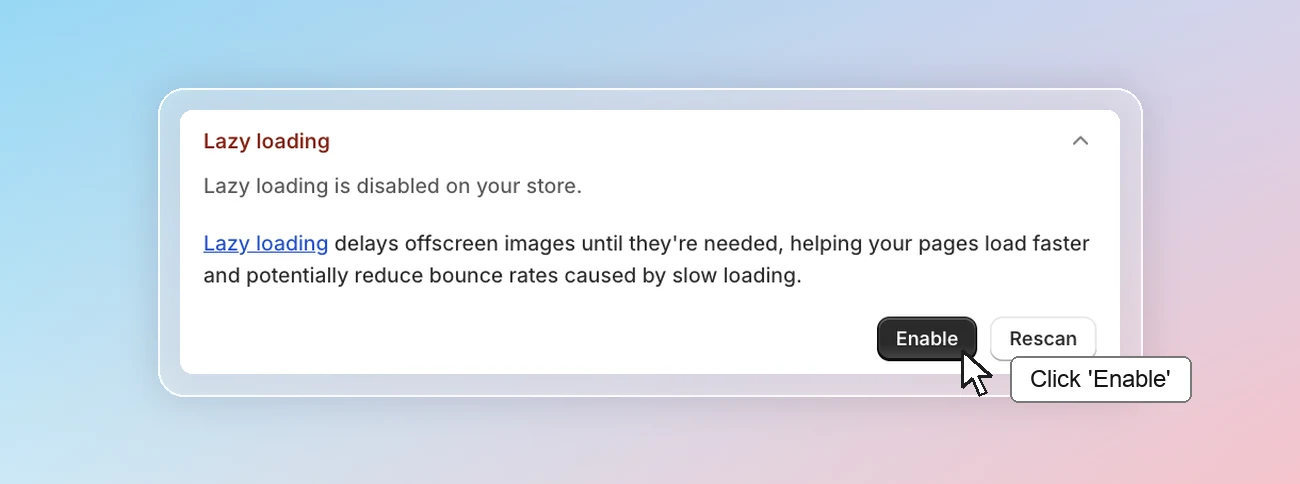
This helps reduce initial load time by waiting to load certain parts of a webpage (especially images) until they are needed.
Click Enable so that lazy loading works on your website. Then check your lazy loading performance.