Edit Shipping Address (Customer Flow)
This is what your customers see when they want to fix the shipping address after placing an order. You do not have to do anything for each request — the change applies to the order automatically.
Where the option appears
After checkout, Shopify emails the customer an order confirmation with a View your order button. That link opens the Order Status Page. Our app block sits inline on that page as a card titled Edit your order, with a row labelled Edit shipping address.
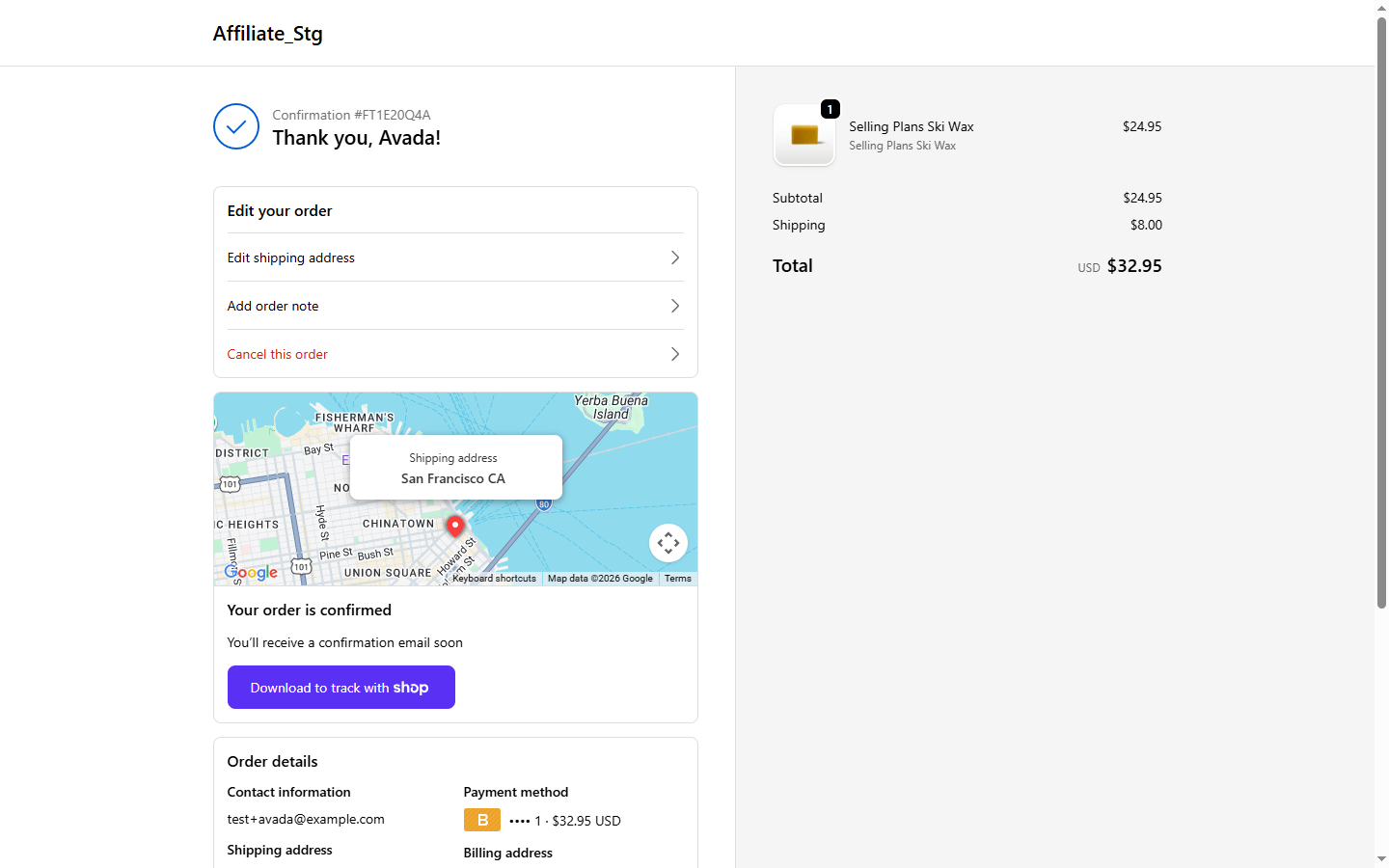
If the option is not visible, one of these is true:
- You have Edit shipping address turned off in Editing rules.
- The whole Edit your order card is closed for this order (fulfilled or partially fulfilled, past the time window, fully refunded, or cancelled). See when the card is blocked.
What the customer does
- Click the Edit shipping address row → it expands inline (no new page, no modal).
- The current address fields are pre-filled. The customer edits any line.
- Click Save. We validate the address shape, push the change to Shopify, and the row collapses with a green Saved state.
There is no Review & Confirm step — the save is immediate. The customer can re-open the row and edit again as long as the order is still within the rules.
What happens behind the scenes
- Shopify is the source of truth — we update the address on the order via the Admin API and refresh from Shopify on success.
- The change shows up immediately in your Shopify admin order page and on the Activity page inside our app.
- If the staff Order edited email is turned on in Notifications, you get an email summarising the diff.
Which fields customers can change
In the Edit shipping address panel you tick what a customer may edit: Name, Phone, and Destination. The street address, apartment, and company are always editable. An unticked field still appears on the form, just locked, with a line telling the customer to contact the store to change it.
Destination covers city, state, ZIP, and country. It defaults to Within the same country, so out of the box customers can correct everything except the country. If you want to allow customers to change the destination country too, the app recalculates shipping for the new country and settles the difference automatically. Switch Destination to Allow country change in the Edit shipping address panel of Editing rules, then see Change country / destination for the full flow.
What we do not allow
- Address change after fulfilment, the carrier already has the package. The row hides as soon as fulfilment status flips.