Translations
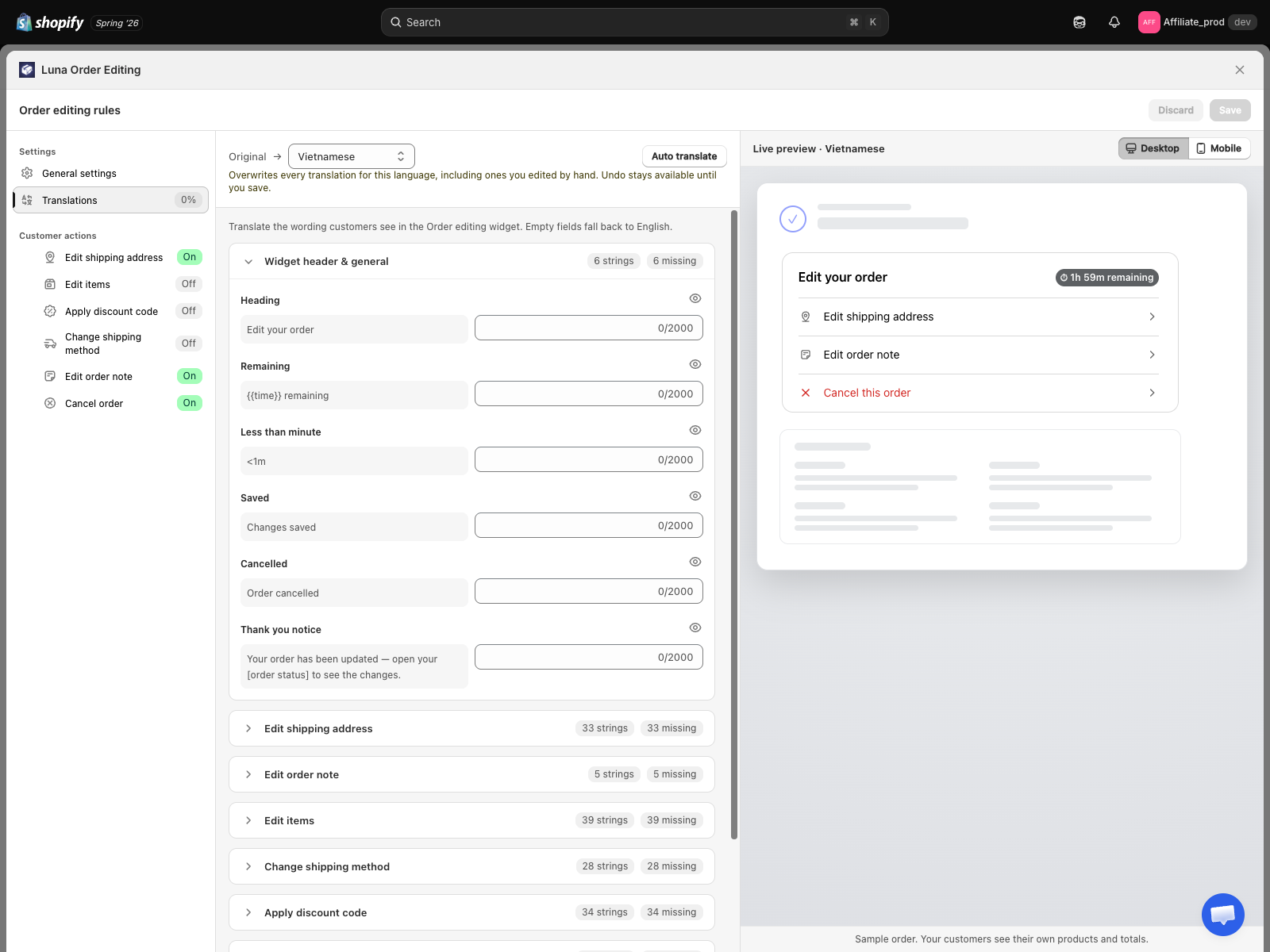
The widget ships in English. Translations lets you rewrite every string customers see, in every language your store sells in, without touching code. Find it in Editing rules, under Settings, second row. The nav badge shows how much of the current language is done, for example 62%.
Why this matters
If your store sells in French and the Edit your order card speaks English, customers hesitate at exactly the moment you want them to self-serve. They open a support ticket instead, which is the cost the app exists to remove.
This panel is also useful in a single-language store: it is how you change wording you simply do not like, for example calling it "Change my order" instead of "Edit your order".
Picking a language
The language bar at the top lists your Shopify store languages. Pick one and the middle column fills with that language's fields.
- Original shows the shipped English string, so you always see what you are translating.
- A counter tells you how many strings are still missing.
- Manage store languages jumps to Shopify's language settings if the language you want is not there yet.
Any field you leave empty falls back to English at runtime. A half-finished language is safe to save, customers just see English for the parts you have not filled in.
The nine groups
The 189 strings are grouped so you can translate one feature at a time rather than scrolling a flat list:
| Group | Covers |
|---|---|
| Widget header and general | Card heading, countdown timer, save buttons, toasts |
| Edit shipping address | The menu label and the whole address form |
| Edit order note | The menu label and the note box |
| Edit items | The menu label, item list, edit popup, product picker |
| Change shipping method | The menu label and the method list |
| Apply discount code | The menu label, code field, and rejection messages |
| Cancel order | The menu label, reasons, and confirmation |
| Pay Now | The payment panel and its states |
| General errors and system | Shared error messages |
Each edit-type group starts with its Menu label, marked with a chip, since that is the string customers read first.
Your own cancellation reasons appear here too, one field each, so a reason you wrote yourself can be translated like any other string. Reordering or rewording a reason keeps its translation attached.
Placeholders
Some strings contain placeholders such as {count} or {amount}. The app fills those in at runtime with real values.
Keep every placeholder from the original string in your translation, spelled exactly the same. If you drop one or invent one, the field shows an error and Save is blocked until you fix it. This is deliberate: a missing placeholder means a customer sees a sentence with a hole in it.
Auto translate
The Auto translate button fills the whole language in one pass using machine translation.
It is locked by default, showing "Available on request, contact us". We gate it because a bulk machine pass overwrites work you may have done by hand, and because translation quality varies by language pair. Click Contact us and we will turn it on for your store.
Once enabled:
- Pick the language, click Auto translate.
- The app translates every string into that language, overwriting existing translations for that language, including ones you edited by hand.
- Review the result. Strings that came from the machine are tagged AI so you can spot them.
- Undo auto translate is available until you press Save. After saving, the previous version is gone.
Do not navigate away while it runs. Leaving discards the result and nothing is saved.
Verify
- Translate at least the Widget header and general group into a language.
- Save.
- Open a real order on your storefront in that language, for example by adding the locale to the URL, and check the Edit your order card.
The live preview on the right of the editor also re-renders in the language you are editing, so you can catch a string that is too long for its button before it reaches a customer.
Known limitations
- Translations cover the customer-facing widget only. Your emails are translated separately in Email notifications, through each email's Customize editor.
- The widget ships with one built-in locale, English. Every other language comes from this panel, so a language you have not filled in stays English.
- There is no copy-from-another-language shortcut yet.
- Auto translate works per language. There is no translate-everything-at-once button.
See also
- Editing rules, where this panel lives
- Allowed edit types, which groups are worth translating first
- Preview, checking length and layout before you save