Approving Changes
An assistant with one of the four Change permissions can propose a change. It cannot make one. Every change goes through a confirmation page in your own Shopify admin, and even approving there does not apply it yet.
How a change reaches your store
- The assistant drafts it. Drafting writes nothing. It produces a summary of what would change and a confirmation link.
- You open the link. It points at your own
admin.shopify.com, on the Confirm change page. - You approve or reject.
- The assistant applies it. This is the step that actually changes your store.
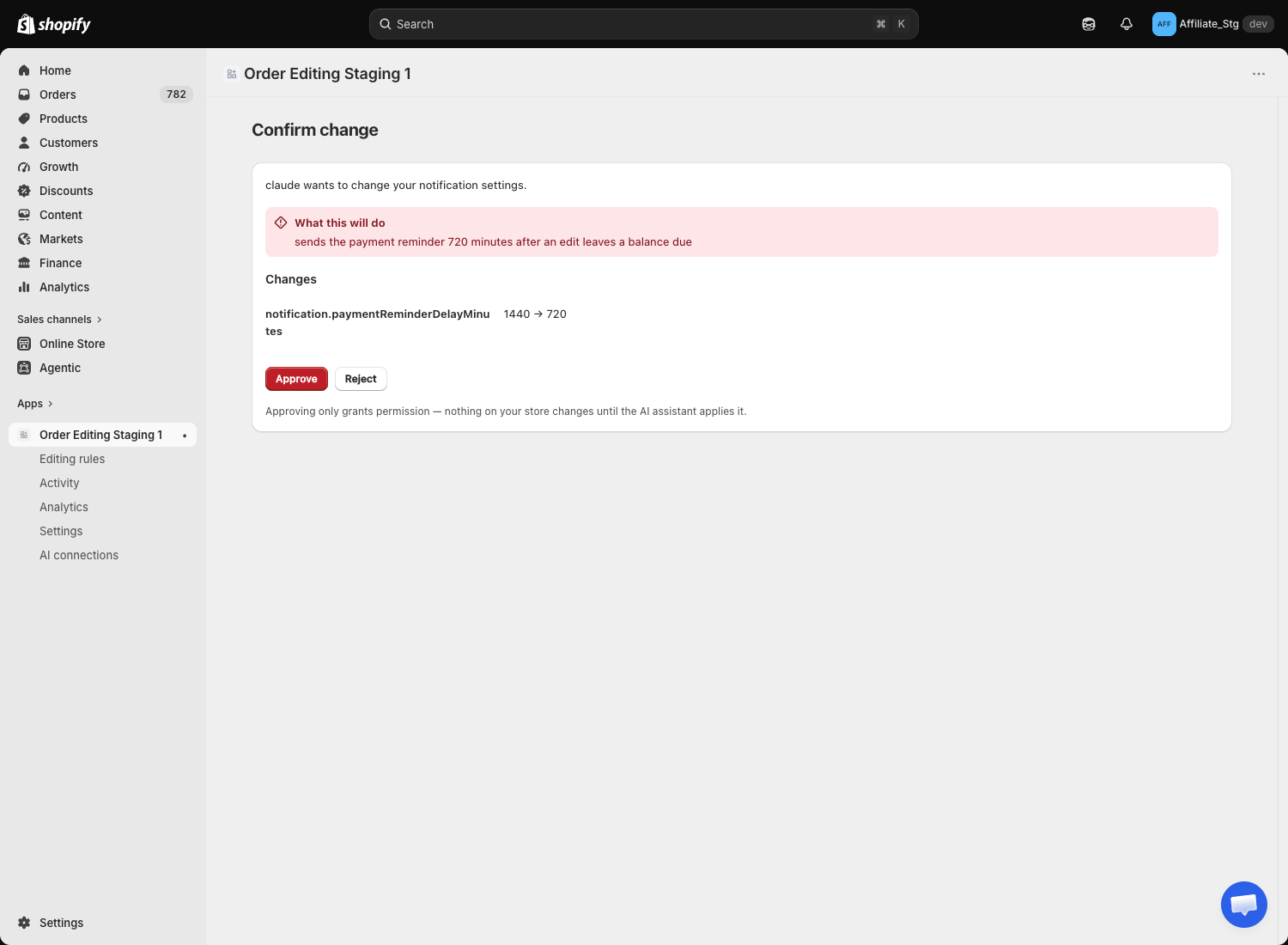
The Confirm change page
The page has four parts.
| Part | What it tells you |
|---|---|
| The opening line | {connection name} wants to change your {area} — which assistant is asking, and whether it is your editing rules, refund settings, notification settings or email templates. |
| What this will do | The knock-on effects, in plain language. For example, that customer emails will start going out, that refunds will now be issued as store credit, or that a delivery-country change will resync your shippable countries from Shopify Markets. |
| Changes | The before and after value of each field, so you can compare. |
| Approve / Reject | Reject and nothing changes. |
Changes that cost money or touch sensitive data are flagged more strongly than routine ones. Editing the staff recipient list, for instance, is treated as sensitive.
Approving is permission, not action
The line under the buttons says it directly:
Approving only grants permission — nothing on your store changes until the AI assistant applies it.
After you approve, the page turns into Permission granted — not applied yet, with:
Nothing on your store has changed yet — the AI assistant still needs to apply it. You can close this tab.
So if you approve and then close the conversation, the change never happens. Go back and tell the assistant to apply it.
Time limits
A confirmation link is valid for 15 minutes. After that the page shows This request has expired and asks you to have the assistant make the request again. This is deliberate: an approval you gave should not be sitting around usable hours later.
Reopening a link you already dealt with shows what happened, rather than letting you act twice:
| State | What the page says |
|---|---|
| Already approved | You already approved this change — nothing has changed yet, the assistant still needs to apply it. |
| Already applied | This change has already been applied — nothing further is needed. |
| Already rejected | You already rejected this change — no change was made. |
| Expired | This request has expired — ask the assistant to make the request again. |
One pending change at a time
Editing rules, refund settings, notification settings and email templates share a single save token. Applying any one of them invalidates every other draft still waiting, and those have to be drafted again.
In practice: handle one proposal from start to finish, then move to the next. If an assistant drafts three changes and you approve all three, only the first one applied will land; the assistant has to redraft the other two.
Checking that a change landed
Open Change history at the bottom of the AI connections page. A real change always leaves a row there. If the assistant says it changed something and there is no new row, it did not.
See also
- Managing connections, where the change history lives
- Permissions
- Editing rules and Email notifications, the settings an assistant can propose changes to