Change Shipping Method (Customer Flow)
This is what your customers see when they want to switch their delivery method after checkout — upgrade to a faster option, or drop to a cheaper one. The order total is recalculated and the difference is charged (through an emailed payment link) or refunded automatically. You do not approve anything per request.
The row only appears if you turned on Change shipping method in Editing rules.
Where the option appears
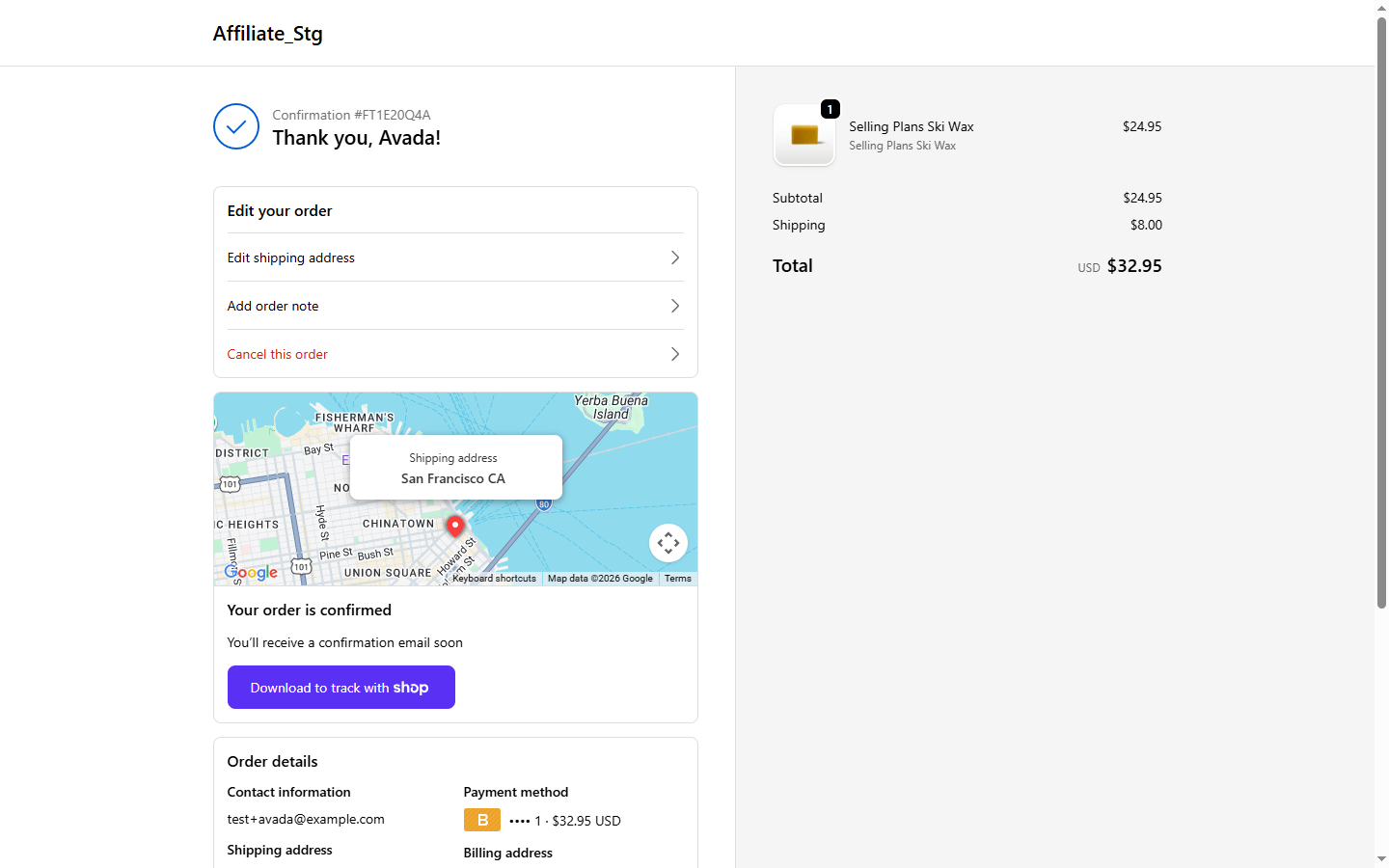
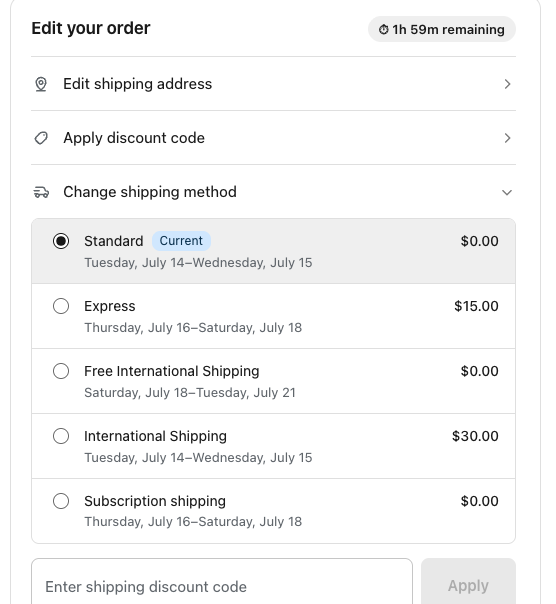
On the Order Status Page, inside the Edit your order card, a row labelled Change shipping method.
It shows only when the order still has a single shipping line, is not fulfilled yet, is within your configured time window, hasn't hit max edits, and has at least one alternative rate available for the shipping address.
What the customer does
- Click Change shipping method → the panel loads the available options. The method the customer is currently on is pre-selected and tagged Current.
- Pick another method. The Shipping price line shows the old price struck through → the new price, with a note that taxes are recalculated at checkout.
- (Optional) If you also enabled Apply discount code, a free-shipping code field appears in the panel. Entering a valid free-shipping code turns every eligible method to Free (if the code has a maximum shipping amount, only rates up to that amount become free).
- Click Confirm change.
What happens with the money
The order is recalculated and the difference is settled automatically:
| Outcome | What the customer sees |
|---|---|
| Upgrade (more expensive) | An emailed payment link for the difference, plus a Pay now card showing the extra amount as awaiting payment. The customer is never charged silently. |
| Downgrade (cheaper) | The difference is refunded automatically to the original payment method. |
| Same price / free-shipping code | The method is updated with no charge. A free-shipping code can turn a paid method into Free, which refunds what was already paid. |
After saving, the Edit your order card collapses and a success banner confirms the change. The order summary updates with the new method and the charge or refund. If the change left an unpaid balance, the Pay now card stays visible until it's paid, even after the edit window has closed or the order is fulfilled.
Where you see it later
Every change is logged in the app's Activity page with a Shipping badge (plus a Discount badge when a free-shipping code was used). Open View to see the before/after method, the charge or refund, and the new order total.
If the row doesn't show
- Change shipping method is off in Editing rules.
- The order is already fulfilled or partially fulfilled, past the time window, fully refunded, cancelled, or has hit its max edits limit.
- The order has no shipping line, has multiple shipping lines, or is a local pickup / local delivery order.
- No alternative rate is available for the address — the panel then shows the current method plus "No other shipping methods are available for this order."