Upsell Products
Upsell products recommends more products to a customer while they are editing an order, inside the same Edit your order widget. It is the one moment a customer is already back in their order and willing to change it, so a well-chosen recommendation is an easy way to lift order value without a separate campaign.
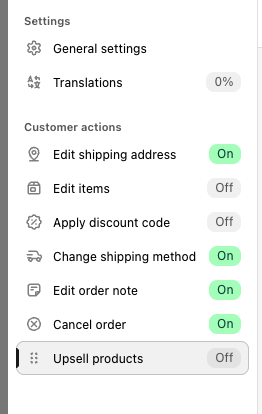
Find it in Editing rules, as its own row in the rule list. It has an On or Off badge like every other action, and ships Off — nothing appears to your customers until you turn it on.
Why this matters
Every other row in Editing rules helps a customer change an order. This is the only one that helps you grow it. When a customer opens their order to fix an address or swap a size, the app can also show a small Add to your order block with products that go with what they already bought. Leave it off and that high-intent moment passes with nothing offered.
This is independent of Add new products under Edit items. You can keep customer-initiated product adds turned off and still run upsell — the two are separate channels. Upsell is the app recommending products; Add new products is the customer searching for them.
How the recommendation is built
You pick one of two sources.
| Source | How products are chosen |
|---|---|
| AI recommendation (default) | Shopify picks products that go with what is already on the order. The app asks for complementary products first, then related products, then falls back to your shop's best sellers, so the block is filled even for a thin order. |
| Specific products | You pin the exact products to offer, by hand. The same set is shown on every order. |
Whichever source you use, the app only ever shows products that are in stock and purchasable, not already on the order, and never a gift card.
Get better AI recommendations. Complementary products are the ones Shopify generates from the pairings you set in the free Shopify Search & Discovery app. Without those pairings the app still works — it falls back to related products and best sellers — but pairing your key products by hand there is what turns generic suggestions into true add-ons.
Setup
Step 1 — Turn on Upsell products
Open Editing rules, select Upsell products in the rule list, and switch it on. The row badge changes to On.
Step 2 — Choose a source
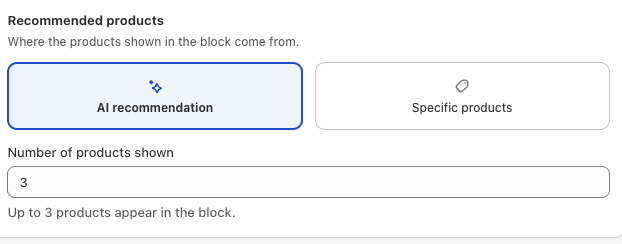
Pick AI recommendation or Specific products. If you choose Specific products, a product picker appears — add the products you want to offer.
Step 3 — Set how many products to show
Set Number of products to show. The block displays up to 3 products (the default is 3); the app fills the block up to that number from whichever source you chose.
Step 4 — Add a discount (optional)
Turn on Offer a discount to sweeten the offer. A value and a type appear:
- % off — a percentage off each added product (default 10%).
- $ off — a fixed amount off each added product.
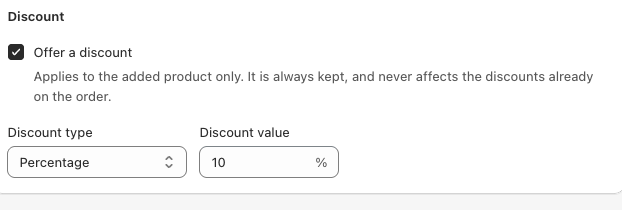
The discount applies to the added upsell product only. It is a line discount on the order, so it is always kept — it does not touch, and is not blocked by, any discount already on the order.
Step 5 — Decide whether to hide added products
Hide upsell products when they are added to the order is on by default. Keep it on so a customer is not offered something they just added.
The block title and the button label customers see are edited on the Translations page, not here — so you can word them per language. The shipped defaults are "You may also like" for the title and "Add" for the button.
Nothing takes effect until you press Save in the editor top bar.
What the customer sees
When upsell is on and there is at least one valid product to offer, an Add to your order block appears inside the Edit your order card, on both the Thank you page and the Order Status Page.
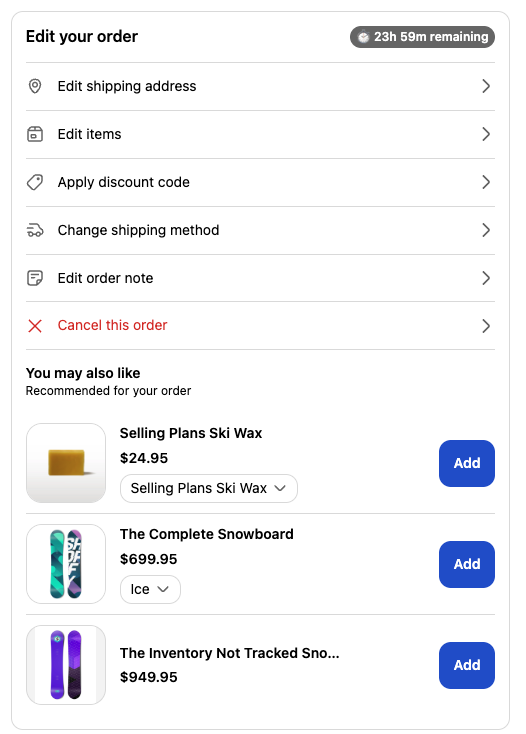
- Each product shows its image, name, and price — with the discounted price and a Save {amount} badge when a discount is set.
- The customer adjusts the quantity of each product with a stepper; the header shows how many are selected.
- One Save changes button commits everything at once. Products are only added to the order after Save — never before.
- If saving raises the order total, the customer is asked to settle the difference with Pay now (plus an emailed payment link as backup). Upsell reuses the same payment flow as every other edit; it never charges silently.
The block hides itself rather than showing an empty state whenever there is no valid product to offer — for example when everything recommended is out of stock or already on the order.
Measuring results
Upsell performance is reported on the Analytics page, in the Upsell performance section, so you can see how much extra revenue the block is bringing in.
See also
- Editing rules, where this row lives and how the editor is laid out
- Allowed edit types, including Add new products, the separate customer-initiated channel
- Translations, where you edit the block title and button label
- Pay an additional charge, how customers pay the difference after adding
- Analytics page, where upsell revenue is reported