Apply a Discount Code (Customer Flow)
This lets your customers add a discount code to an order they already placed. It's designed to only ever reduce the total: any savings are refunded automatically, and it never adds a charge.
Turn it on with Apply discount code in Editing rules. It's off by default. Turning it on also enables the free-shipping code field inside Change shipping method.
Where the option appears
On the Order Status Page, inside the Edit your order card, a row labelled Apply discount code.
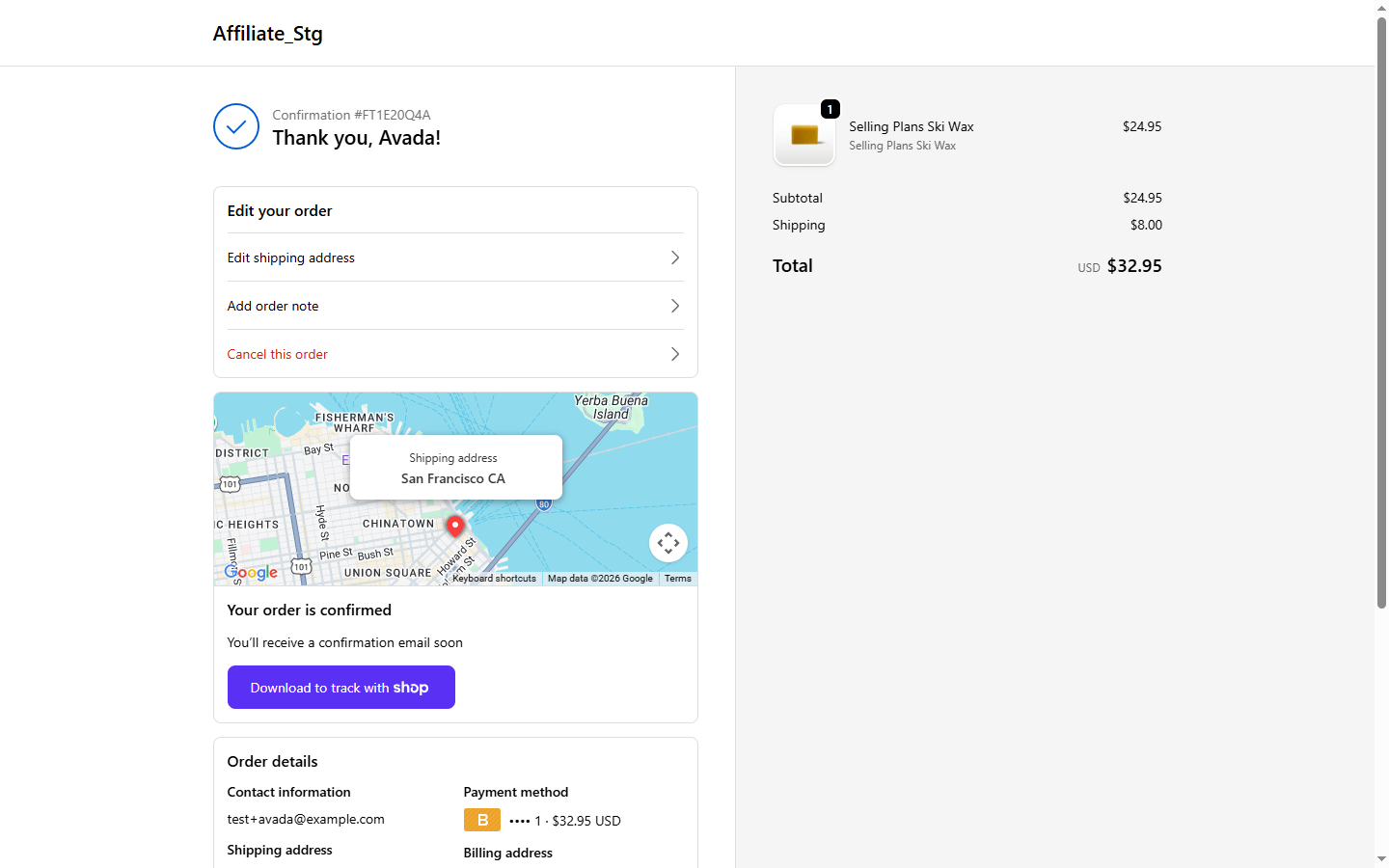
What the customer does
- Click Apply discount code to expand the panel.
- Type a code and click Apply. The code is staged as a chip (nothing is charged or refunded yet). Several codes can be staged this way.
- Codes that were already on the order from checkout show read-only and can't be removed here.
- Click Save discount to commit all staged codes at once. Any savings are refunded automatically to the original payment method.
If a code is rejected
A code can be turned down for several reasons, including:
- Not found, or invalid.
- Expired, or not active yet.
- Already used up (usage limit reached).
- The order doesn't meet the code's minimum spend.
- Can't be combined with a code already on the order.
- Restricted to specific products or customers that don't match this order.
- The order was placed before the code became valid.
The panel shows a short message so the customer knows which code failed and why.
Where you see it later
Every applied code is logged on the Activity page with a Discount label, and the refunded amount shows on the order.
See also
- Allowed edit types, turn Apply discount code on or off
- Change shipping method, where a free-shipping code can also be entered