Editing Rules
Editing rules is where every rule about customer self-service editing lives. Open it from Editing rules in the app sidebar. It fills the screen, so you see the whole rule set, the panel you are editing, and a live preview of what the customer gets, all at once.
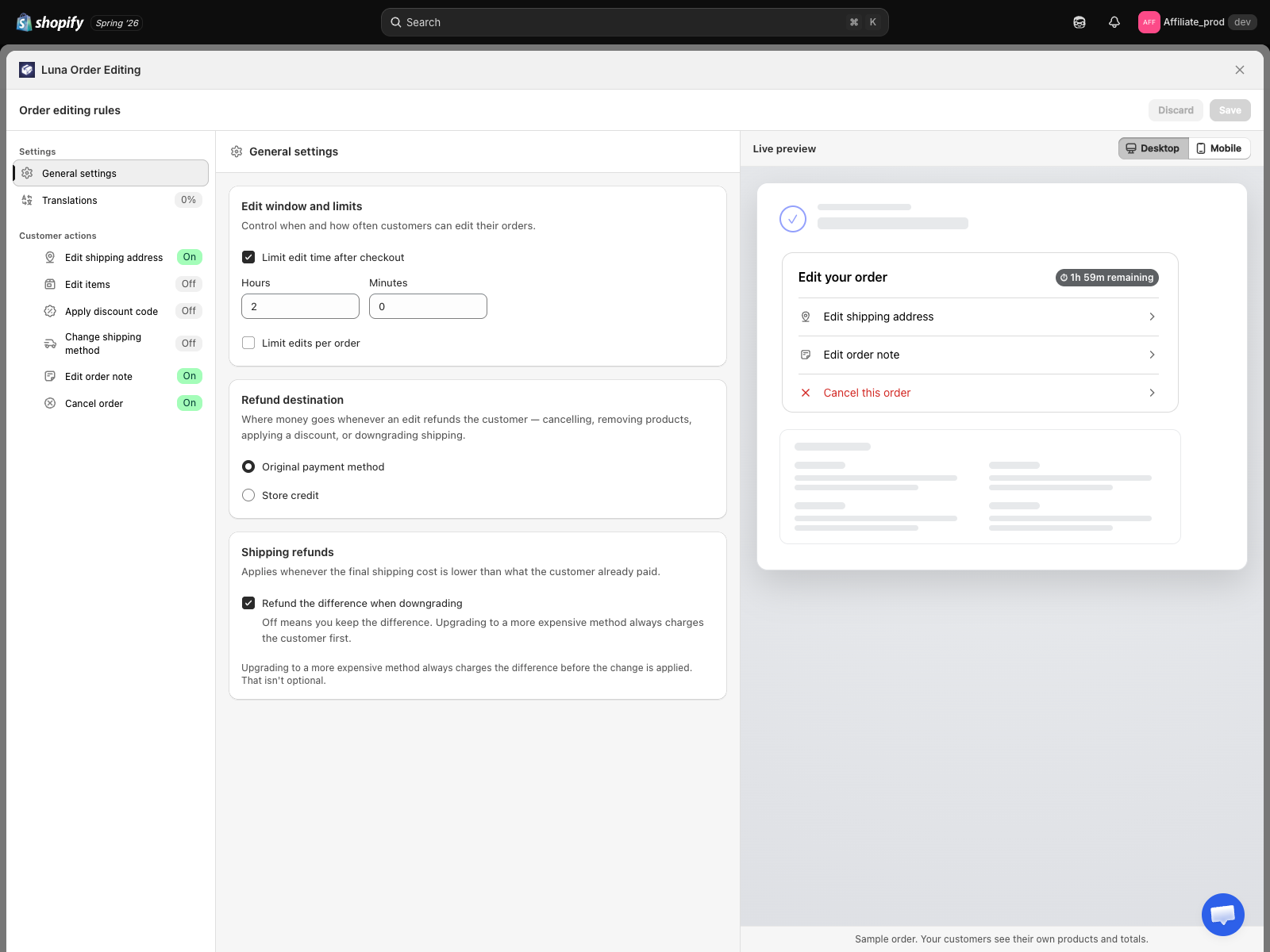
How the editor is laid out
Three columns, left to right.
Column 1, the rule list
Two groups.
Settings
| Item | What it holds |
|---|---|
| General settings | Edit window, max edits, refund destination, shipping refunds |
| Translations | The wording customers see in the widget, per language |
Customer actions, one row per thing a customer can do, each with an On or Off badge:
- Edit shipping address
- Edit items
- Apply discount code
- Change shipping method
- Edit order note
- Cancel order
- Upsell products
This list is not just a menu. Drag a row to reorder it and you change the order the customer sees the options in on their order page. Drag the option you want customers to reach first to the top.
Column 2, the panel
The settings for whichever row you picked. Every panel except General settings and Translations starts with an on and off switch for that one action. There is no global on and off switch for the app.
Column 3, live preview
The customer-facing Edit your order card, rendered from your current, unsaved changes. Toggle Desktop and Mobile at the top. See Preview for what it does and does not reflect.
Saving
Save and Discard sit in the top bar of the editor. Nothing takes effect until you save, so the preview is a safe place to experiment.
Editing rules and Email notifications save separately. Changing one never overwrites the other.
General settings
The first panel holds the rules that are not tied to one specific action.
Edit window and limits
- Limit edit time after checkout, plus Hours and Minutes. See Edit time window.
- Limit edits per order, a cap on how many times one order can be edited. See Max edits per order.
Both are off by default, which means customers can edit until the order is fulfilled, as many times as they need.
Refund destination
Where money goes whenever an edit refunds the customer: back to the original payment method, or as store credit. See Refund destination.
Shipping refunds
Refund the difference when downgrading, on by default. When a customer switches to a cheaper delivery method, the difference goes back to them. Turn it off and you keep the difference instead.
Upgrading to a more expensive method always charges the customer first. That part is not optional.
What each customer action panel controls
| Panel | What you can set beyond on/off |
|---|---|
| Edit shipping address | Which address fields customers may change, including whether they can change the destination country. See Allowed edit types and Change country |
| Edit items | Four separate switches: change variant, change quantity, add product, remove product |
| Apply discount code | Which discounts are allowed, and whether codes are blocked on already-discounted orders. See Discount code rules |
| Change shipping method | Optionally limit customers to a shortlist of delivery methods |
| Edit order note | An optional character limit on the note |
| Cancel order | The list of cancellation reasons customers pick from, and Offers to keep the order |
| Upsell products | Recommend products to customers while they edit their order. See Upsell products |
Offers to keep the order
Many cancellations are really a fix in disguise: a wrong size, a wrong address, a delivery that is too slow. Offers to keep the order lets you answer a cancellation reason with the edit that solves it, before the order is cancelled.
Open Editing rules, then click Cancel order under Customer actions. The card Offers to keep the order sits below Cancellation reasons.
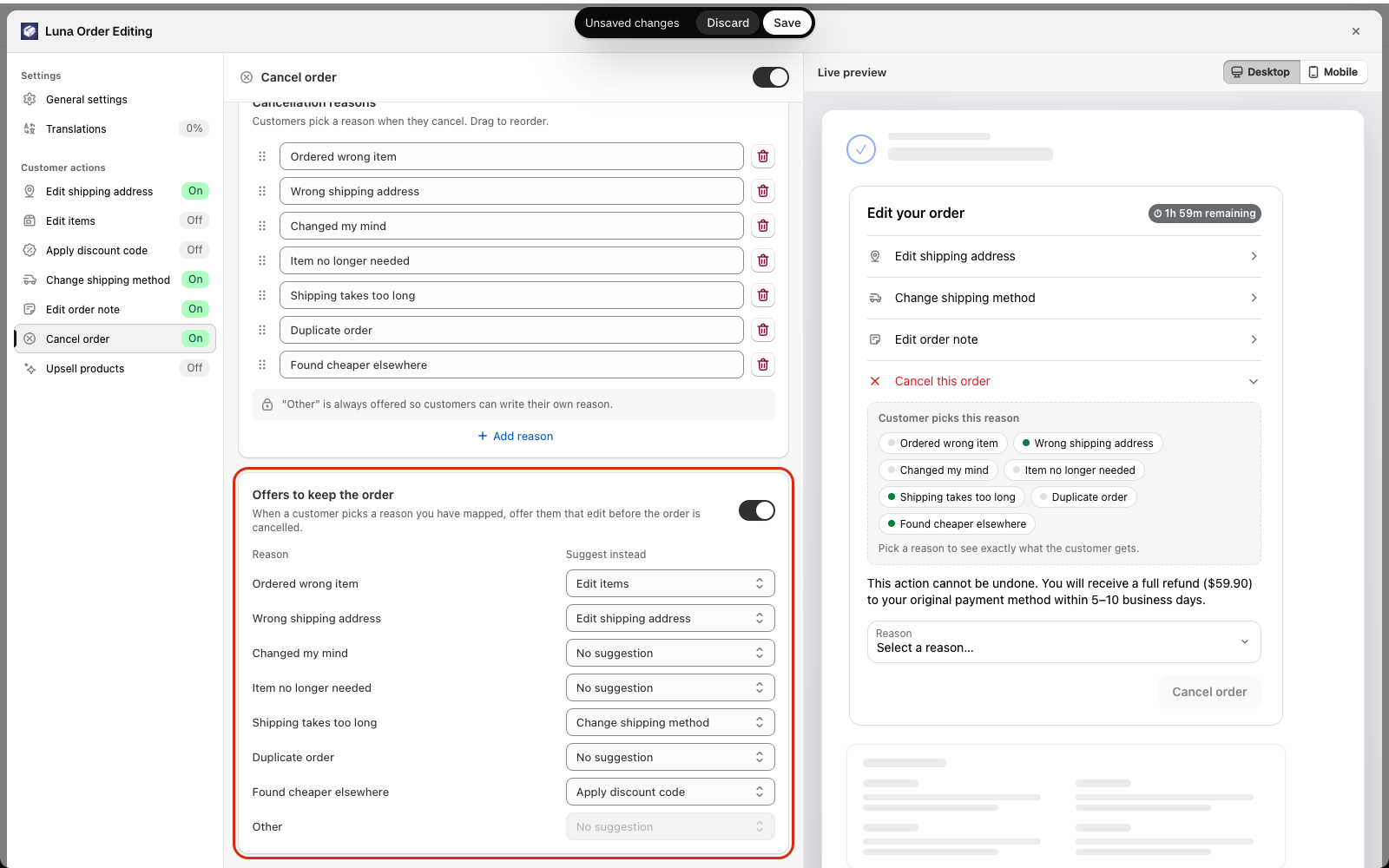
Set it up
- Turn on Offer an edit before cancelling (the switch next to the card title). It is off by default, so customers cancel straight away exactly as before.
- In the table, each row is one cancellation reason. Under Suggest instead, pick the edit to offer for that reason.
- Click Save.
The table always lists the same reasons your customers see, in the same order. Reasons you add yourself can be mapped too. Other is pinned last and cannot have a suggestion.
The five choices
| Suggest instead | What the customer is offered |
|---|---|
| No suggestion | Nothing. The customer goes straight to cancelling. This is the default for every reason. |
| Edit items | Swap a variant, change quantity, add or remove a product |
| Edit shipping address | Correct where the order goes |
| Change shipping method | Pick a different delivery option |
| Apply discount code | Enter a discount code and see the new total |
A sensible starting point:
| Reason | Suggest instead |
|---|---|
| Ordered wrong item | Edit items |
| Wrong shipping address | Edit shipping address |
| Shipping takes too long | Change shipping method |
| Found cheaper elsewhere | Apply discount code |
| Item no longer needed, Duplicate order | Edit items |
If every row is still No suggestion, the card shows a warning: No reason has a suggestion yet, so customers still cancel straight away.
Good to know
- Up to 10 reasons. The reason list, and so the table, holds at most 10 rows. Delete a reason and its suggestion is dropped the next time you save.
- The suggested panel must have something to offer. The offer only appears when the panel behind it has content: for Edit items, at least one of change variant, change quantity, add product or remove product is on; for Edit shipping address, at least one address field is editable; for Apply discount code, at least one code is allowed for this order. If the panel is empty, the customer goes straight to cancelling.
- The panel can be off for everyone else. If you switched a customer action off, it still opens for a customer who accepts it as an offer, and only for that customer and that order. Nothing else is switched on.
- Access lasts 15 minutes. Accepting an offer opens the suggested panel for 15 minutes. After that, or after a page reload, a panel you have switched off closes again.
- No offer on refunded orders. If you already refunded part of the order, customers cancel straight away.
- Each offer is shown once per visit. If the customer declines, they are not offered the same suggestion again until they reload the page.
- Check it in the live preview. In the Cancel section of the preview, use Customer picks this reason to pick a reason and see exactly what the customer gets, with a short note explaining why an offer does or does not show.
See what customers see on Cancel an order, and how many orders you kept on the Analytics page.
See also
- Allowed edit types, every customer action in detail
- Upsell products, recommend products during an edit to lift order value
- Translations, the wording customers see
- Preview, how the live preview works
- Email notifications, the separate Settings page for emails