Managing Connections
Everything about connected assistants lives on the AI connections page: who has access, what they may do, how to narrow or cut it, and what they have changed.
See which AI assistants can access your store, what they can do, and stop any of them.
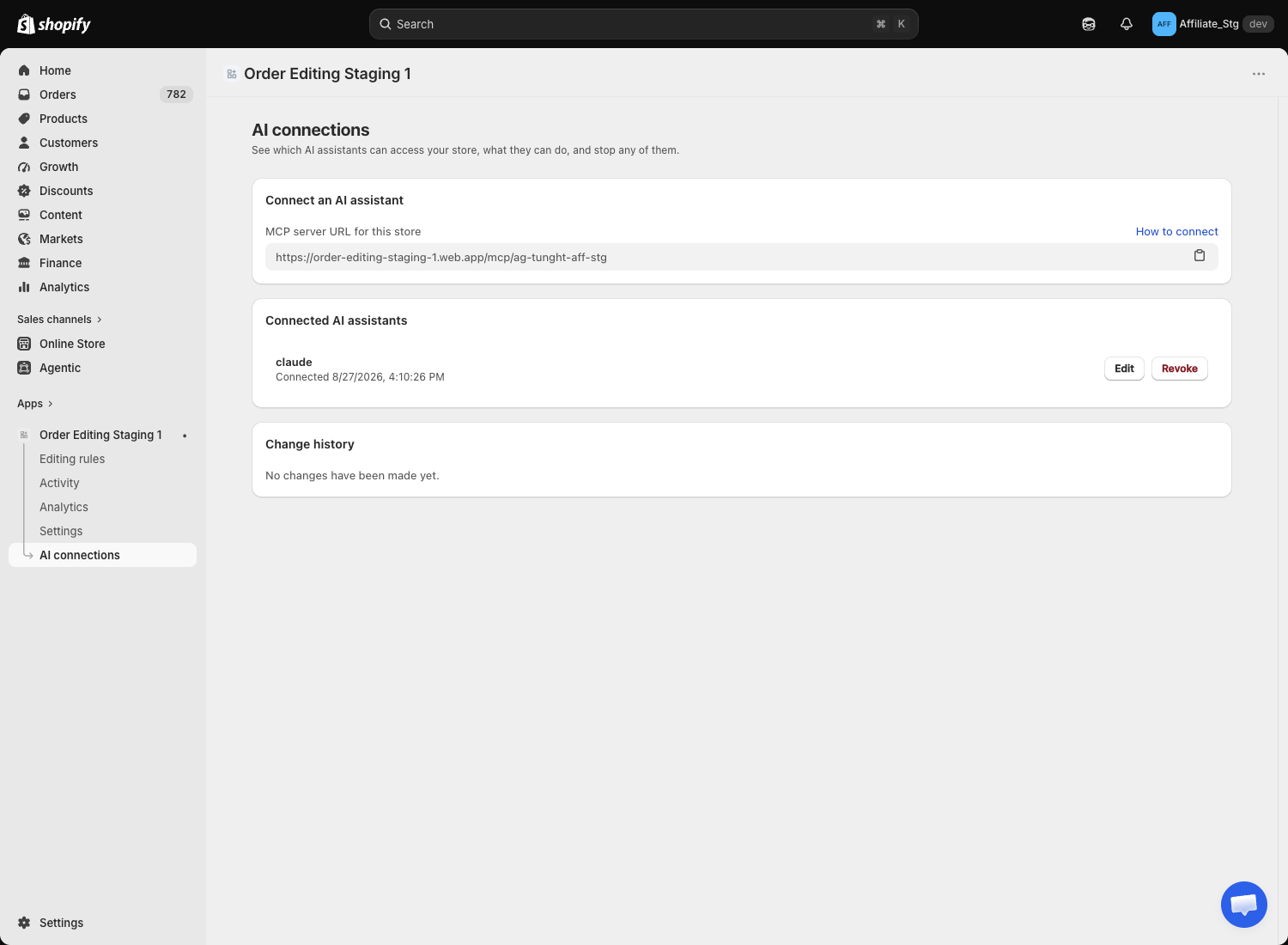
The list
Connected AI assistants shows one row per connection:
- The connection name you chose when approving.
- Connects from, the host the assistant runs on.
- The permissions it holds, listed out.
- Connected {date}, and Last used {date} or Never used.
Each row has two buttons, Edit and Revoke. If nothing is connected yet, the card reads No AI assistant is connected.
Very large lists are capped: past fifty connections, the page shows your fifty most recent and suggests revoking one you no longer use.
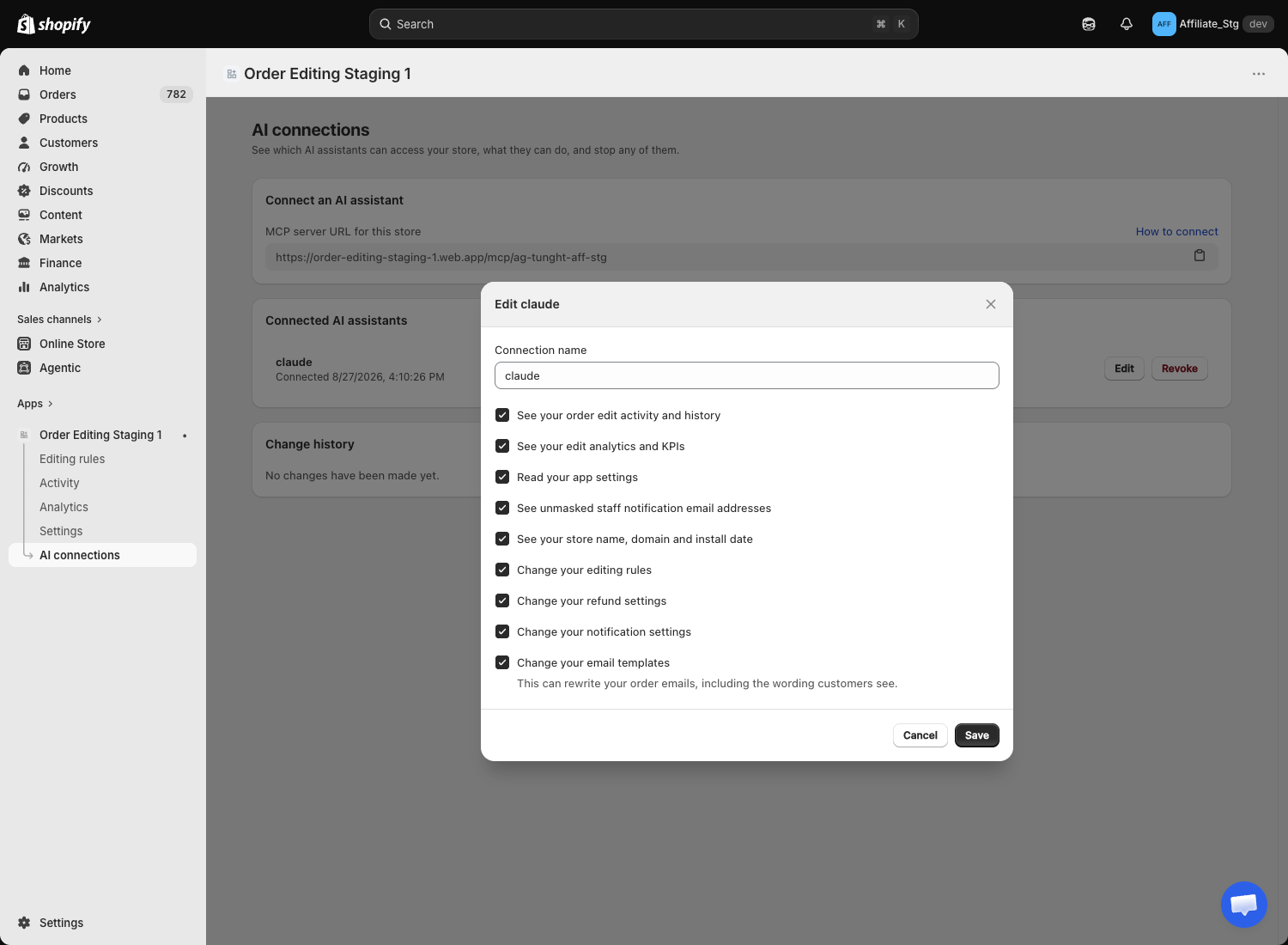
Edit, to narrow permissions
Edit opens the connection's name and its permission tick boxes.
Untick anything you'd rather not allow. The assistant stays connected, it just can't do those things.
A narrower set takes effect on the assistant's very next request. There is nothing to reconnect and no new approval to give.
You cannot untick everything. The page will tell you: Tick at least one permission. To take away all of them, revoke the connection instead.
Revoke, to cut access
Revoke ends the connection. The confirmation modal spells out the consequences:
This assistant will lose access to your store. It can't read your orders or change your settings until you connect it again.
Revoking takes effect immediately, on the assistant's very next request.
To undo this, you need to connect the assistant again from scratch.
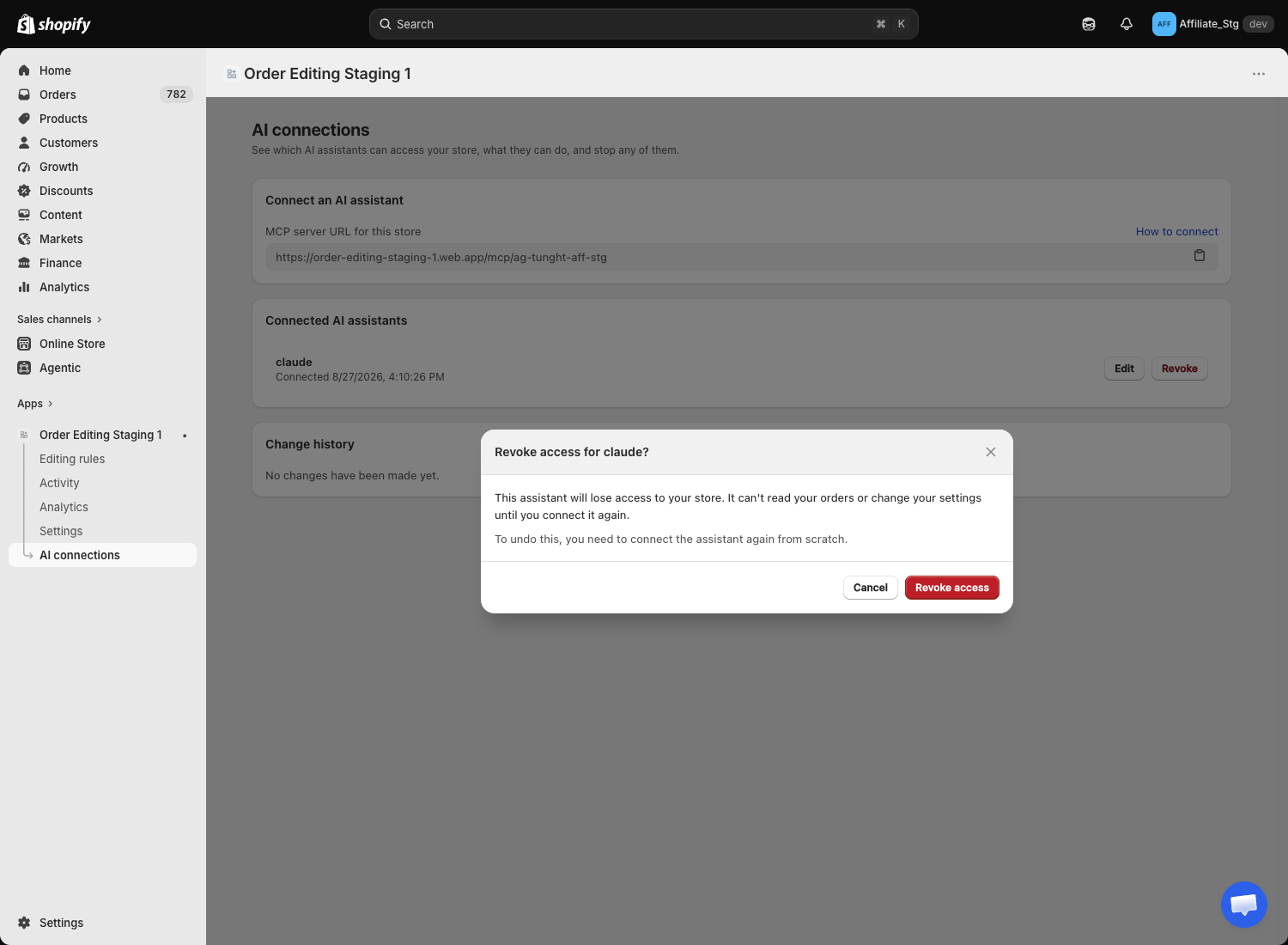
There is no undo from the admin. Revoke when an assistant is no longer in use, when someone leaves the team, or whenever you are unsure about a connection you do not recognise. Reconnecting later is cheap.
Change history
The bottom card records what assistants have changed. Four columns:
| Column | What it holds |
|---|---|
| Field | The setting that changed. Where a change is not tied to one field, the area's name is used: Editing rules, Refund settings, Notification settings, Email templates. |
| Change | The old value, then the new one. |
| Made by | The connection that made it, or AI assistant where the name is not known. |
| When | The time it was applied. |
Each changed field is its own row, so a proposal touching three fields produces three rows.
Two things to know about what it shows:
- Long content is not stored. Email template bodies and recipient lists show Content changed instead of the text. The system deliberately does not keep a copy of the wording.
- It only covers assistants. Changes you make yourself in the app are not recorded here. This is an AI audit trail, not a general settings log.
History is kept for a year, and the list is paginated like the Activity page.
Routine hygiene
- Give each assistant a name you will still recognise in three months.
- Check Last used now and then and revoke anything showing Never used long after you set it up.
- Grant the change permissions only while you actually need them, and untick them afterwards. Re-ticking takes seconds.