Change Country / Destination (Customer Flow)
By default, customers can fix every line of their shipping address except the country. This page covers the option that also lets them change the destination country, for example when they ordered to the wrong country, moved, or are sending a gift abroad. When it is on, the app recalculates shipping for the new country and settles any price difference automatically. You do not approve anything per request.
This is an add-on to the normal Edit shipping address flow. If you only want customers to correct city, state, or ZIP within the same country, leave it off and follow Edit shipping address instead.
Turn it on first (merchant)
Country change is off by default, so existing stores keep their current behavior until you opt in.
- Open Editing rules in the sidebar, then pick Edit shipping address under Customer actions.
- In the Destination group, pick one of two choices:
- Within the same country (default) — customers can edit city, state, and ZIP, but the country stays locked.
- Allow country change — the country becomes a dropdown the customer can change.
- Click Save.
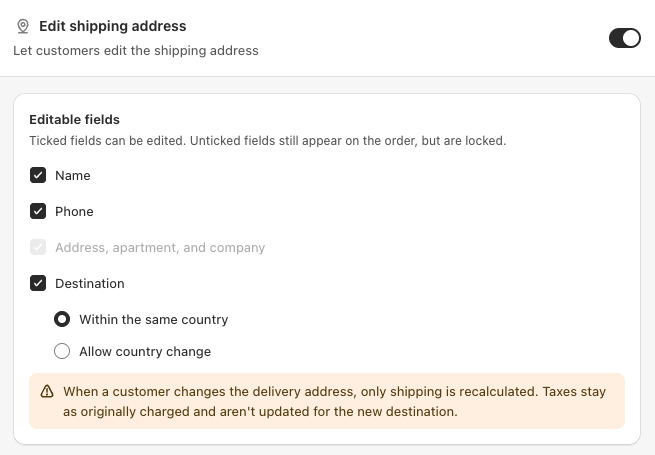
Where the option appears
Nothing new here. On the Order Status Page, inside the Edit your order card, the customer opens the same Edit shipping address row.
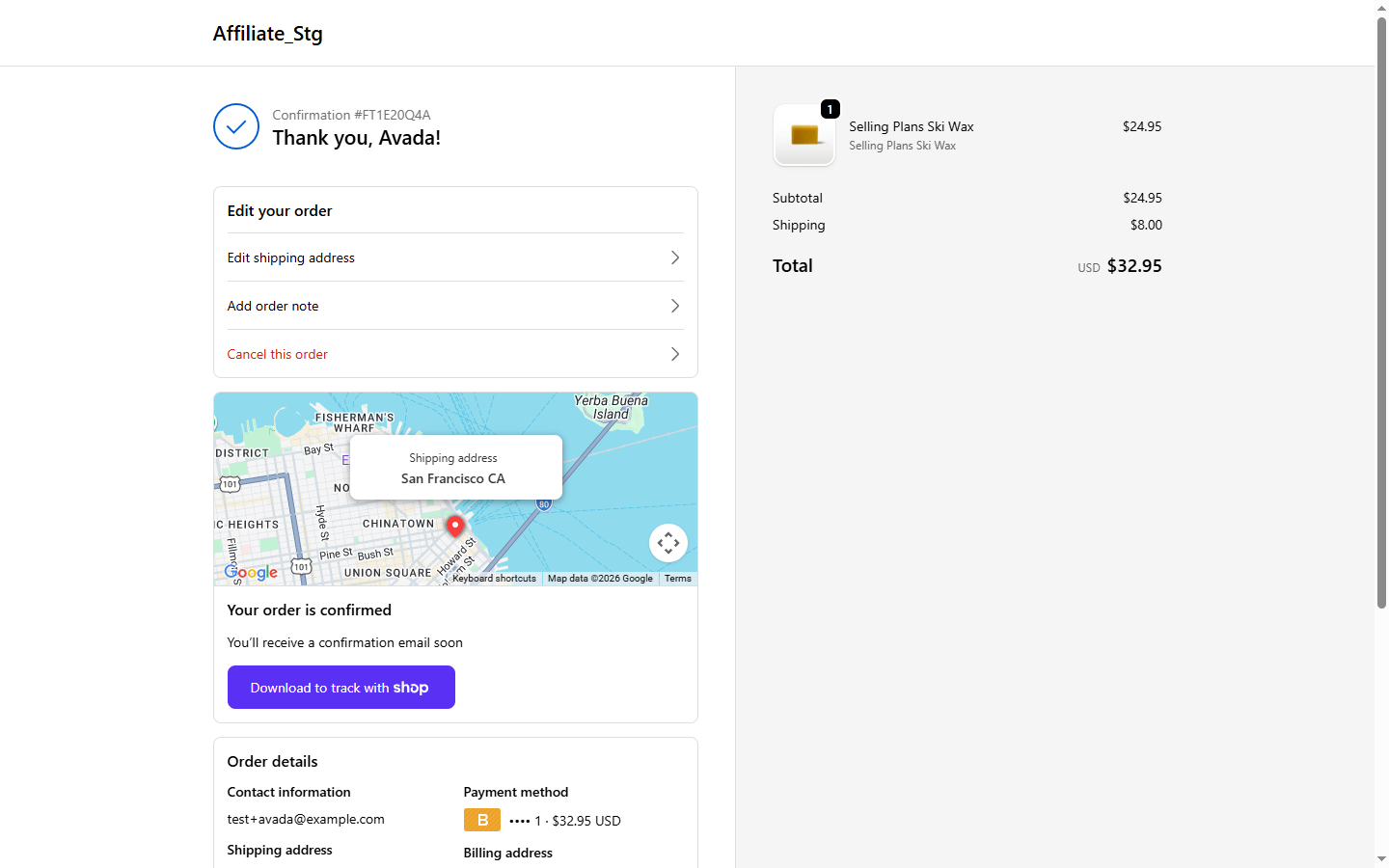
What the customer does
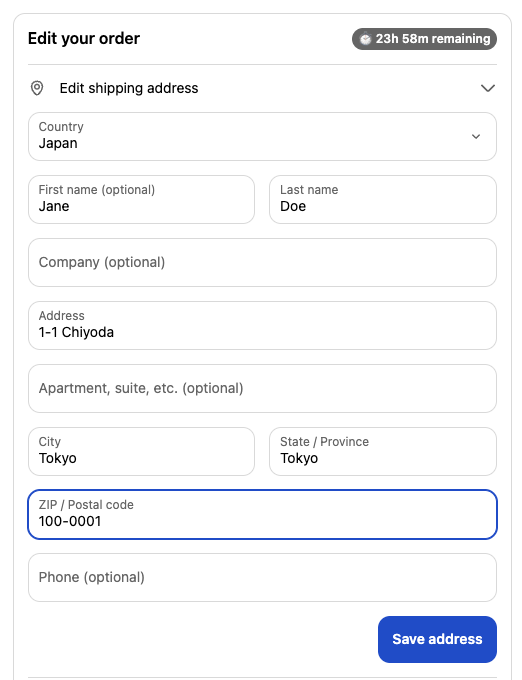
- Open Edit shipping address. When you have allowed country change, the Country / region field is a dropdown at the top of the form, instead of a locked text field.
- The dropdown lists the countries in your store's markets. Not every one of those necessarily has a shipping rate: if the customer picks a destination you have no rate for, the save is refused with "We can't ship this order to the country you selected. Please choose another destination." To keep that from happening, make sure every market country has a rate in Shipping and delivery.
- Pick a new country. The form adapts to it:
- The State / Province field turns into a dropdown for countries that have provinces (like the US, Canada, Australia), or a plain text field for countries that do not.
- The ZIP / Postal code is re-checked against the new country's format. A wrong format shows an inline error and blocks saving until it is fixed.
- Click Save address. The app asks Shopify to recalculate shipping for the new destination, then shows what happens next based on the price.
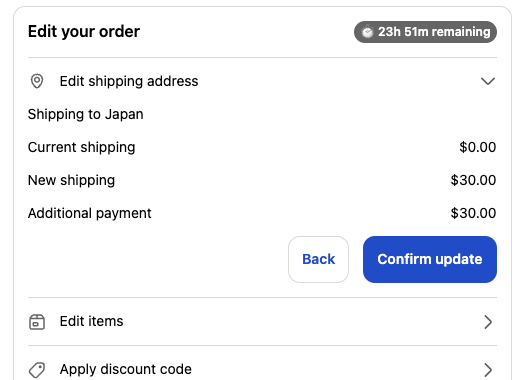
What happens with the money
The app shows only the figures Shopify recalculates, it never invents a rate. After Save address, one of three things happens:
| Outcome | What the customer sees |
|---|---|
| Shipping stays the same | The change is applied right away, no confirmation and no charge. The card collapses with a green Changes saved banner. |
| Shipping goes up | A breakdown of the new shipping cost and the extra amount, with a Confirm update button. After confirming, the address is updated immediately and the order shows a payment needed state with a Pay now button. The app also emails a payment link so the customer can pay later. The customer is never charged silently. |
| Shipping goes down | Depending on your store's refund policy, the difference is refunded to the original payment method, added as store credit, or kept. The customer is told which before they confirm. |
The shipping-refund behavior when a change is cheaper is the same one used for Change shipping method. It follows your General → Shipping refunds setting, so there is a single source of truth.
About taxes and duties
- Only the shipping fee is recalculated and charged or refunded.
- Product tax stays as it was at checkout. Shopify does not allow re-taxing an order that already exists when the address changes, this is a platform limit that also applies to Shopify's native editing.
- Cross-border duties and customs fees are collected by the carrier on delivery, outside the order total. The widget does not show a duties banner in this version, so let customers know duties may apply when they ship to another customs territory.
Limitations
A few destinations and setups are intentionally out of scope in this version.
- Different currency is hidden. If a destination belongs to a market that uses a different currency from the order, it is left out of the dropdown, with a note that only destinations using the order's currency can be selected. Changing currency after an order exists is not supported yet.
- Pay now is what collects the extra amount when shipping goes up. It needs no setup, see Pay an additional charge.
- Store credit refunds need the Store Credit feature enabled. If it is not, a downgrade refund falls back to the original payment method.
- Carrier-calculated only destinations, where the app cannot read a concrete rate, are blocked with a note, so the customer is never shown a guessed price.
- After fulfilment the whole address edit is hidden, since the carrier already has the package.
If the dropdown behaves unexpectedly
- The Country / region field is still locked text — you have Within the same country selected, not Allow country change.
- A country the customer expects is missing: it is not in any of your store's markets, or that destination uses a different currency from the order. Add it under Shopify Settings, Markets.
- The change is blocked with "We can't ship this order to the country you selected": the country is in a market but has no shipping rate. Add a rate covering it under Shopify Settings, Shipping and delivery. The app will not commit a guessed price.