Quick Start (2 Steps)
The Quickstart card on your dashboard tracks two steps. Once both are done, your customers can start editing their orders.
There is no master on and off switch. The app is live as soon as the widget is on your order pages and at least one customer action is turned on.
Step 1, configure your rules
Click Configure now on the Quickstart card, or open Editing rules in the sidebar, and decide:
- Customer actions, what customers may do. On a fresh install, Edit shipping address, Edit order note, and Cancel order are already on. Edit items, Apply discount code, and Change shipping method start off.
- Edit window and limits, until when customers can edit, either until the order is fulfilled, which is the default, or a fixed hours and minutes window. Optionally cap how many edits one order gets.
- Refund destination, whether refunds go back to the original payment method or become store credit.
Then open Settings and turn on the emails you want. The step is marked done once you save on the Settings page.
Read the full guide at Editing rules.
Watch the live preview on the right of the Editing rules editor while you toggle. It shows the customer view updating in real time, before you save.
Step 2, add the widget
The customer-facing block is a Shopify checkout UI extension, so you add it in Shopify's checkout editor, not the theme editor.
- Click Open checkout editor on the Quickstart card. It opens Settings, Checkout, Customize on the Thank you page.
- Add the Edit your order block. You only need it on either the Thank you page or the Order status page in the new customer accounts. One is enough.
- Save, then come back and click Refresh status, or let the app detect it on your next visit.
The widget is not in Online Store, Themes. If you cannot find it in the theme editor, that is expected. It lives in the checkout editor.
Verify it works
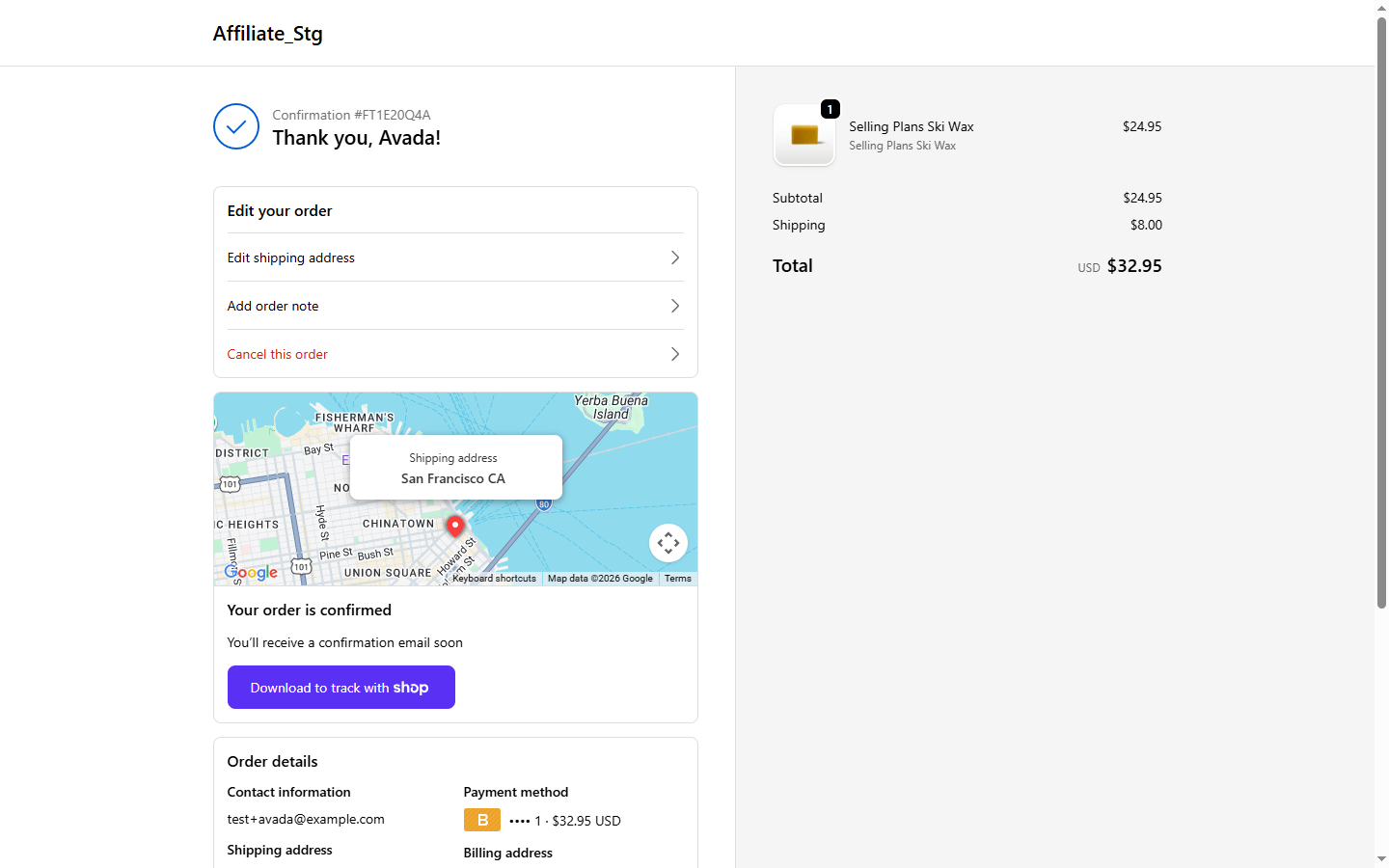
The Quickstart card shows 2 / 2 completed once both steps are done. Place a test order and open it to see the Edit your order card inline.
If the card does not appear, work through Troubleshooting.
Next step
- Walk through the customer edit flow.
- Check the Activity page after your first edit comes in.
- Translate the widget if you sell in more than one language, see Translations.