Edit Items (Customer Flow)
This is what your customers see when they want to change the products on an order after checkout — swap a size/colour, change quantity, add another product, or remove one. Each change recalculates the order total: a lower total refunds the difference automatically, a higher total emails the customer a secure payment link instead of charging them silently. You do not approve anything per request.
Which actions are available depends on what you turned on in Editing rules: Change product variant, Change product quantity, Add new products, Remove products.
Where the option appears
On the Order Status Page, inside the Edit your order card, a row labelled Edit items. It only shows if at least one of the four item switches is on.
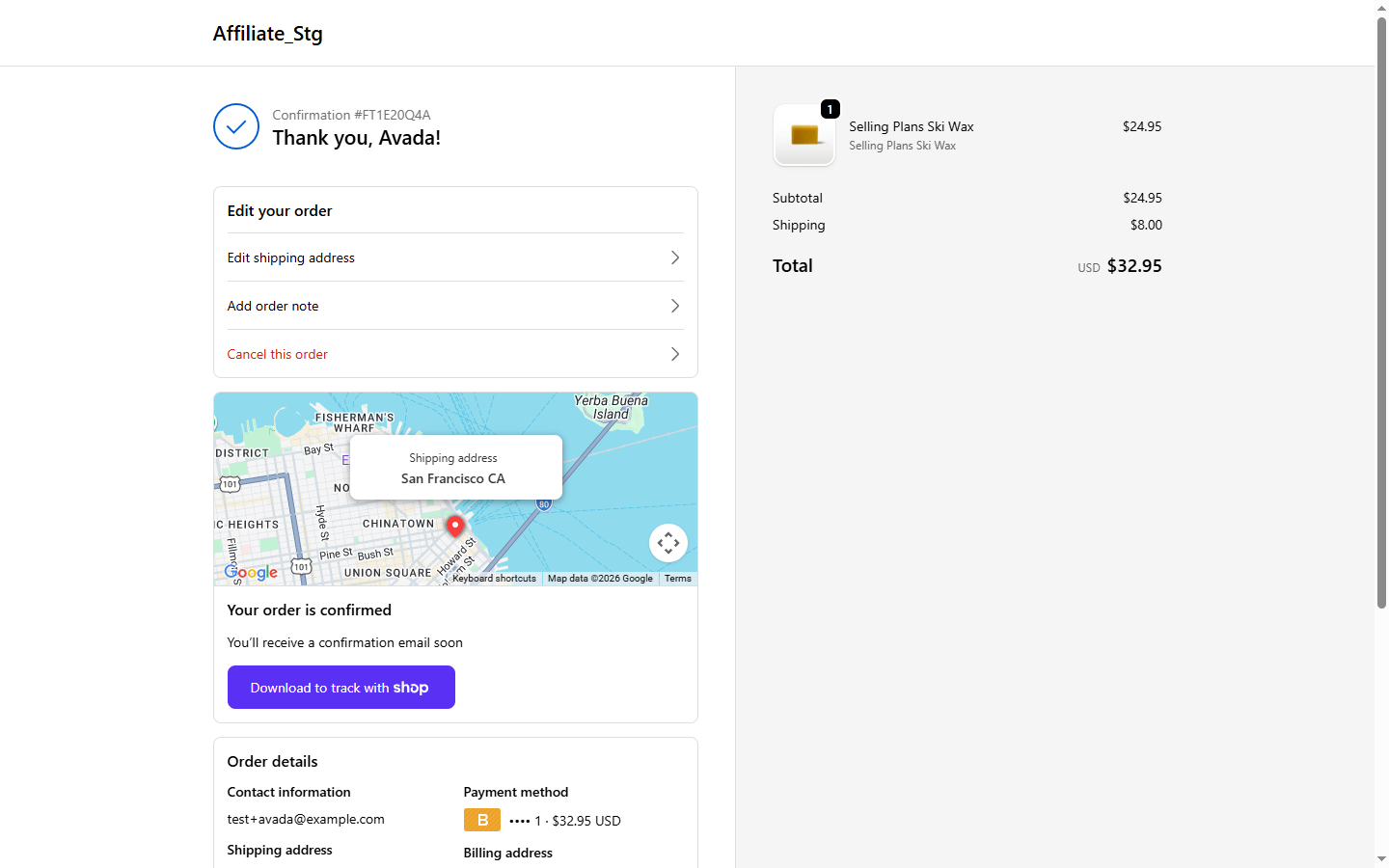
If the row is not visible, one of these is true:
- All four item switches are off in Editing rules.
- The whole Edit your order card is closed for this order: it is fulfilled or partially fulfilled, past your configured time window, fully refunded, or cancelled. See when the card is blocked.
- The order has hit its max edits limit, or it is a local-delivery order.
What the customer does
Clicking Edit items expands the order's line items inline. Each item has an Edit button, and below the list there's an Add new product button and a live Price difference bar.
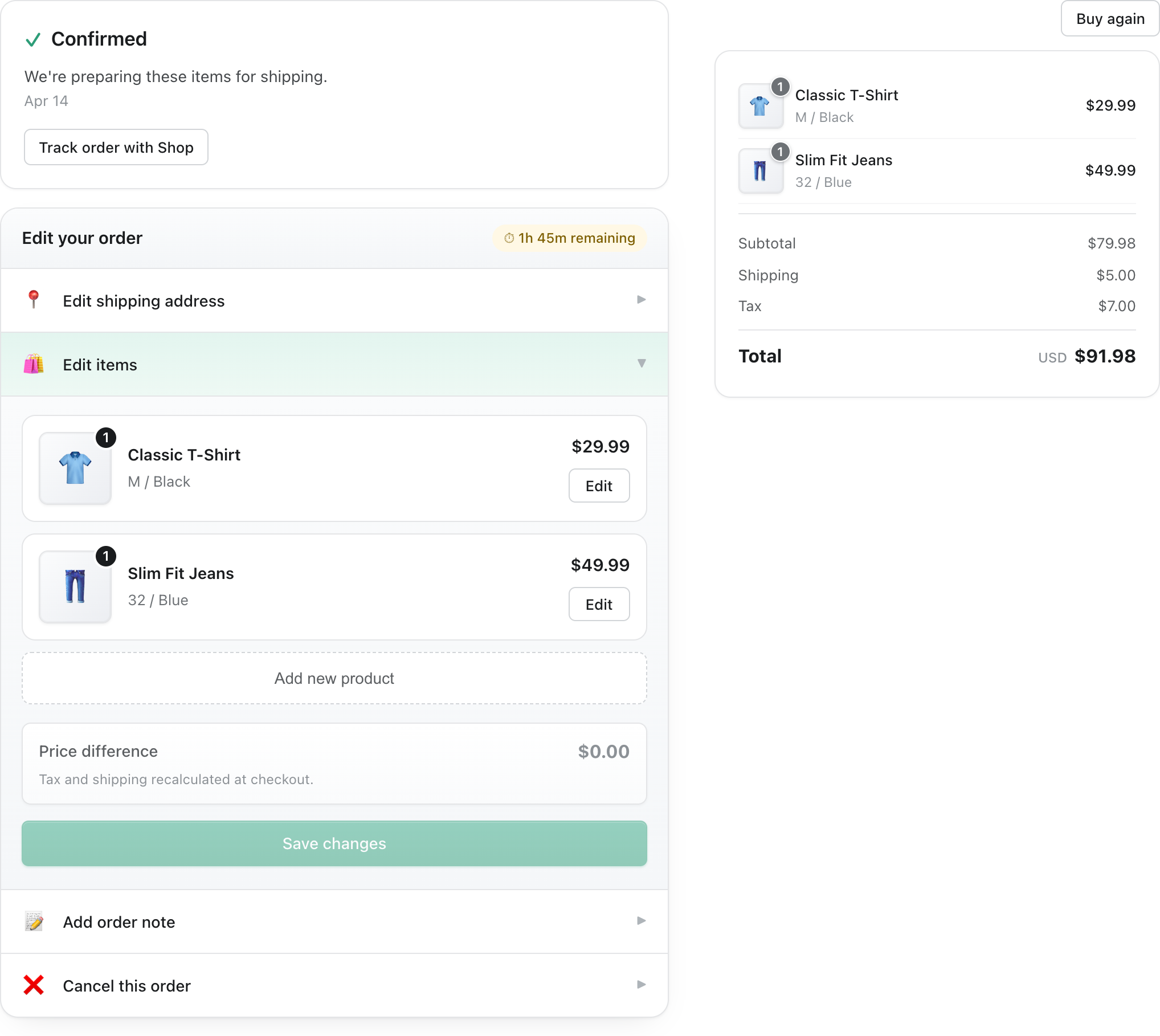
Change a variant or quantity
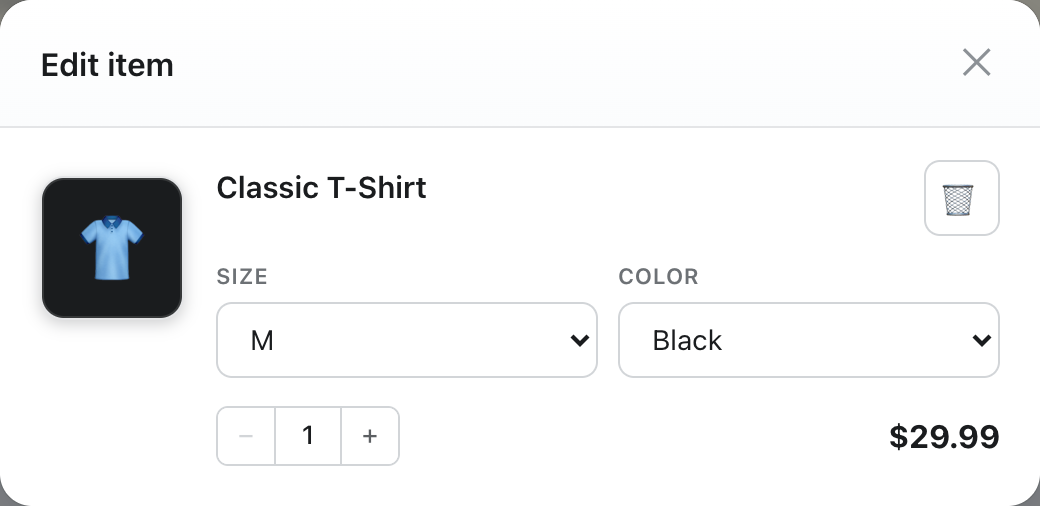
- Click Edit on an item → an Edit item popup opens.
- Change Size / Color (only the options you allowed appear) and/or the Quantity with the stepper. The minus button is disabled at quantity 1; the plus button stops at available stock and shows an Out of stock note if the limit is reached.
- The Apply button stays hidden until something actually changes — then it appears so the customer can confirm. Click Apply to keep the change.
Remove an item
- In the Edit item popup, click the trash icon.
- The footer turns into a Cancel / Remove confirmation right there. Click Remove to drop the item, or Cancel to keep it.
- A removed item is flagged, not deleted yet: an Undo brings it back any time until the customer clicks Save changes, which commits the removal. An order must always keep at least one item; if a customer tries to remove everything, Save changes is blocked and they're pointed to Cancel this order instead.
Add a new product
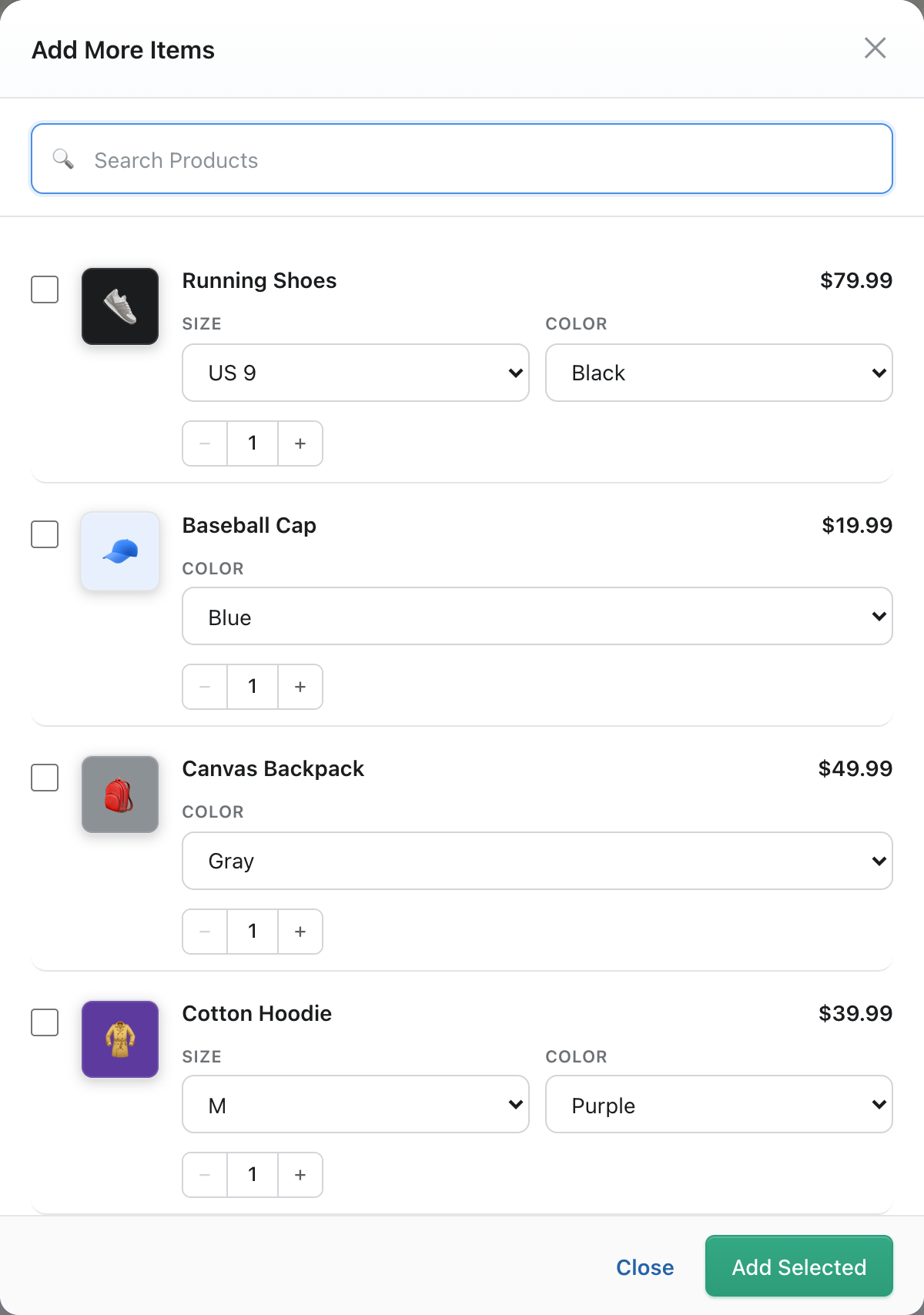
- Click Add new product → the Add More Items picker opens.
- Search by name, pick each product's variant options and quantity, then tick it. Sold-out products/variants show ⚠ Out of stock and can't be selected.
- Click Add Selected — the products drop into the item list, and the Price difference bar updates.
Save
When done, the customer clicks Save changes once. All edits (variant, quantity, add, remove) are committed together in a single update.
What happens with the money
The order total is recalculated and the difference is settled automatically:
| Outcome | What the customer sees |
|---|---|
| Total goes down, for example a removed item | A refund is issued automatically, to the original payment method or as store credit, following your Refund destination setting. Card refunds usually take 5 to 10 business days. |
| Total goes up (e.g. added a product) | We email a secure payment link for the extra amount, and a Pay now card shows the amount awaiting payment. There is no in-page checkout redirect and no silent charge. |
| No change in total | Just a confirmation that the products were updated. |
The Pay now card stays on the order until the balance is paid, even after the edit window closes or the order is fulfilled, so a customer who added items now can still pay the difference later.
What happens behind the scenes
- Shopify is the source of truth — all changes commit in one transaction, so it's all-or-nothing (no half-applied edits).
- The change shows up in your Shopify admin order page and on the Activity page inside our app, tagged Products.
- If the staff Order edited email is on in Email notifications, you get an email summarising what changed.
Limits worth knowing
- At least one item must remain on the order at all times.
- Adding products is unavailable when the order's currency differs from your store currency.
- A product/variant that sells out between adding it and saving is rejected at save time — the customer is asked to review and try again (nothing is half-committed).
See also
- Allowed edit types — turn each item action on/off
- Refund & restock — how money and inventory are handled
- Change shipping method — same charge/refund and Pay now behavior