Permissions
An AI connection gets exactly the permissions you tick, and nothing else. There are nine. Five let an assistant see something; four let it propose a change, which you still approve separately.
Nothing is ticked by default, and a connection with none of them ticked cannot be approved at all.
The nine permissions
The left column is the wording on the approval page. The AI connections page in the app uses slightly shorter labels for the same nine permissions.
Five that let an assistant see things
| On the approval page | What it allows |
|---|---|
| View your orders and their edit history | Edit activity across the shop, and every edit on a single order looked up by order number. Also whether a given order can still be edited and why. Customer names, emails and phone numbers stay masked. |
| View analytics about order edits | Edit-volume and impression KPIs by date range, the same numbers as the Analytics page. Not raw order data. |
| View your app settings | Your current configuration: editing rules, refund and store-credit settings, notification settings, email template copy, language coverage, and storefront sync status. |
| View unmasked staff notification email addresses | Shows your staff recipient addresses in full instead of masked. These are your own team's addresses, never customers'. |
| View your store name, domain and install date | Lets the assistant confirm which store it is answering for. |
Four that let an assistant propose changes
| On the approval page | What it allows |
|---|---|
| Change your order editing rules | Propose changes to what customers may edit and for how long. |
| Change your refund settings | Propose changes to where refunds go, original payment method or store credit, and to store-credit expiry. |
| Change your notification settings | Propose changes to which emails are sent, their timing, and the staff recipient list. |
| Change your email templates | Propose changes to the wording of the emails your customers and staff receive. |
Ticking Change your email templates shows its own warning on the approval page:
This can rewrite your order emails, including the wording customers see.
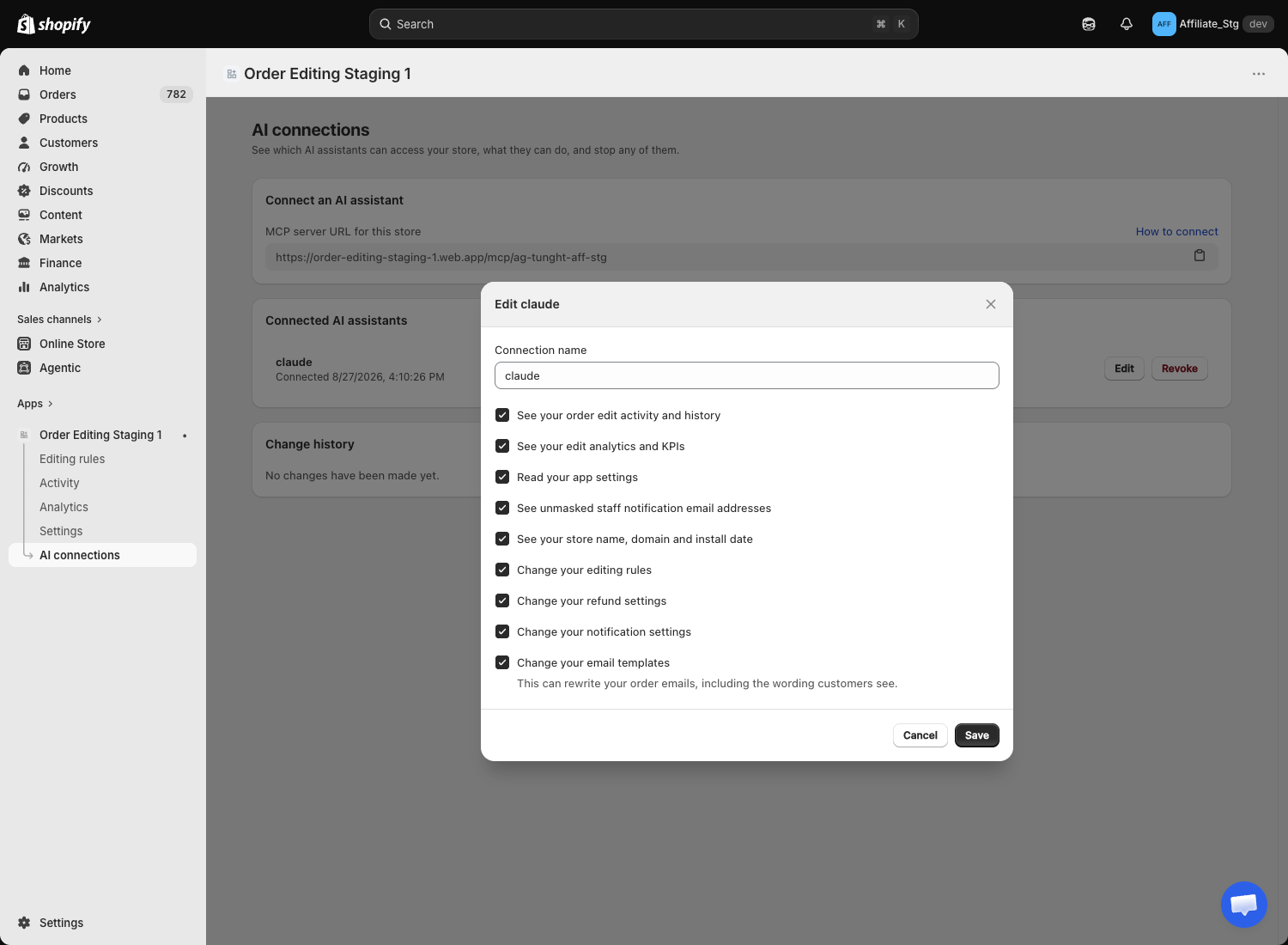
A permission you leave unticked is genuinely absent
This is worth being precise about, because it is what makes a read-only connection safe in practice.
The server does not show an assistant the tools it lacks permission for. It filters the tool list by your granted permissions before the assistant ever sees it. So an assistant with only the five view permissions has no change tools at all in its list. It will not propose an action and then fail on it, and it cannot be talked into one that is not there.
Calls are checked a second time when they run, so an assistant holding a stale copy of an older tool list still gets refused.
Three small tools are always available regardless of what you ticked: the assistant can look up support guidance, ask what this connection is allowed to do, and read general facts about the app. None of them read your orders or settings.
Narrowing or removing permissions later
Untick permissions any time from Edit on the connection, or cut access entirely with Revoke. A narrower set takes effect on the assistant's very next request, without reconnecting. See Managing connections.
What an AI connection can never do
No permission grants any of the following, and no assistant can request them.
- Issue, cancel or alter a refund, mark anything as paid, or touch a pending charge.
- Delete orders, edit history, or anything else.
- Reinstall the app, reset webhooks, or repair metafields.
- Change your Shopify plan or app billing.
- Reach another store's data. A connection is bound to the store that approved it.
- Return your Shopify access token, API keys, or any credential.
- Use the app's own Shopify permissions to act on your store on your behalf.
Customer contact details are masked by default in everything an assistant reads.