Review request
Collecting reviews is essential for maintaining and enhancing your store's reputation. With the Air Reviews app, you can efficiently manage review requests, proactively building organic trust and generating valuable user content. This ensures you gather genuine feedback from your customers, boosting credibility and fostering community engagement.
1. Access the Feature
In the left menu, select Collect reviews.
Click on Review request.
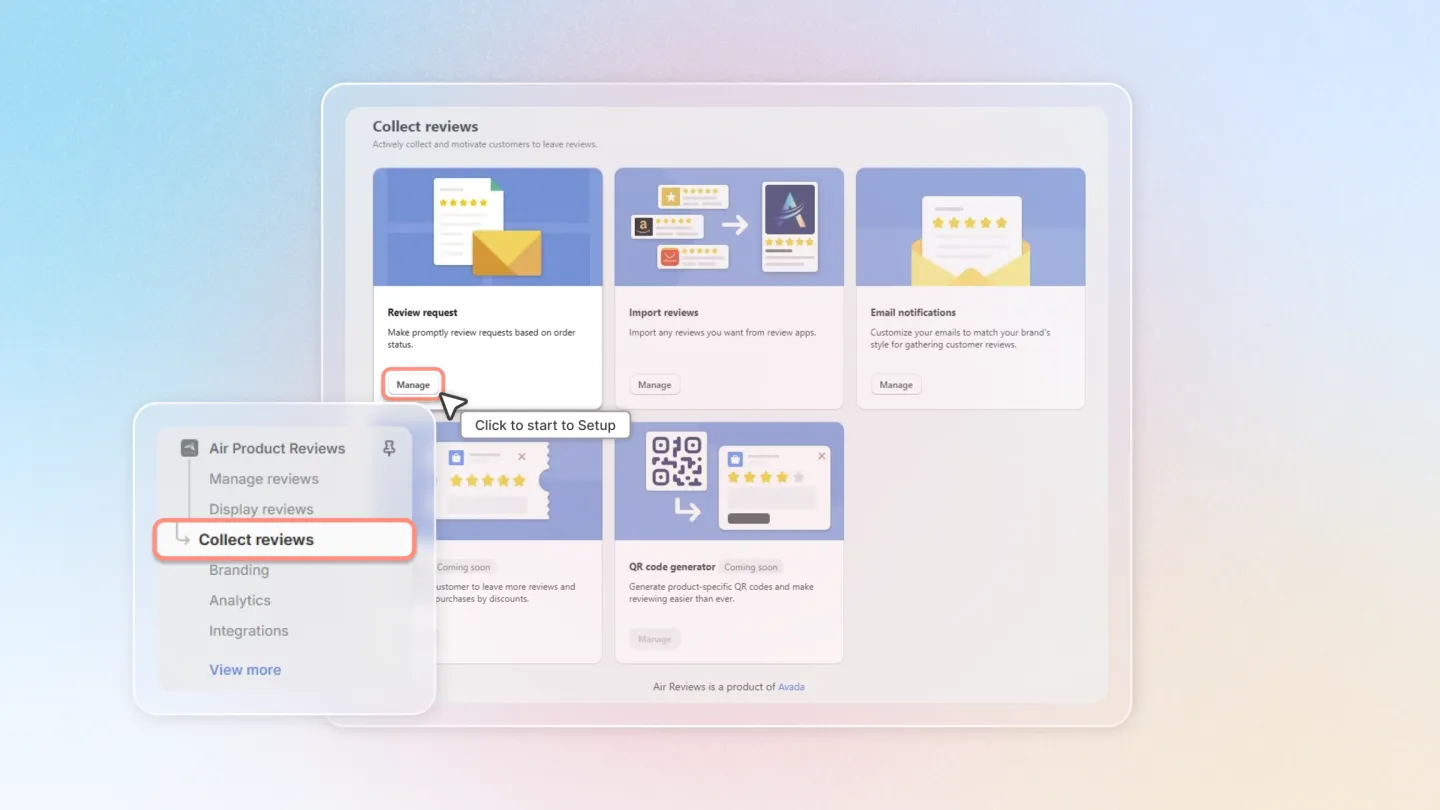
2. Review Request Management
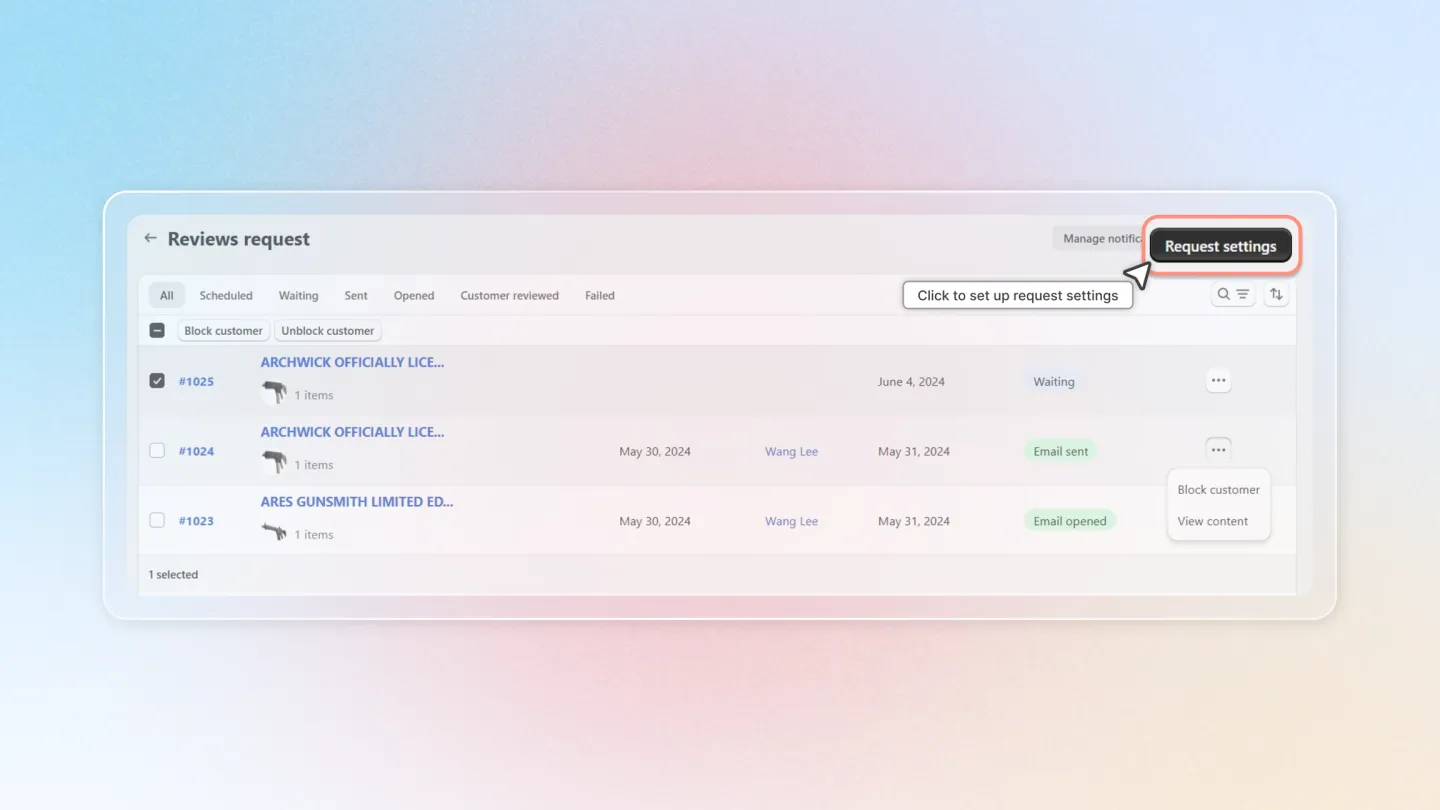
Order Management Table: Displays all your orders with information: Order number, Item, Fulfilled status, Buyer name, Request date, Status, and Actions:
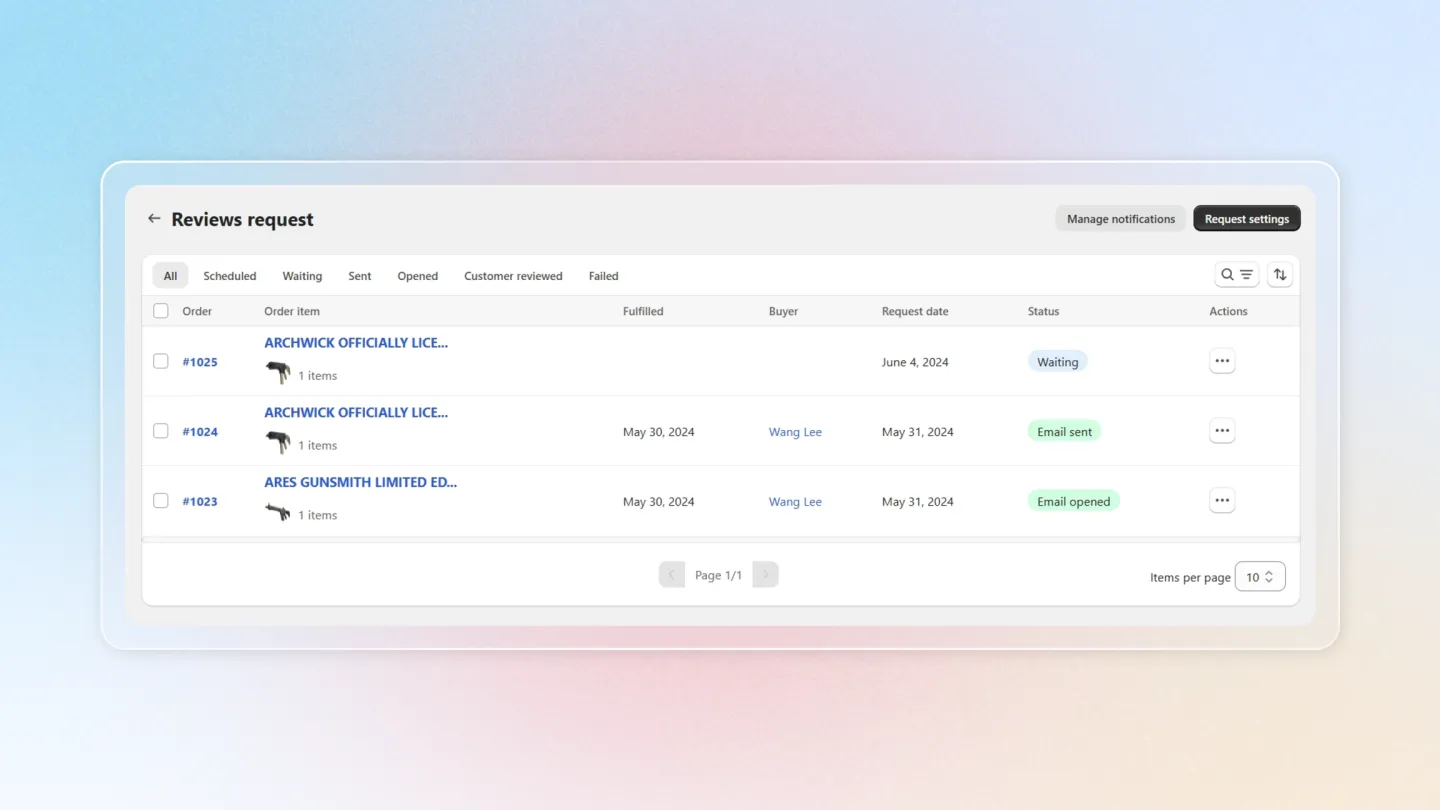
3. Status tabs
A tab bar above the table lets you quickly narrow the list to a single state — no need to open a filter:
- All — every order Air Reviews tracks.
- Scheduled — reminders queued to send later.
- Waiting — reminders waiting on a Shopify event (e.g. order fulfillment) before they can be scheduled.
- Sent — reminders that have already gone out.
- Opened — emails the customer has opened.
- Customer reviewed — orders where the customer submitted a review after the reminder.
- Failed — emails that bounced, hit a throttling limit, or otherwise failed to deliver.
Use these tabs to monitor your review-request funnel: how many sent, how many opened, how many converted into a review, and what failed.
4. Filtering Orders
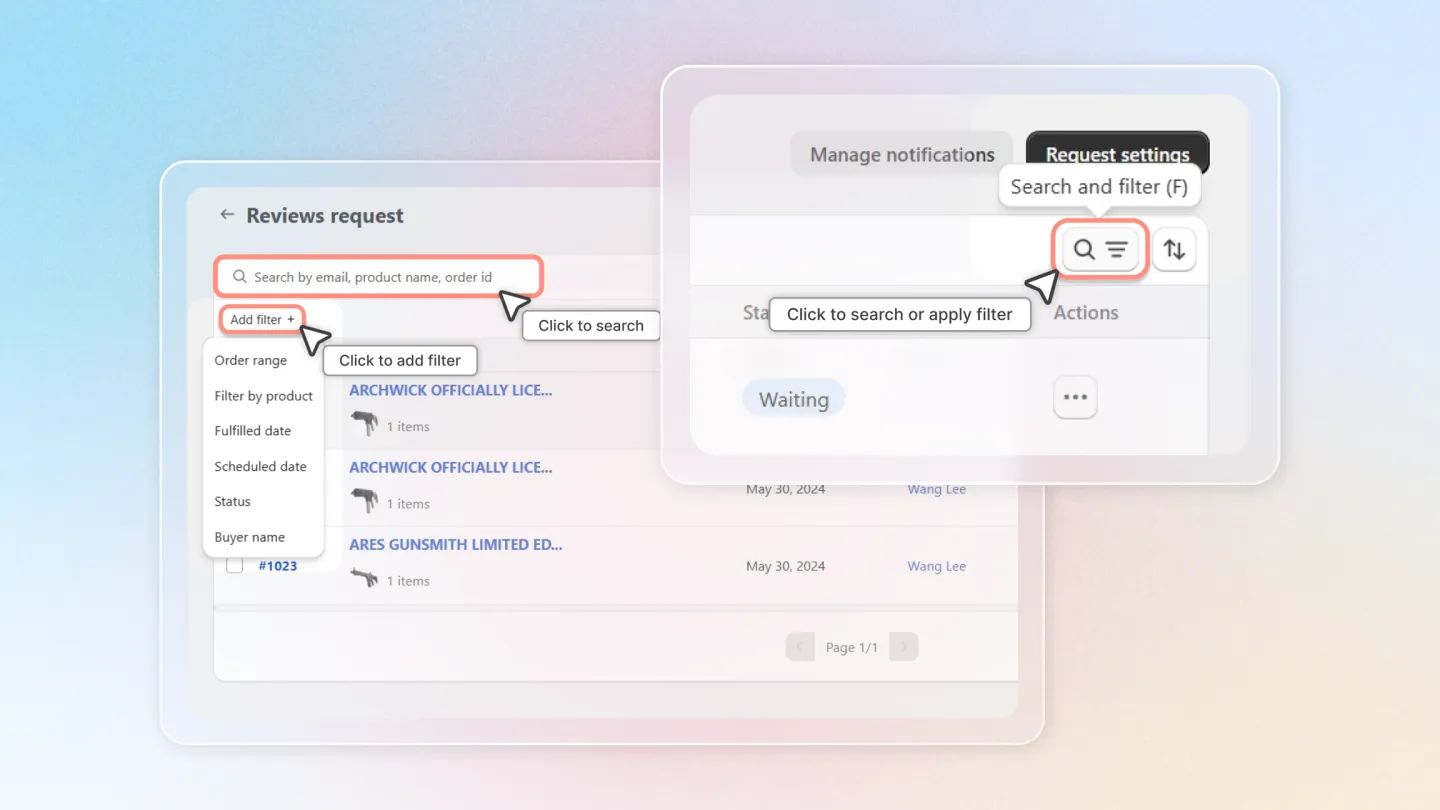
Click the Search and filter icon next to the tab bar to open a filter panel. You can filter by:
- Order range
- Product item
- Fulfilled date
- Buyer name
- Scheduled date
- Status
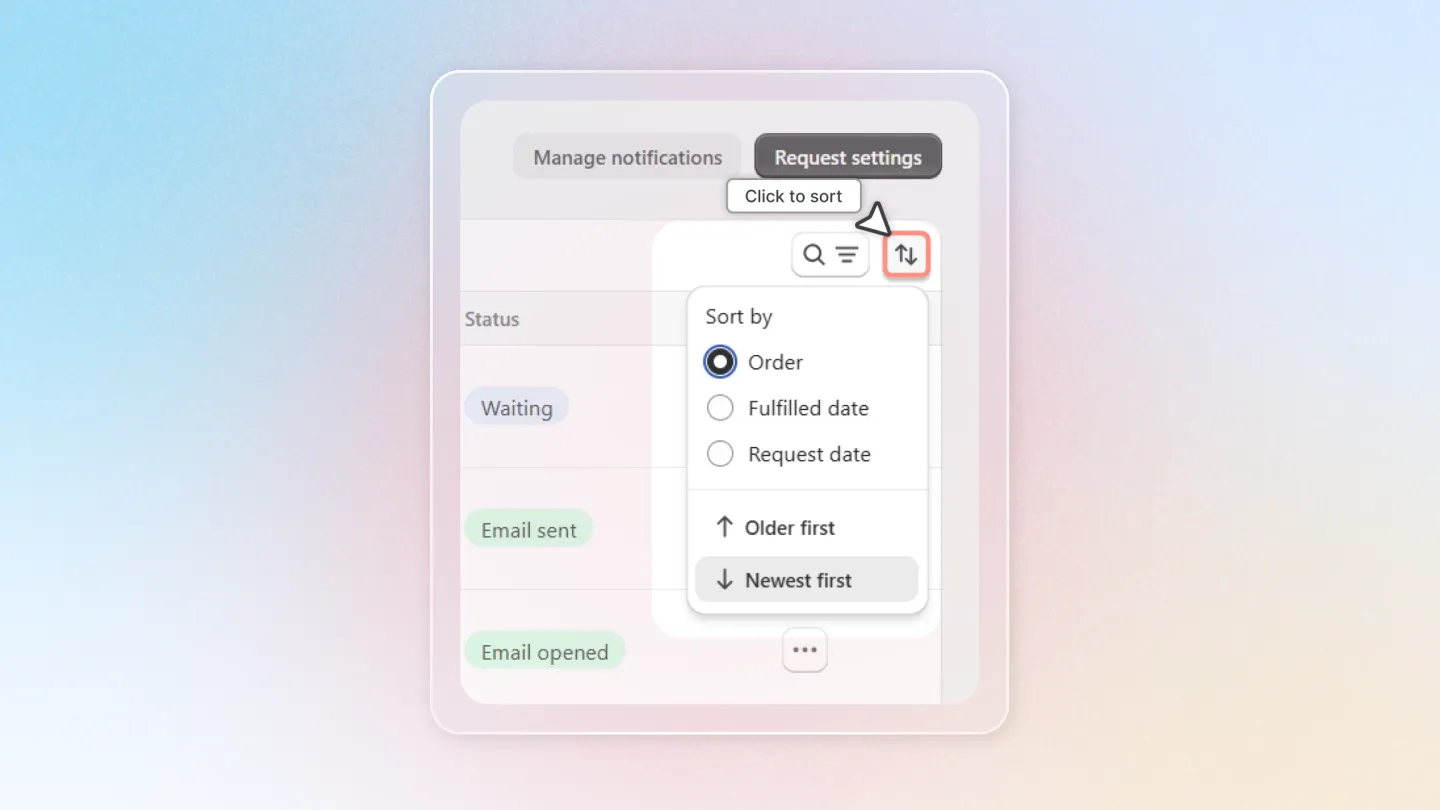
5. Sorting Orders
Click the Sort icon next to Search to choose a sort field and direction. Sort by:
- Order
- Fulfilled date
- Request date
Direction options: Older first / Newest first.
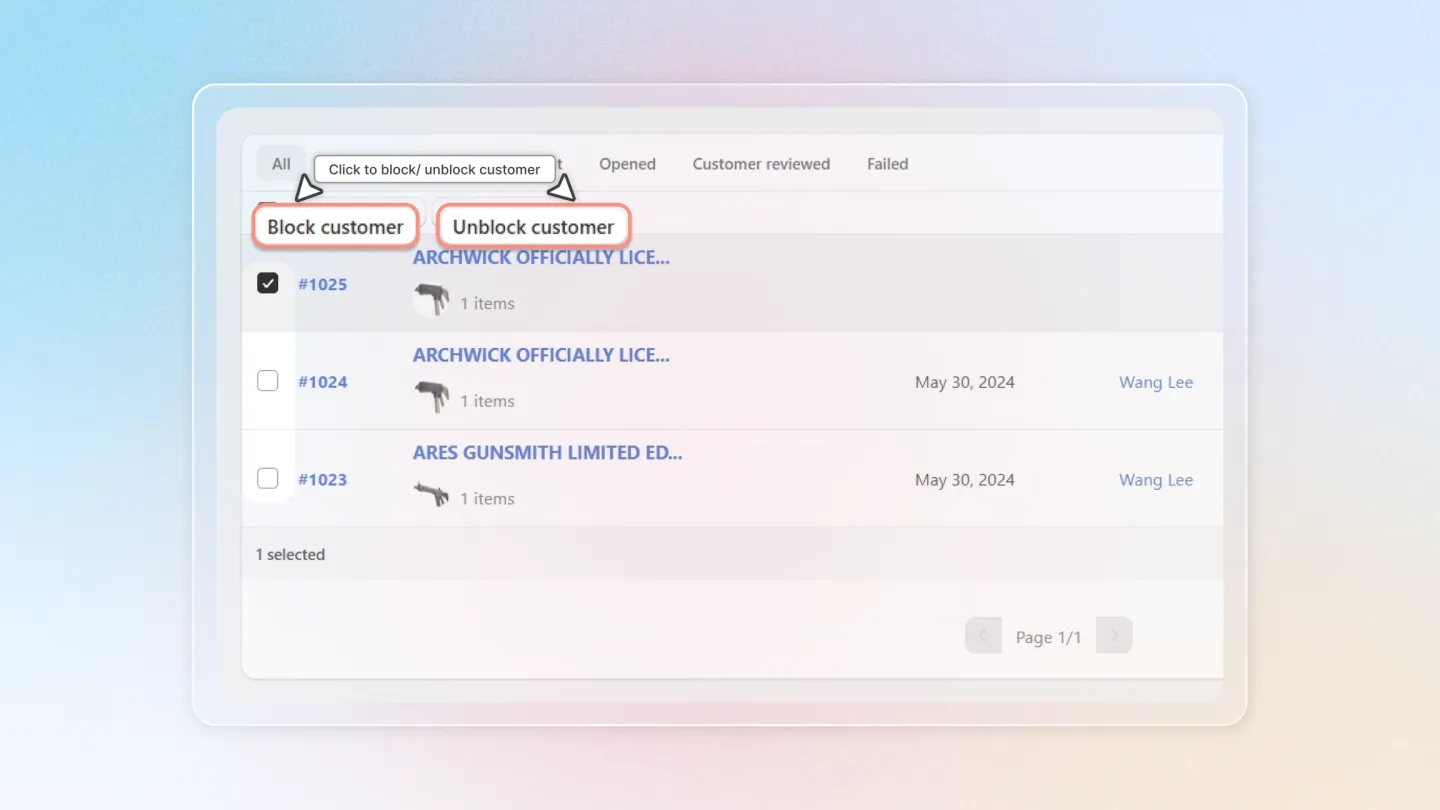
6. Blocking/Unblocking Customers
To keep your store free of spam, you may need to block a customer from receiving review requests. Blocking is reversible — unblock to restore reminders later.
- Open a row's Actions menu and pick Block or Unblock.
- Or select multiple rows and use More actions for bulk block/unblock.
7. Viewing and Resending Emails
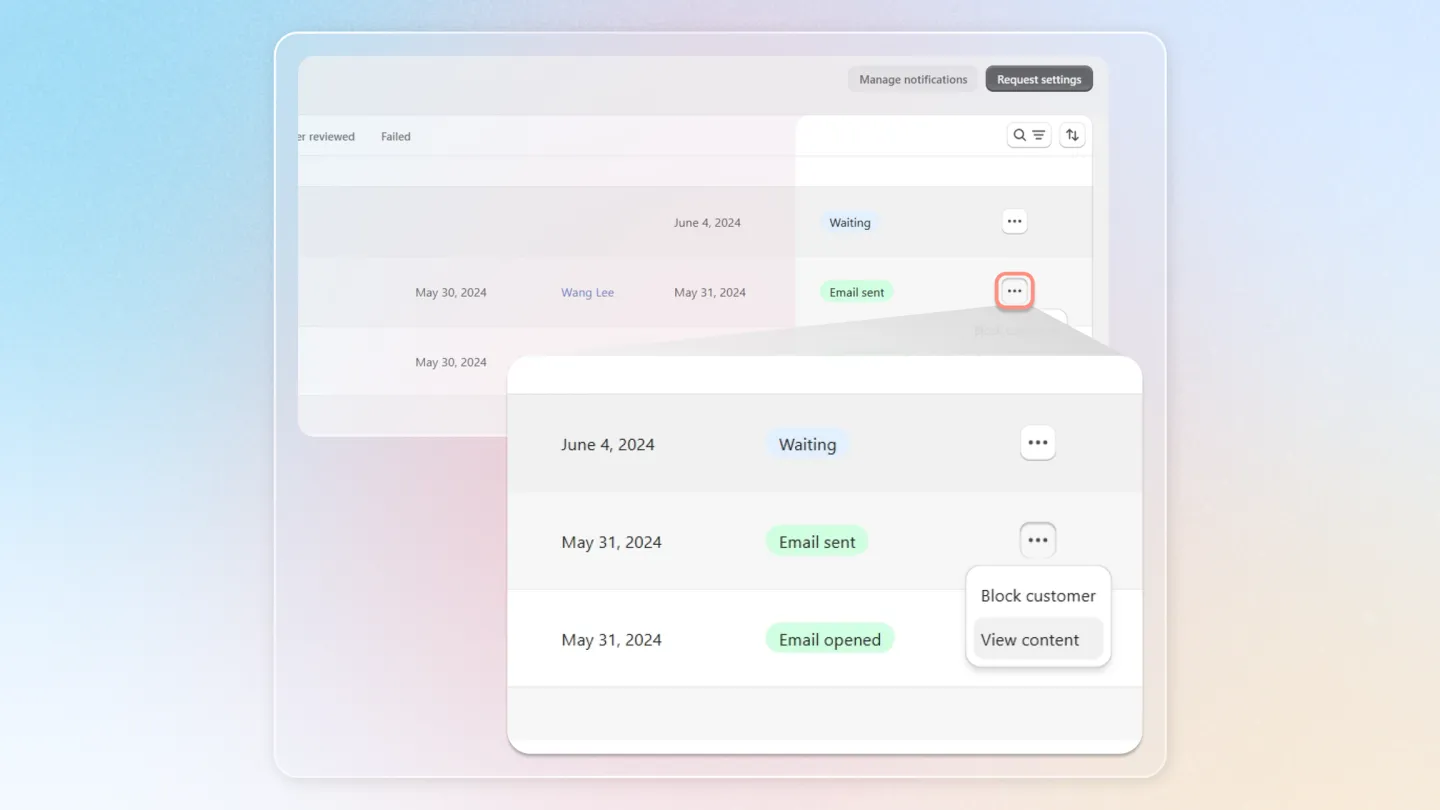
Two row-level actions help you debug delivery issues:
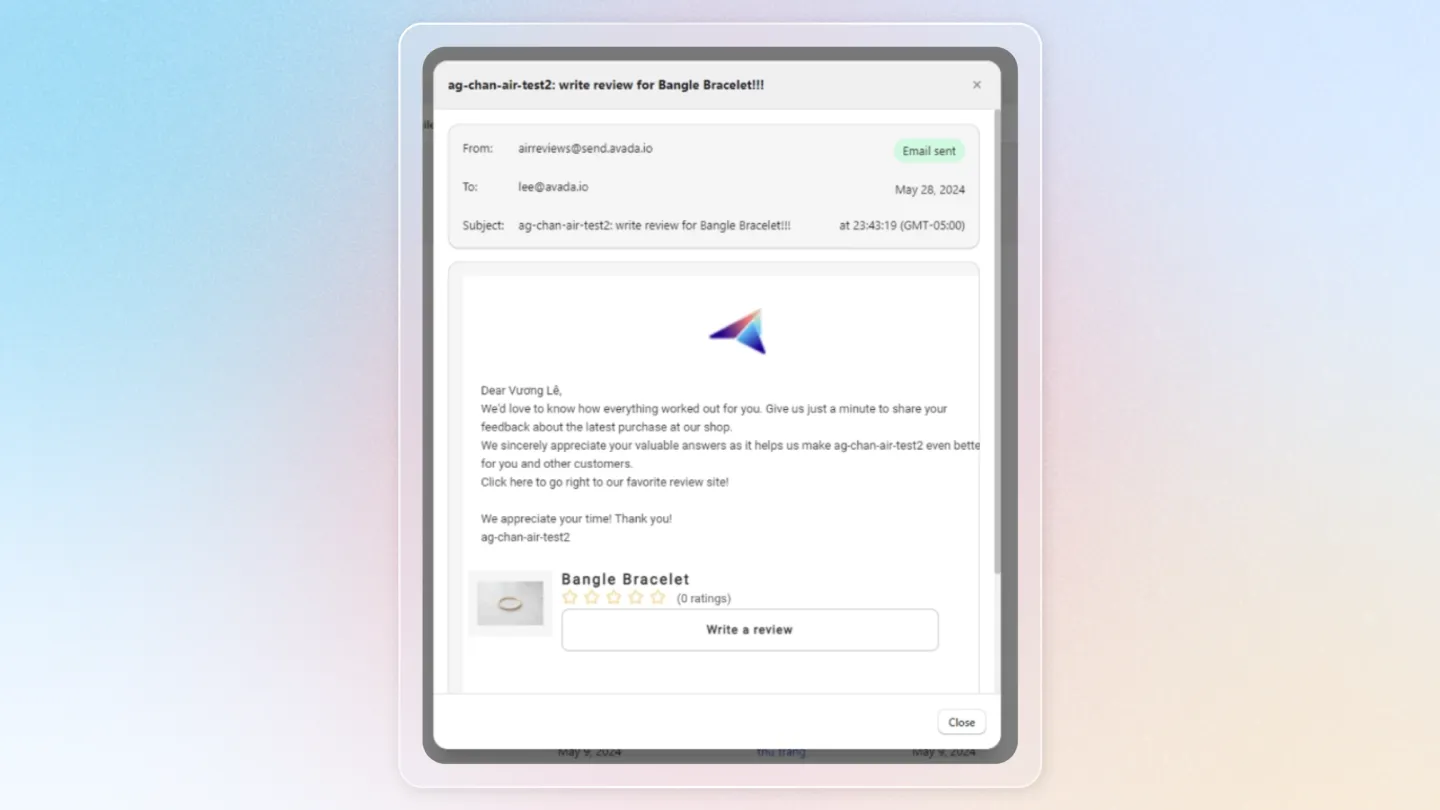
- View content — You can view the actual email content that was delivered to the customer. This content is exactly the same as what is inside the customer inbox because we saved it right before the email got sent. If customers report any thing wrong with the email content like: Cannot unsubscribe, cannot click to review, you can open and testify.
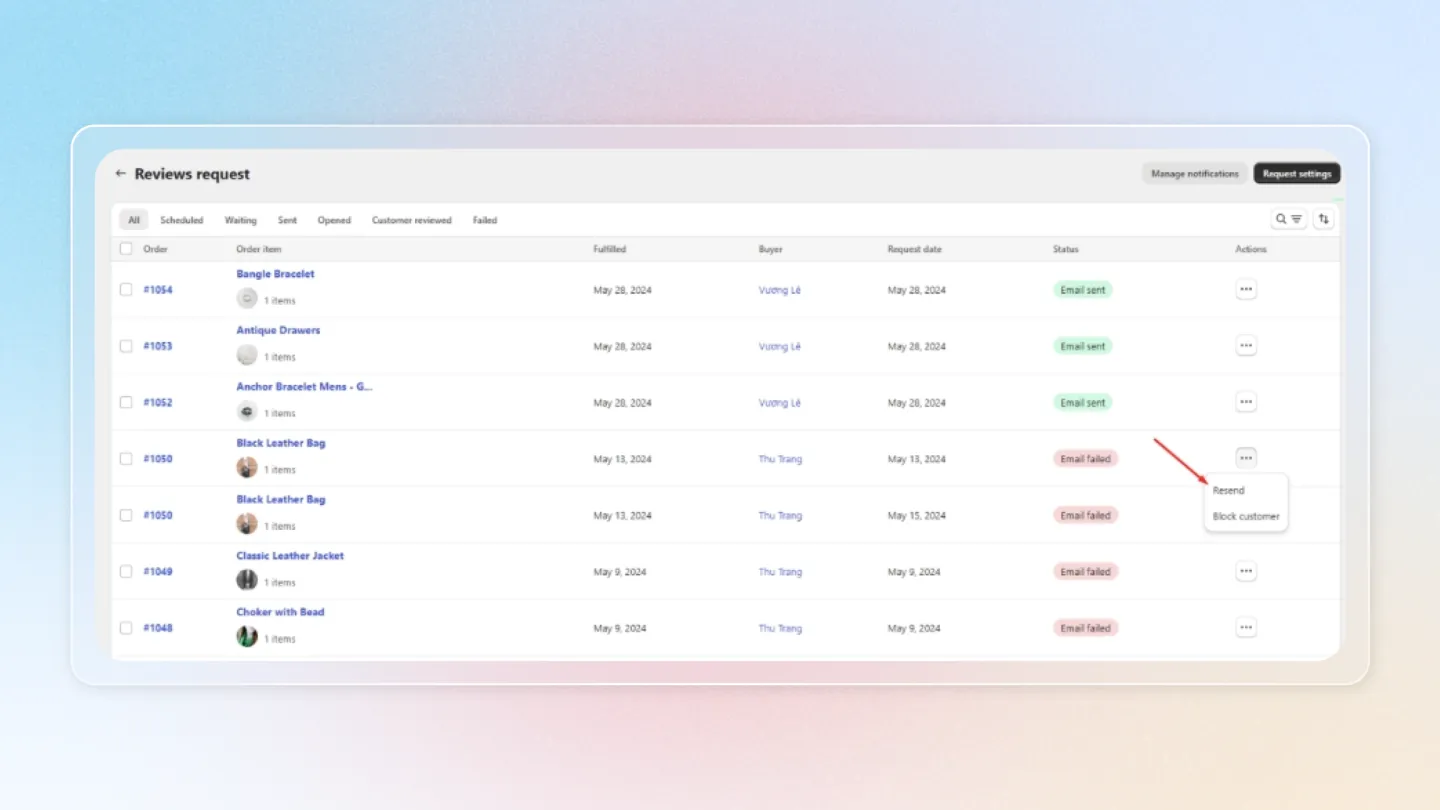
- Resend — In some scenarios, you may want to send the email again due to the fact that the email got bounced, or somehow your STMP exceeded its throttling rate. Click Resend to attempt sending the email again.
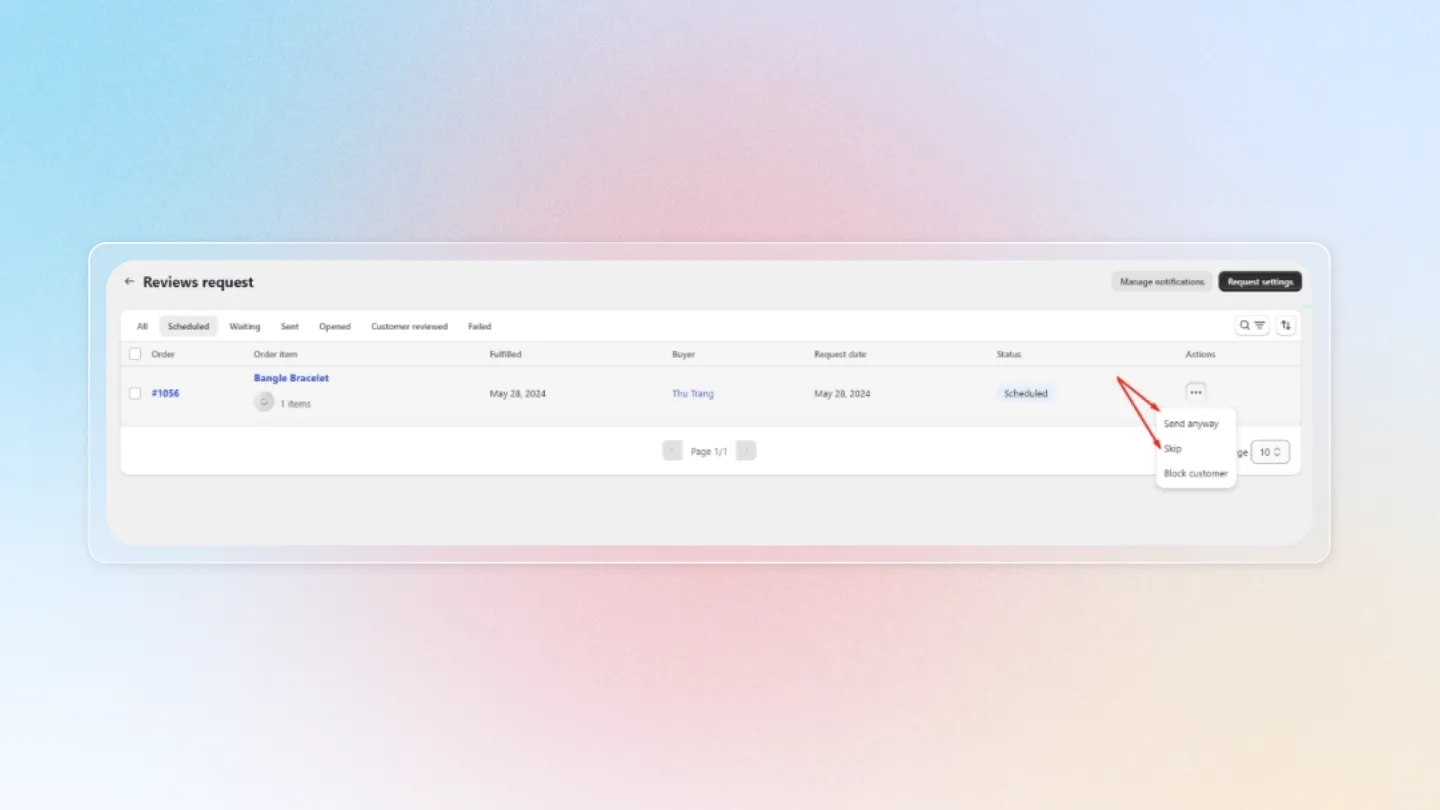
8. Handling Scheduled Emails
Open the Scheduled tab to see every reminder still queued. From a row's Actions menu:
- Send anyway — sends the email immediately (use this if the customer received the package earlier than expected).
- Skip — drops the scheduled send so the email never goes out.
9. Setting Up Email Sending Time
Click Request settings in the page header.
Under Sending scheduled, choose when reminders are sent relative to the order:
- Purchase — measured from the order being placed.
- Fulfillment — measured from the order being marked fulfilled in Shopify.
- Delivery — measured from the carrier marking the order delivered.
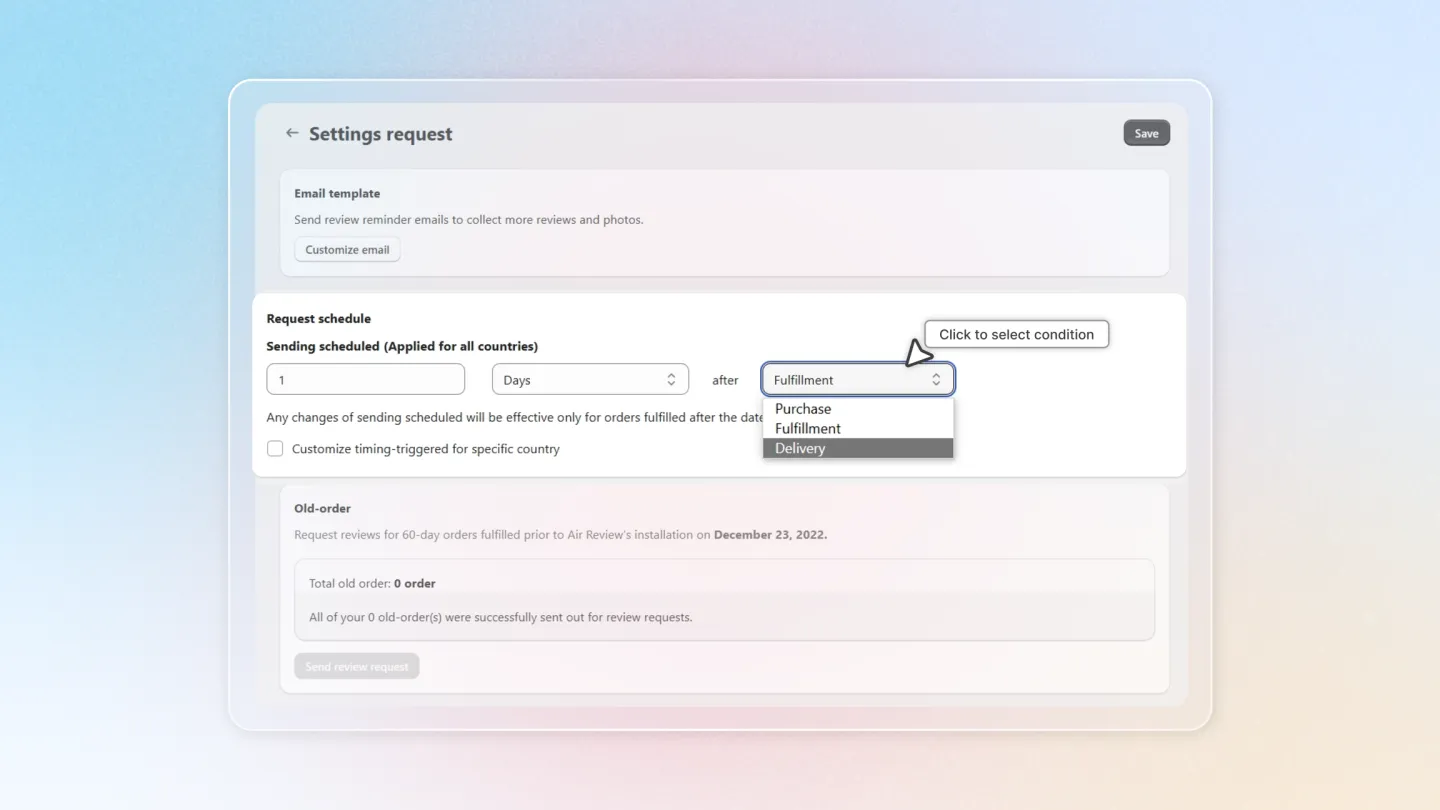
Delivery requires Shopify order delivery status to be enabled. If the option is greyed out, follow the in-app banner ("Update order status for Delivery scheduling") to set it up.
Tick Customize timing-triggered for specific country to set a different delay for orders shipped to specific countries (useful when international shipping changes the expected review-ready moment).
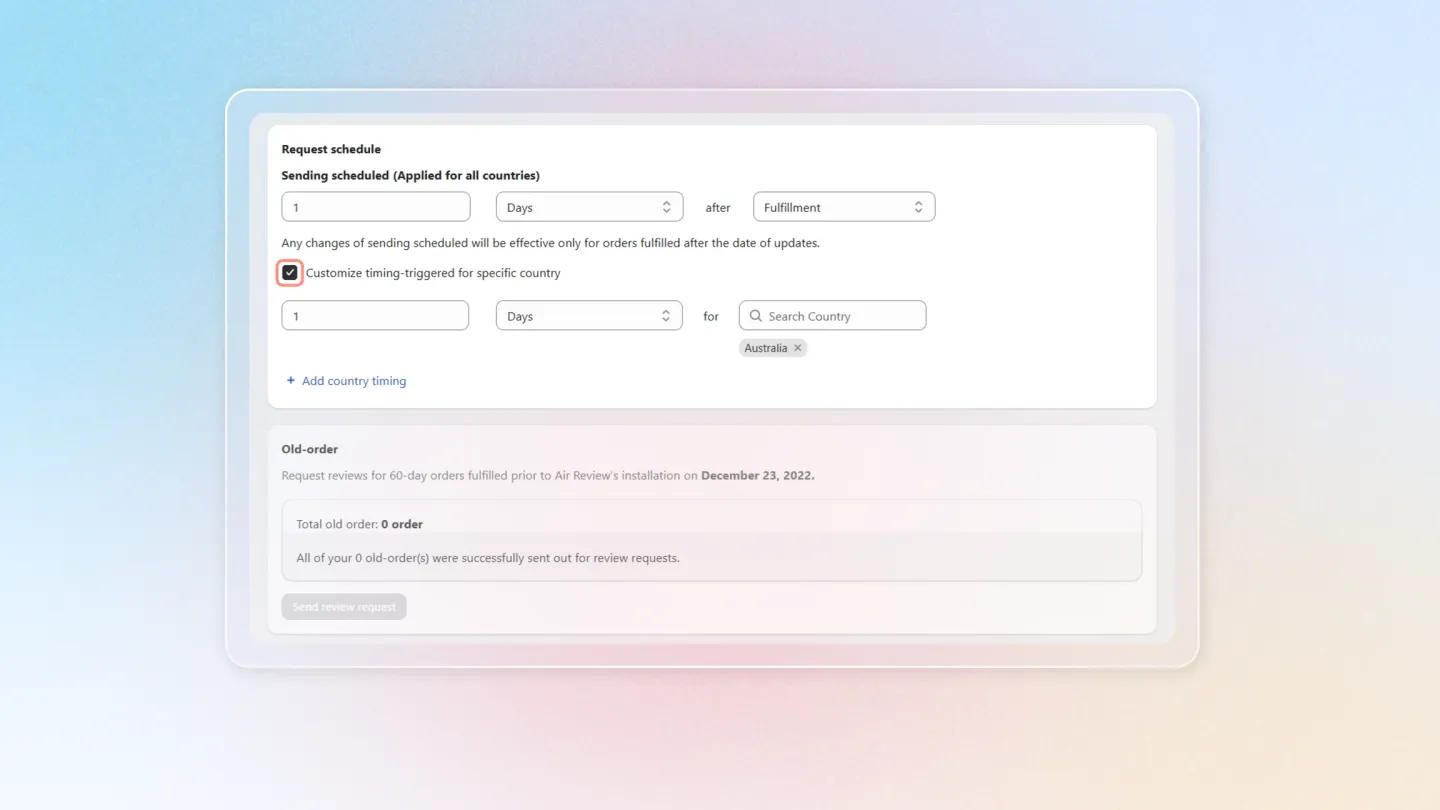
The Email template section on the same page links straight to the Review reminder email editor — see the Notifications guide for content and design options.
10. Managing Notifications
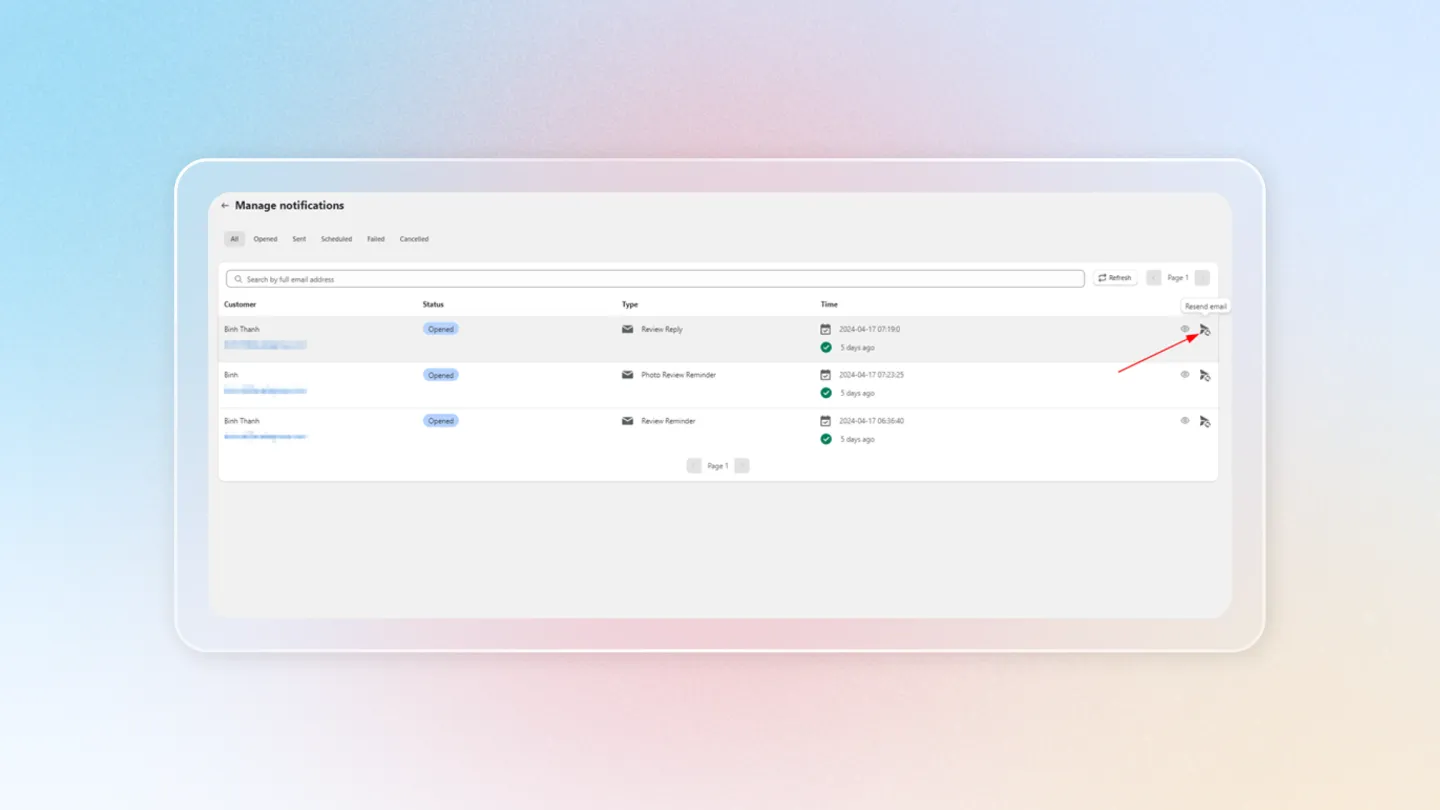
Manage all scheduled or sent notifications by navigating to ‘Manage notifications’.
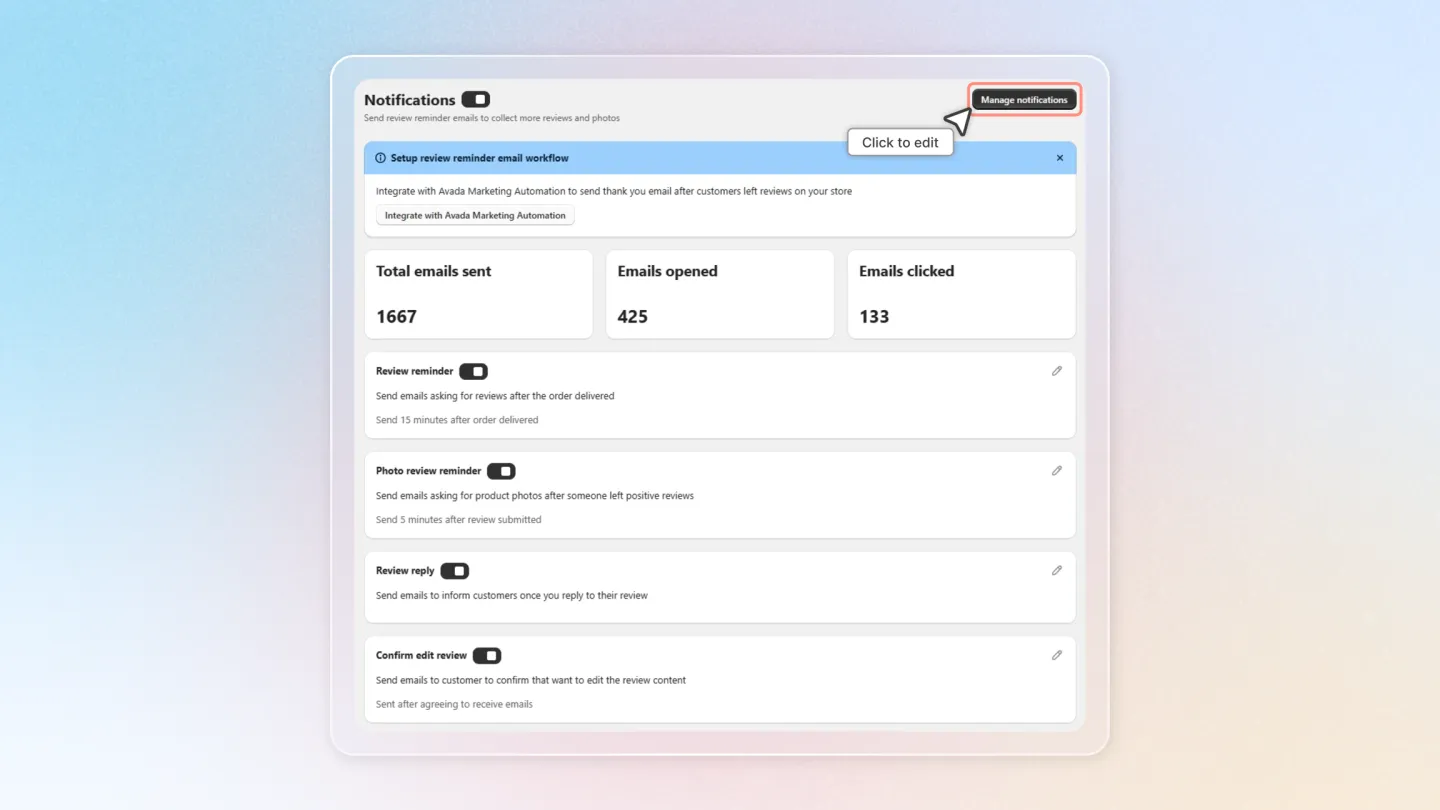
Here you can:
- Resend emails.
- Cancel scheduled sends.
- Check and resolve issues with failed emails.
Sum up
Effectively managing your review requests ensures that you collect valuable customer feedback efficiently. Customize your settings to match your store's needs and provide timely reminders to your customers to leave reviews.