Submit form
Submit form
1. Open the Submit form settings
Head to "Display reviews" section on the left side menu.
Locate the "Submit form" feature under the Basic group, and click "Setup" to start the process.

2. Review submit form
2.1 Choose preset
Pick the display style for the form on your storefront. Two options are available:
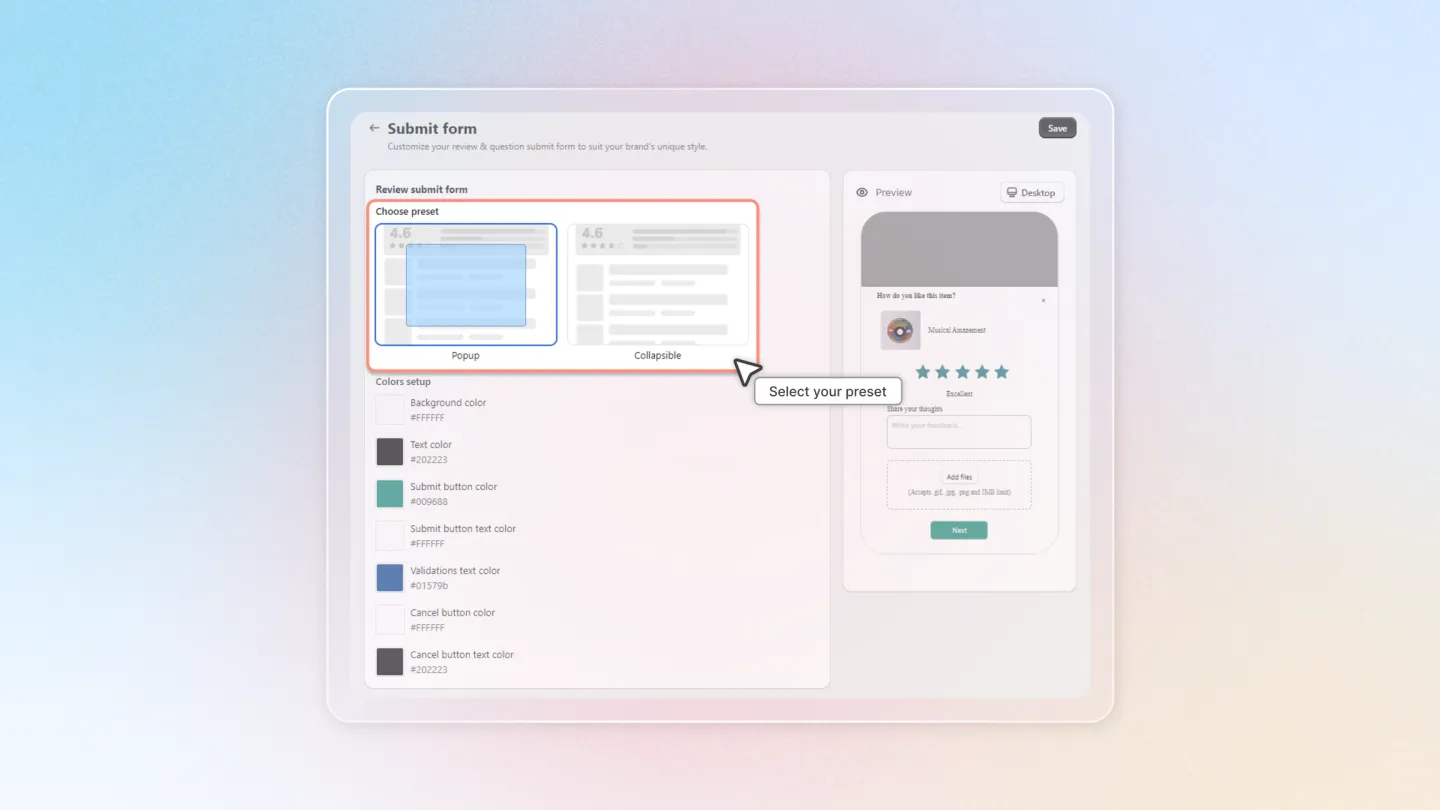
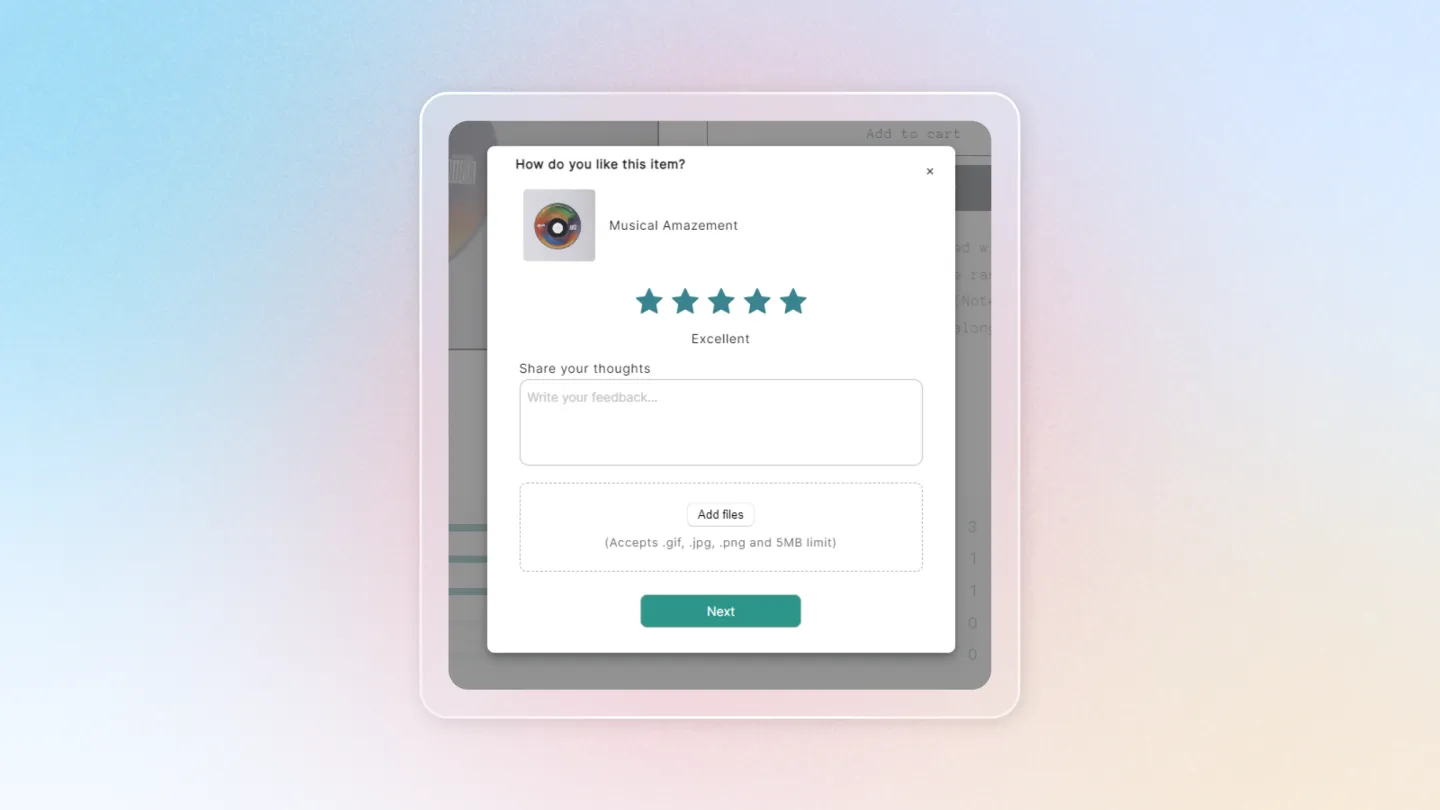
- Popup — the submit form appears in a popup window when a customer clicks to leave a review.
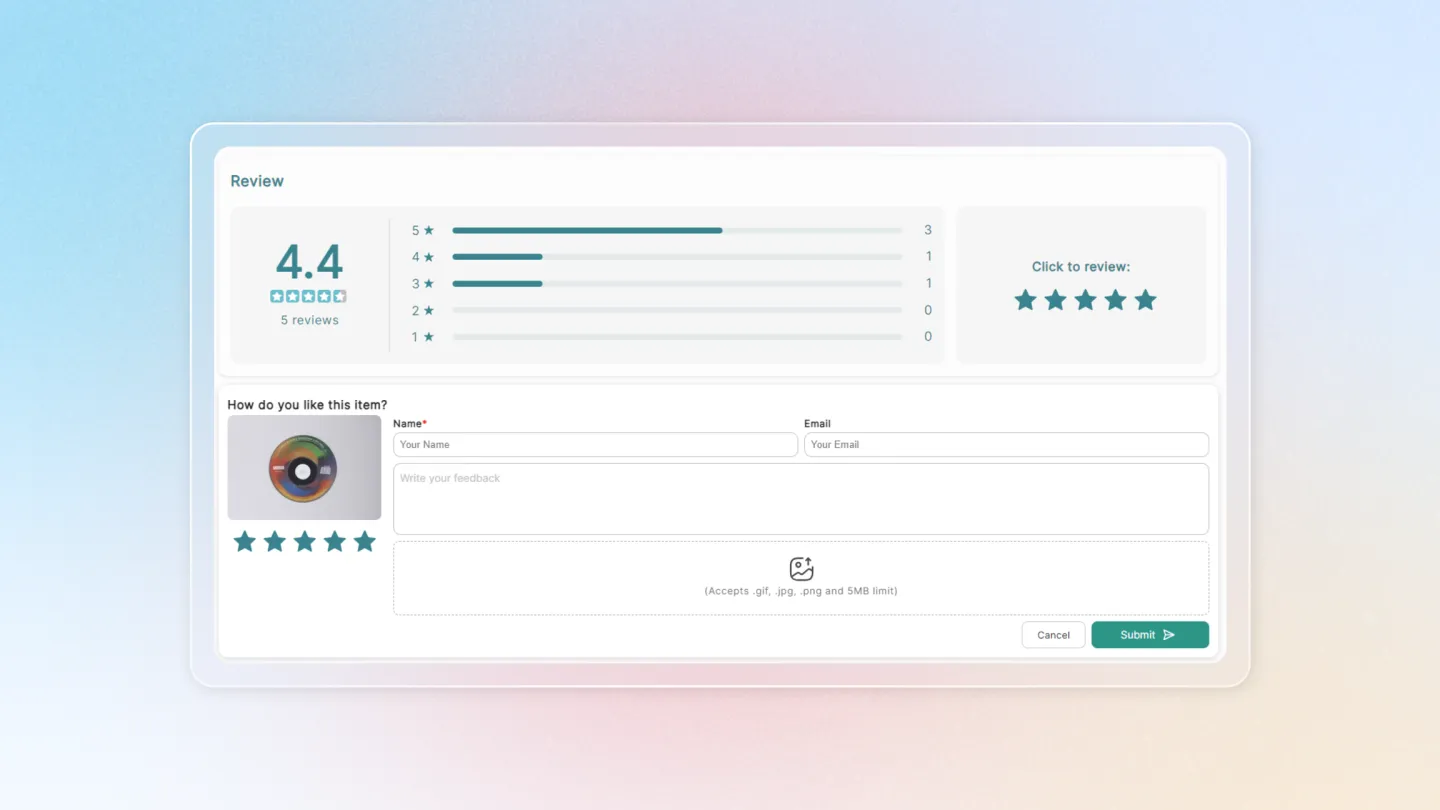
- Collapsible — the submit form expands inline below the review block.
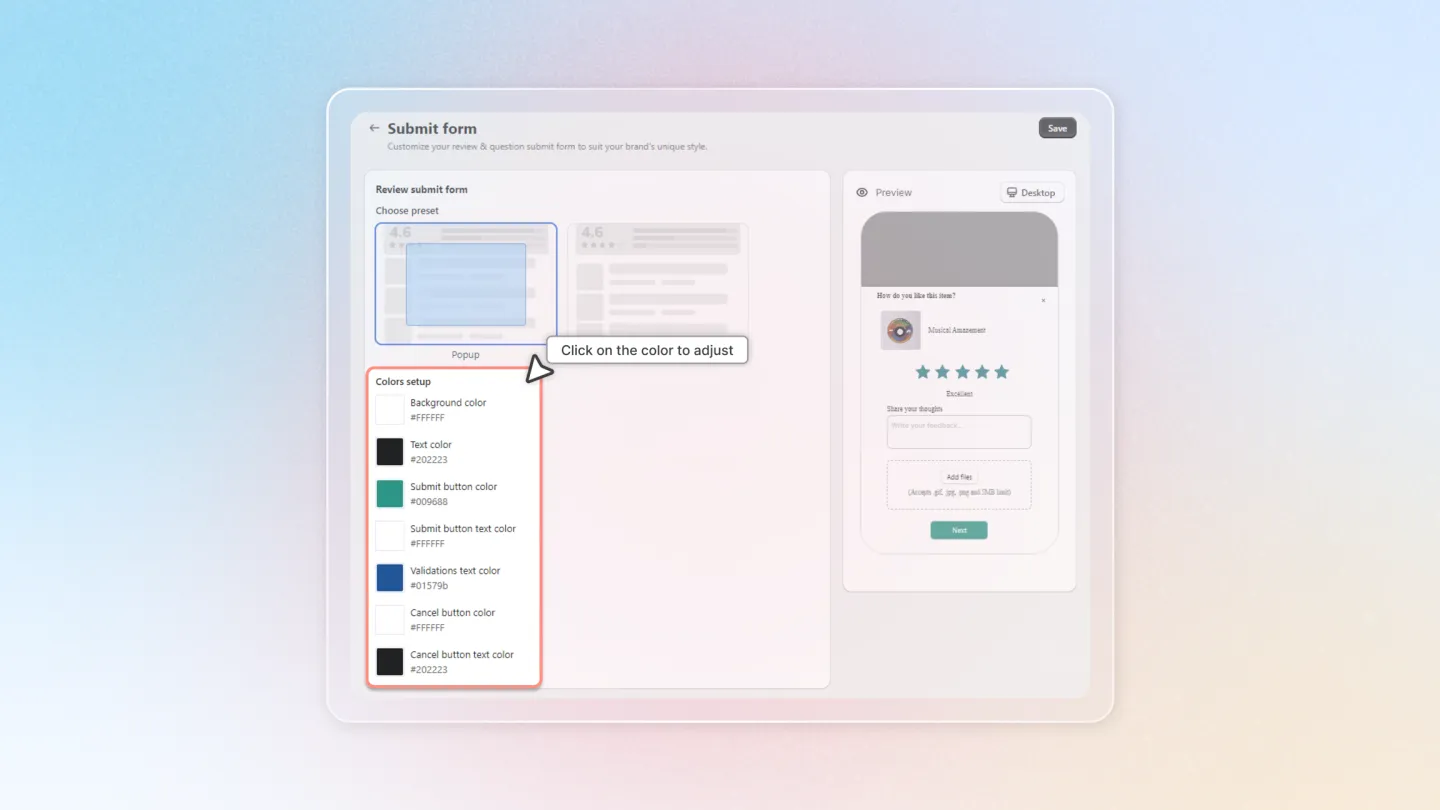
2.2 Colors setup
Match the form to your store's theme using these five color fields:
- Background color — the background of the submit form.
- Text color — the text inside the form.
- Submit button color — the background of the Submit button.
- Submit button text color — the label on the Submit button.
- Validations text color — inline validation and error messages (e.g. "This field is required").
2.3 Show policy
Tick the Show policy checkbox to display a link to your store's review/privacy policy below the form. Useful if your store needs to disclose how customer data is used.
3. Suggest keywords
Provide customers with popular review phrases for your products to reduce the time required to leave a review. Toggle on to enable, then configure the phrases on the dedicated page.
See the full guide: Suggest keywords.
4. Dynamic question
Show tailored follow-up questions based on the rating a customer selects — for example, ask different things for 5 stars vs. 2 stars — to lift the quality of the feedback you collect. Toggle on to enable, then build the question set on the dedicated page.
See the full guide: Dynamic question.
5. Advanced settings
Open Advanced settings to fine-tune what the form requires from shoppers and how it looks beyond the color fields.
- Mark content optional — when ticked, customers can submit a review without writing any text (only the rating is required). Leave unticked to keep the feedback field mandatory.
- Custom CSS — paste your own CSS to fine-tune the form's appearance beyond the color settings above. Best for merchants comfortable with CSS.
You're all set! Your review submission form now reflects your store's theme, making it a seamless part of the customer experience.