Review carousel
1. Enable Review carousel
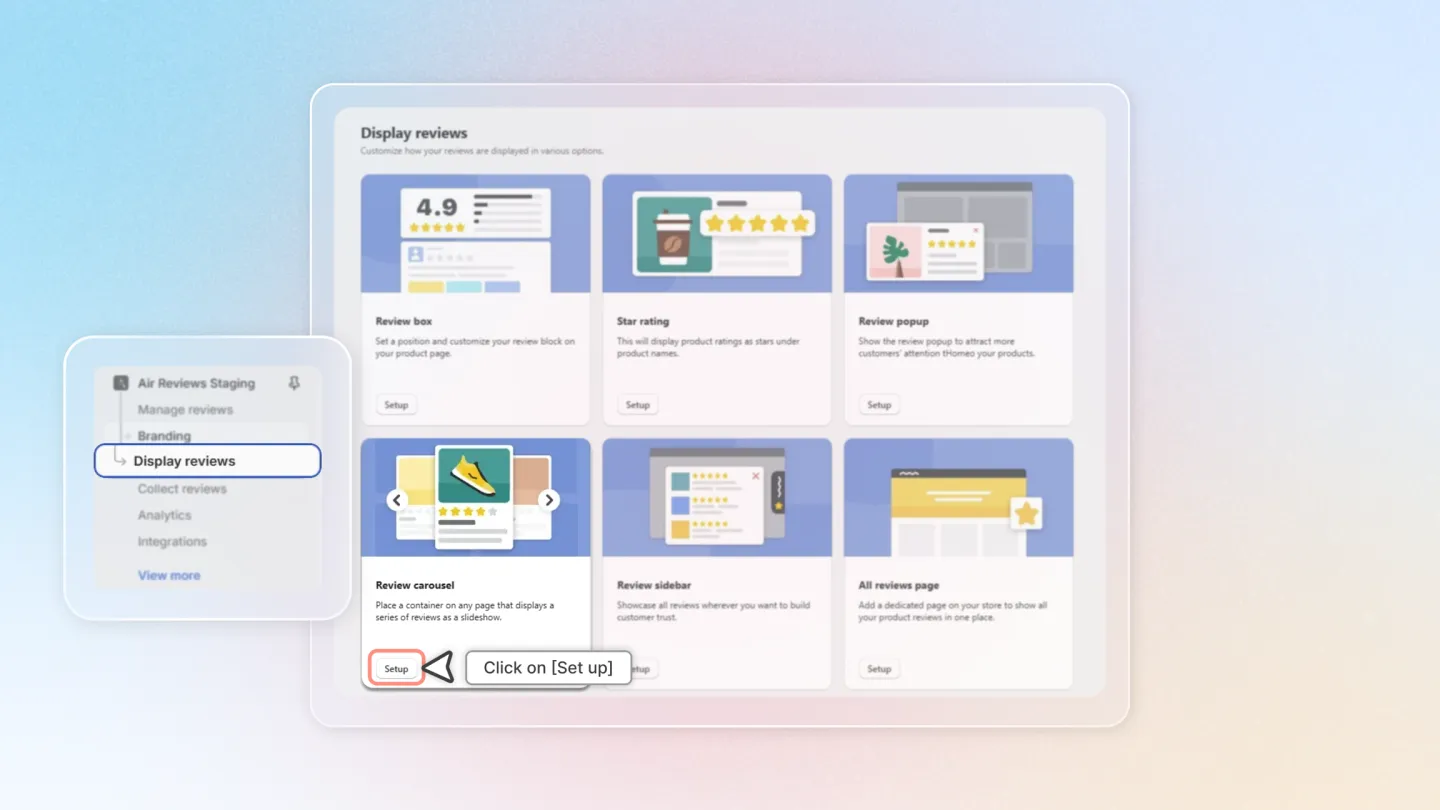
Head to "Display reviews" section on the left side menu. Locate the "Review carousel" feature and click "Setup".
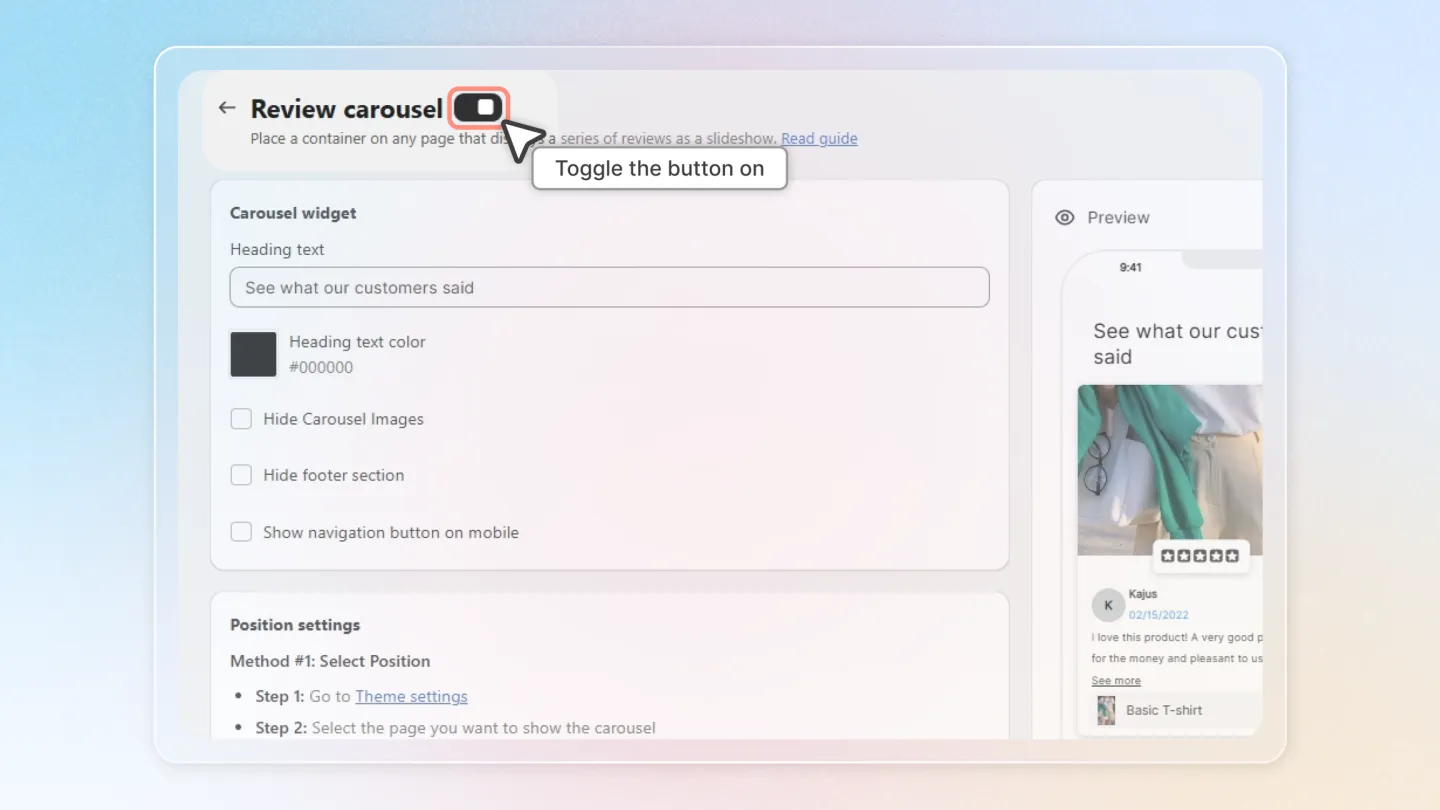
Make sure to toggle the switch in the page header (next to the Review carousel title) to enable the widget.
2. Positioning the Carousel
You can place the carousel using either the theme editor or a snippet of code.
2.1 Method #1: Select position (theme editor)
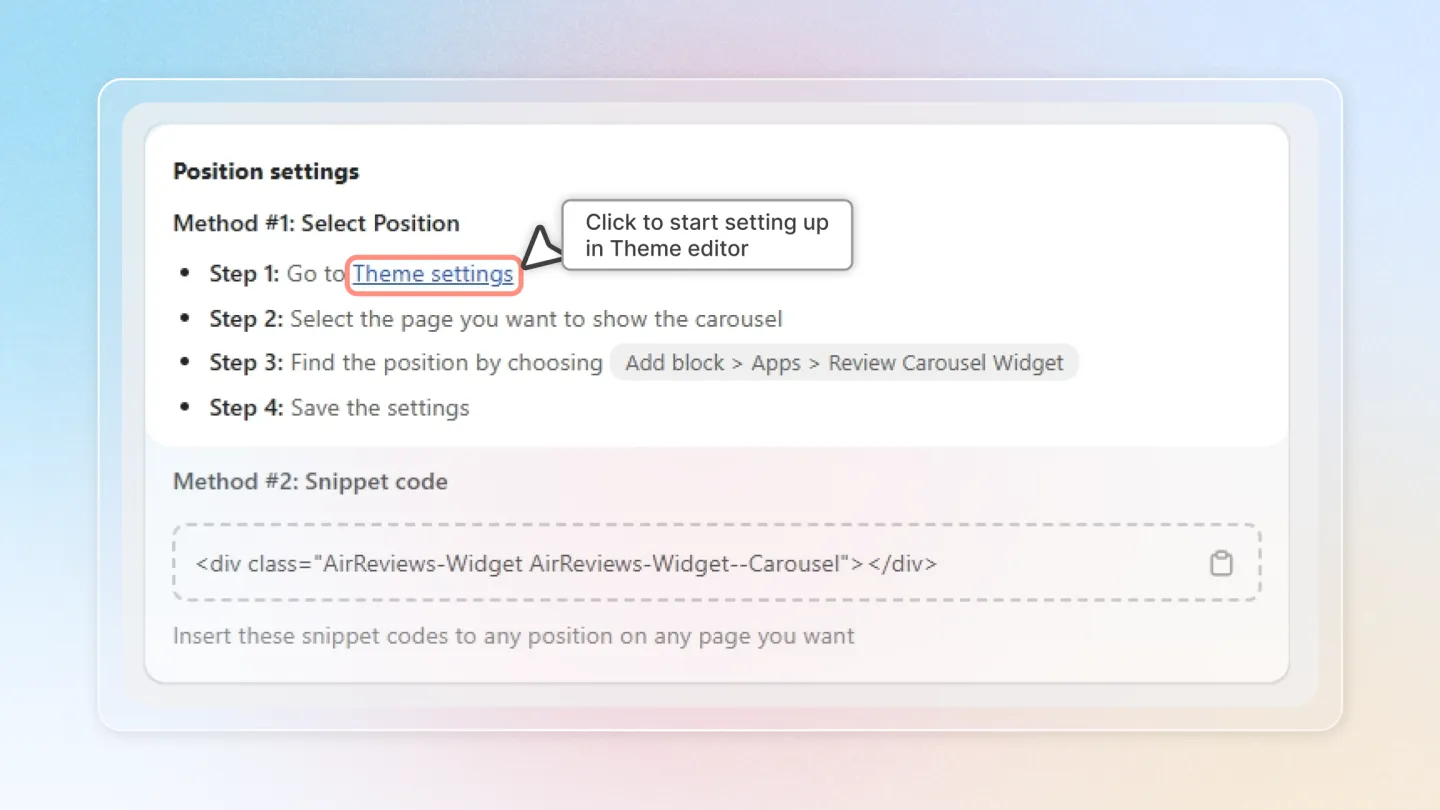
Step 1 — Click "Theme settings" to open the Shopify theme editor.
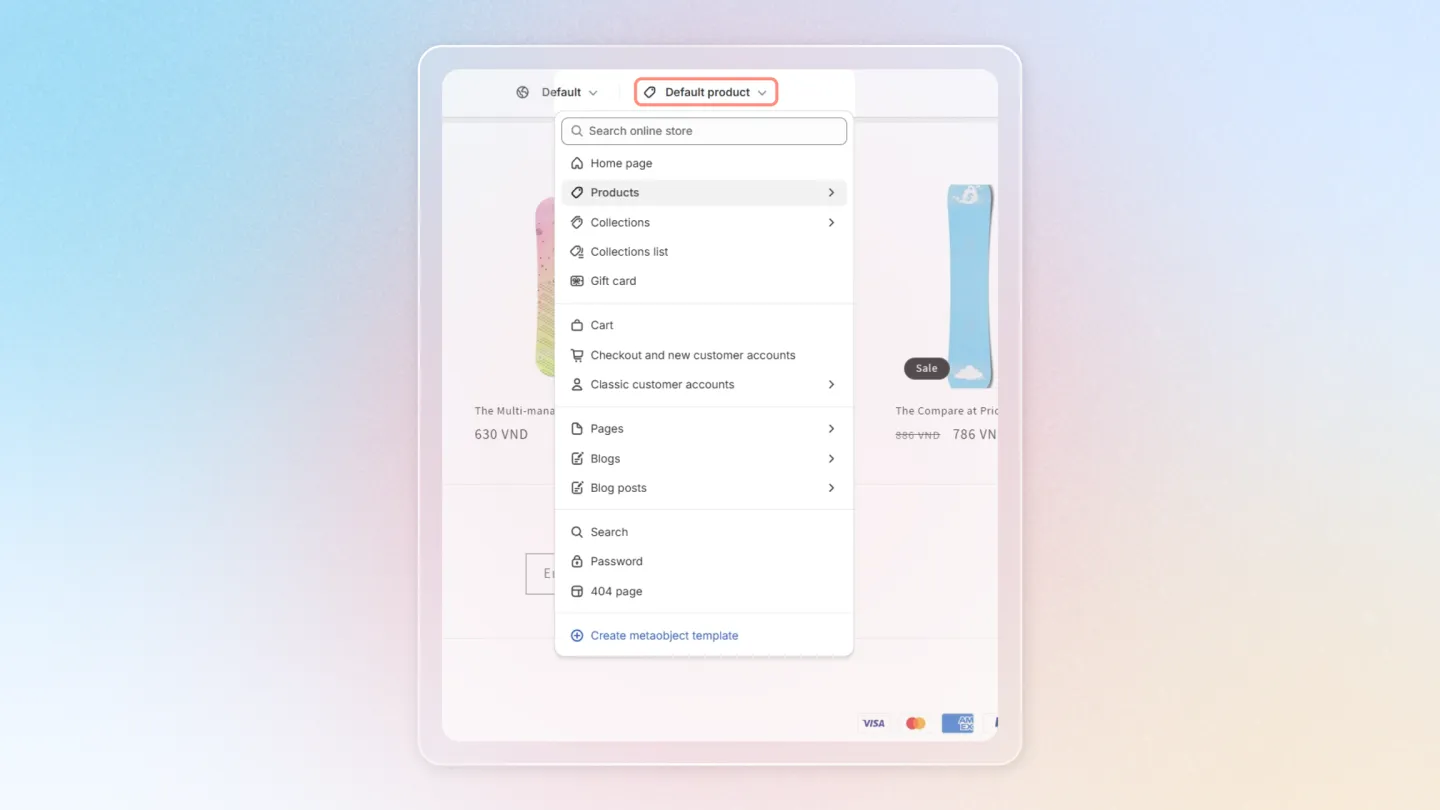
Step 2 — Select the page where you want the carousel to appear (e.g. Home page, Collection page, Product page).
Step 3 — At the position you want, choose Add block > Apps > Review Carousel Widget.
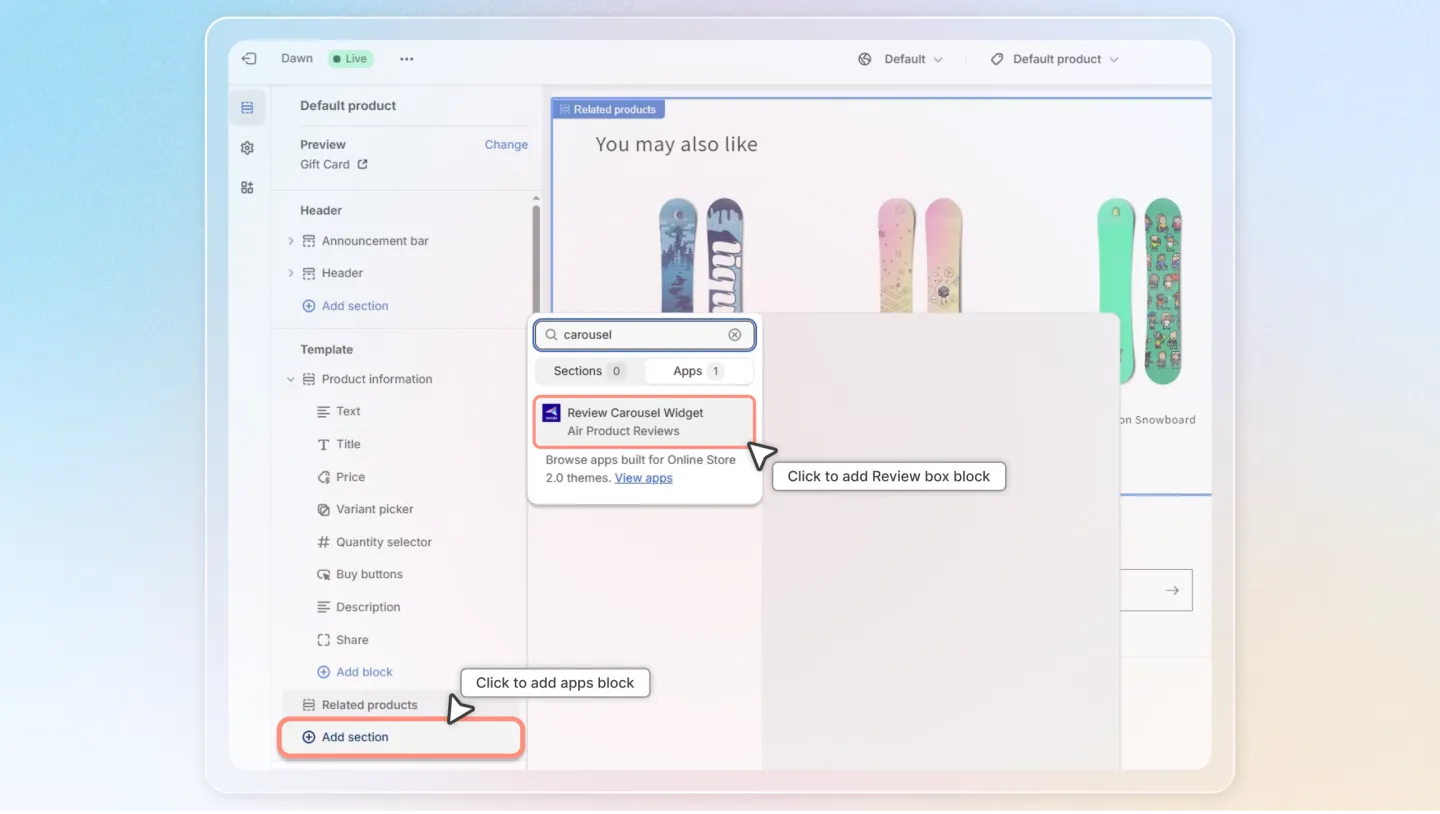
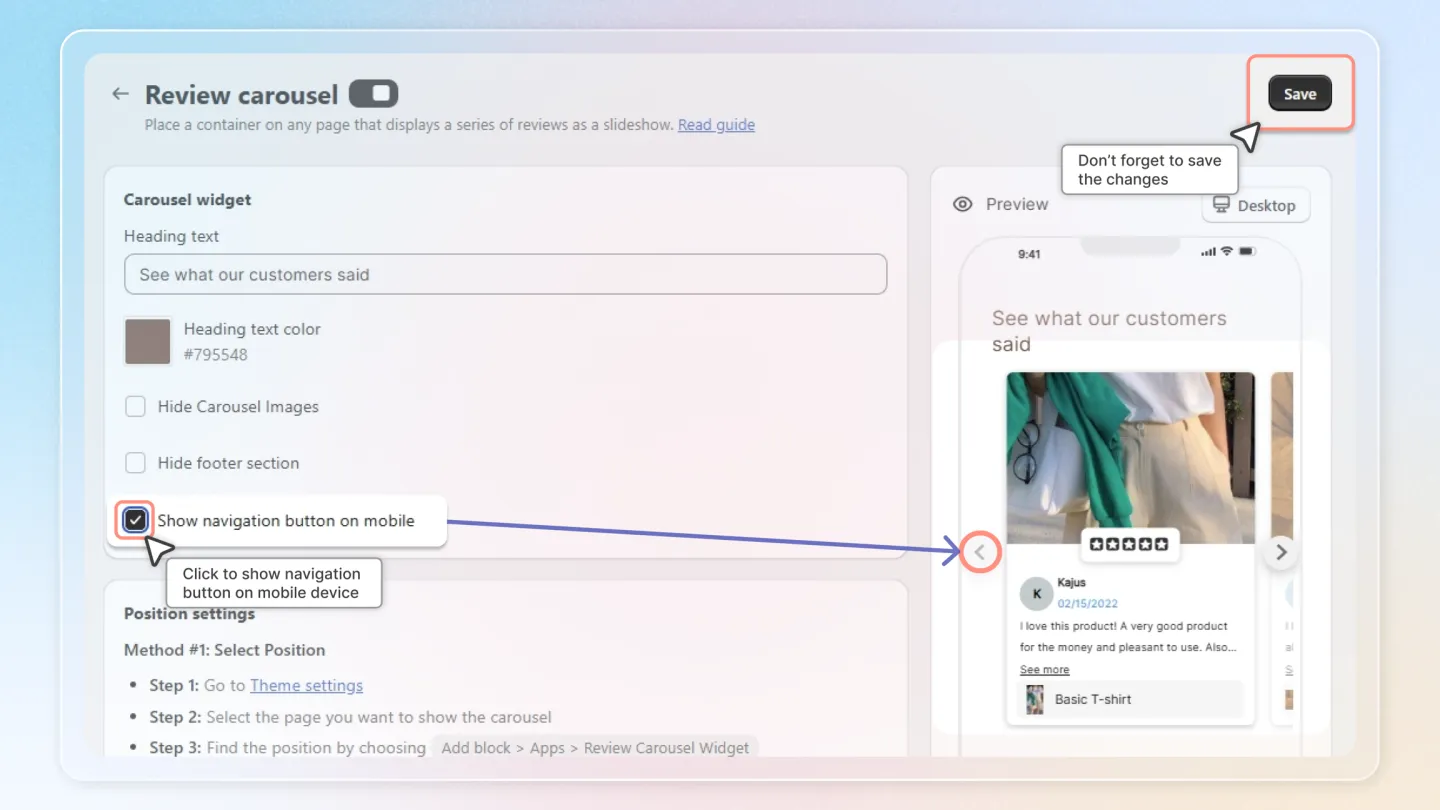
Step 4 — Click Save to apply the changes.
2.2 Method #2: Snippet code
Use this if you want the carousel in a custom location your theme blocks can't reach.
Copy the snippet from the app:
<div class="AirReviews-Widget AirReviews-Widget--Carousel"></div>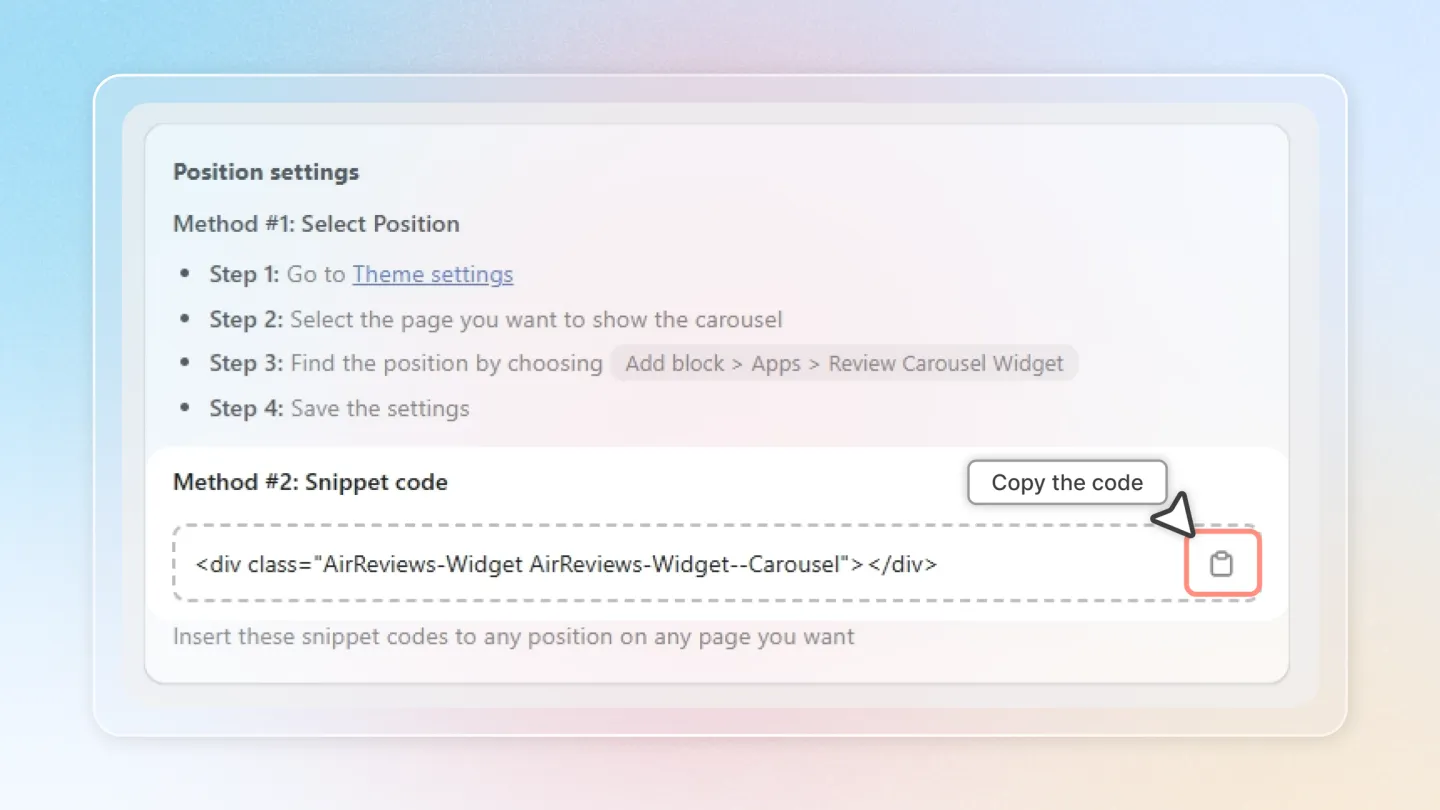
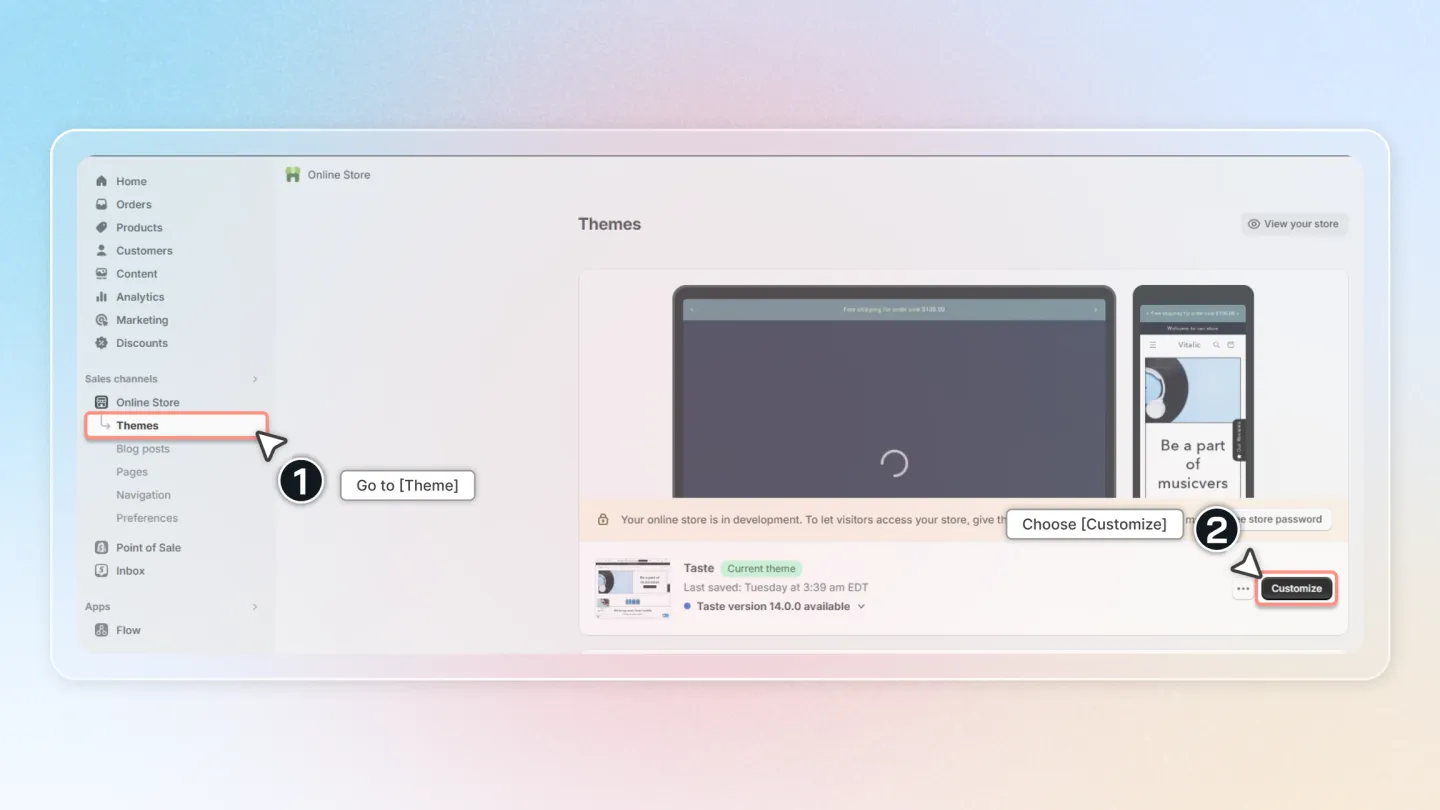
Go to "Online Store" → "Themes" → click "Actions" → "Edit code".
Paste the snippet into the target template at the position you want.
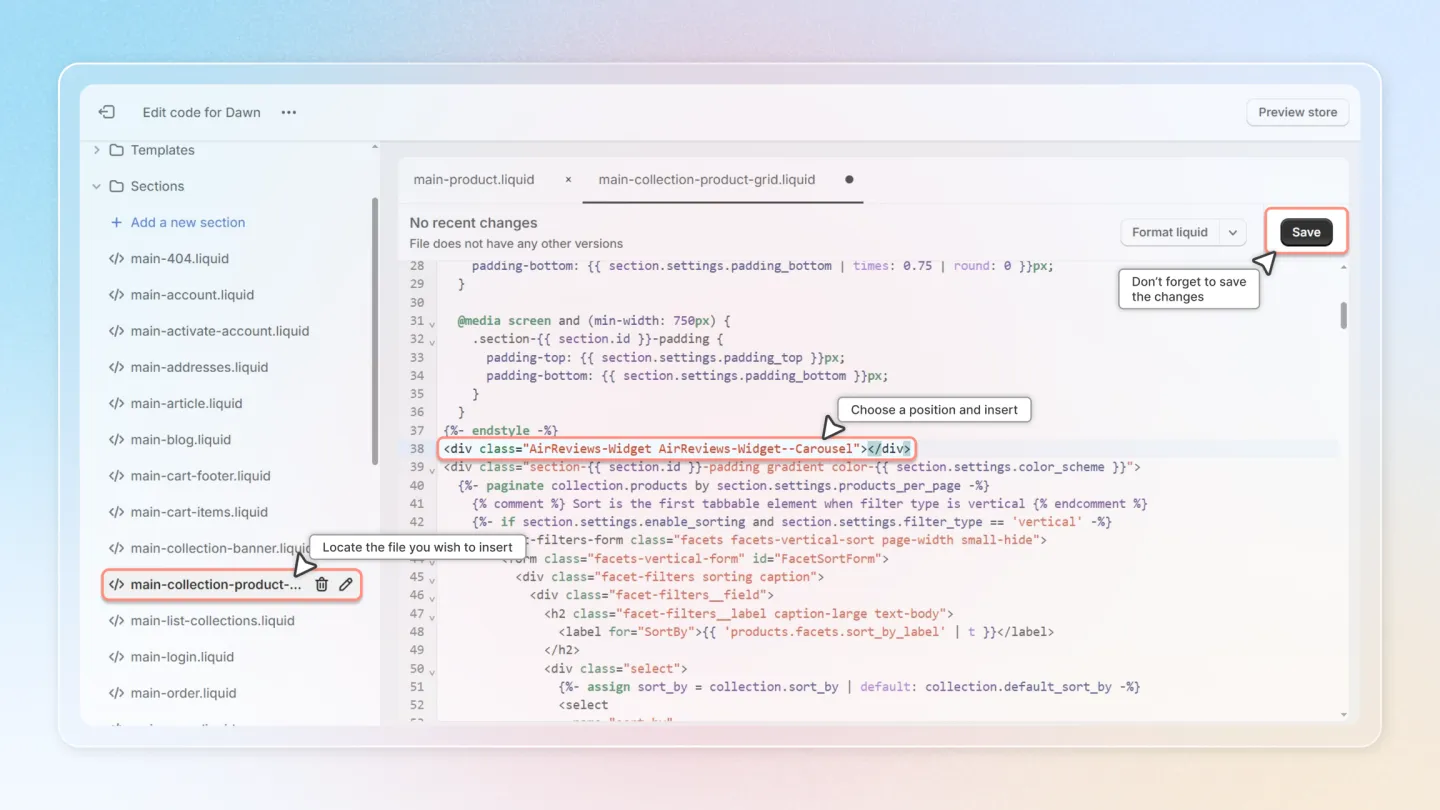
Save the file and view the carousel on your storefront.
3. Customize Carousel Widget
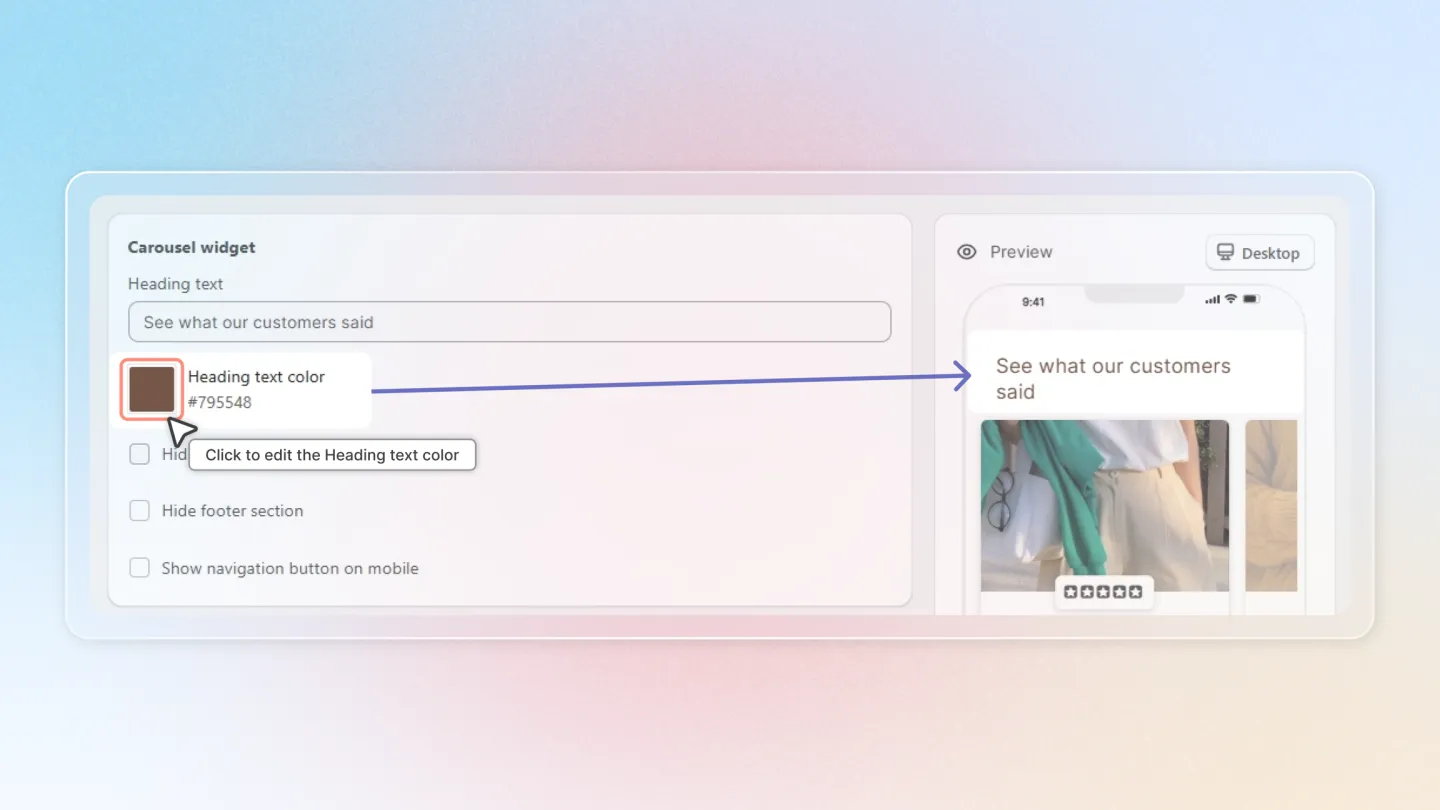
3.1 Heading text color
Pick the color for the carousel widget's heading.
3.2 Display
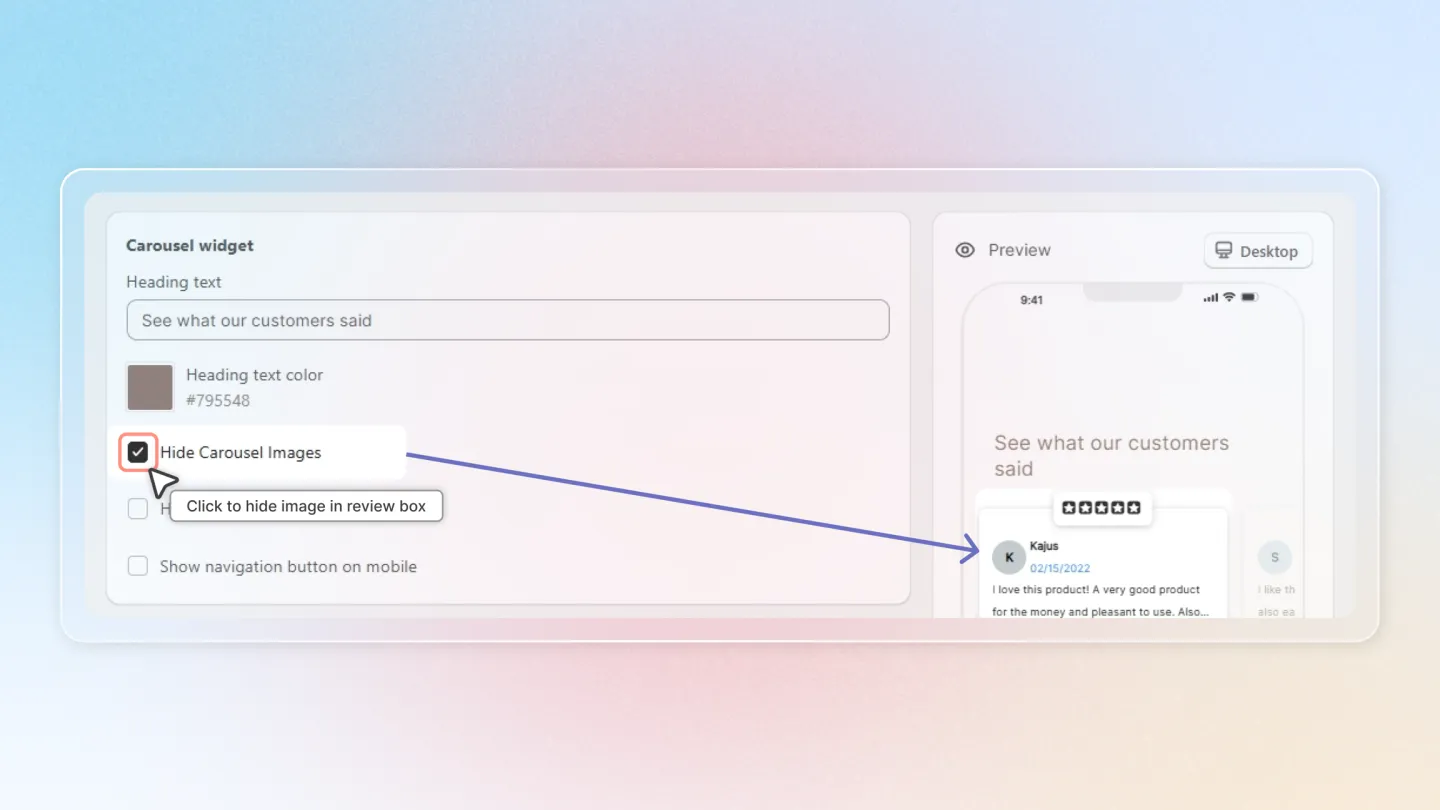
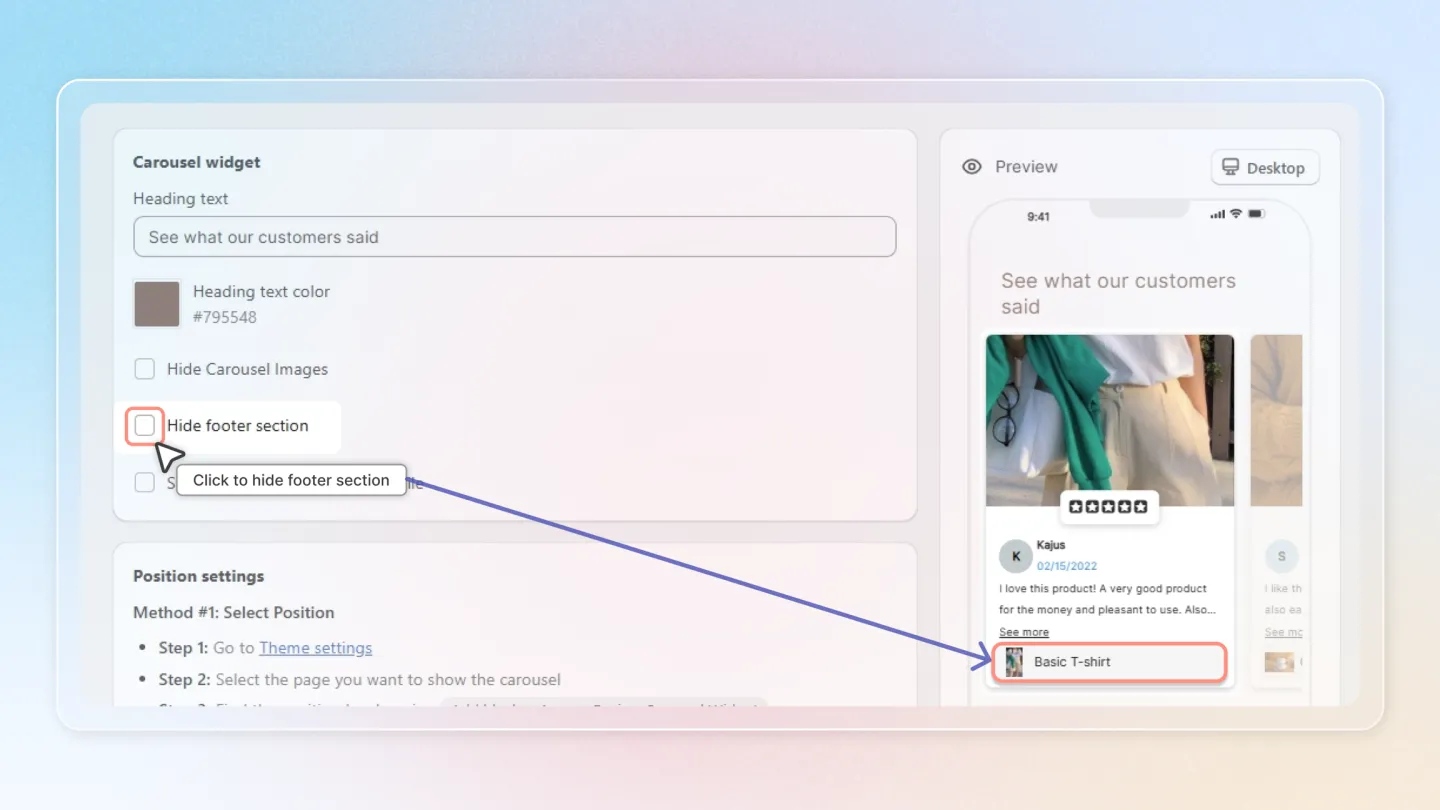
Toggle these checkboxes to control what the carousel shows:
Hide carousel Images — exclude the photos attached to each review.
Hide footer section — remove the footer area from the widget.
Show navigation button on mobile — show the previous/next arrows on mobile devices.
Auto play — automatically advance to the next review on a timer.
Show featured reviews only — display only reviews you have marked as Featured.
Show product reviews only — when the carousel is placed on a product page, only show reviews of the current product instead of pulling from the whole store.
4. Advanced settings
Open Advanced settings at the bottom of the page to fine-tune the look beyond the heading color.
- Custom CSS — paste your own CSS to style the carousel beyond what the built-in fields offer. Best for merchants comfortable with CSS. Example:
.AirReviews-Carousel__Header {
  color: #FFFFFF !important;
}
This guide ensures you can efficiently implement and customize the Review Carousel to significantly enhance your Shopify store's user experience.