PushOwl
Make sure you have installed PushOwl & Brevo: Email, Push (opens in a new tab) app
1. Connect Air Reviews to PushOwl
Open the Air Reviews app.
From the left menu, select 'Integrations' and then choose 'PushOwl'.
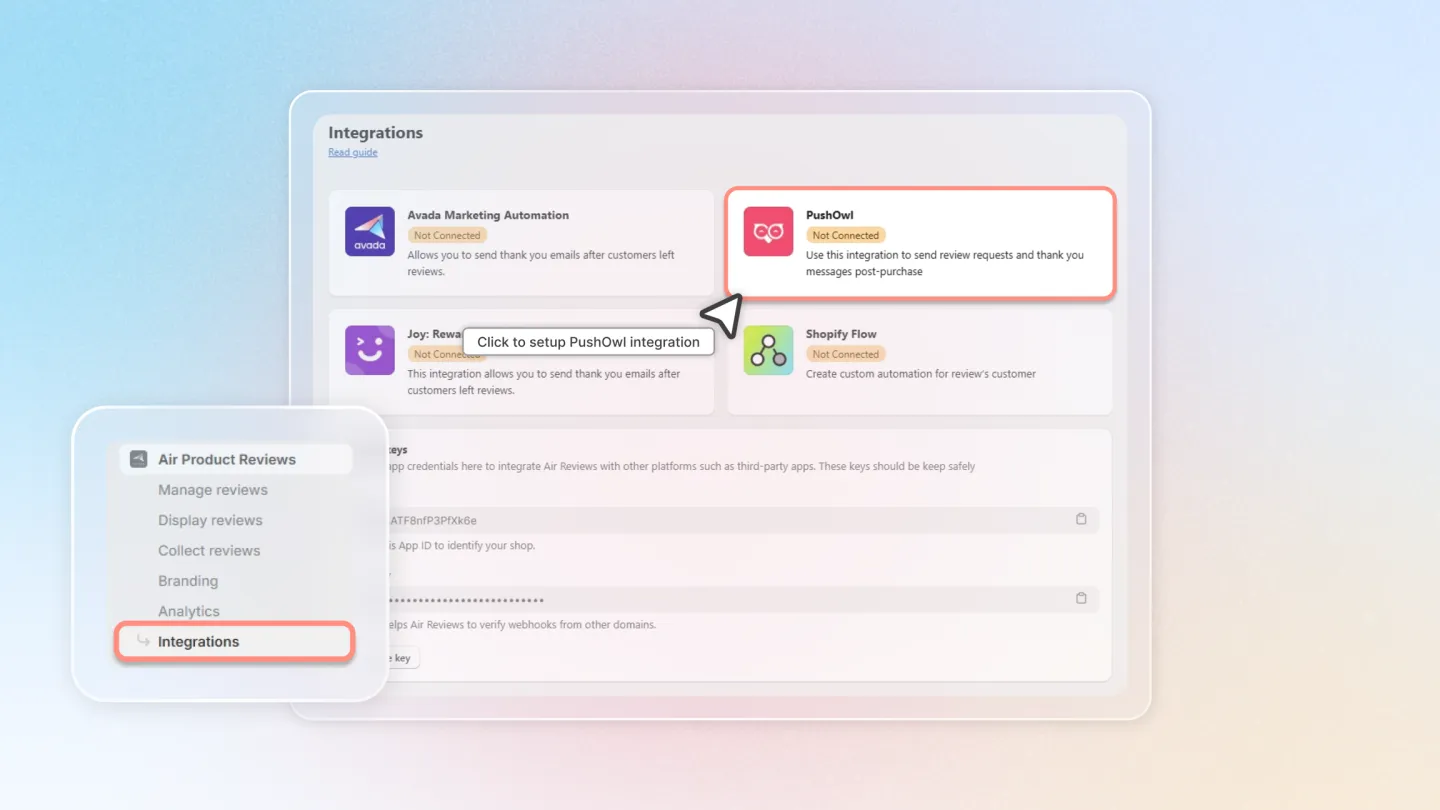
At Step 1, click 'Connect' to link Air Reviews with PushOwl.
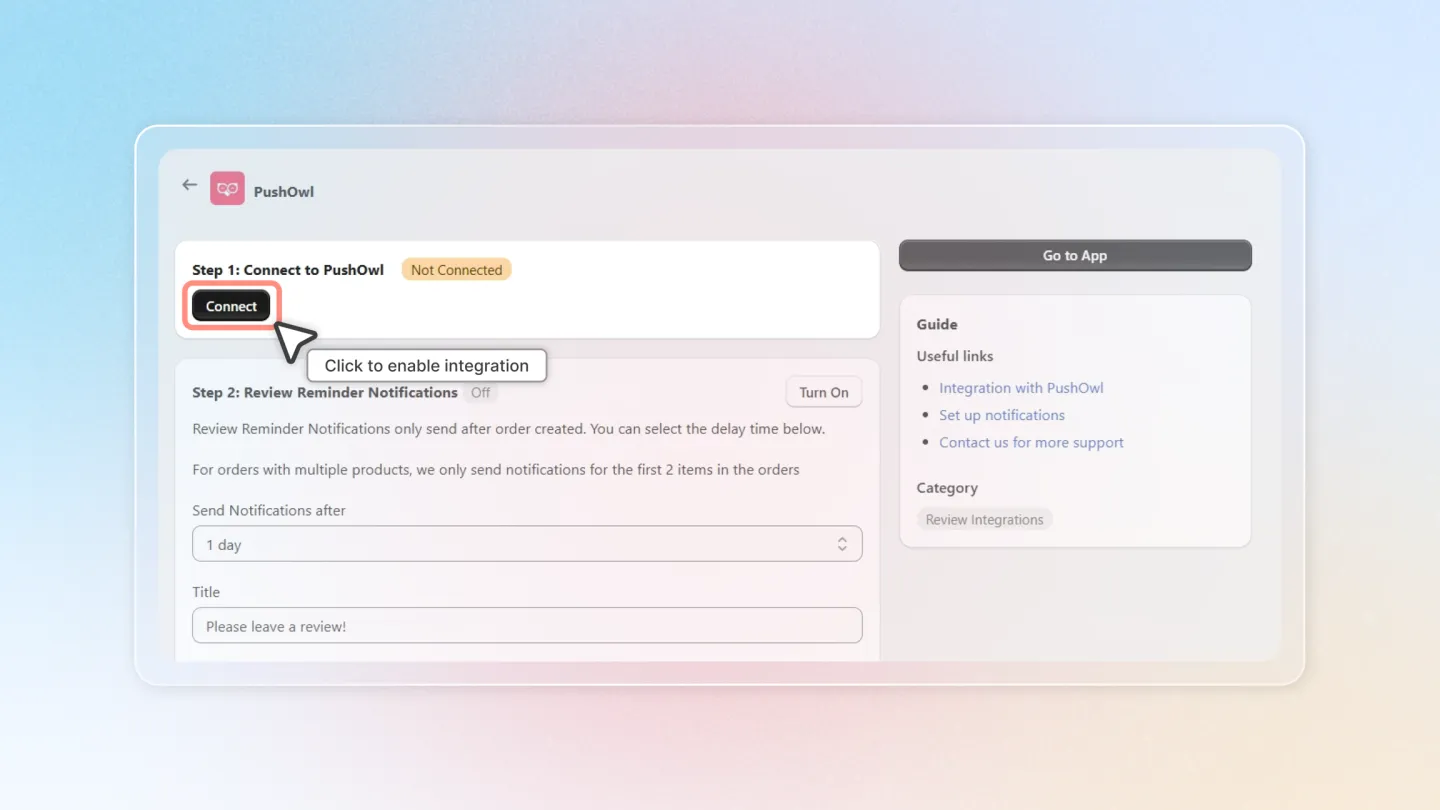
2. Set Up Review Reminder Notifications
Turn On Review Reminder: Enable this to send notifications reminding customers to write a review after a successful order.
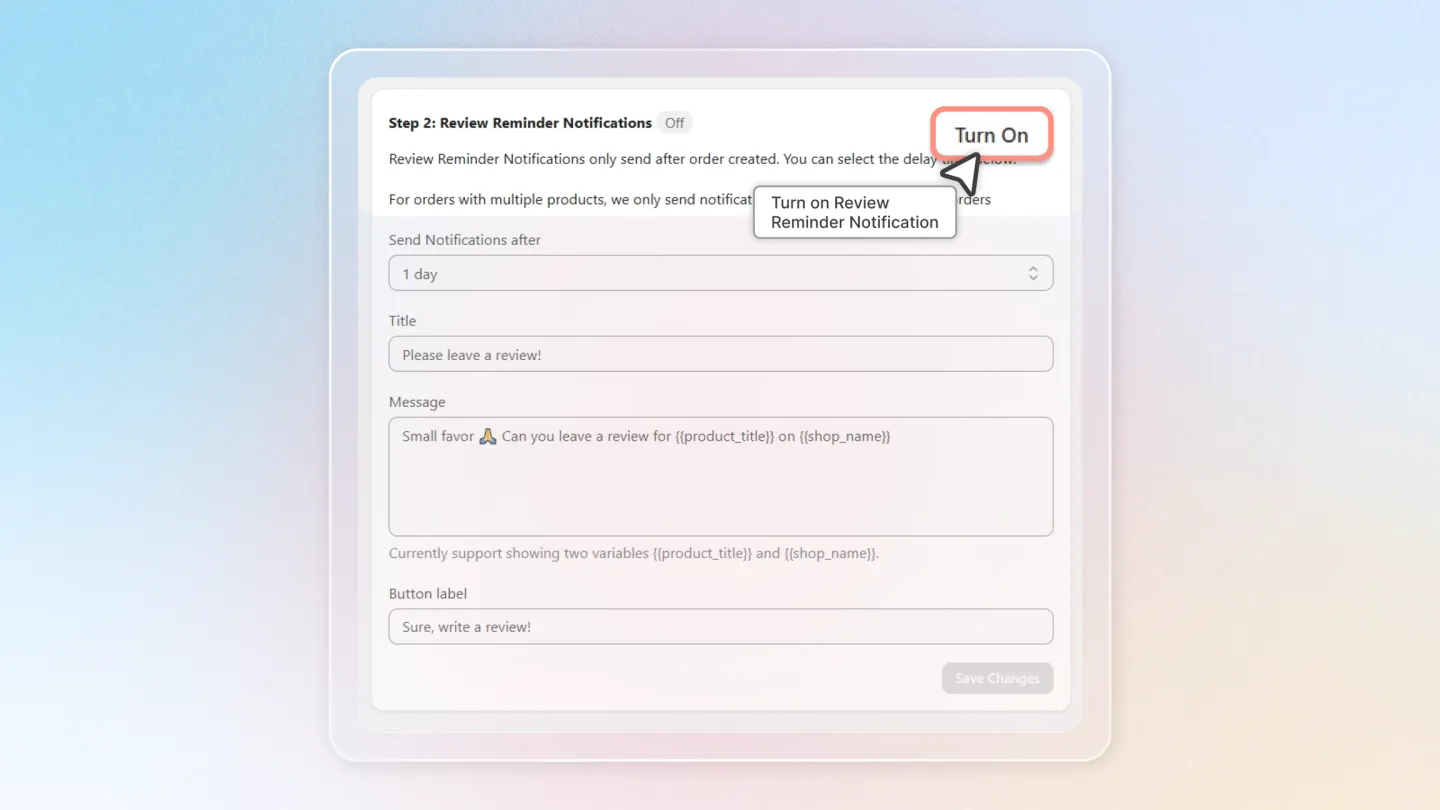
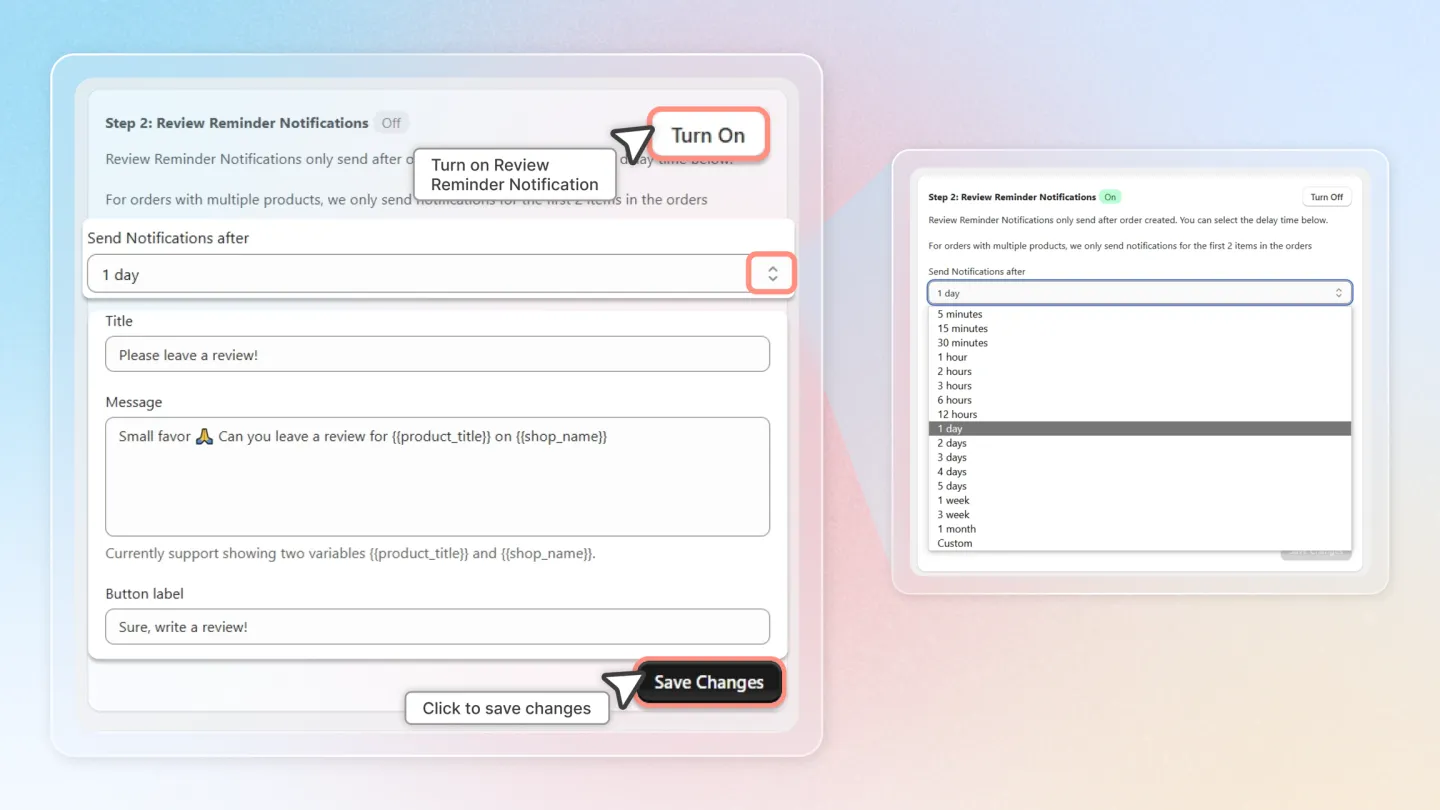
Send Notifications After: Choose the time delay for sending the notification post-order.
Customize Notification: Enter the information for 'Title', 'Message', and 'Button Label'.
Click 'Save Changes' to apply your settings.
3. Set Up Photo Review Reminder Notifications
Turn On Photo Review Reminder: Enable this to send notifications reminding customers to add photos to their reviews if they haven't already.
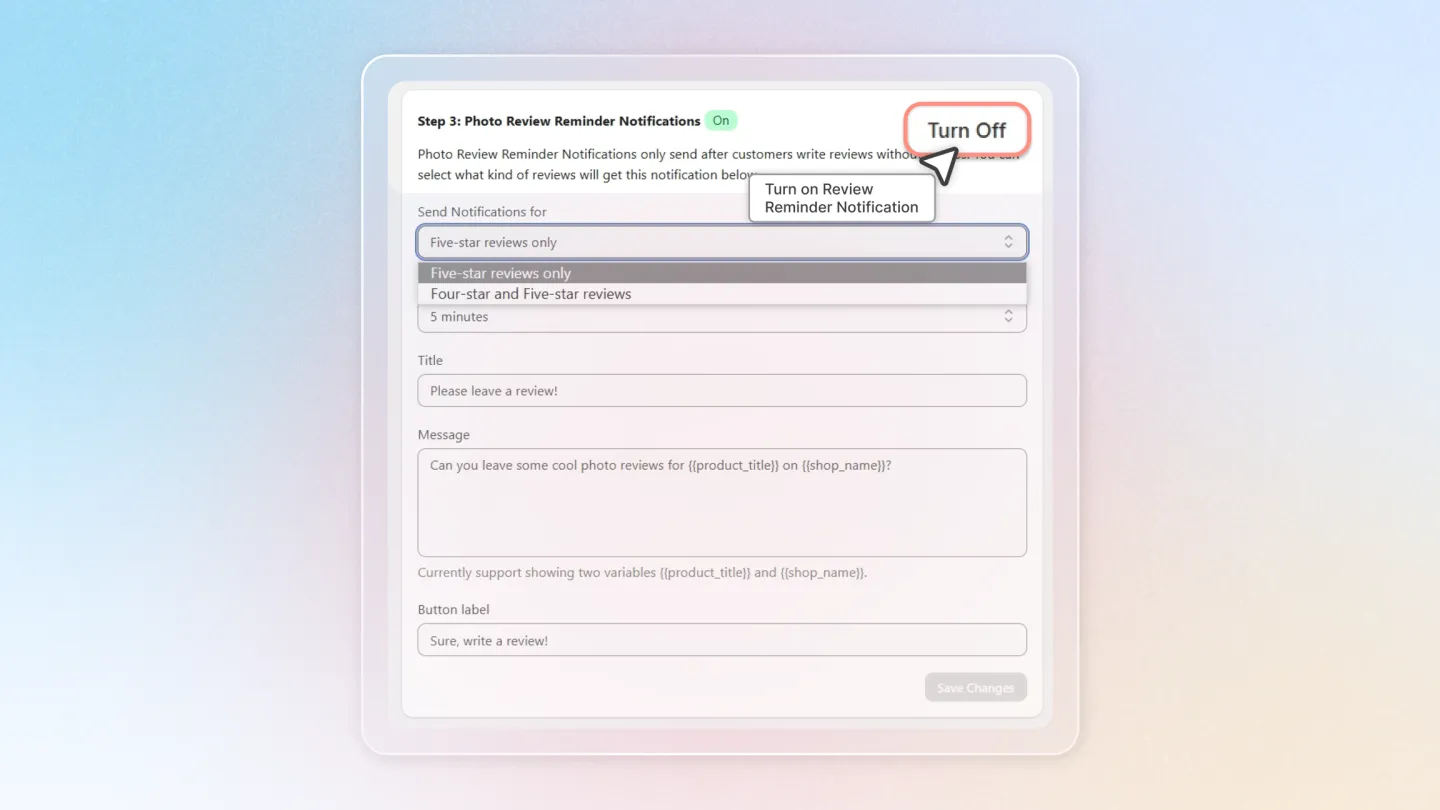
Send Notifications For:
- Five-star reviews only: Send notifications only for 5-star reviews.
- Four-star and Five-star reviews: Send notifications for both 4-star and 5-star reviews.
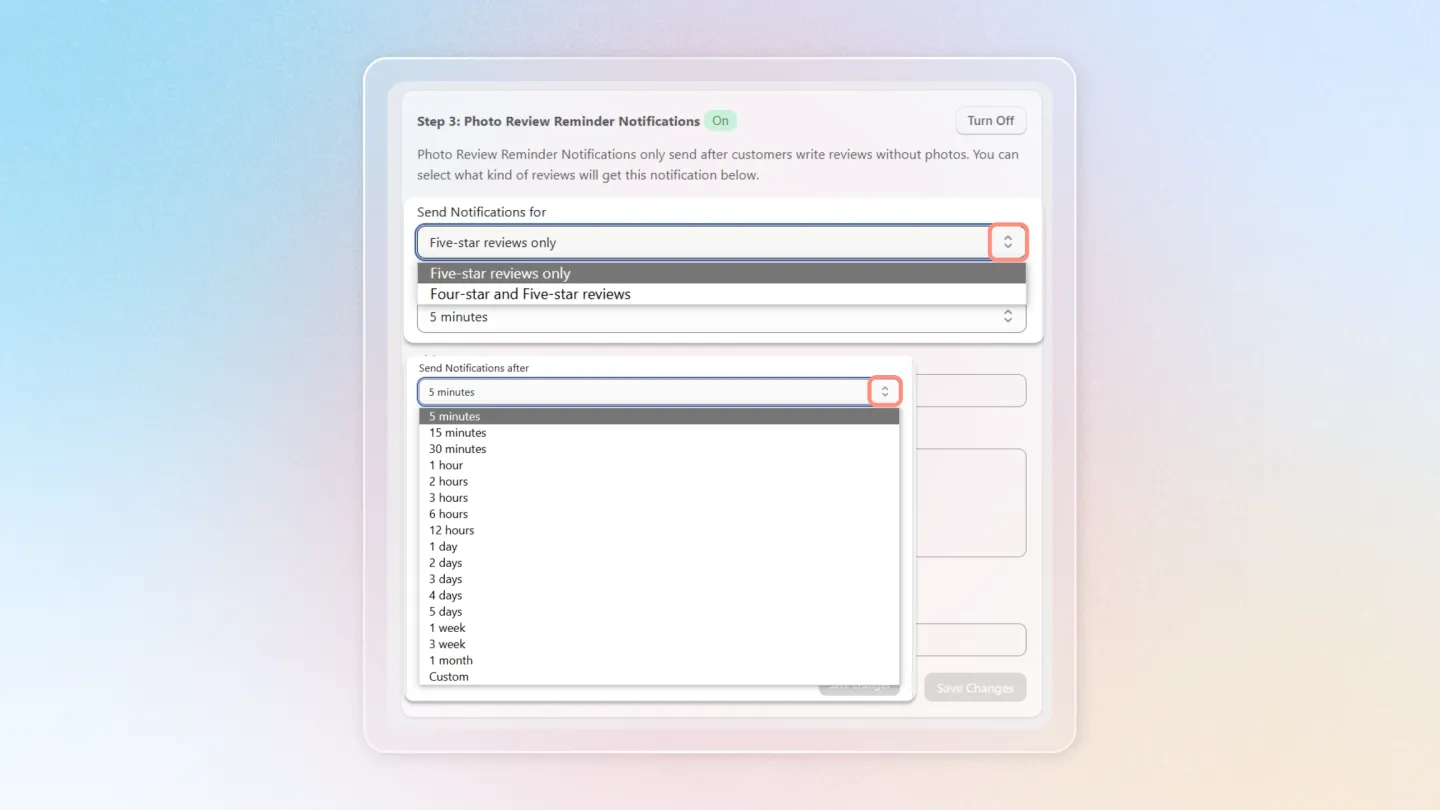
Send Notifications After:
- Select the time delay for sending the notification after the review is written.
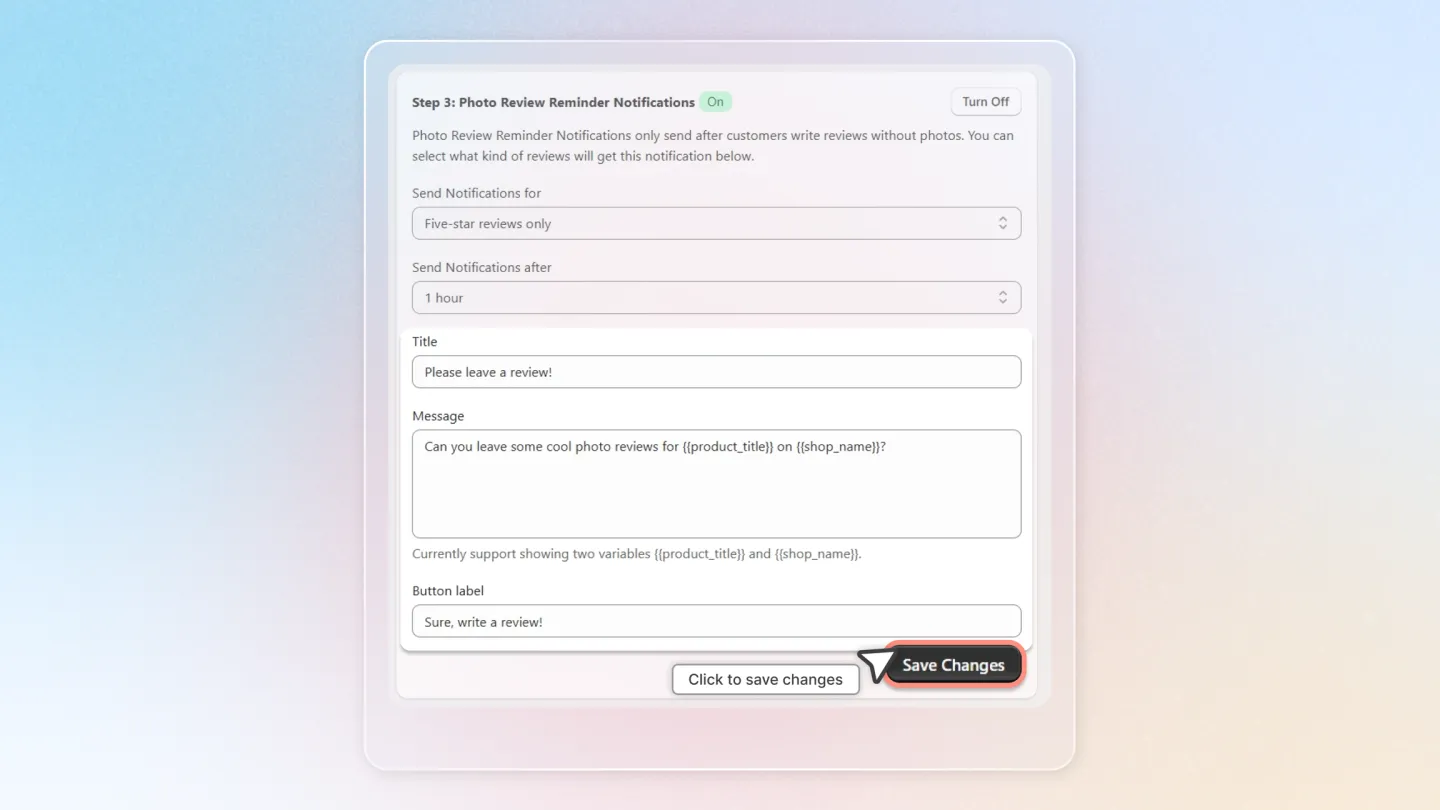
Customize Notification:
- Enter the information for 'Title', 'Message', and 'Button Label'.
- Click 'Save Changes' to apply your settings.
By following these steps, you can efficiently manage and enhance your review process, boosting customer interaction and improving the overall quality of feedback on your store.