Review box
1. Setting up Review box in themes editor
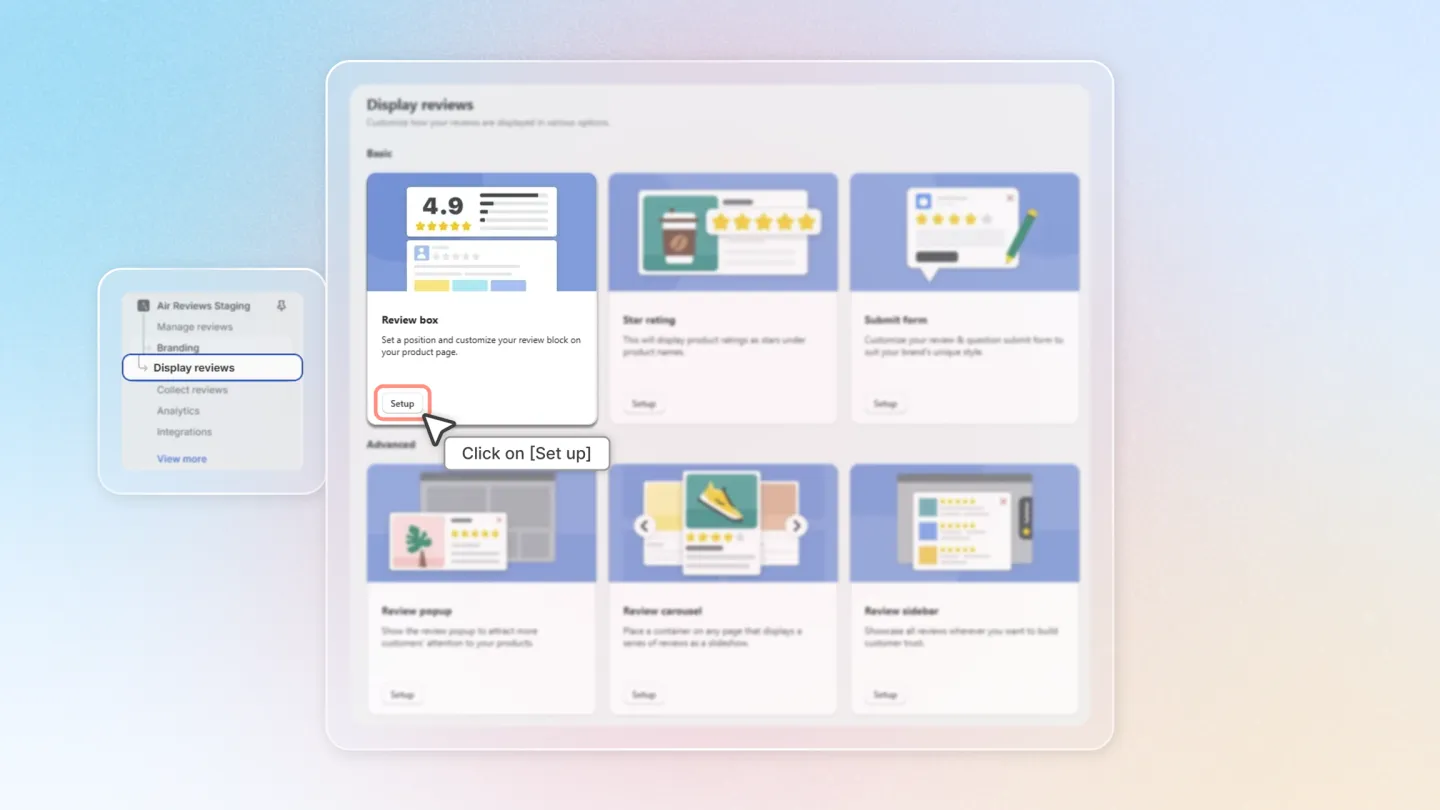
Head to "Display reviews" section on the left side menu.
Locate "Review box" feature, and click on "Setup" to start the process.
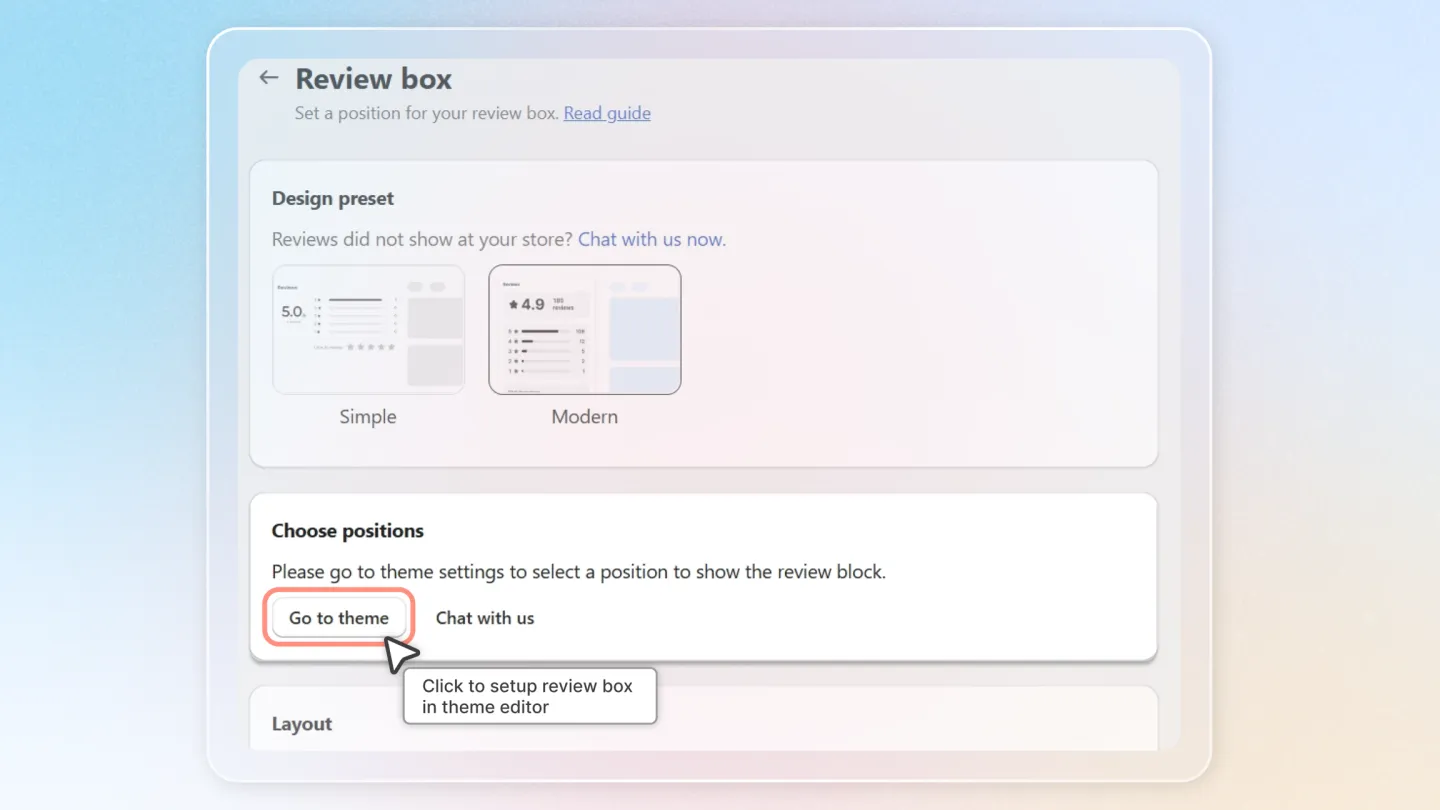
In "Choose positions" panel, click "Go to theme" to decide where to show your review box.
1.1 Position the Review Box
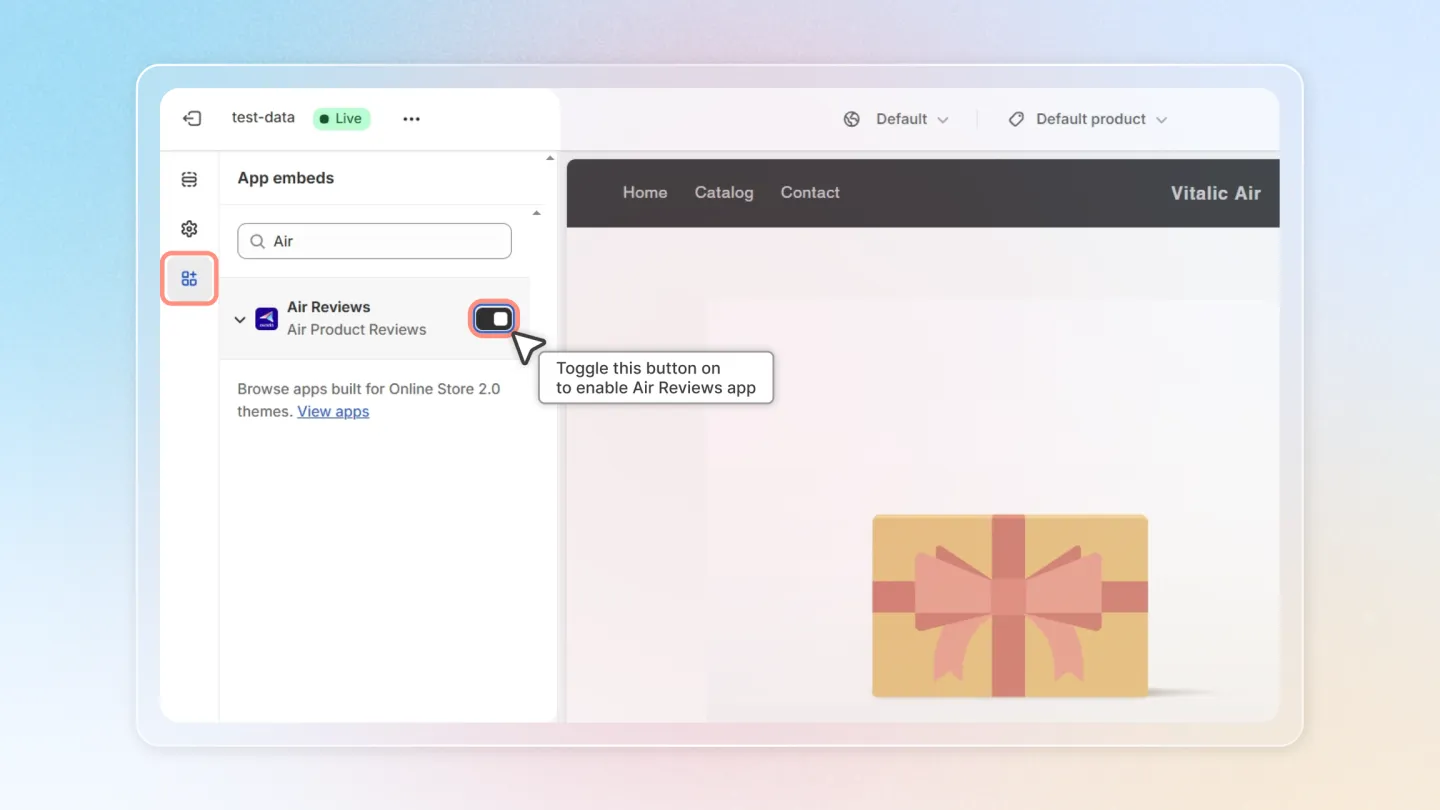
- Click on "App Embeds" on the left side menu.
- Locate Air Reviews app. Toggle the button on to use Air Reviews app.
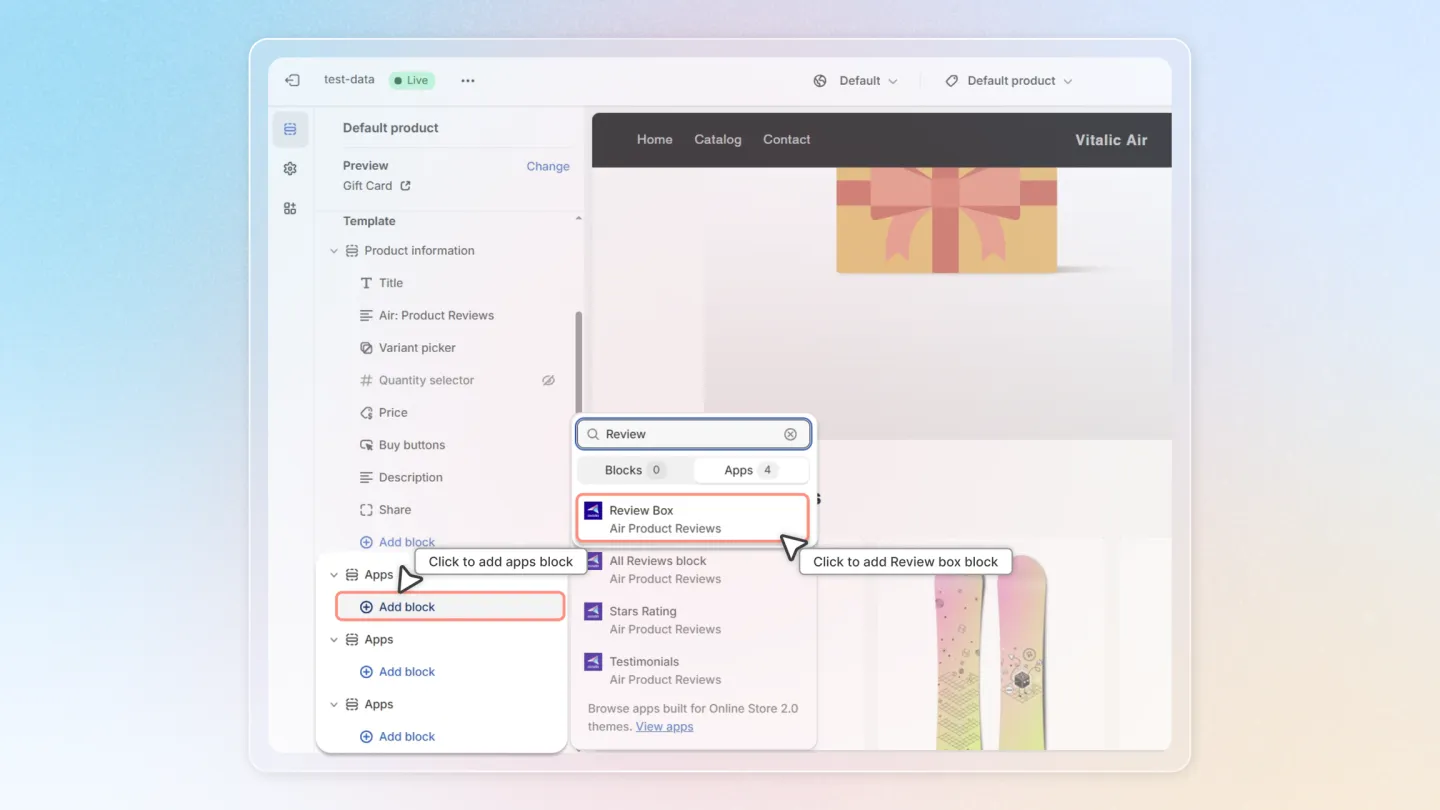
- Click 'Add block', then find the "Review Box" by Air Product Reviews and click on it.
1.2 Customize Appearance
- Adjust the review layout and display colors as desired.
- Preview the changes in the theme editor and click "Save" the changes.
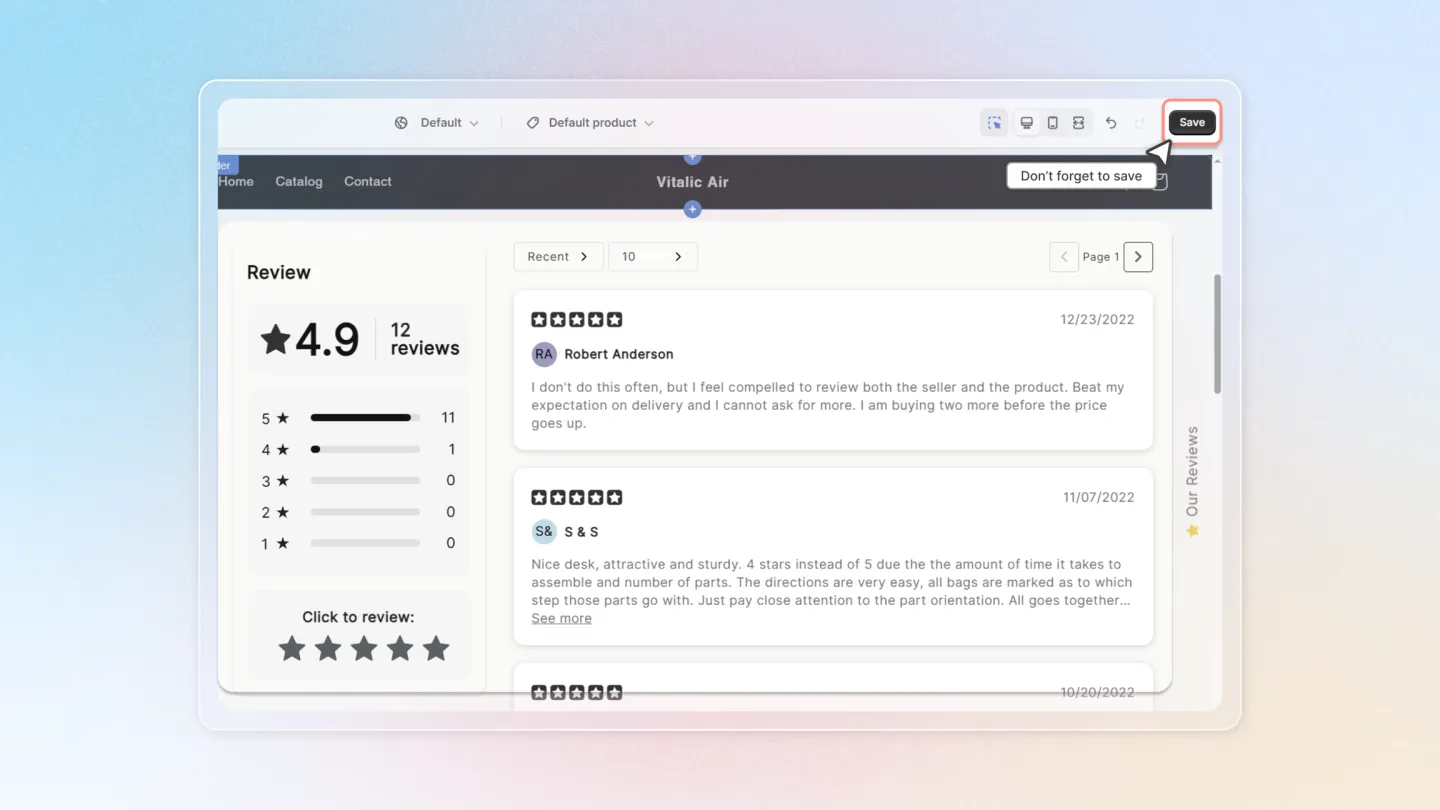
2. Configuration Details
2.1 Layout
Choose how reviews are arranged in the box. Three options are available for both desktop and mobile:
- List — reviews stacked vertically, one per row.
- Grid — reviews in a multi-column grid.
- Carousel — reviews displayed as a slideshow with navigation arrows.
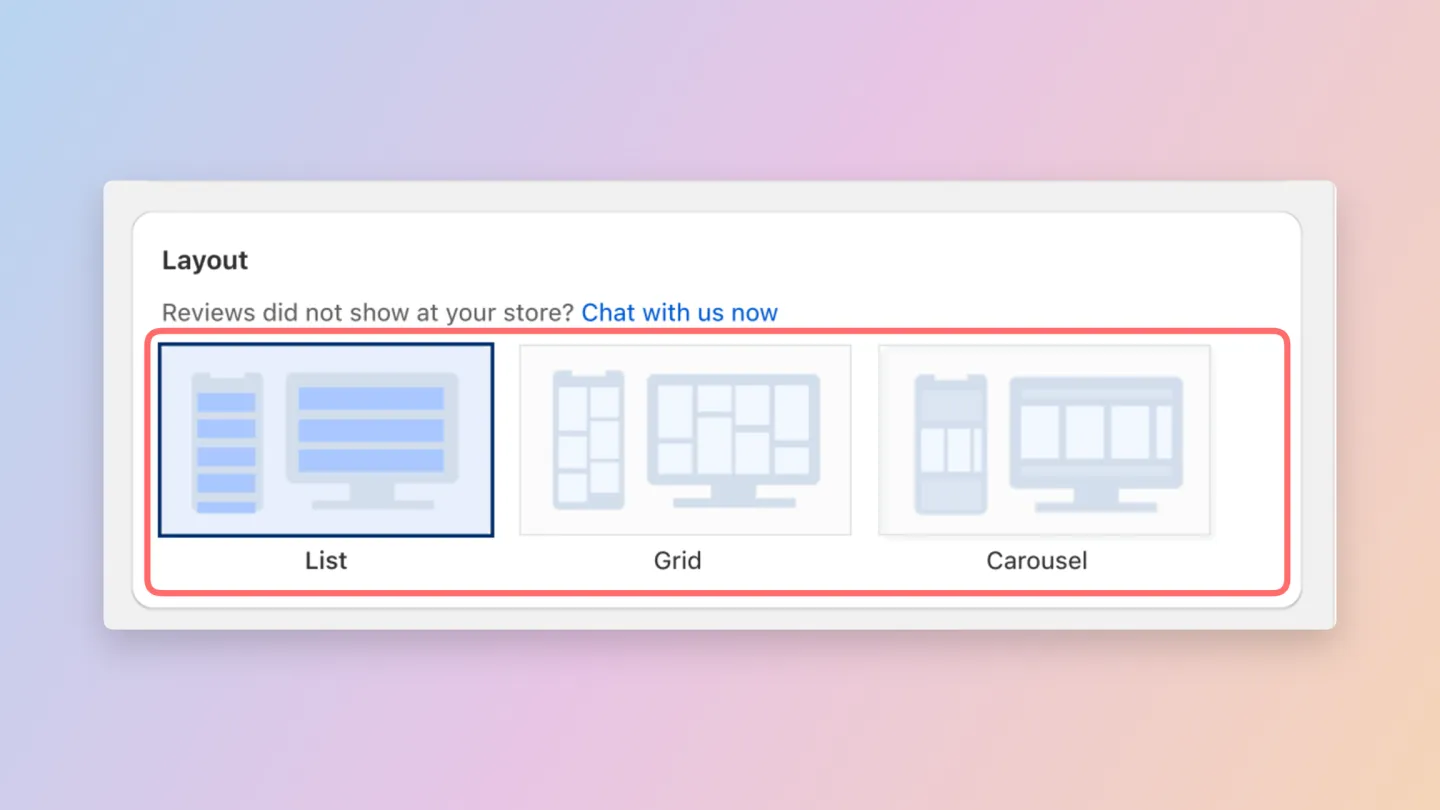
2.2 Box content
- Review by variant: Tick to show the variant on each review card and see the preview.
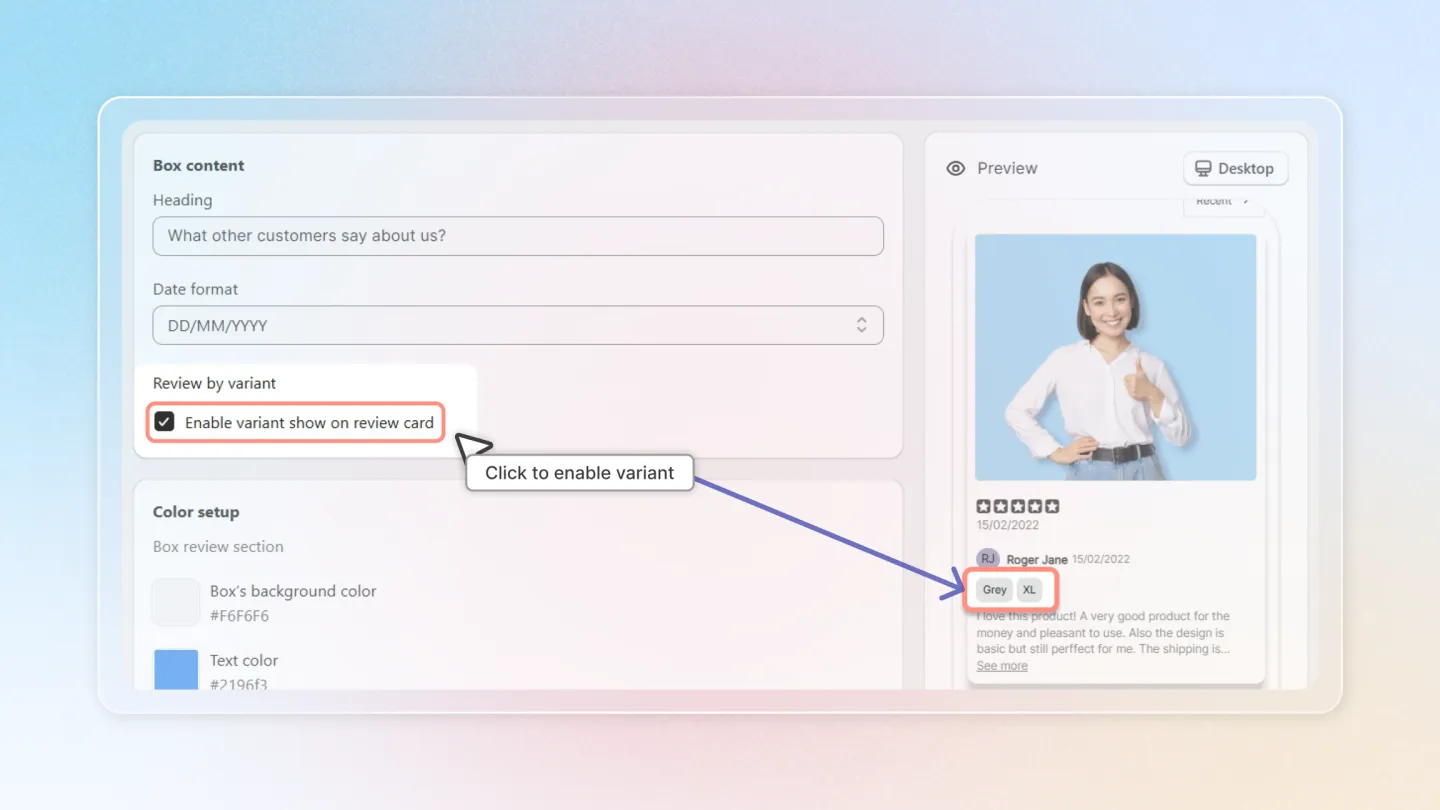
Heading text and date format are now configured globally on the Branding page instead of per-widget here.
2.3 Color setup
Pick the Text color used for review content inside the review box. Default is #303030.
2.4 Advanced Settings
Open Advanced settings to fine-tune how the review box behaves.
- Sorting default: choose the default sorting rule applied when shoppers open the review box. Options: Recent, Highest, Lowest, Review with media. The default is Recent.
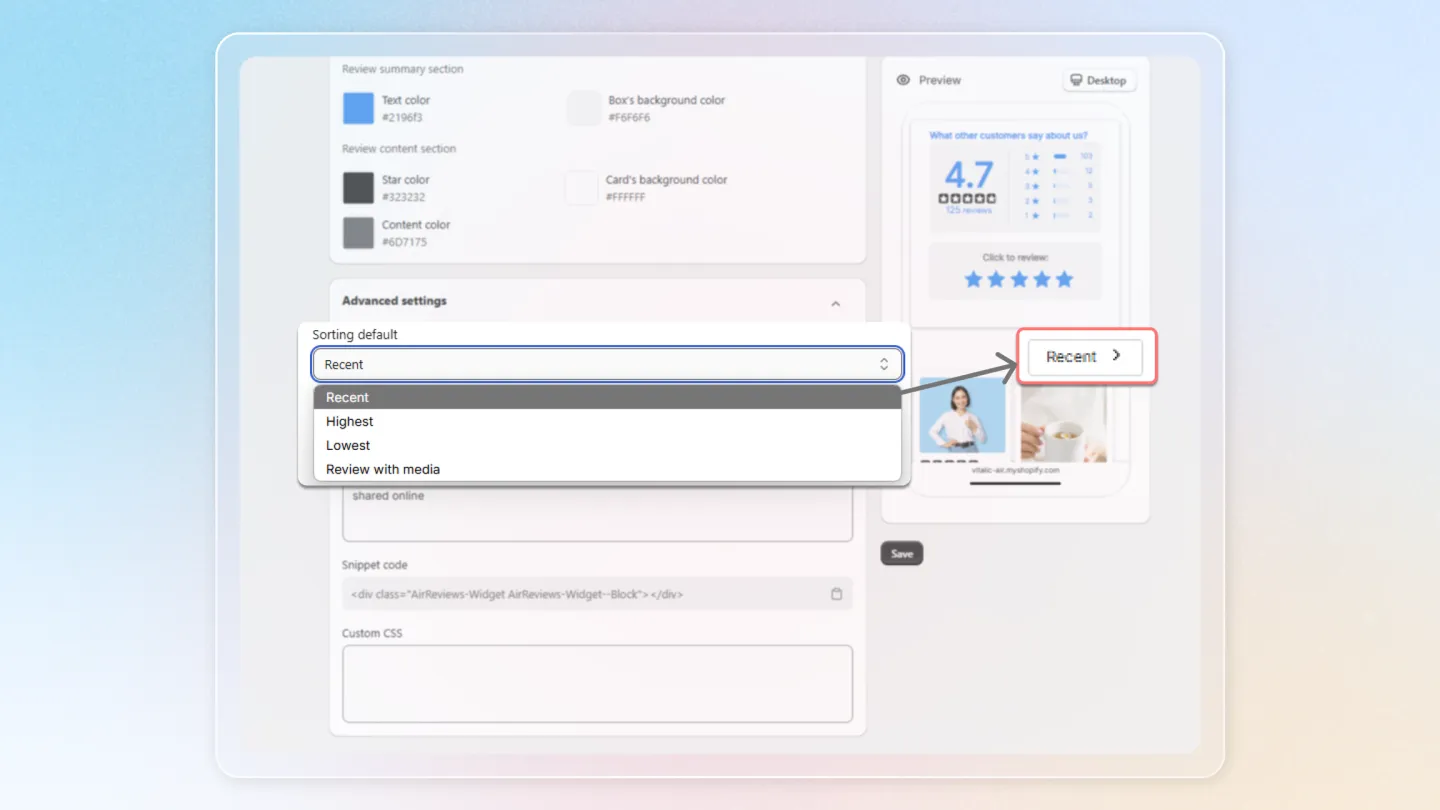
- Hide review summary when there is no review yet: tick to hide the summary block until the product has at least one review.
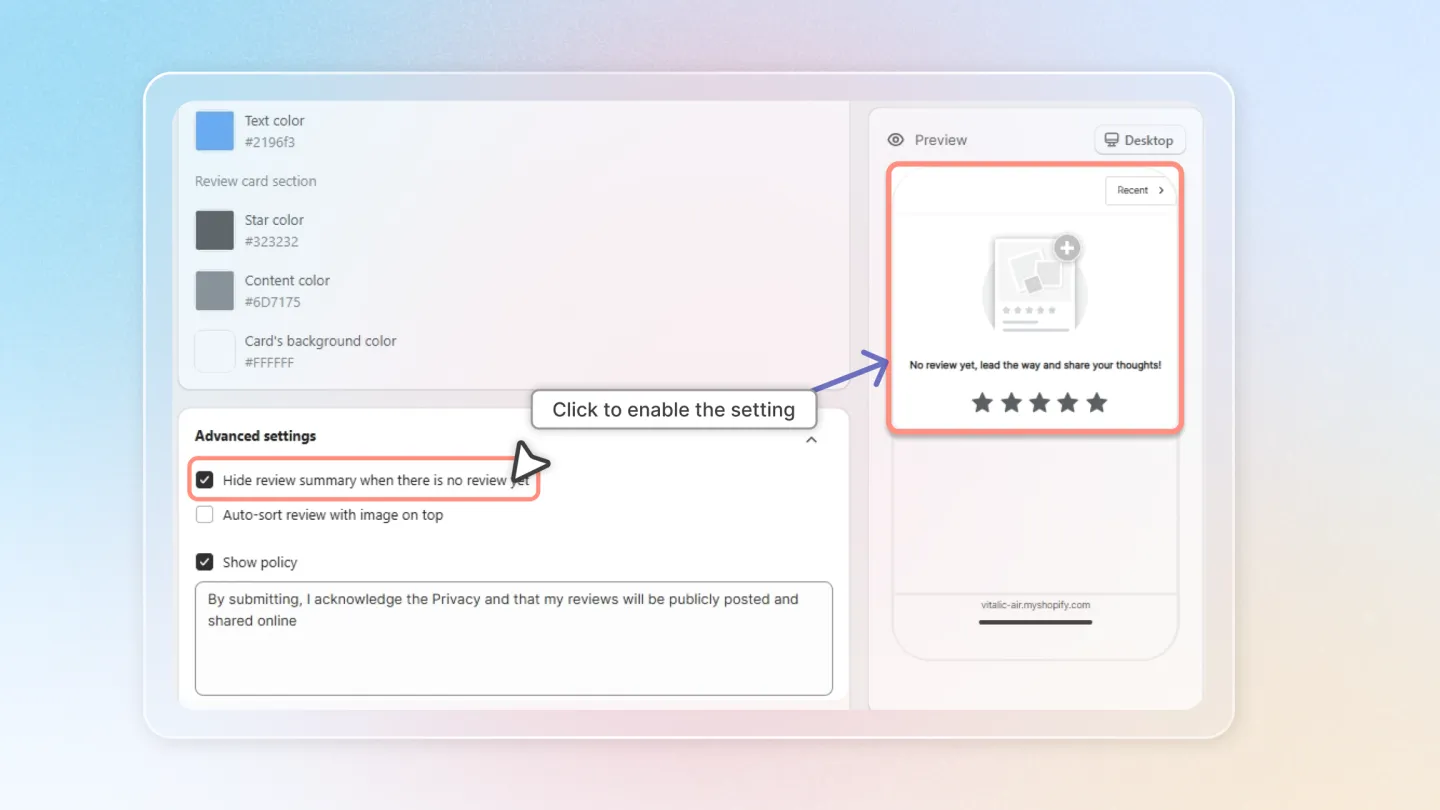
- Snippet code — see section 2.5 below.
- Custom CSS: add your own CSS to fine-tune the appearance of the review box.
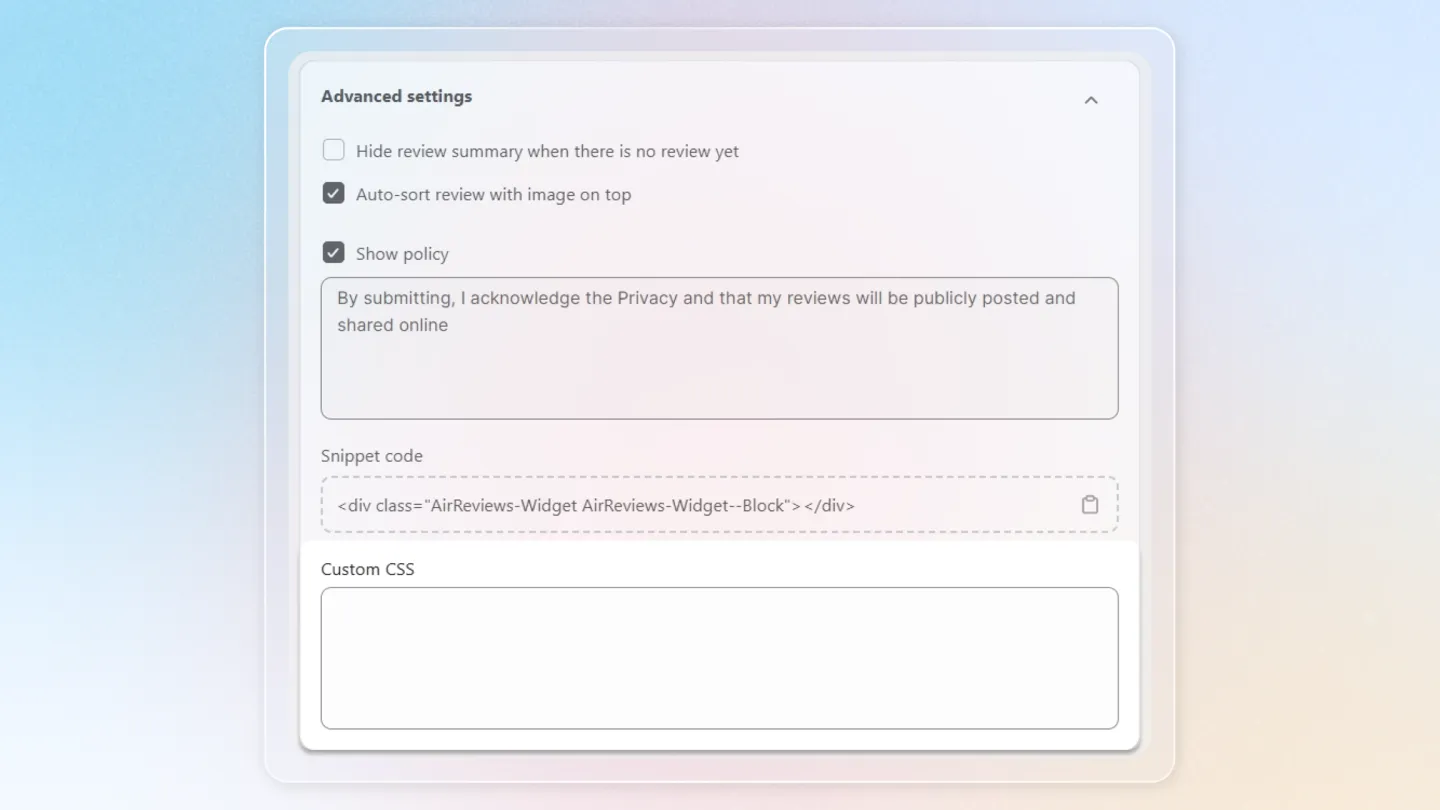
2.5 Snippet code
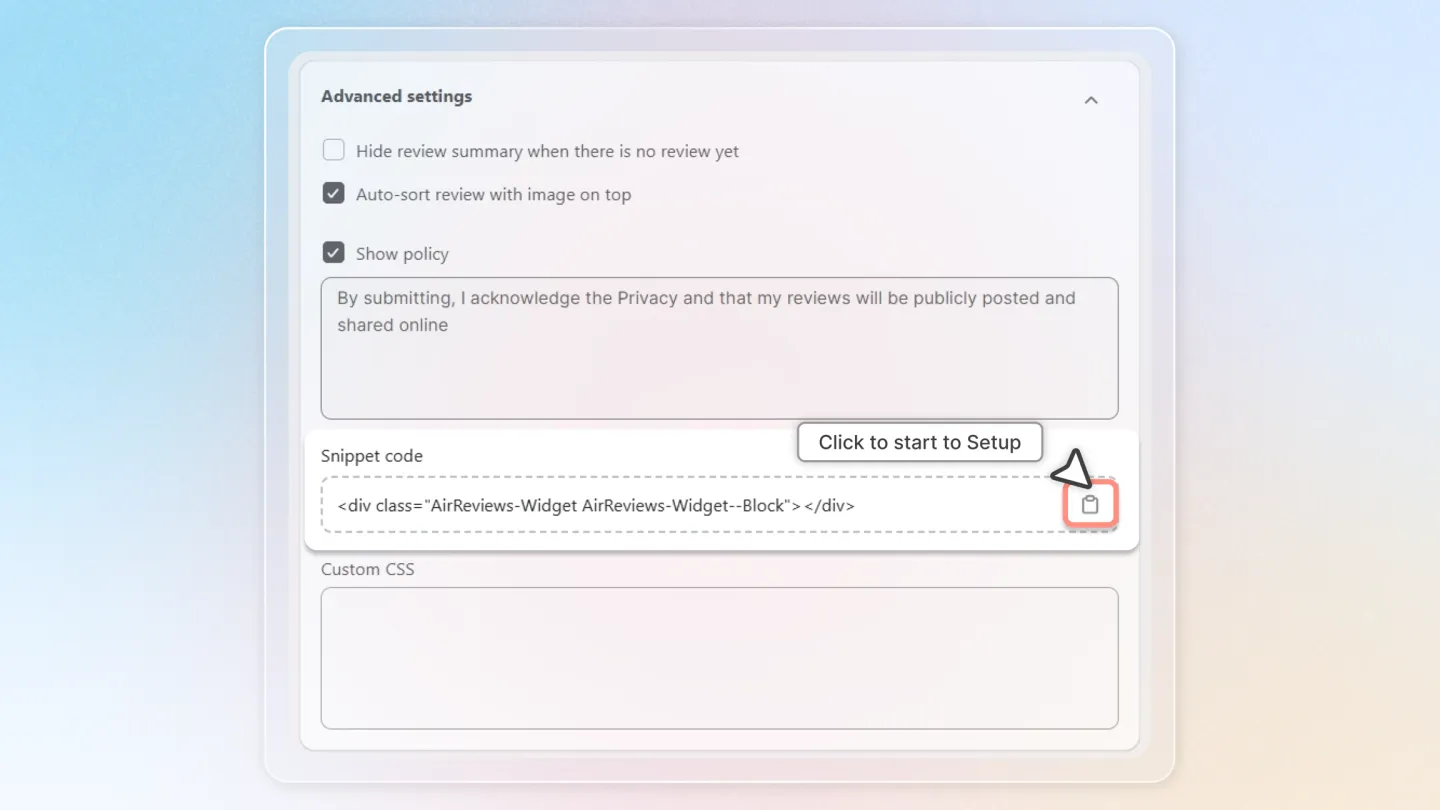
The Snippet code field (inside Advanced settings) lets you insert the review box anywhere on the product page. Here's how:
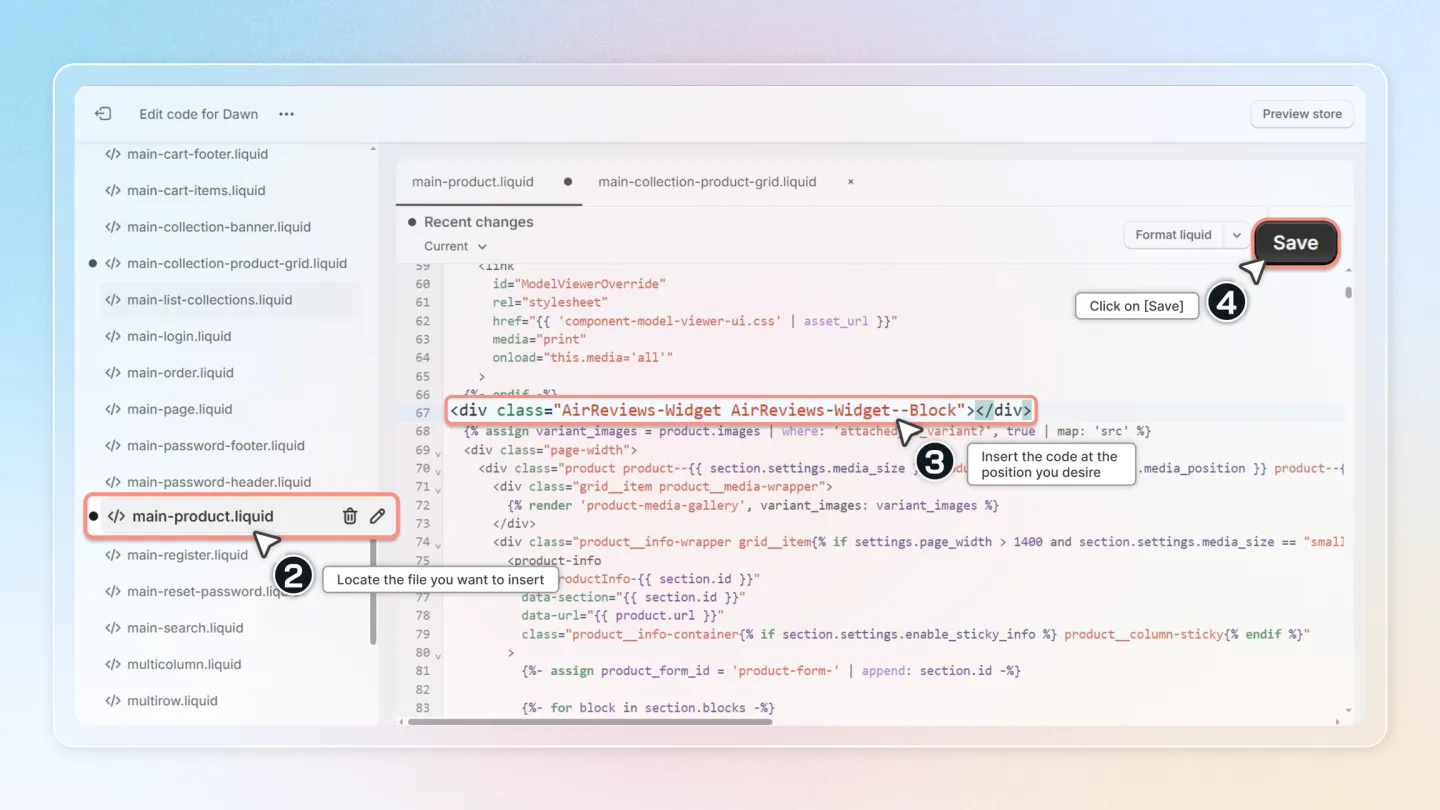
- Copy the Snippet code.
- Go to 'Theme', click on 'Actions', and then 'Edit code'.
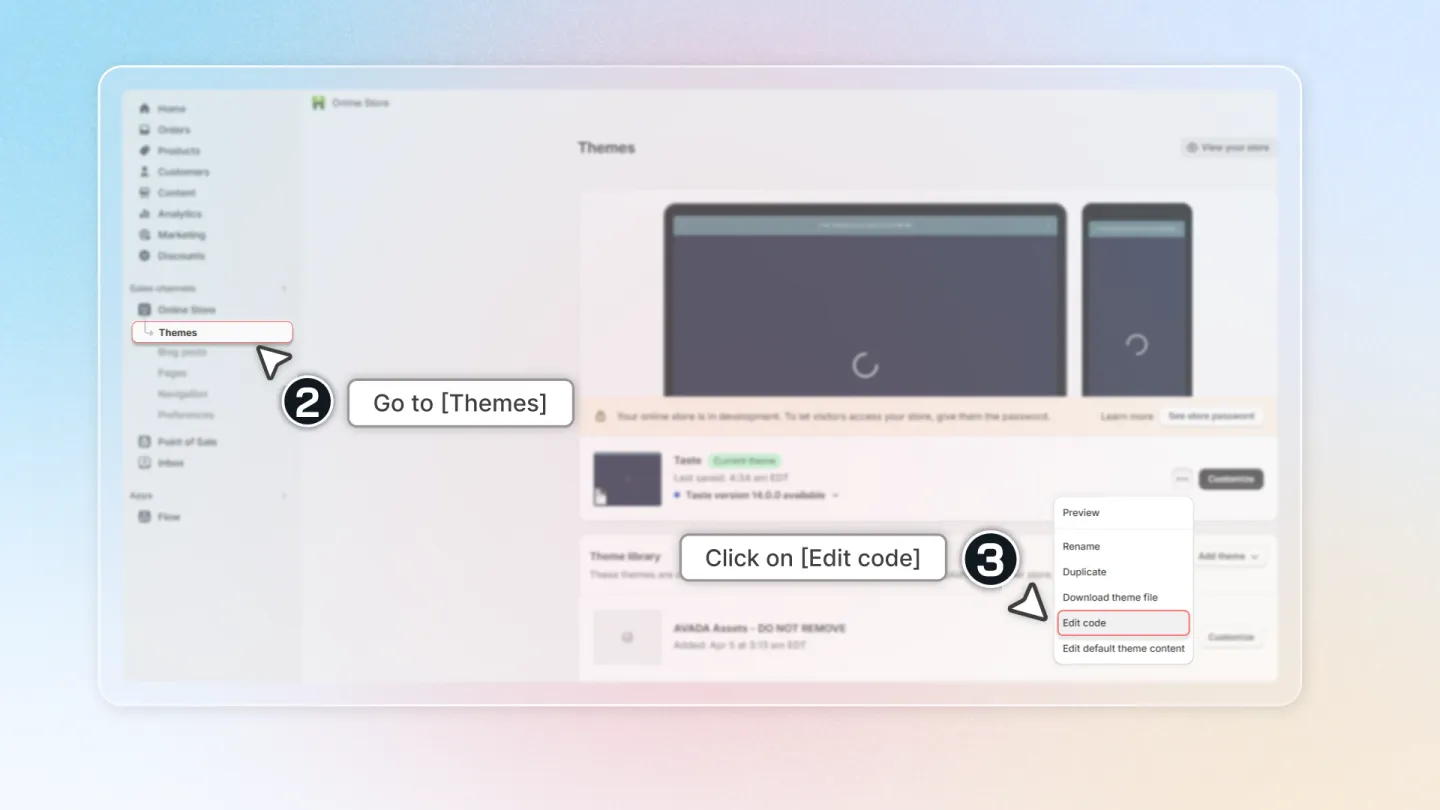
- Insert the copied code into 'main-product.liquid' or 'product-template.liquid' at your desired location.
- Save your changes and view the review box on your storefront to ensure it displays correctly.
- Have a look at your result in your store.
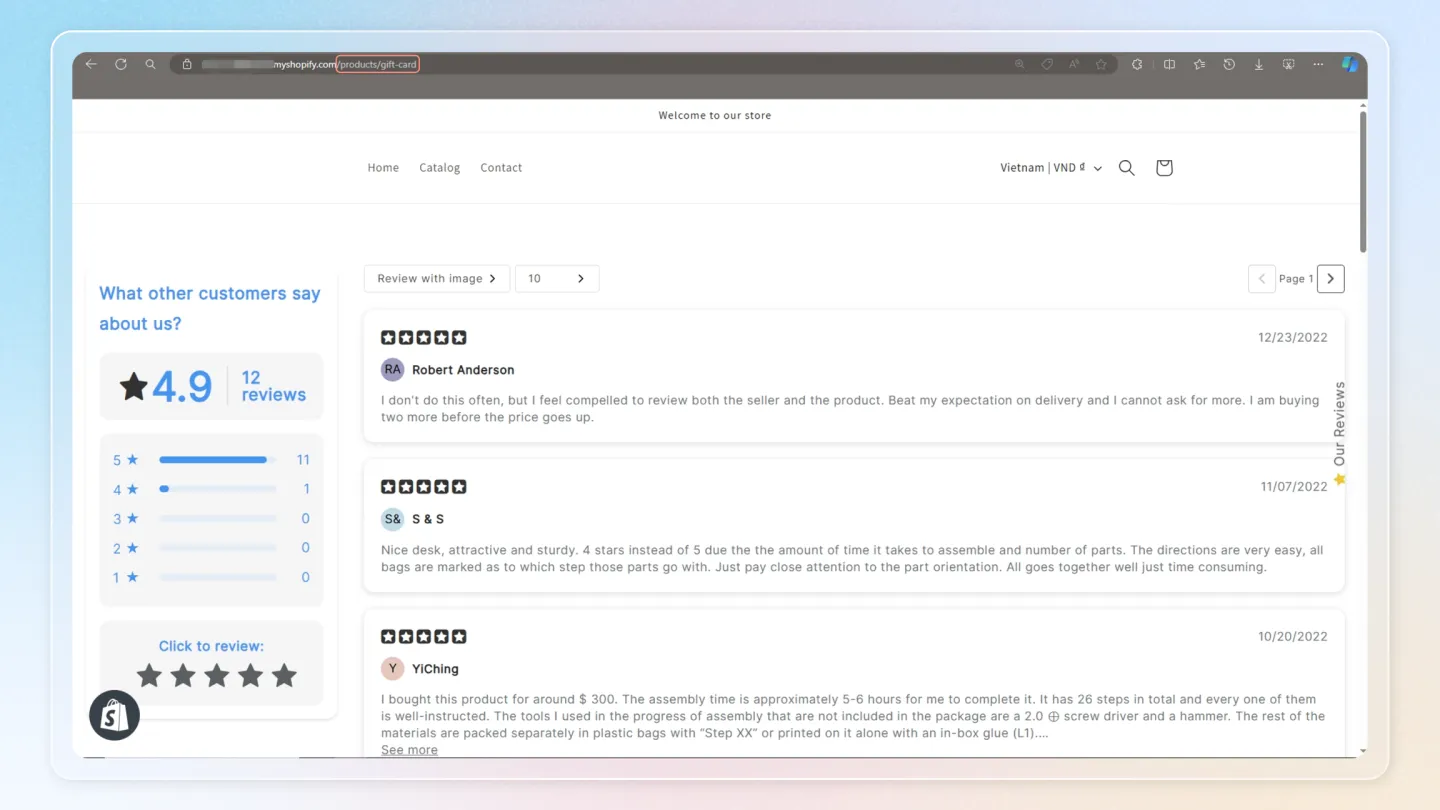
This guide provides a straightforward approach to configuring your review display, making it easier for you to enhance the user experience on your Shopify site.