Testimonials
1. Enable Testimonials
Head to "Display reviews" section on the left side menu.
Locate the "Testimonials" feature under the Advanced group, and click "Setup".
Toggle the switch in the page header (next to the Testimonials title) to enable the widget.

2. Positioning the Testimonials block
Drop the Testimonials block onto any page from the Shopify theme editor.
Step 1 — In Shopify admin, go to "Online Store" → "Themes" and click "Customize" on your active theme.
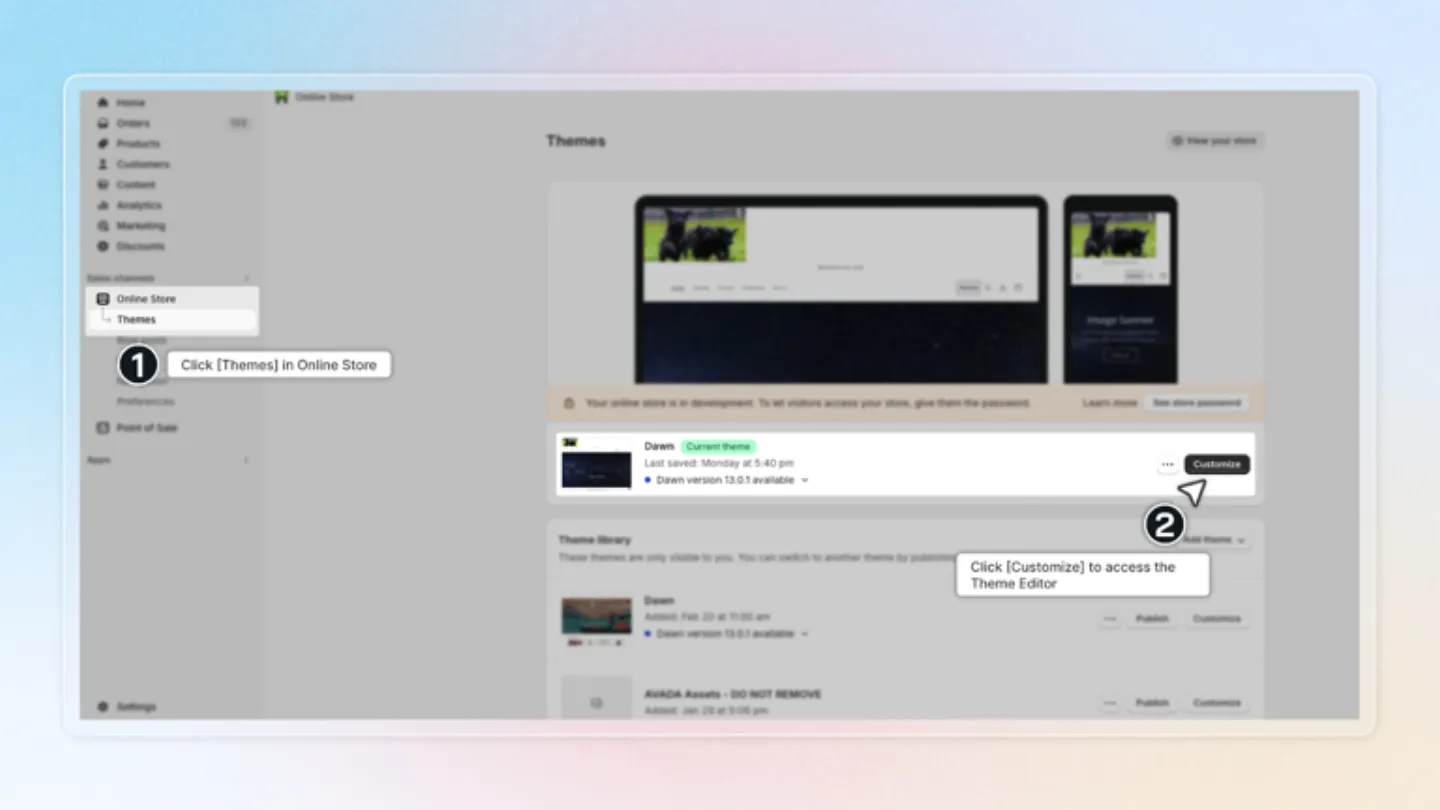
Step 2 — Open the page where you want the testimonials to appear (Home page, Collection page, custom page, etc.).
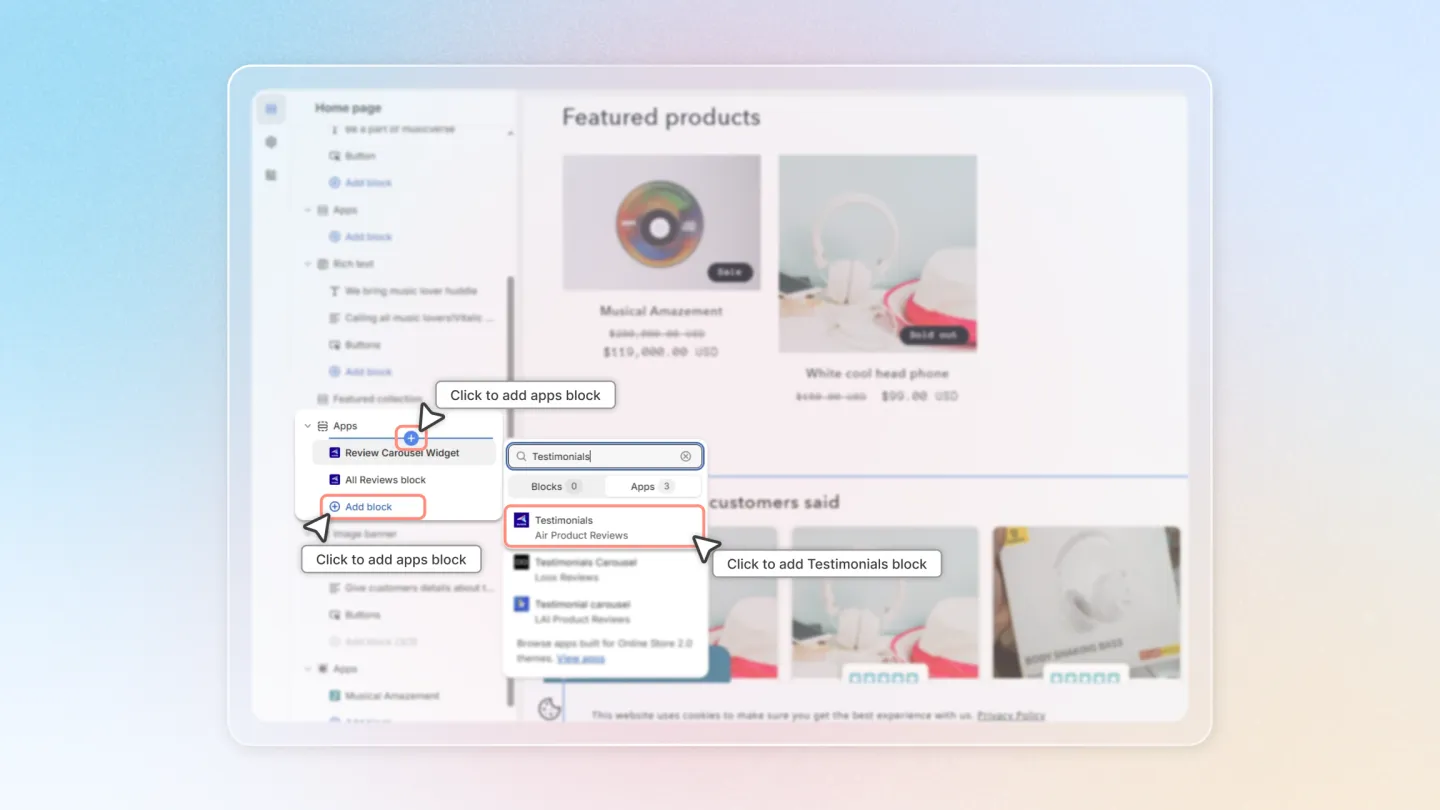
Step 3 — At the position you want, click Add block (or the + icon) → Apps → Testimonials by Air Reviews.
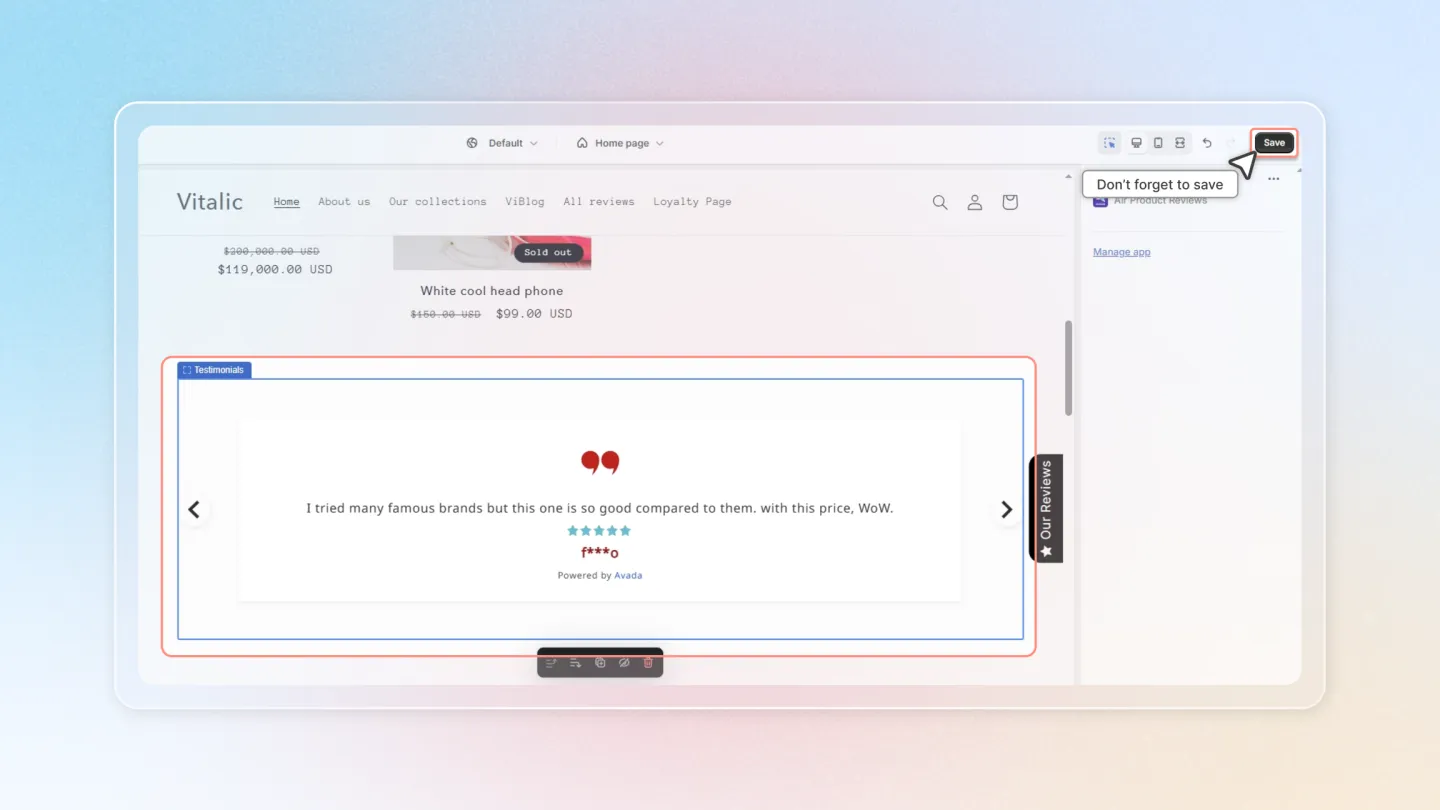
Step 4 — Click Save in the theme editor to apply the changes.
3. Choose layout
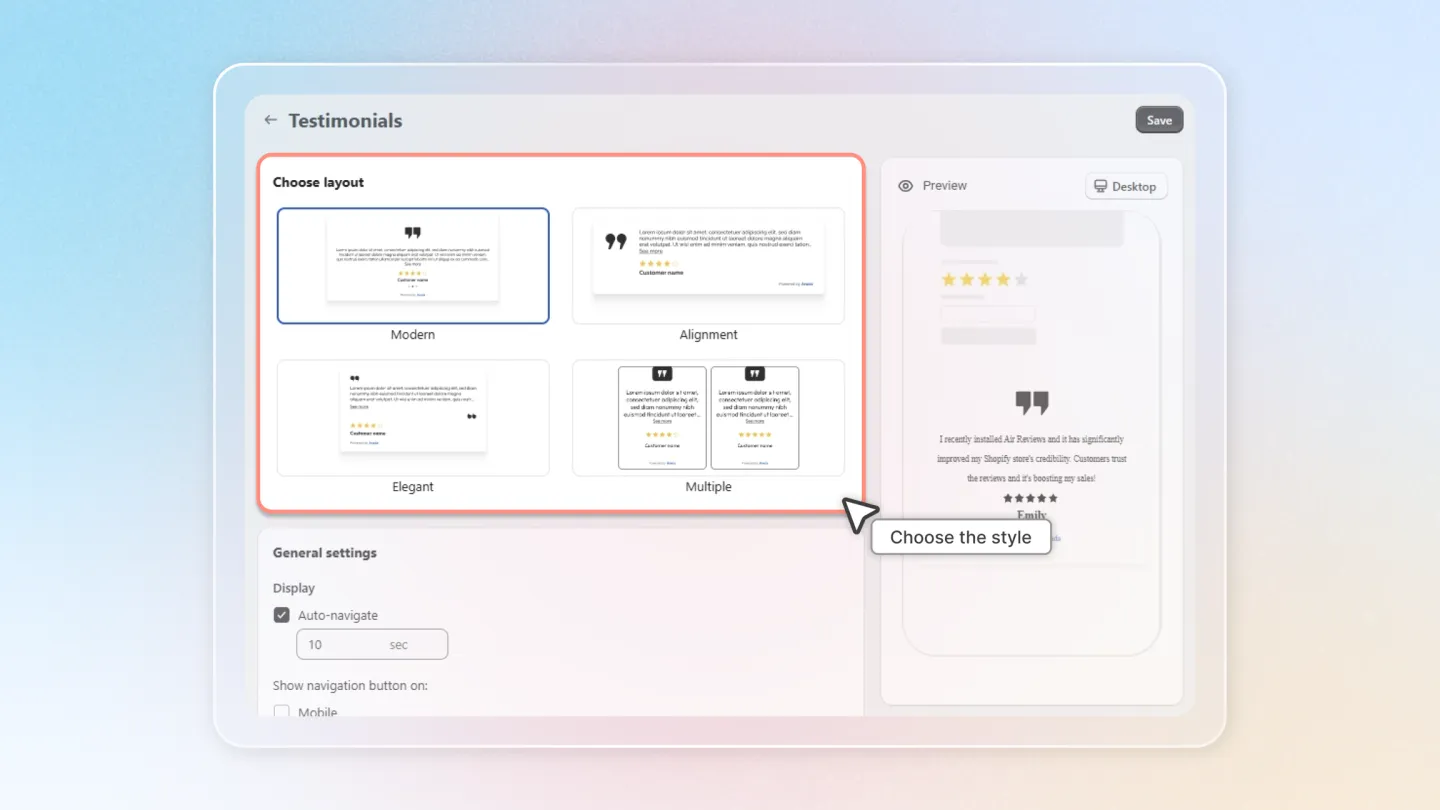
Pick one of four built-in presets for how the testimonials are arranged:
Modern — single large testimonial, swipe to advance.
Alignment — single testimonial with quote icon and content aligned consistently.
Elegant — refined, minimal layout that emphasizes the quote.
Multiple — grid of several testimonials visible at once.
4. General settings
4.1 Display
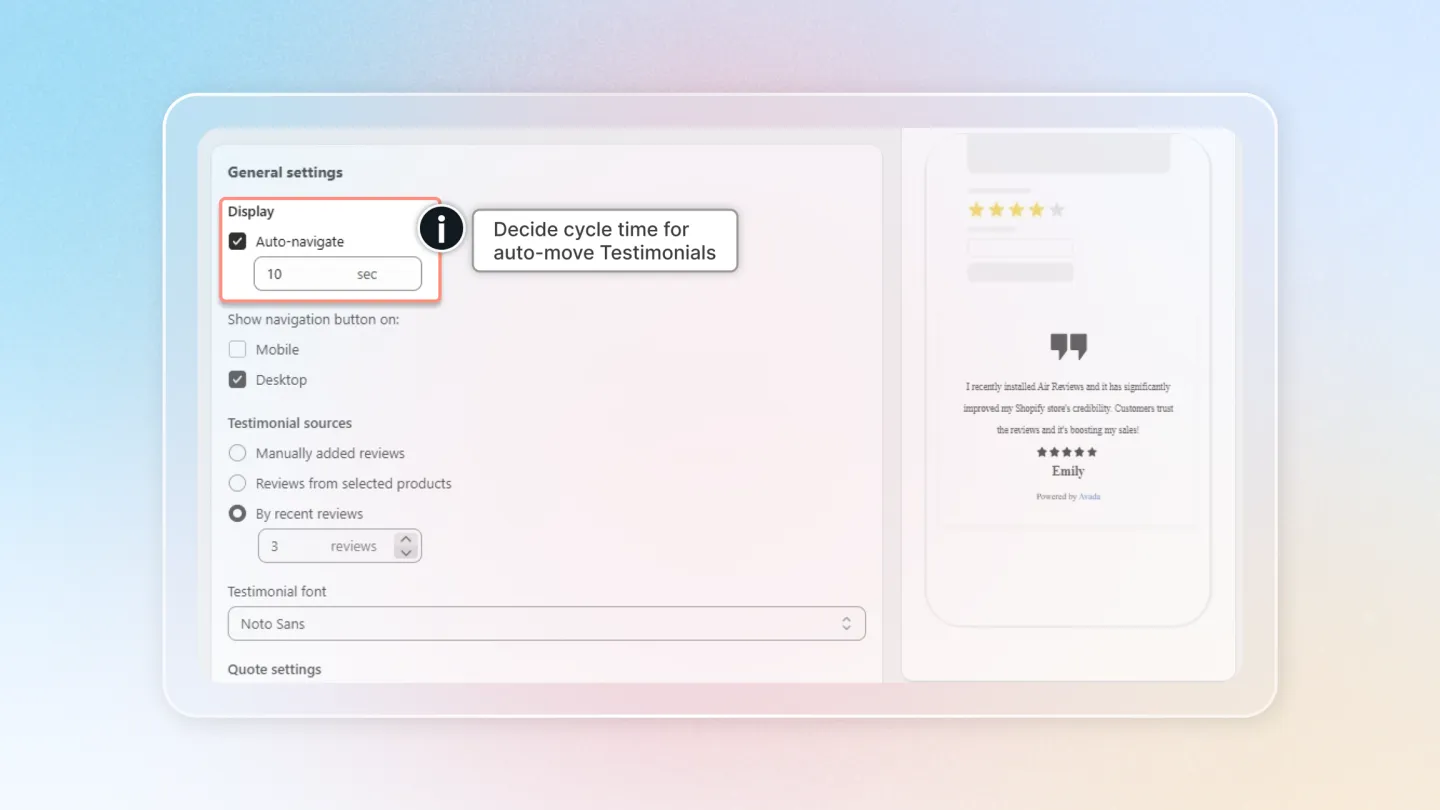
Auto navigate — when enabled, the slideshow advances automatically. Set the cycle interval in seconds (default 10).
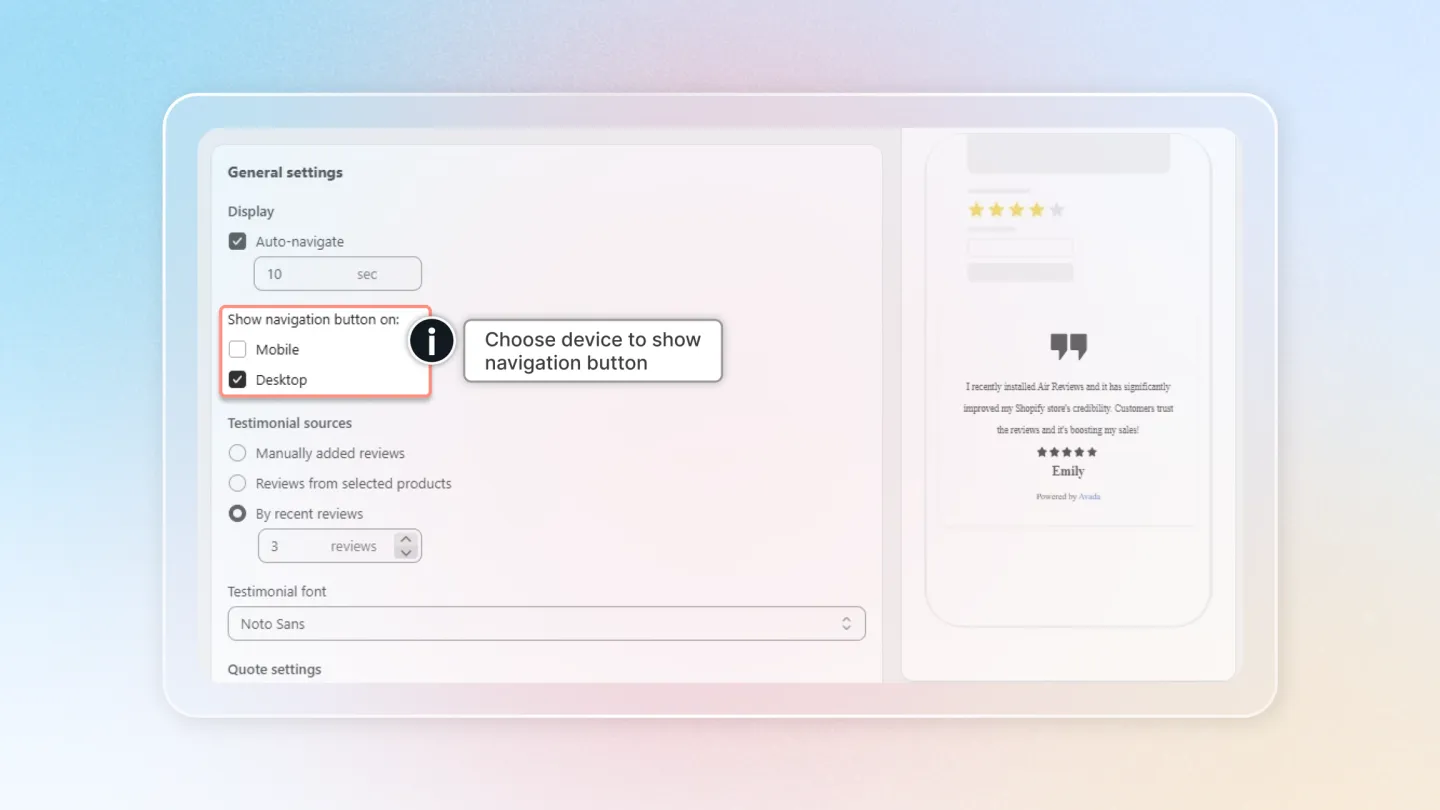
- Show navigation button on — choose where the previous/next arrows appear: Mobile, Desktop, or both.
4.2 Testimonial sources
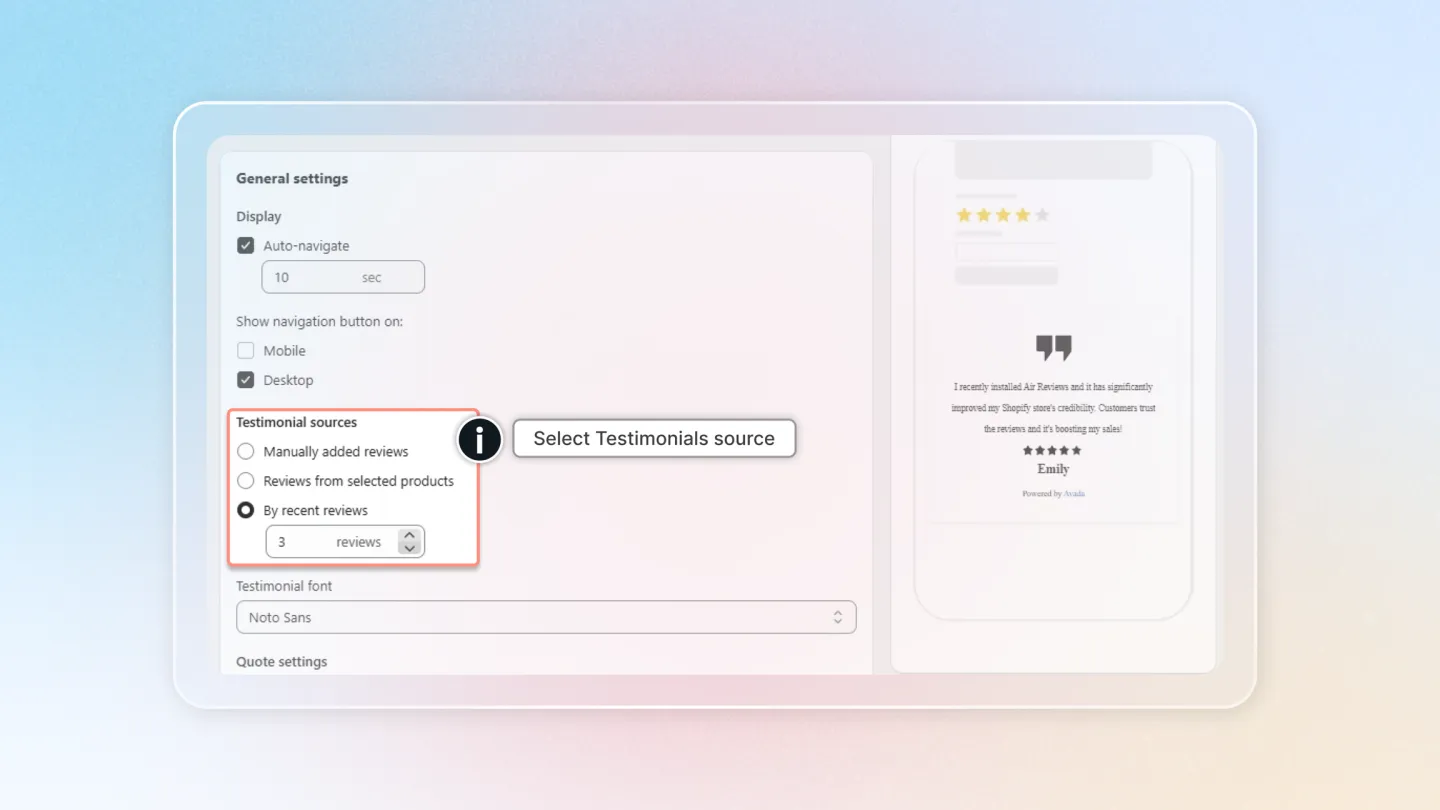
Choose where the testimonials come from:
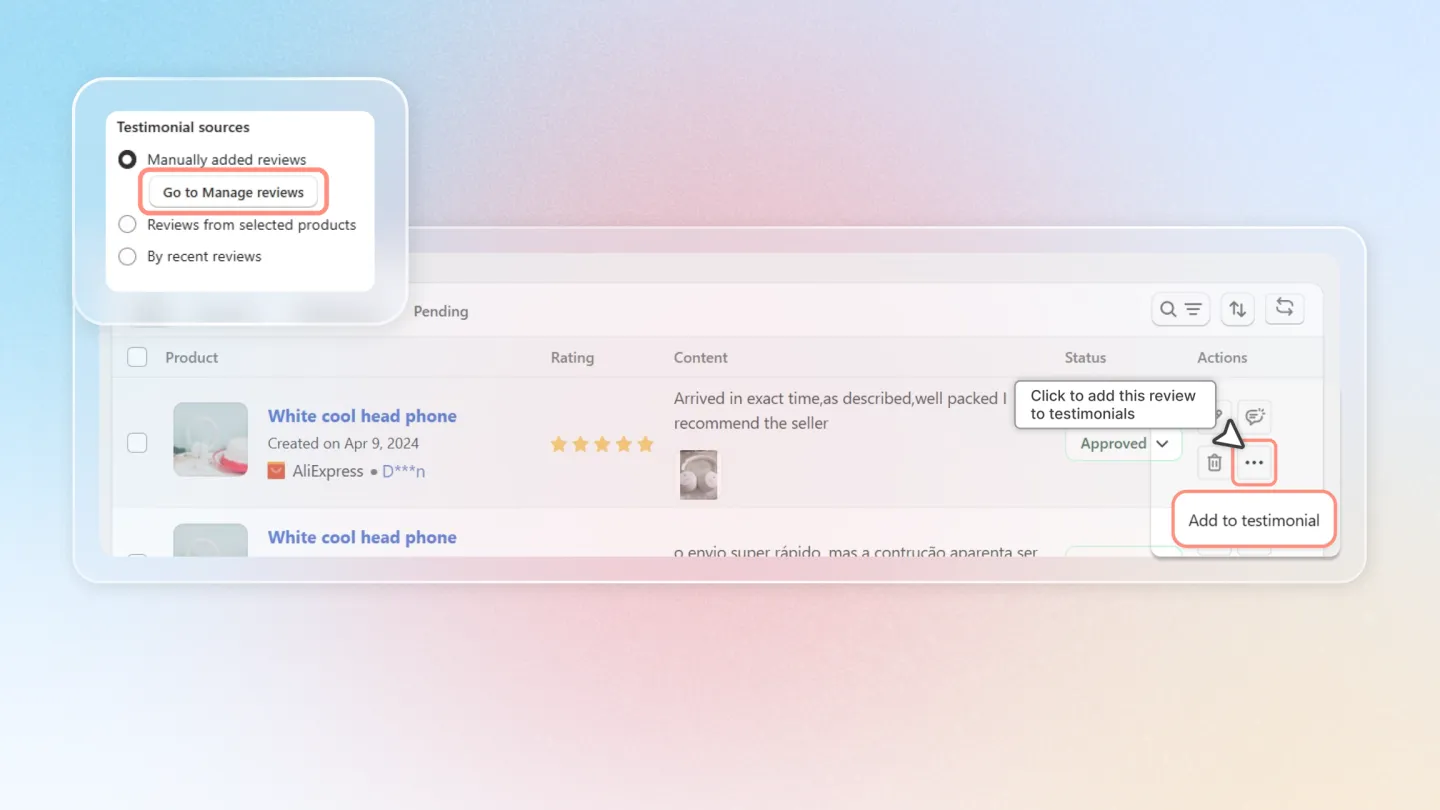
Manually added reviews — pick specific reviews from Manage reviews. Use this when you want full control over which quotes appear.
Reviews from selected products — pull reviews from a list of products you choose.
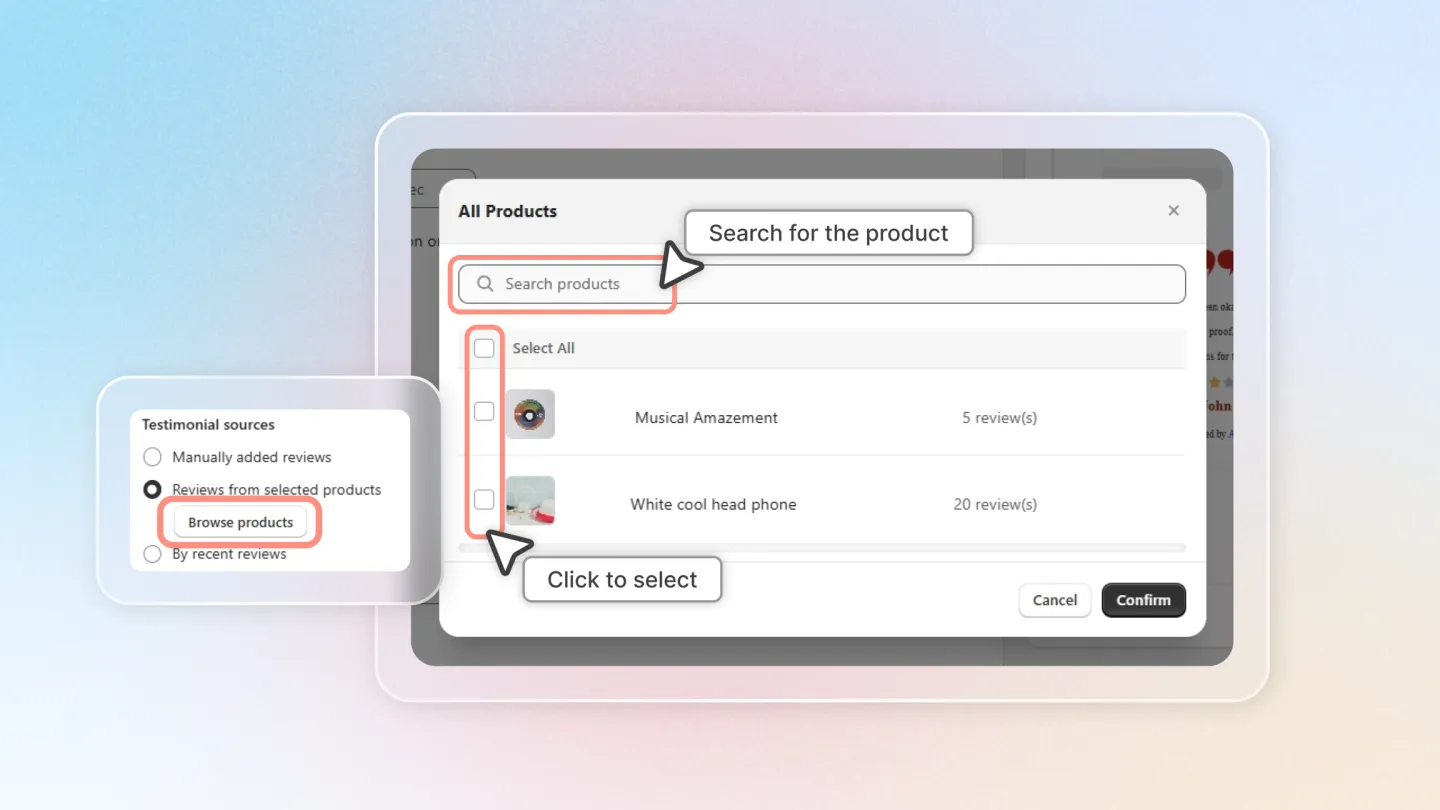
By recent reviews — automatically show the most recent reviews on your store. Set how many to display in the reviews field next to the option (default 3).
4.3 Quote settings
Quote icon — pick one of six quote-icon styles to decorate each testimonial.
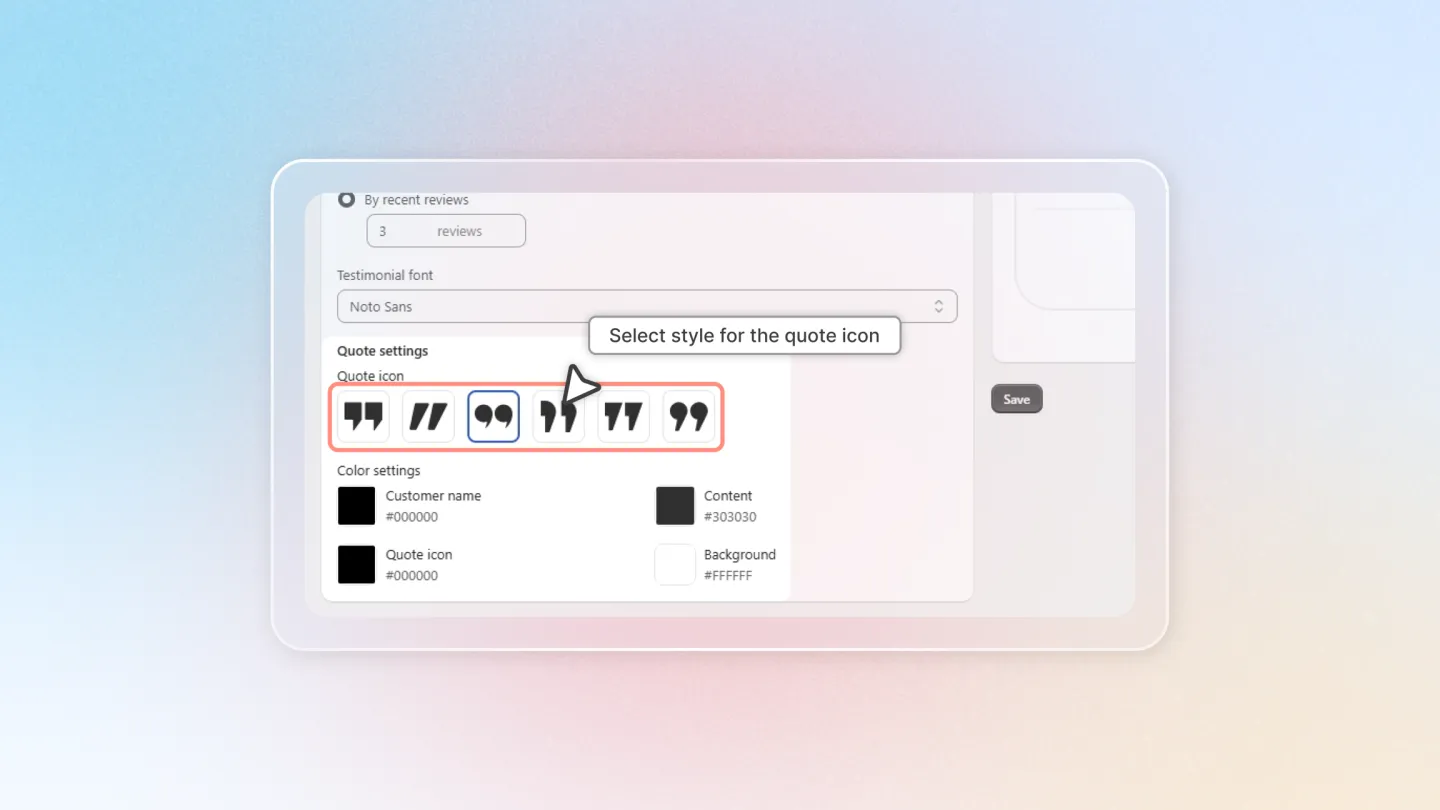
Color settings — set colors for each part of the testimonial card individually:
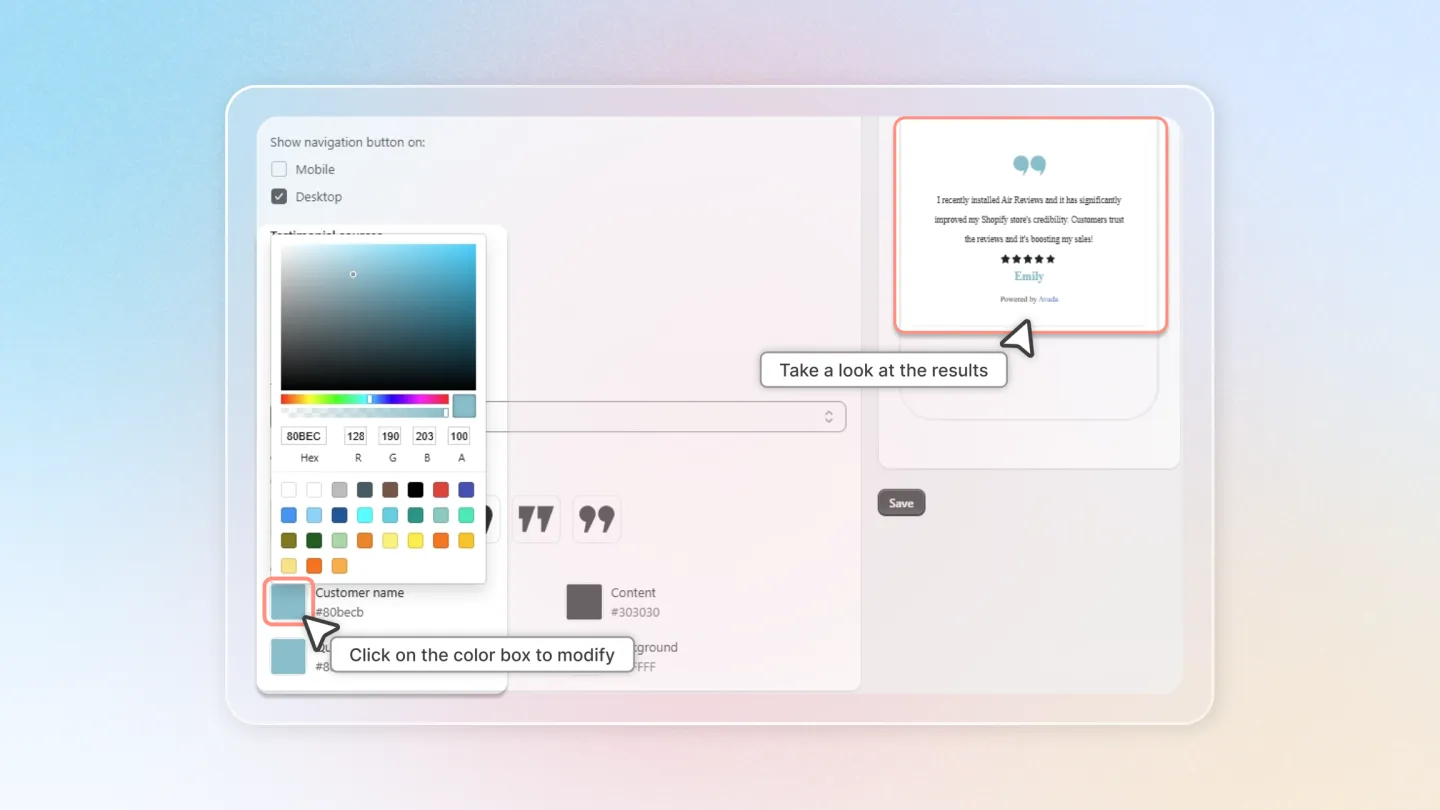
- Customer name — the reviewer's name color.
- Content — the testimonial text color.
- Quote icon — the decorative quote icon color.
- Background — the testimonial card background (supports transparency, e.g.
rgba(38, 38, 38, 0.8)).
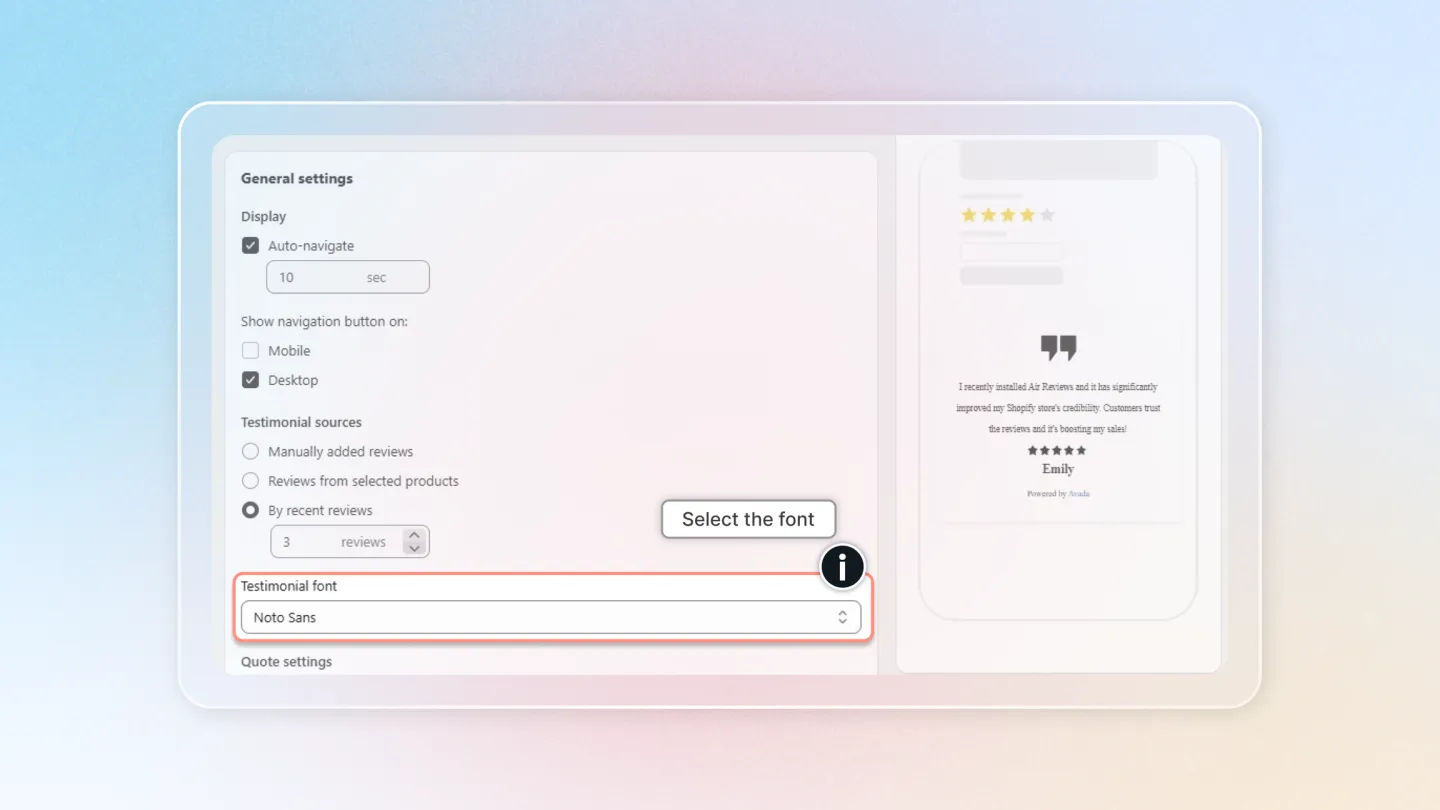
Testimonial font — choose Theme fonts (default, inherits from your store theme) or pick from Inter, Noto Sans, Open Sans, Montserrat, Roboto, Playfair Display, Raleway, Lora, Dosis, or Lato.
5. Advanced settings
Open Advanced settings at the bottom of the page to fine-tune the look beyond the built-in fields.
Custom CSS — paste your own CSS to style the testimonials block. Best for merchants comfortable with CSS.
By following these steps, you can effectively present your best customer testimonials and leverage their power to enhance your brand reputation and drive sales. Don't forget to save your changes!