Feature Requests
The Feature requests board lets you suggest new features, propose improvements, and report bugs right inside Order Editing. You can also see what other merchants have asked for and upvote the ideas you need too. Our team reviews every request and uses the vote count to decide what to build next.
Why this matters
If you only tell us in chat, your idea stays in one conversation and nobody else can back it up. On the board, every merchant who needs the same thing can upvote it, so popular requests move up our roadmap faster. You also see the status of each request, so you know whether we are reviewing it, building it, or have already released it.
Where to find it
There are two ways in:
- Left menu → Feature requests (the last item, below AI connections).
- Home → Helpdesk card → Feature requests (next to Read guide).
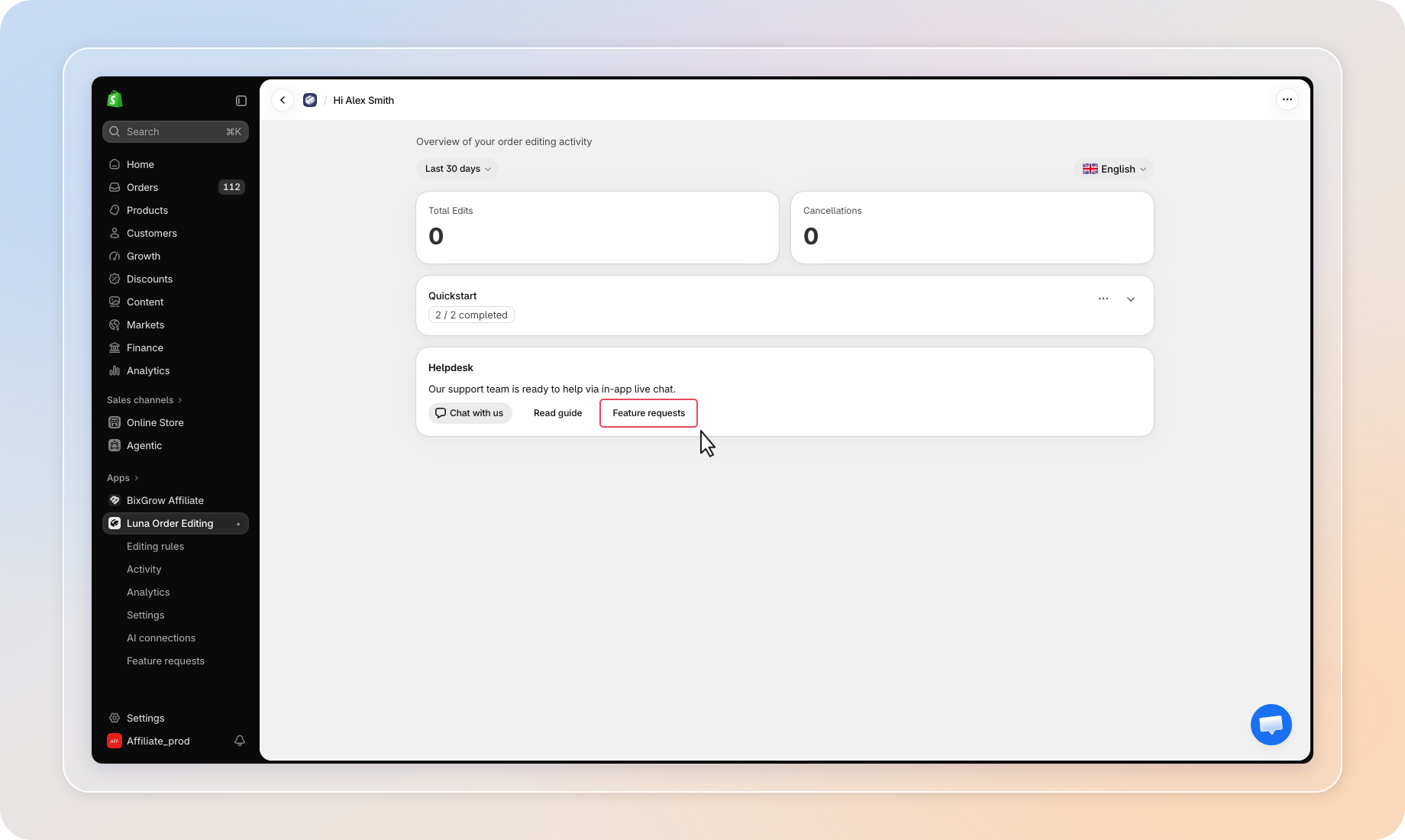 The board is available on every plan, for everyone who can open the app (store owner and staff). There is nothing to turn on.
The board at a glance
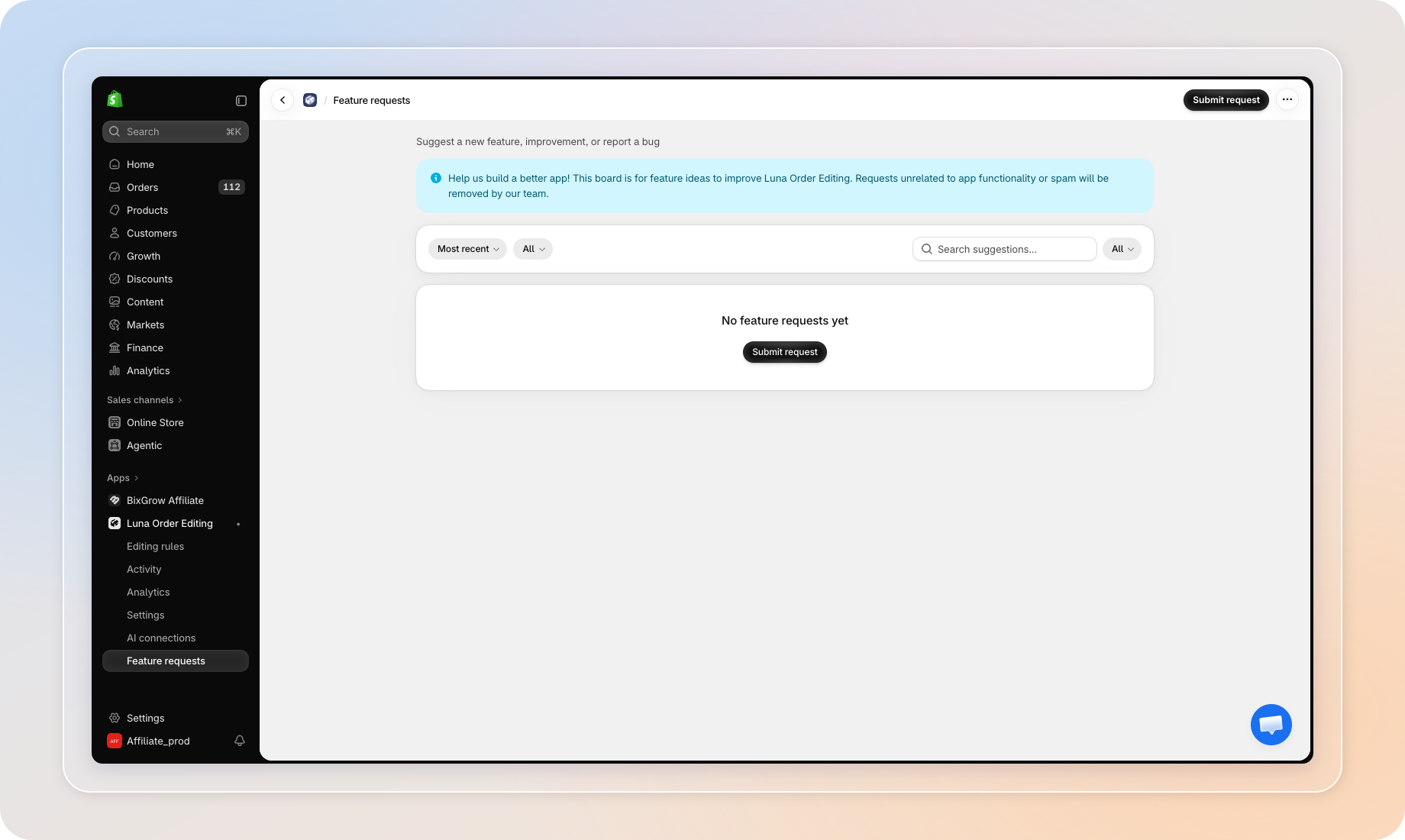 Each request card shows its status, title, who submitted it and when, the description, and an upvote button with the vote count. The board shows 10 requests per page; use the arrows at the bottom (Page 1 of 3) to move between pages.
Use the bar above the list to find what you need:
| Control | Options | What it does |
|---|---|---|
| Sort | Most recent (default), Most popular | Newest requests first, or most upvoted first |
| Status | All, Pending, Considering, Doing, Completed | Show only requests in one status |
| Search | Type in Search suggestions... | Filters as you type, matching the title and description |
| Type (filter icon) | All, New feature, Improvement, Bug report, My submissions | Show one type of request, or only the requests your shop submitted |
My submissions includes requests you sent anonymously, so you can always find your own requests.
The board is empty? That just means nobody has posted yet, or nothing matches your filters. Click Submit request to post the first idea, or reset the filters to All.
Submit a request
Step 1: Open the form
Click Submit request at the top of the page (or the Submit request button on the empty board). The Submit a feature request window opens.
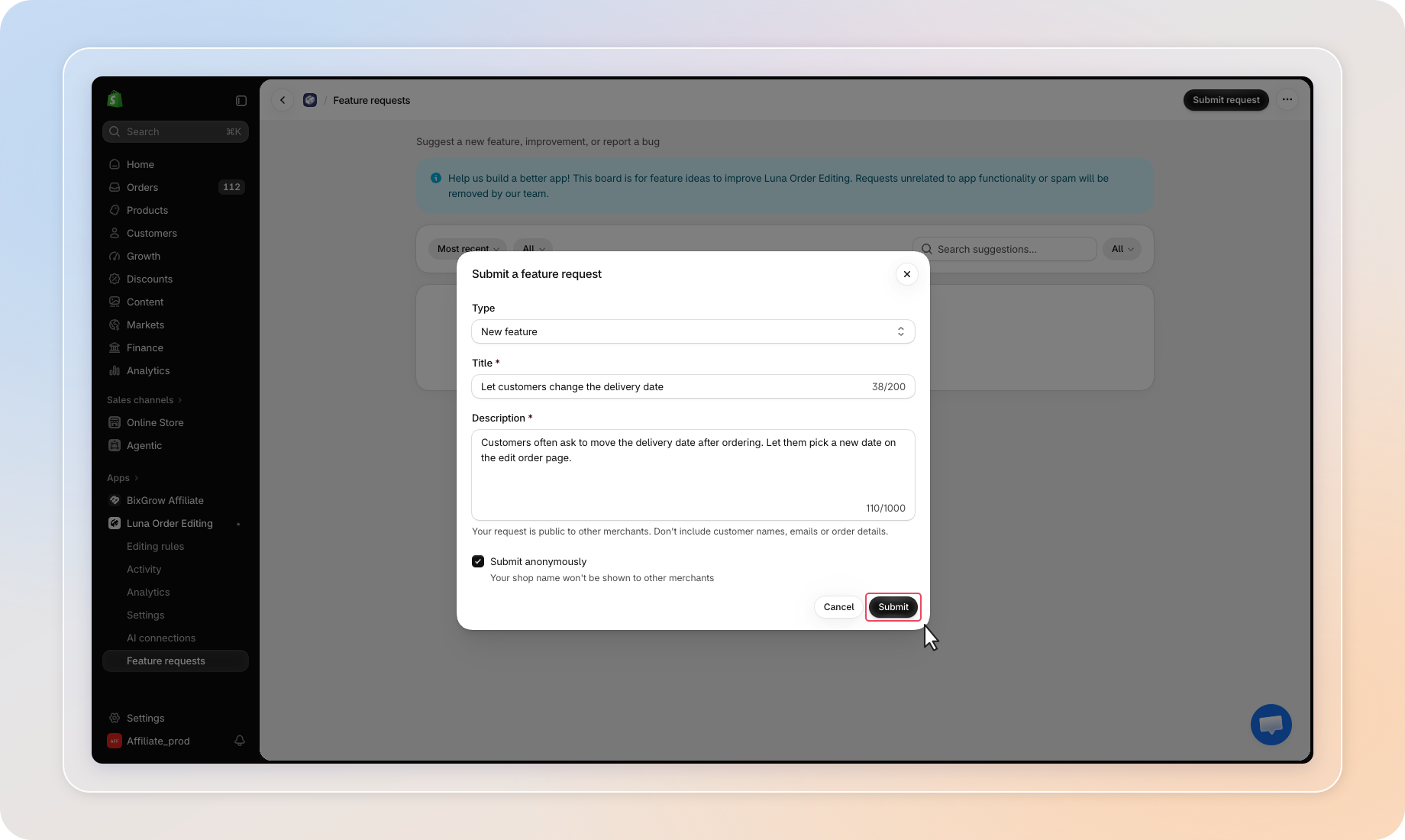 On a phone, the form opens as a full-screen window with a Save button instead of a pop-up. It works the same way.
Step 2: Fill in the request
- Type: choose New feature, Improvement, or Bug report. Default: New feature.
- Title (required): a short summary, up to 200 characters.
- Description (required): the details, up to 1,000 characters. Tell us what you are trying to do and why. A concrete example, like the edit your customers keep asking for, helps us a lot.
Your request is public to other merchants. Don't include customer names, emails or order details in the title or description.
Step 3: Choose whether to show your shop name
By default, other merchants see your shop name next to your request. Tick Submit anonymously if you prefer: other merchants then see Anonymous instead of your shop name.
Step 4: Submit
Click Submit. The button is only active once both Title and Description have text. The window closes and your request appears at the top of the list with the status Pending.
You can submit up to 10 requests per hour from one store. Requests our system rejects don't count toward that limit.
Report a bug
Choose Bug report as the Type. A line appears under the field: Need help fast? Chat with our support team. followed by a Chat with support button.
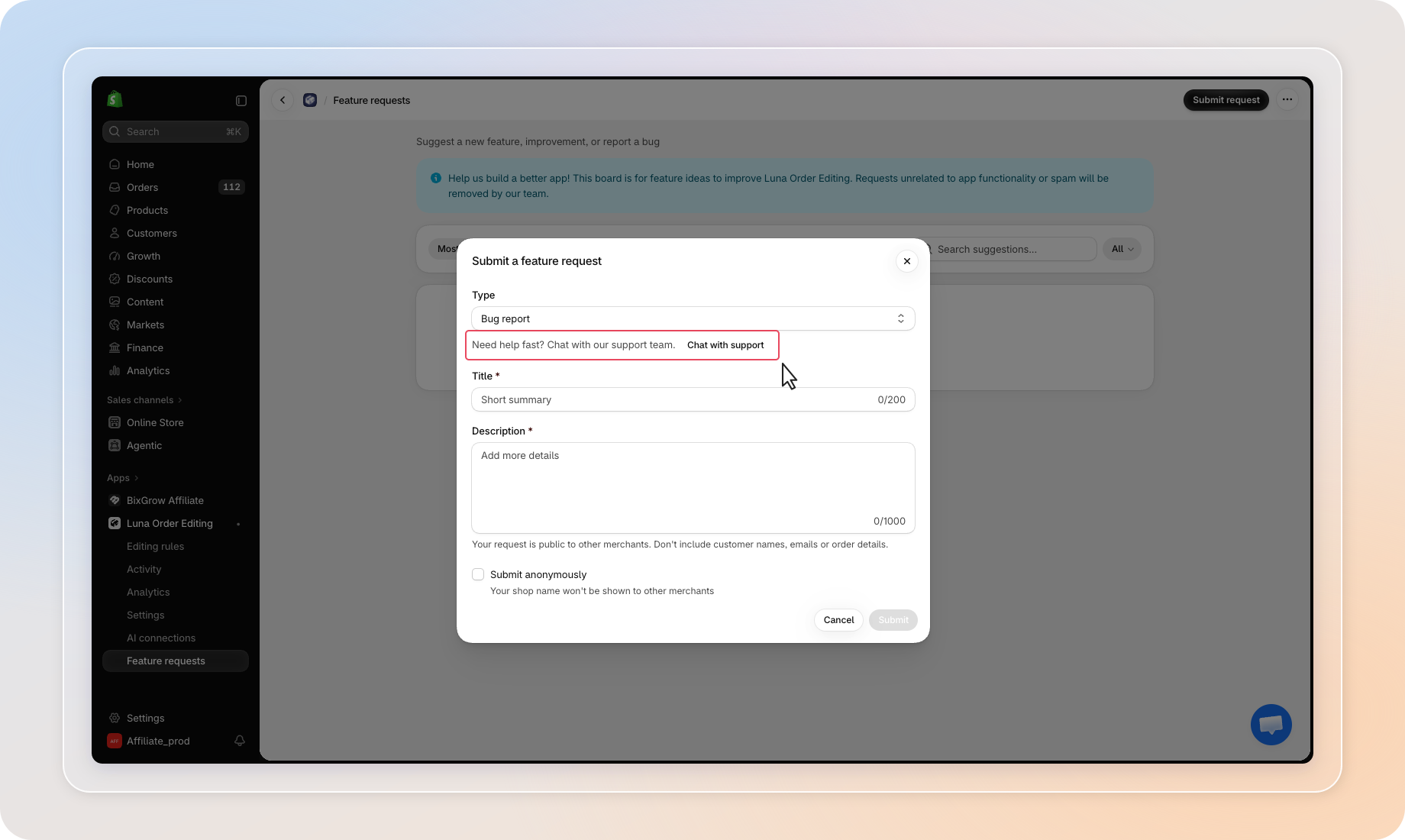
- If the bug blocks you right now (for example, customers can't edit an order, or a refund looks wrong), click Chat with support. Live chat opens so our support team can help you directly.
- The chat sits outside the form, so clicking into the chat closes the form. What you typed is kept: click Submit request again to finish it. Only Cancel or a successful submit clears it.
- You can still submit the bug to the board, so other merchants who hit the same problem can upvote it.
Upvote a request
Click the upvotes button on any request you also need. The count goes up and the button stays pressed, with a check mark instead of the up arrow, to show your shop has voted. Click it again to remove your vote.
- The count changes once our server confirms the vote, so the button shows a short spinner first.
- You can vote on your own requests and on requests that are already Completed.
- Votes count per shop, not per staff account. If a colleague already voted from the same store, the button is already pressed for you, and clicking it removes the shop's vote.
What each status means
Hover over a status badge (or move to it with the keyboard) to see its meaning in the app.
| Status | In the app | What it means |
|---|---|---|
| Pending | Submitted. Our team will review it soon | Just submitted. Our team has not reviewed it yet |
| Considering | Our team is reviewing this idea | We have read it and are evaluating it. Not a promise to build yet |
| Doing | We're building this | We decided to build it and work is in progress |
| Completed | Available now | Released and available in the app |
Requests posted by our team show Avada team as the author.
How it actually works
- Status updates are not live. You see a new status the next time you open or reload the page. We don't send an email or notification when a status changes.
- Sort is applied when the list loads. After you vote, cards stay where they are; the order updates the next time you reload or change Sort.
- Search matches exactly. It ignores upper/lower case but not accents, so despues does not match después.
- You can't edit or delete a request in the app. Contact support if you need a request changed or removed.
- Off-topic requests and spam are removed by our team. A removed request disappears from the board and from My submissions the next time the list loads.
- The board loads up to 100 requests at a time for the current Sort. When there are more, the page says Showing the first 100 requests only. Use Most popular to see the most-voted ones.
- The page is available in all 8 app languages. Request titles and descriptions show as written; they are not translated.
Troubleshooting
| Symptom | Cause | Fix |
|---|---|---|
| Submit stays grey | Title or Description is empty (spaces only count as empty) | Fill in both fields. On a phone, tap Save to see which field is missing |
| You've sent several requests in a short time. Try again in an hour. | Your store reached 10 requests in the current hour | Wait until the next hour, then submit again. Your text stays in the form until you close it |
| Failed to submit request banner in the form | The request could not be saved | Your text is kept. Click Submit again in a moment |
| We couldn't confirm your request was submitted. Check the list before submitting it again. | The connection timed out or dropped; the request may still have been saved | The list reloads by itself. Look for your request (or switch Type to My submissions) before submitting again, to avoid a duplicate |
| Failed to load requests banner on the page | The board could not load | Reload the page. If it keeps happening, contact support |
| This request is no longer available. Our team may have removed it. | You voted on a request our team just removed | Nothing to do. The request is taken off your list |
| Vote count did not change after clicking | The vote could not be saved | Reload the page to see the real count, then click again only if your vote is missing |
| Your request shows A merchant instead of your shop name | We could not look up your shop name | Your request is still saved, counted and listed in My submissions |
| You can't find your old request | It may have been removed as spam or a duplicate, or it is beyond the first 100 requests in this Sort | Switch Type to My submissions and try both Sort options. Ask support if it is still missing |
| Chat with support does nothing | The live chat widget is blocked (ad blocker) or not loaded yet | Allow the chat in your ad blocker, or use Chat with us on the Home page later |
Data & privacy
- Requests and votes are stored in Avada's internal feedback system, not in your Shopify store and not in your orders.
- Other merchants using Order Editing see the title, description, type, status and vote count of each request, plus your shop name unless you submit anonymously.
- When you submit anonymously, other merchants don't see your shop name, but Avada still records which shop posted or voted on each request.
- Requests and votes are kept so our team can review and prioritise them. They are not removed automatically when you uninstall the app. Contact support to have your requests removed.
Next step
- Helpdesk & Support: live chat and email when you need help now.
- FAQ: quick answers before you post a question.
- Troubleshooting: fixes for common editing issues.