Order Risk
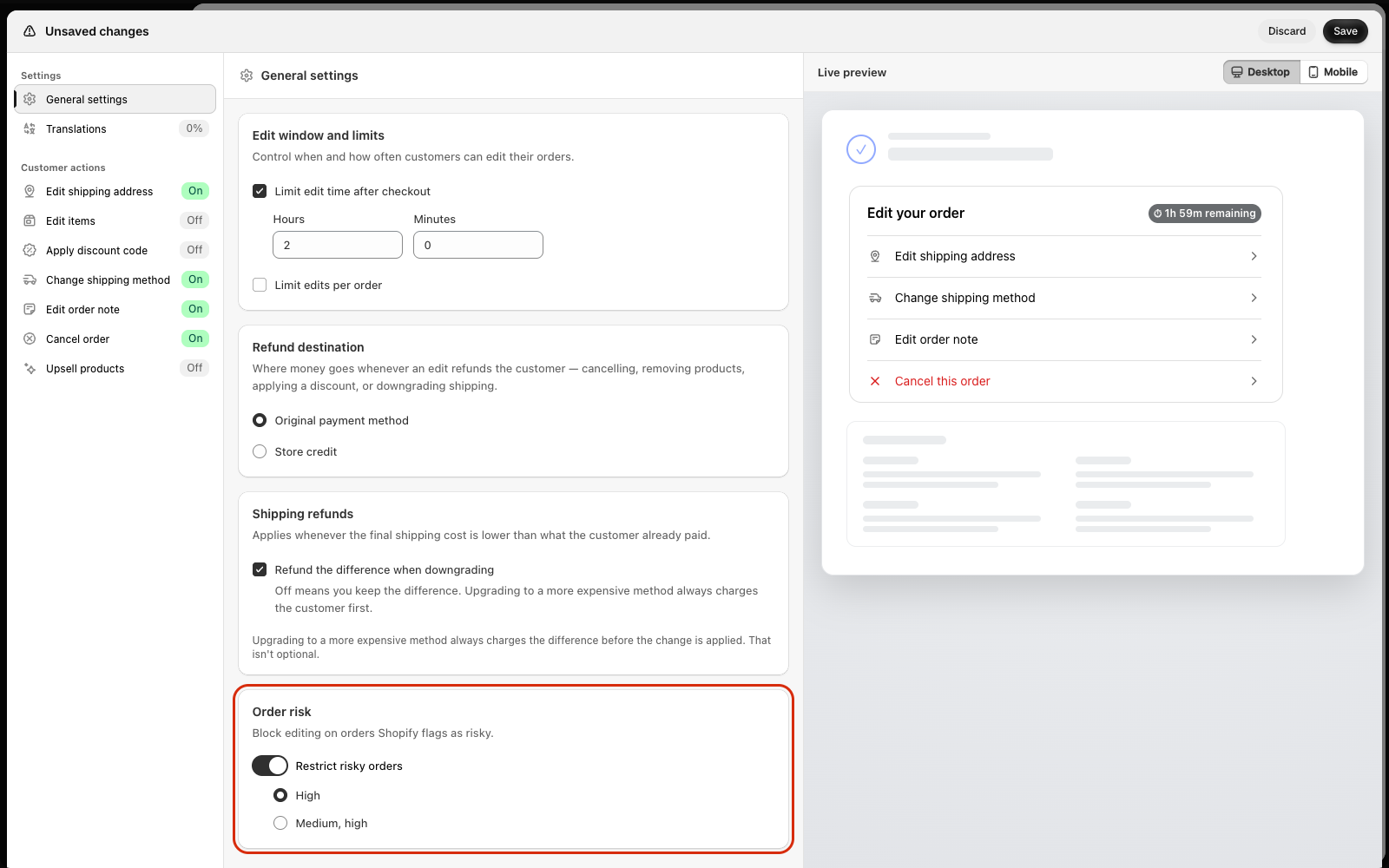
The Order risk card in General settings, inside Editing rules, stops customers from editing or cancelling orders that Shopify flags as risky. A risky order keeps its original details until you review it, instead of having its address, items or payment changed by the customer first.
Why this matters
Risky orders are where self-service editing can cost you money. A changed shipping address or an extra item on a flagged order makes the order harder to review and harder to dispute later. With Order risk on, those orders stay exactly as they were placed, and every other order keeps editing as usual.
What it does
The card has one switch and a choice of which levels to block.
| Setting | Default | What it does |
|---|---|---|
| Restrict risky orders | Off | Turns the rule on. When off, every order can be edited as before. |
| High | Selected | Blocks customer editing on orders Shopify rates as high risk. |
| Medium, high | Not selected | Blocks orders Shopify rates as medium or high risk. |
Low risk orders, and orders with no risk rating, are never blocked.
The app uses the fraud analysis Shopify already runs on your orders. It does not score orders itself, and you do not need Shopify Flow. When an order has more than one risk assessment, the app uses the highest level among them.
Before you start
- Shopify rates order risk for orders paid through Shopify Payments. Orders from other payment providers, and most draft orders, usually have no risk rating, so this rule treats them as safe.
- Check an order's risk level in your Shopify admin, on the order page, under Fraud analysis.
Set it up
- Open Editing rules from the app sidebar.
- Click General settings, then scroll to the Order risk card at the bottom of the panel, below Refund destination and Shipping refunds.
- Turn on Restrict risky orders.
- Keep High selected, or pick Medium, high if you want a stricter rule.
- Click Save in the top bar.
Check it works
Open the Order status page of an order Shopify rates as high risk. The Edit your order card does not appear. Then open Activity in the app: the Edits hidden due to order risk card lists that order with Edit hidden, order risk High.
How it works
Orders already rated as risky. If Shopify has rated the order at a level you block, the Edit your order card does not show on the Thank you page or the Order status page, and the edit link in emails does not open it either. The customer sees no message at all, the page simply looks like editing is not offered for that order.
Orders Shopify is still analysing. Shopify can take a short while to finish its analysis after checkout. While it is pending, the card still shows. When the customer saves a change, the app checks the latest risk level again. If the order now matches a level you block, the change is not saved and the customer sees a neutral message:
We need to help you with changes to this order. Please contact us at your store email.
If your store has no contact email, the message ends at "Please contact us." The message never mentions risk or fraud. This check covers every change a customer can save, including cancelling the order.
Edits you make yourself. Order risk only applies to customers editing their own orders. Editing an order from your Shopify admin is not affected.
Activity. The Activity page shows an Edits hidden due to order risk card once at least one order has been blocked. Each order appears once, with Edit hidden, order risk High or Medium and how many times it was blocked. These are not counted as edits, so it does not change your edit totals or Analytics.
AI assistant. If you use the AI assistant, it can read your Order risk setting and explain why an order has no edit option. It cannot turn the setting on or off.
Known limitations
- No undo for late ratings. If Shopify rates an order as risky only after the customer has already finished an edit, that edit stays in place. The rule blocks changes from then on.
- No per-order exceptions yet. You cannot allow editing again for one specific order. To help that customer, make the change for them from your Shopify admin.
- Block only. There is no option yet to allow limited edits on risky orders, or to write your own message for customers.
Troubleshooting
| What you see | Why, and what to do |
|---|---|
| A risky order still shows Edit your order | Check that Restrict risky orders is on and saved, and that the right level is selected. A medium risk order is only blocked when Medium, high is selected. If Shopify is still analysing the order, the card shows until the customer saves, then the check applies. |
| An order is not blocked even though you expected it | The order may have no risk rating, which is common for orders not paid through Shopify Payments. These orders are treated as safe. |
| A customer cannot edit and asks why | Look for the order in the Edits hidden due to order risk card on the Activity page. Make the change for them from your Shopify admin if you are happy to. |
| Shopify's risk data could not be read | The app lets the customer edit as normal rather than blocking a good order by mistake. |
Data and privacy
The app reads the risk level Shopify already stores on the order. It does not collect extra customer data, run its own scoring, or show risk details to customers.
See also
- Editing rules, where General settings and the Order risk card live
- Activity page, where blocked orders are listed
- Edit from admin, how to make a change for the customer yourself