Profile & Payment Method
The Profile page is where you manage every setting tied to your account. It is one scrollable page with five separate cards. Each card has its own save button, so you can update just one thing at a time without touching the others.
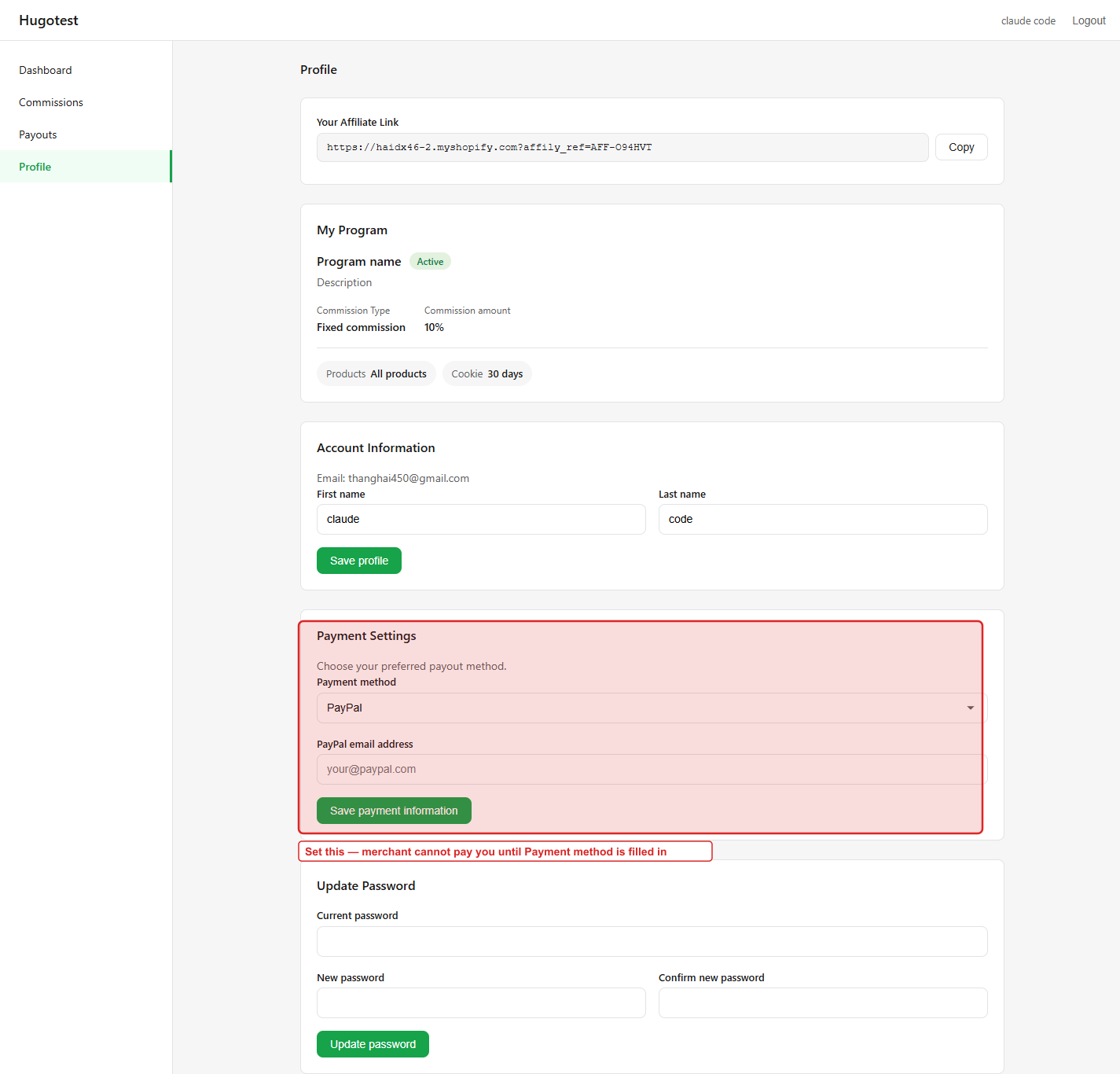
1. Your Affiliate Link
Shows your current referral link and a Copy button.
- You cannot change the referral code yourself. It is assigned by the system (e.g.
AFF-XXXXXX). - If you want a cleaner custom code (e.g. your Instagram handle), email the merchant and ask — they can set it for you.
2. My Program
Read-only summary of the program you belong to:
- Program name and Active / Inactive badge.
- Description (if the merchant added one).
- Commission Type — Fixed commission or Tiered by order value.
- Commission amount — e.g.
10%or$5. - Two chips at the bottom: Products (
All productsor specific) and Cookie (the tracking duration in days).
You cannot change programs from here. Ask the merchant if you want to move programs.
3. Account Information
Edit your name. Your email is shown above the inputs but is read-only — to change it, contact the merchant.
| Field | Notes |
|---|---|
| First name | Shown in the portal and on merchant reports |
| Last name | — |
Click Save profile in this card to apply.
4. Payment Settings
This is where you tell the merchant how to pay you. Always keep this updated — wrong info means delayed or missing payouts.
- Pick a Payment method from the dropdown — currently PayPal.
- Enter your PayPal email address (the one that receives payments). Must be exact.
- Click Save payment information.
Double-check your PayPal email. One typo and the payment goes to a stranger — no recovery.
If you do not set a payment method, the merchant cannot pay you. The Mark as paid button on their side stays disabled until you fill this in.
5. Update Password
Change your login password.
- Enter your Current password (security check).
- Enter the New password.
- Confirm new password.
- Click Update password.
You stay logged in after changing. If you have other sessions open on other devices, those stay active too — log out manually if you want to kick them off.
If you forgot your current password, use the Forgot password flow instead — it does not require the old one.
Tips
- Test your payment method with a small payout — ask the merchant to pay a $5 test before scaling up.
- Update before a payout is triggered — if you change PayPal email today and the merchant marks payouts paid tomorrow, the next one goes to the new email.
- Use a dedicated email — affiliate programs send a lot of notifications. A
[email protected]alias keeps them out of your main inbox.
Deleting your account
The portal does not have a self-delete button. To leave the program:
- Ask the merchant to delete your affiliate account (Affiliates page → trash icon), or
- Just stop using the portal. Your data stays but you earn no more commission.
For full GDPR-style deletion, email [email protected] with the merchant's store name and your email — we will process within 30 days.