Edit or Delete a Program
Programs are not set in stone. You can update rates, add tiers, change the coupon, or remove a program entirely at any time. This page explains what happens to affiliates and historical data when you do.
Editing a program
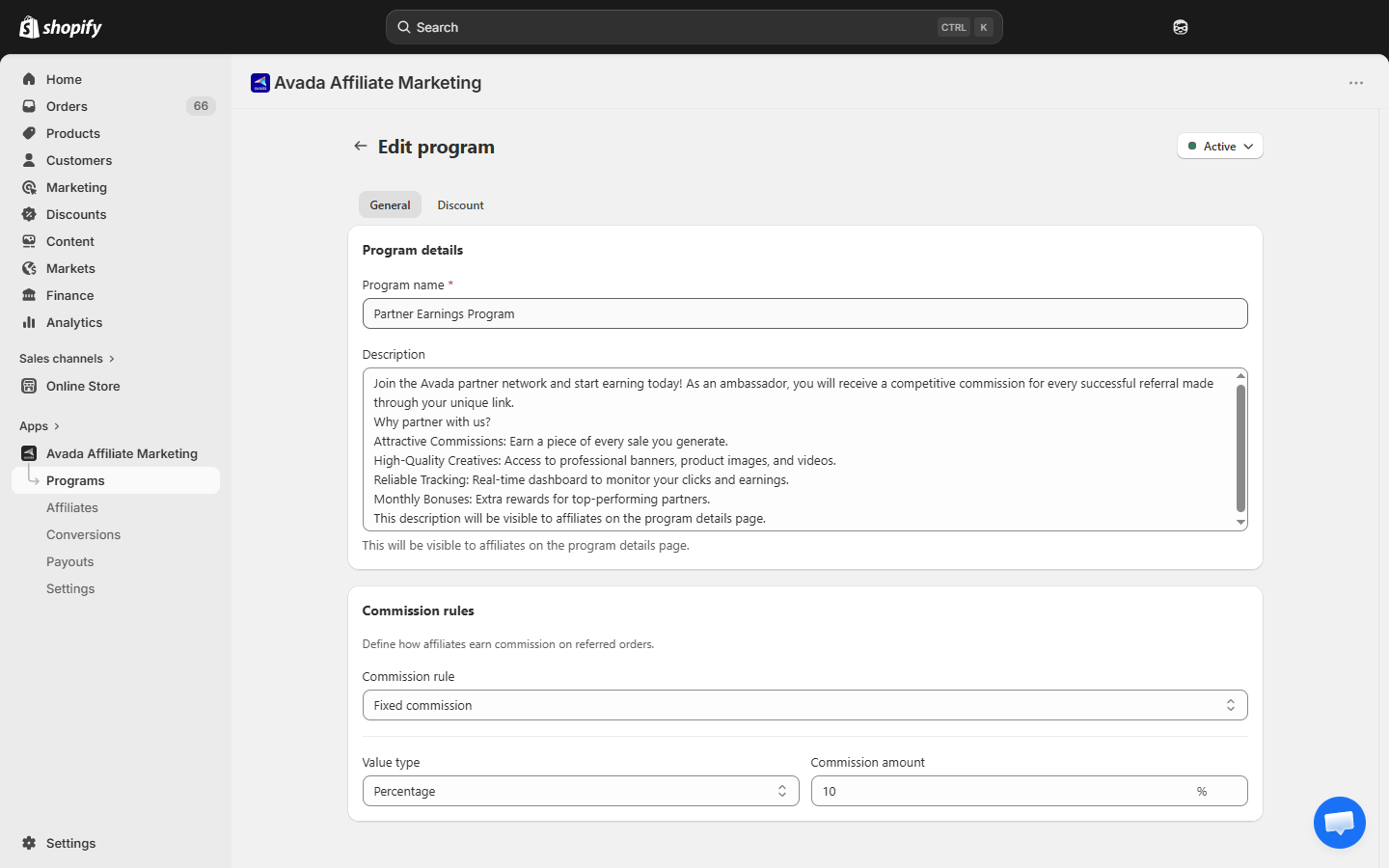
- Go to Programs.
- Click the program name (or the pencil icon in the Actions column) to open its edit page.
- Change any field — name, description, commission rule, rate, tiers, status, discount settings.
- Click Save in the sticky bar at the top.
What changes apply to
| Field changed | Existing conversions | New conversions (from now on) |
|---|---|---|
| Commission rule / rate | Unchanged — keep the rate they had | Use the new rate |
| Discount tab settings (format, value, requirements) | Stay credited to whoever used the old code | All codes in this program are regenerated; new codes use the new rules |
| Name / description | Display updates everywhere | — |
| Status (Active / Inactive) | Stay where they were | Inactive program no longer creates conversions or shows up to new signups |
This protects your affiliates: if Sarah referred 20 orders at 15% last month and you change the program to 10%, those 20 orders still pay 15%.
Cookie duration is shop-wide, not per-program. Change it in Settings → Tracking → Referral tracking duration — it affects all programs at once.
Deleting a program
Deletion is a bigger decision — some affiliate data moves.
- Go to Programs.
- Click the ⋯ menu on the program row.
- Click Delete.
- The app shows a confirmation modal.
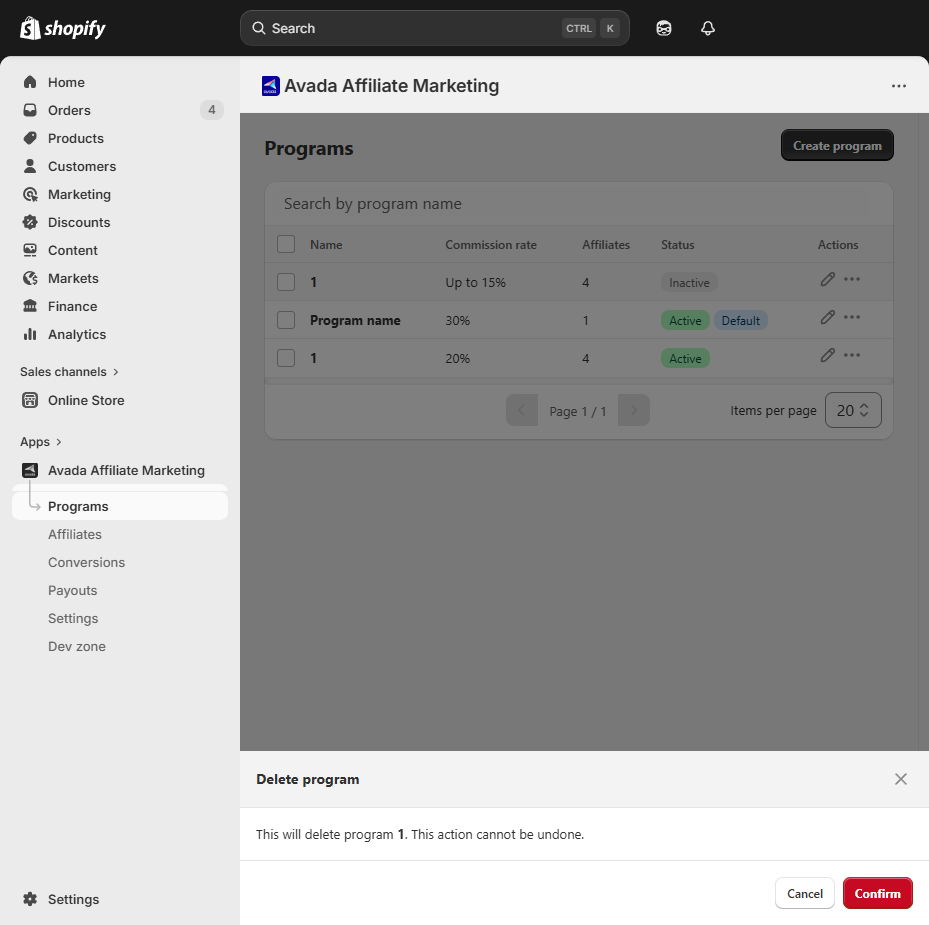
- Click Delete to confirm.
What happens when you delete a program
| Item | Outcome |
|---|---|
| Affiliates in the program | Stay in your Affiliates list but their Program column shows the name of the deleted program — they cannot earn new commission until you re-assign them via the edit modal. |
| Conversions | Kept — historical records are never removed. Their commission stays locked to the rate they had at creation. |
| Past payouts | Kept — payout history is unaffected. |
| Auto-generated coupon codes | Stay in your Shopify Discounts but stop matching to affiliates on new orders. You can delete them manually from Shopify Admin → Discounts if you want. |
When to delete vs. deactivate
Most of the time, deactivating is better than deleting.
- Deactivate (set Status = Inactive): the program hides from new signups but stays in reports. No affiliates are moved. You can reactivate later.
- Delete: permanent. Only do this if you are certain you will never use the program again and you want it out of your dashboard.
To deactivate, open the program → click the Active badge in the top-right of the page → switch to Inactive → Save.
Restoring a deleted program
There is no undo for program deletion. Affiliate assignments are moved to the default program immediately. If you delete by mistake and want the same structure back, you will have to recreate the program from scratch — but any existing conversions keep their old rate, so affiliates are not cheated.
Tip — use names that describe the rate
Program names show up in reports, emails, and the affiliate portal. A name like "Standard 10%" or "VIP – 15% + tiered" is easier to scan than "Program A". You can rename any time without side effects.