Customer Discount (Coupon)
A program's customer discount is the Discount tab on the program form. When you turn it on, the app auto-generates a unique coupon code for every affiliate in this program and registers each code as a Shopify discount.
The codes do two things at once:
- Give the shopper a discount at checkout.
- Credit the sale to the right affiliate — even if the shopper never clicked a referral link.
This is one of the most powerful features of the app because it turns influencer content (Instagram reels, TikTok, YouTube descriptions) into trackable sales without requiring a click-through.
Coupon tracking takes priority over referral-link tracking. If a shopper clicked a referral link and used a different affiliate's coupon, the coupon wins and that affiliate gets the credit.
Turning it on
- Go to Programs → click the program you want to edit (or open Create program).
- Click the Discount tab at the top.
- Toggle Auto-generate coupon codes on.
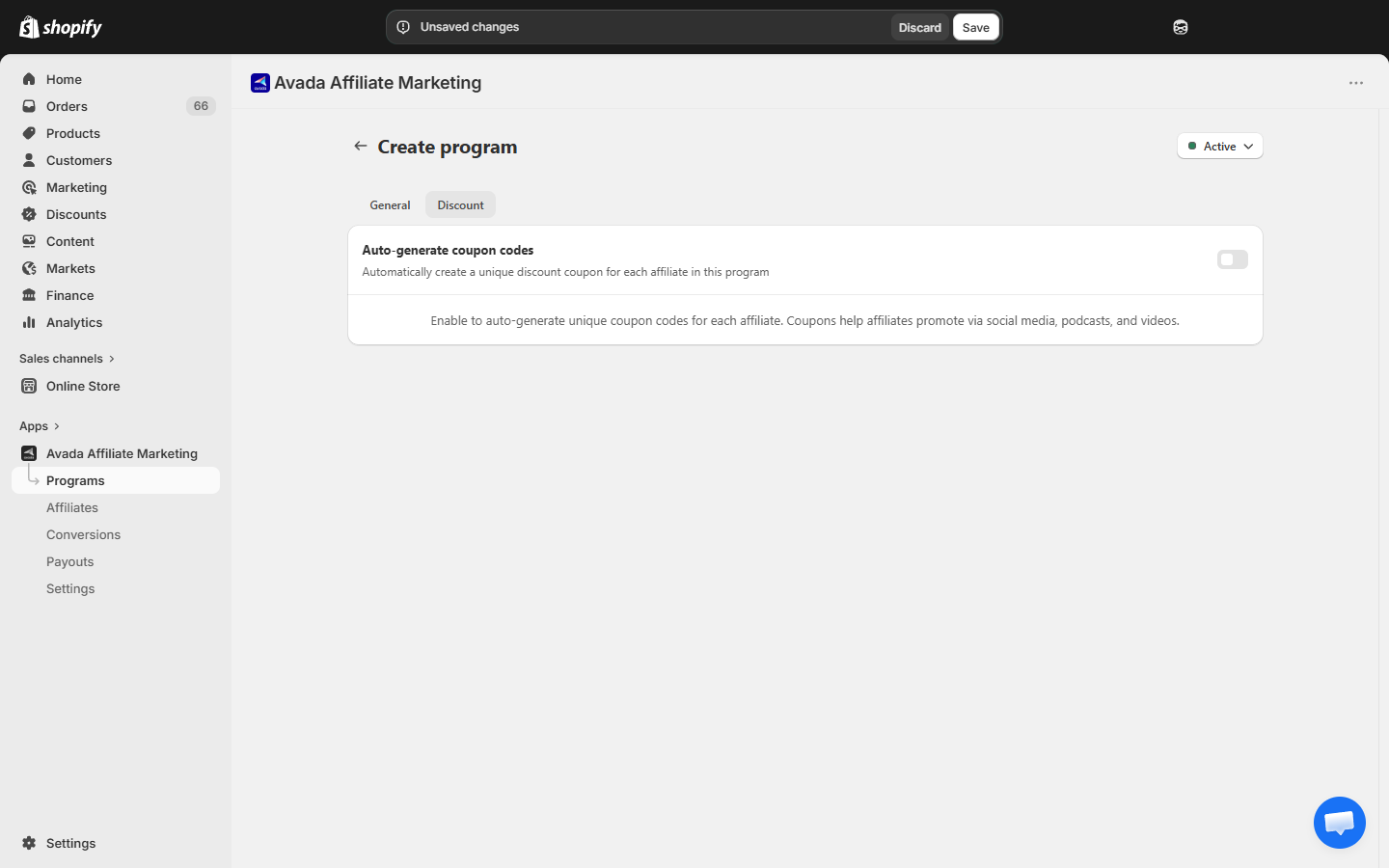
When the toggle is on, the form expands into the configuration sections below.
Coupon code format
Define the template each affiliate's code follows. Use the Add variable button to insert variables at the cursor.
| Variable | What it becomes | Example |
|---|---|---|
{full_name} | Affiliate's full name (uppercase, no special chars) | JOHNSMITH |
{first_name} | Affiliate's first name (uppercase) | JOHN |
{random_number} | Random 4-character code (letters + digits) | X7K2 |
Default template: {full_name}-{random_number} → e.g. SARAHSMITH-X7K2.
The form shows a live Preview of what a sample code will look like. If a generated code happens to collide with one that already exists in your store, the system appends an extra random suffix automatically.
Allowed characters: letters (A–Z), numbers (0–9), hyphen, underscore, plus the variables above. Anything else is rejected at save time.
Discount value
Choose the type and amount of the discount:
| Discount type | What to set |
|---|---|
| Percentage | A percentage off (1–100). |
| Fixed amount | A dollar amount off the order. |
| Free shipping | No value field — shipping is free, no fixed amount. |
Purchase type
Decide which orders the discount applies to:
- One-time purchase (default) — applies once per shopper / per order.
- Subscription — applies to subscription orders.
- Both — applies to either.
If you pick Subscription or Both, additional Recurring payments for subscriptions options appear:
- Limit discount to the first payment.
- Limit discount to multiple recurring payments (with a Number of recurring payments field).
- Discount applies to all recurring payments.
Minimum purchase requirements
Optional gate to prevent abuse on tiny orders:
- No minimum requirements (default).
- Minimum purchase amount ($) — applies to all products.
- Minimum quantity of items.
Maximum discount uses
Optional usage caps:
- Limit number of times each code can be used in total — sets a global cap per code.
- Limit to one use per customer — prevents the same Shopify customer from re-using.
A subscription with many payments counts as one use against the total limit.
Combinations
Choose which other Shopify discounts your affiliate codes can stack with:
- Product discounts.
- Order discounts.
- Shipping discounts.
All three are off by default. Turn them on if you want shoppers to be able to combine the affiliate code with your own promotional discounts.
When you save
If you turn the toggle on for the first time and save, the app generates one code per existing affiliate in the program. From then on, every new affiliate added to the program (manually or via signup) automatically gets their own code.
If you change the format, value, or rules later, the app shows a warning: "existing coupons will be updated." — confirming that all affiliates in this program will get their codes regenerated to match the new rules.
What the affiliate sees
The affiliate's code appears in the Your Discount Codes card on their portal Dashboard and Profile, with a Copy button and the discount value displayed (e.g. "10% off · Enter code at checkout").
When a shopper uses the coupon
At checkout, Shopify applies the discount normally — the shopper just sees a lower price. In the background:
- The app reads the order's
discount_codes[]array. - It matches the code (case-insensitive) to the affiliate that owns it.
- A Pending conversion is created for that affiliate.
- Commission is calculated from the discounted subtotal (not the pre-discount subtotal).
Turning it off
Toggle Auto-generate coupon codes off and save. Existing codes stay in your Shopify Discounts (the app does not delete them) but no new codes are generated for new affiliates in the program.
You can delete the codes manually from Shopify Admin → Discounts if you want them fully gone.
Next step
- Create a Program — the full program creation flow.
- Coupon Code Tracking — how coupon matching works under the hood.