Enable Web Pixel
Why this matters
Without the Web Pixel, every sale that comes through an affiliate's referral link is invisible to the app — affiliates don't get credited, you can't see which traffic sources convert, and no commissions are calculated. Connecting the pixel takes under a minute and is the single most important step after installing Avada Affiliate Marketing.
Coupon-code tracking works without the Web Pixel because coupons are matched at the order level. But referral-link tracking — which is how most affiliates share your store — needs this pixel to run.
What the Web Pixel does behind the scenes
When someone clicks a link like yourstore.com/?affily_ref=AFF-ABC123, the pixel:
- Reads the
affily_refparameter from the URL. - Generates an anonymous visitor ID and stores it in a browser cookie (default 30 days).
- Sends a click event to Avada with the visitor ID, referral code, and page metadata.
- When the visitor completes checkout, fires a checkout event with the order's checkout token.
- Backend matches the token to the stored click → creates a Conversion → credits the affiliate.
Before you start
- Your store was created after October 2023 (older stores use Script Tag, which Avada installs automatically with no extra action needed — you can skip this page).
- You have Manage apps permission in Shopify admin.
- You have already installed Avada Affiliate Marketing from the Shopify App Store. If not, see Install the App first.
If your theme uses a custom checkout flow (checkout extensibility, headless storefront, or a Plus checkout.liquid fork), also install the Theme App Extension after this step. The pixel alone can miss conversions on non-standard checkouts.
Setup
Step 1 — Open Settings
In your Shopify admin sidebar, click Settings (bottom-left gear icon).
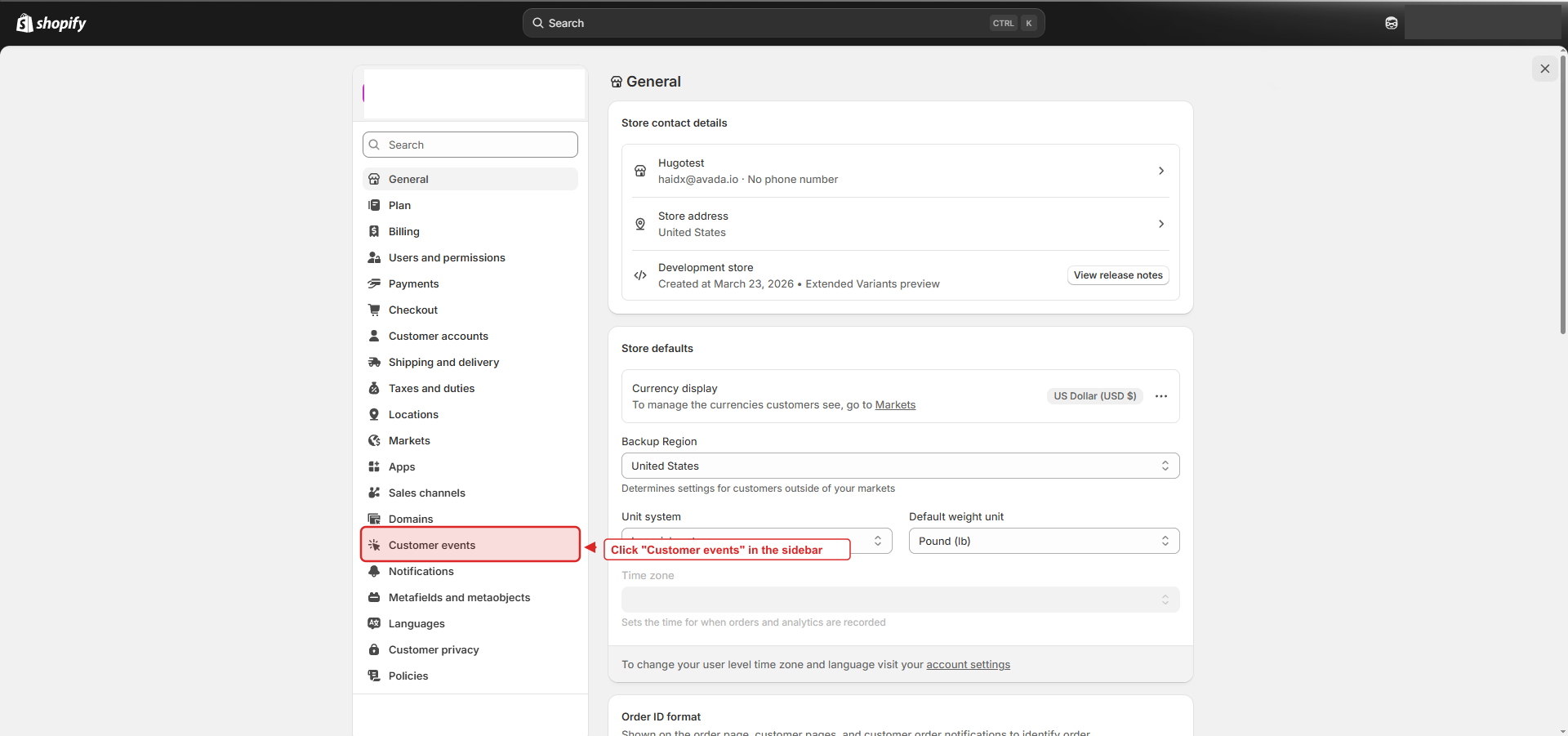
Step 2 — Open Customer events
In the Settings sidebar, click Customer events. You will see a list of pixels installed by apps you have on your store.
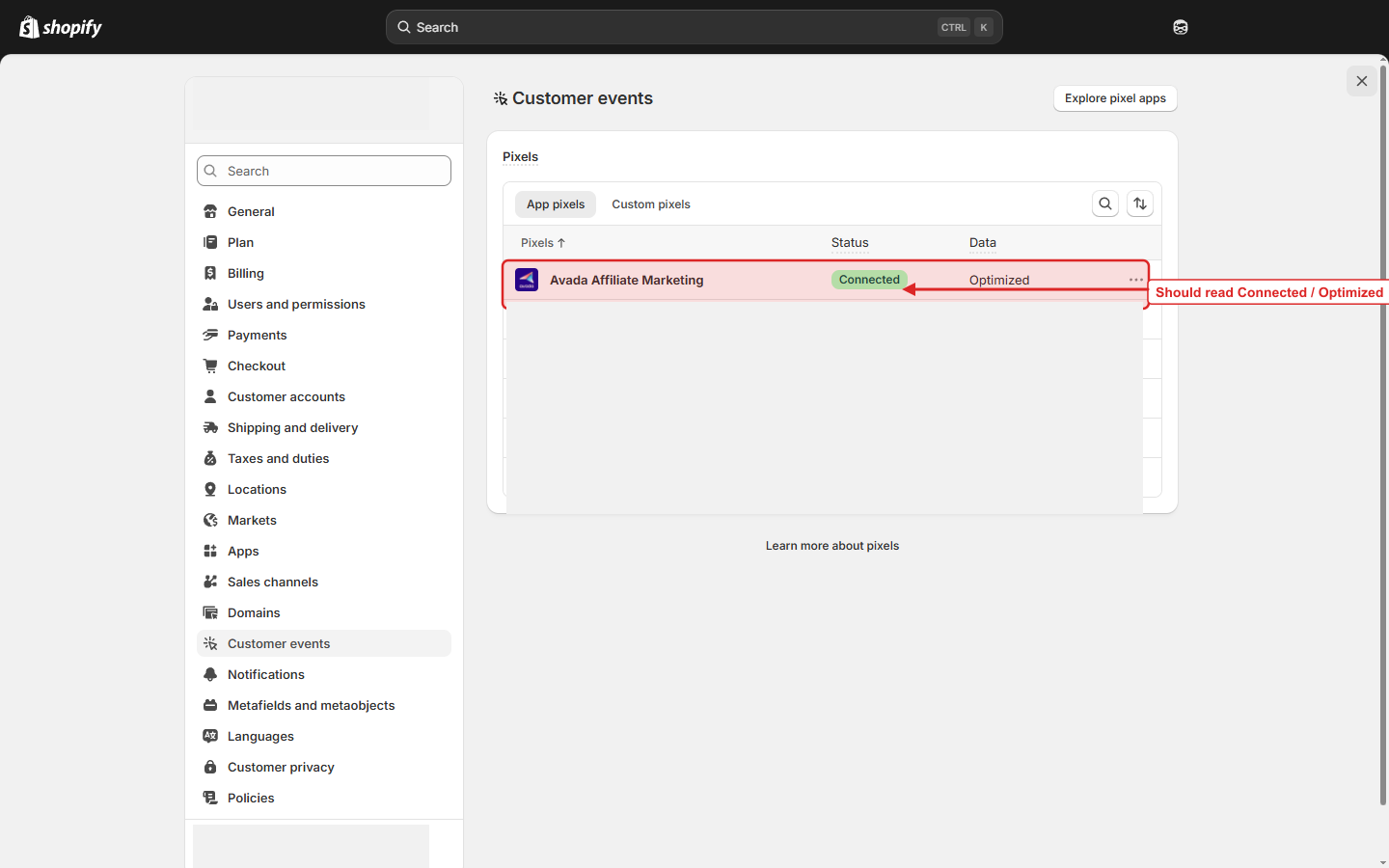
Step 3 — Verify the Avada pixel is Connected
Find the row labelled Avada Affiliate Marketing. The Status column should read Connected and the Data column should read Optimized.
For most stores this happens automatically when you install the app — there is no manual Connect button to click. If the row already shows Connected / Optimized, you are done. Skip to Verify tracking works below.
If the row is missing or shows Disconnected, the simplest fix is to uninstall and reinstall the app from the Shopify App Store. Reinstalling re-registers the pixel via the Shopify Web Pixels API. If that does not resolve it, contact [email protected].
Verify tracking works
The fastest way to confirm is a self-click test:
- In Avada Affiliate Marketing, go to Affiliates, click any approved affiliate, and copy their Referral link.
- Open a fresh incognito / private window and paste the link.
- Browse your store, add any product to cart, and complete a test checkout — use Shopify's test mode or a real card with a small refund afterwards.
- Wait 1–3 minutes.
- In the app, open the Conversions page. A new row should appear in Pending status with the correct affiliate, order total, and commission.
Expected timing: Click events arrive in under 5 seconds. Conversion matching runs off the Shopify orders/create webhook and usually completes within 1–2 minutes of checkout.
If nothing appears after 5 minutes, jump to Troubleshooting below.
How attribution actually works
Understanding the matching logic saves hours of debugging later.
Time windows
| What | How long | Why it matters |
|---|---|---|
| Cookie lifetime | 30 days (default, editable in Settings → Tracking → Referral tracking duration) | Visitor must check out within this window for the click to count. |
| Click deduplication | 24 hours | If the same visitor clicks the same affiliate's link twice in 24 hours, only one click is recorded. Normal for re-visits — not a bug. |
| Tracking data TTL | 7 days server-side | Click records are auto-deleted after 7 days to control storage. A checkout 8+ days after the click cannot be matched. |
| Email fallback window | 1 hour | If the checkout token doesn't match (rare Shopify edge case), the app falls back to matching by customer email — but only if the email was captured within 1 hour of checkout. |
Matching priority
On every new order, the app runs this chain:
- Primary — match the order's
checkoutTokento a stored click. This works for most orders. - Fallback — if no token match, match by
customerEmailwithin the 1-hour window. - Coupon-code match — if no pixel match, check whether the order used an affiliate's coupon code. Coupon matches work with or without the pixel.
- No match — the order is not attributed. No commission is created.
Last-click attribution
If a visitor clicks two different affiliates' links within 24 hours, only the most recent click is credited when they eventually buy. This is standard last-click attribution.
Known limitations
The scenarios below are not bugs — they are inherent to how browser cookies and Shopify work. Set expectations with affiliates upfront to avoid disputes.
- Cross-device — a visitor who clicks on desktop and buys on mobile will not be attributed. The cookie lives on one device only.
- Incognito / private mode — cookies are cleared when the window closes. If the visitor doesn't complete checkout in the same session, the click is lost.
- Cookie blockers — extensions like uBlock Origin, Privacy Badger, or Brave's shields block the pixel cookie. Affiliates who expect high tech-savvy audiences should also share a coupon code.
- Coupon overrides link — if the order uses an affiliate's coupon code, the coupon wins even if the visitor clicked a different affiliate's link. This prevents double-paying.
- Inactive affiliates — if an affiliate is Inactive (i.e. you disapproved them while Pending), any orders from their links will not create conversions. Reactivating an Inactive affiliate is not supported in the merchant UI today; if the click was legitimate, ask them to register again.
Troubleshooting
Pixel shows Connected but no conversions appear:
| Symptom | Likely cause | Fix |
|---|---|---|
| Self-click test produces 0 conversions | Test window was not incognito — your browser already had a checkout session | Repeat in a fresh incognito window |
| Conversion appears but commission is $0 | Order used a $0 discount code, or order value is below the program's minimum | Check Program settings → Commission rules |
| Conversion for affiliate A but you clicked affiliate B's link | Visitor had a prior click from A within 24h (last-click rule) | Clear cookies before testing |
| "Connected" status but pixel not firing on storefront | Theme is using a custom checkout that bypasses Shopify events | Install the Theme App Extension |
| Conversion missing even after 10+ minutes | Click was more than 7 days ago → tracking record expired | Expected behaviour. Ask affiliate to re-share the link. |
| Some orders attribute, others don't | Customer email changed between cart and checkout → fallback match failed | No fix on the merchant side. Most orders still match via the checkout token. |
| Conversions page is completely empty | Affiliate is in Pending or Rejected status | Approve the affiliate in the Affiliates page |
Still stuck? See Resources → Troubleshooting or contact support from the app's top-right help menu.
Data & privacy
The pixel records only what is strictly needed for attribution and analytics:
- Anonymous visitor ID — random string, cookie-based, no personal identifier.
- Referral code — the
affily_refvalue from the URL. - Click metadata — page URL, referrer, user agent, screen dimensions, language. Used for your admin analytics only.
- Checkout token — temporary Shopify identifier, used once to match the order.
- Customer email — captured only at checkout, used solely as a fallback match and deleted after 7 days.
No names, addresses, or payment details are stored. See Resources → Privacy Policy for full disclosure.
Next step
Tracking is live. Install the optional Theme App Extension for edge-case coverage, then head to Quick Start to create your first program and recruit affiliates.