Referral Program (Refer a Friend)
A referral program lets the customers who just bought from you invite their friends. Right after checkout, the Thank you page shows a Refer a friend block. The buyer taps Send a gift to friends and gets a referral link at once, with no form and no password. Friends who open the link save on their first order. When you approve the friend's order in Conversions, the buyer (the referrer) gets a reward code by email.
Why this matters
Most buyers never look for a "Become an affiliate" page, so stores with only an affiliate program get almost no customer referrals. The Thank you page is the moment buyers are happiest with your store, and the block asks them to share at that moment, with one tap. Friends get a discount, so they have a reason to click. Buyers get a reward code, but only after you confirm the friend's order. You never pay for a referral you haven't checked.
If you don't add the block to your Thank you page, buyers never see the program, even when it is Active.
How it works
- You create a referral program in Programs and set two rewards: what friends get (Friend gets) and what the buyer gets (Buyer gets).
- You add the Refer a friend block to your Thank you page in the Shopify checkout editor.
- A buyer finishes checkout and taps Send a gift to friends. The app creates the buyer as a referrer (from the order's email and name) and shows their referral link, for example
yourstore.com/discount/ANNA7K2Q. One tap on Copy link copies it. - A friend opens the link. The friend's gift code is applied automatically. The discount works only if the friend is a new customer (no earlier orders), once per customer.
- The friend places an order. The app adds a Pending row in Conversions and emails the referrer: your friend just ordered, the store is confirming it.
- You approve the row once the order is paid. The app creates a one-time reward code and emails it to the referrer. Or you deny it and pick a reason, and the referrer gets an email with the reason.
Referral rewards are discount codes, not cash. Referral conversions have $0 commission and never show up in Payouts.
Before you start
- Install the app. The referral program does not need the Web Pixel or any theme code, because friends are tracked by the gift code on their order.
- In Settings, fill in Support email. Referrer emails use it as the reply-to address, so referrers can reply to you.
- Decide your rewards. The form is pre-filled with 10% off for friends and a $10 code for the buyer (the amount follows your store currency, for example ¥1,500 or ₫250,000).
Set up the referral program
Step 1 — Create the program
There are two ways in:
- Home → the Turn every buyer into a referrer card → Create referral program.
- Programs → Create program → on Select program type, choose Referral program (marked Recommended) → Create.
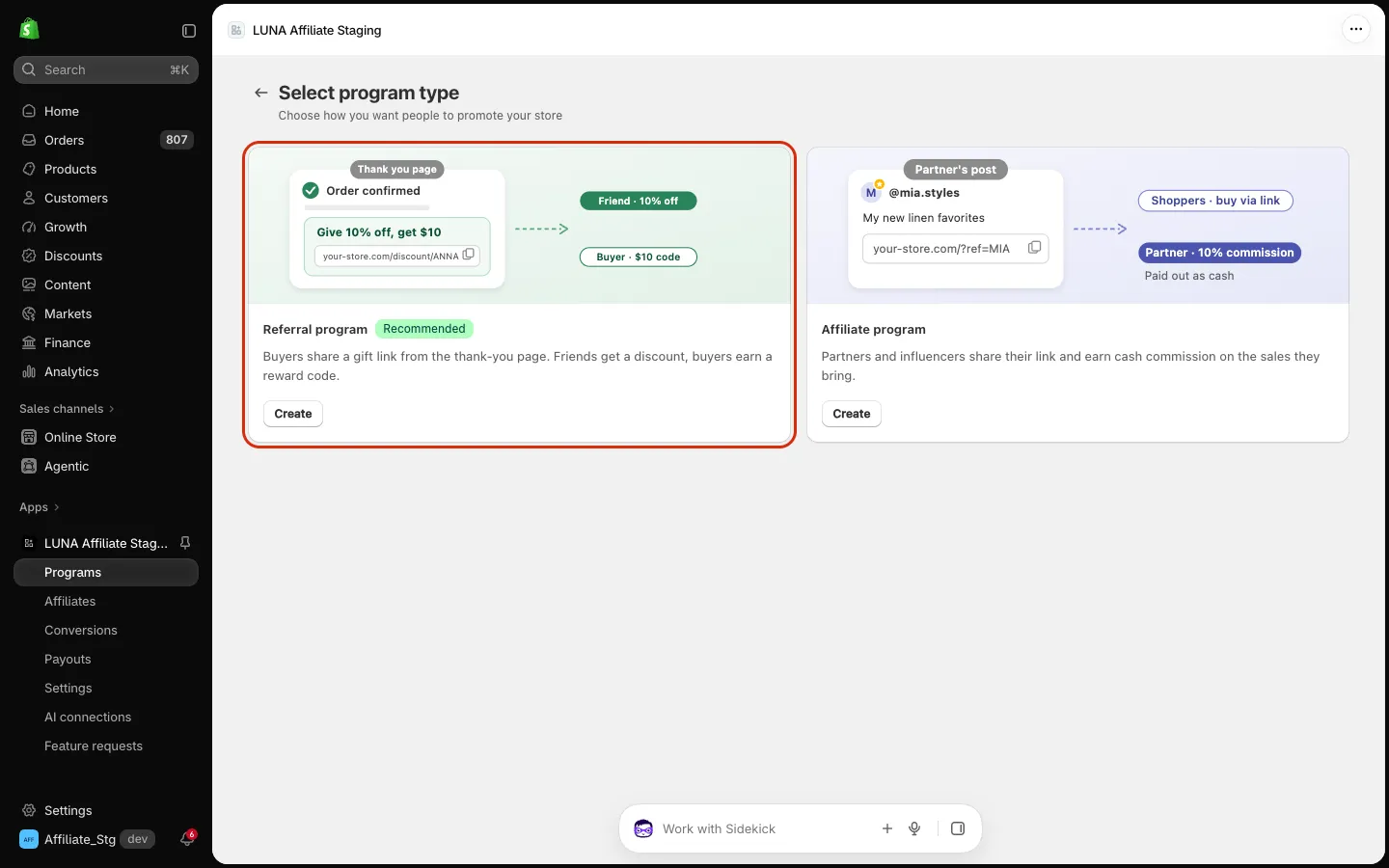
Choosing Affiliate program opens the usual affiliate program form.
Step 2 — Set the rewards
The Create referral program page has three cards and a live preview on the right.
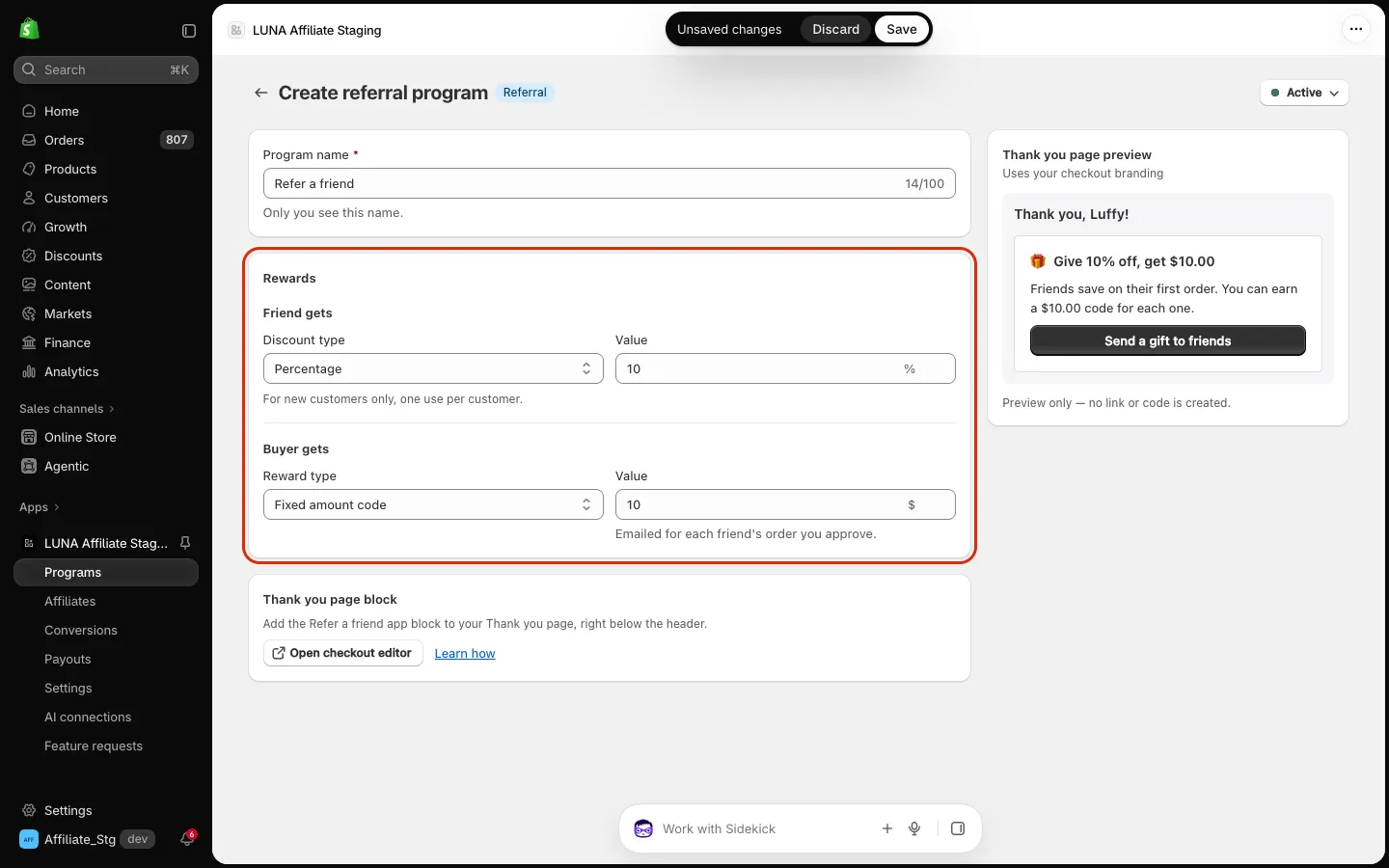
| Field | What to enter |
|---|---|
| Program name | Only you see this name (up to 100 characters). Default: Refer a friend |
| Friend gets → Discount type | Percentage or Fixed amount |
| Friend gets → Value | Percentage: a whole number from 1 to 100. Fixed amount: more than 0 |
| Buyer gets → Reward type | Fixed amount code or Percentage code |
| Buyer gets → Value | Same limits as above. Emailed for each friend's order you approve |
Fixed amounts accept up to 2 decimal places, or whole amounts only for currencies without decimals (JPY, KRW, VND...).
These settings are fixed and you can't change them:
- The friend discount is for new customers only, one use per customer, and it doesn't combine with other discounts.
- You approve every reward yourself in Conversions. Nothing is approved automatically.
- Reward codes expire 90 days after they are created.
Set the program Status (Active / Inactive) at the top right of the page, then click Save. You see Referral program saved.
The Thank you page preview shows what buyers see, in your checkout branding. You can click Send a gift to friends in the preview. No link or code is created.
Step 3 — Add the block to your Thank you page
On the program page, the Thank you page block card has an Open checkout editor button.
- Click Open checkout editor. You can also go to Shopify Settings → Checkout → Customize.
- In the page selector at the top of the editor, switch to Thank you.
- Add the Refer a friend app block right below the header. This is the spot we recommend: buyers see it first and the page doesn't jump while it loads.
- Click Save in the checkout editor.
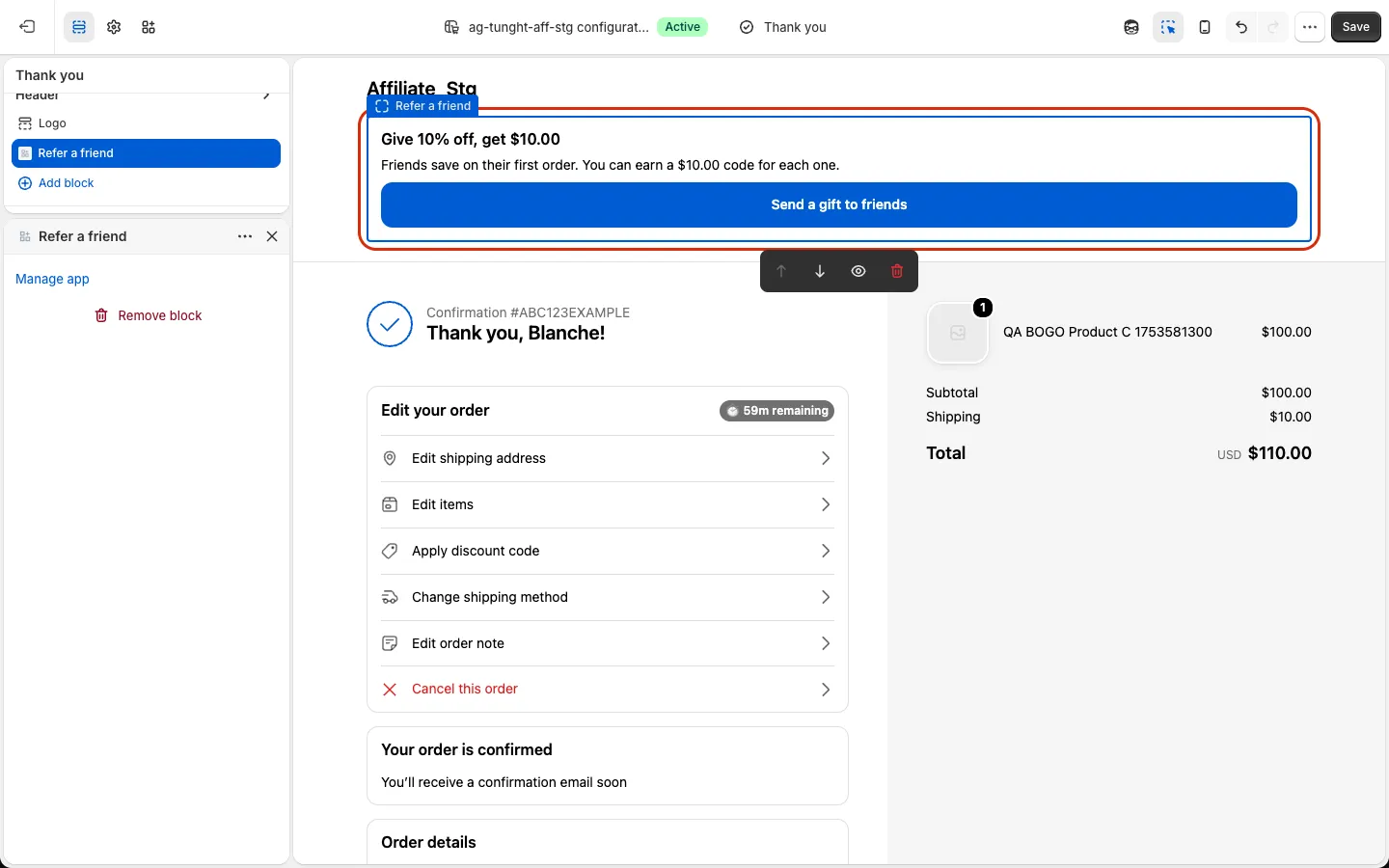
Add the block only once. The block can go right below the header or anywhere else on the Thank you page. If you add it in both places, buyers see two Refer a friend blocks.
Until the first buyer sees the block, the Programs page shows the banner Buyers can't see your referral program yet. with an Add to thank-you page button. The banner goes away on its own after the first buyer sees the block.
What buyers see
| Moment | What the block shows |
|---|---|
| Thank you page opens | Give 10% off, get $10.00 · Friends save on their first order. You can earn a $10.00 code for each one. · button Send a gift to friends |
| Buyer taps the button | Preparing your friends' gift… (usually a second or two) |
| Link is ready | Your gift for friends is ready · Friends get 10% off on their first order. · Your referral link with a Copy link button (shows Copied for 2 seconds) |
| Something went wrong | We couldn't get your link right now. and a Try again button |
| The gift can't be offered | This gift isn't available for your order. |
| Buyer is already one of your affiliates | You already have a partner link. Find it in your partner portal. with an Open partner portal link. No referral link is created for them |
The numbers follow your program's rewards. A buyer who already has a referral link sees the same link again on later orders.

To see the next step without placing an order, use the Thank you page preview on the program page. After you click Send a gift to friends there, it shows the ready state with a sample link:
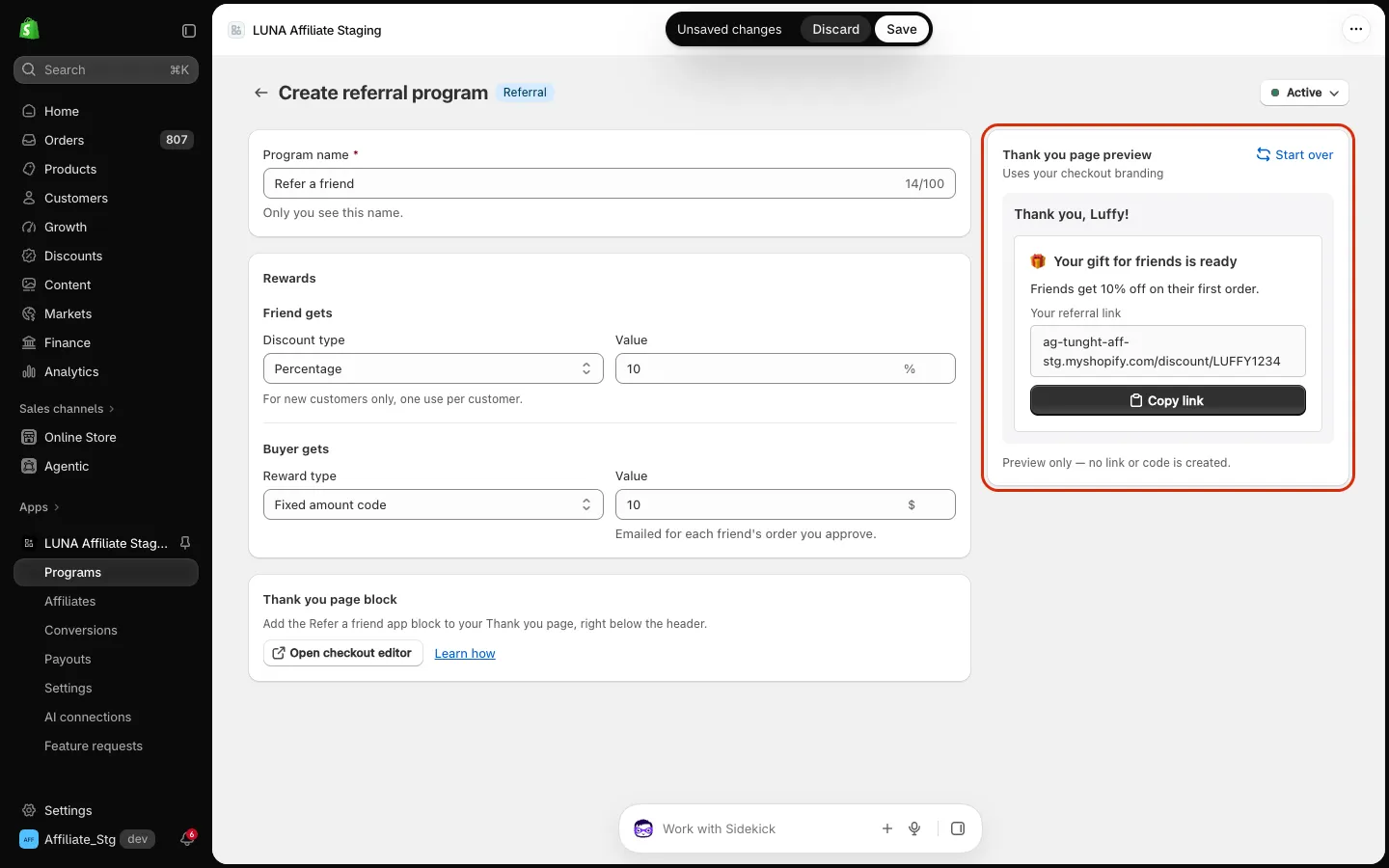
The block is hidden when:
- No referral program is Active, or the referral program is not turned on for your store.
- The order has no email address (for example, phone-only orders).
The block text is in English for every buyer language. You can't change the block text yet.
Review referral rewards in Conversions
Referral orders appear in Conversions like affiliate orders: Program is your referral program, Affiliate is the referrer's name and email, and Commission shows the reward (for example $10.00).
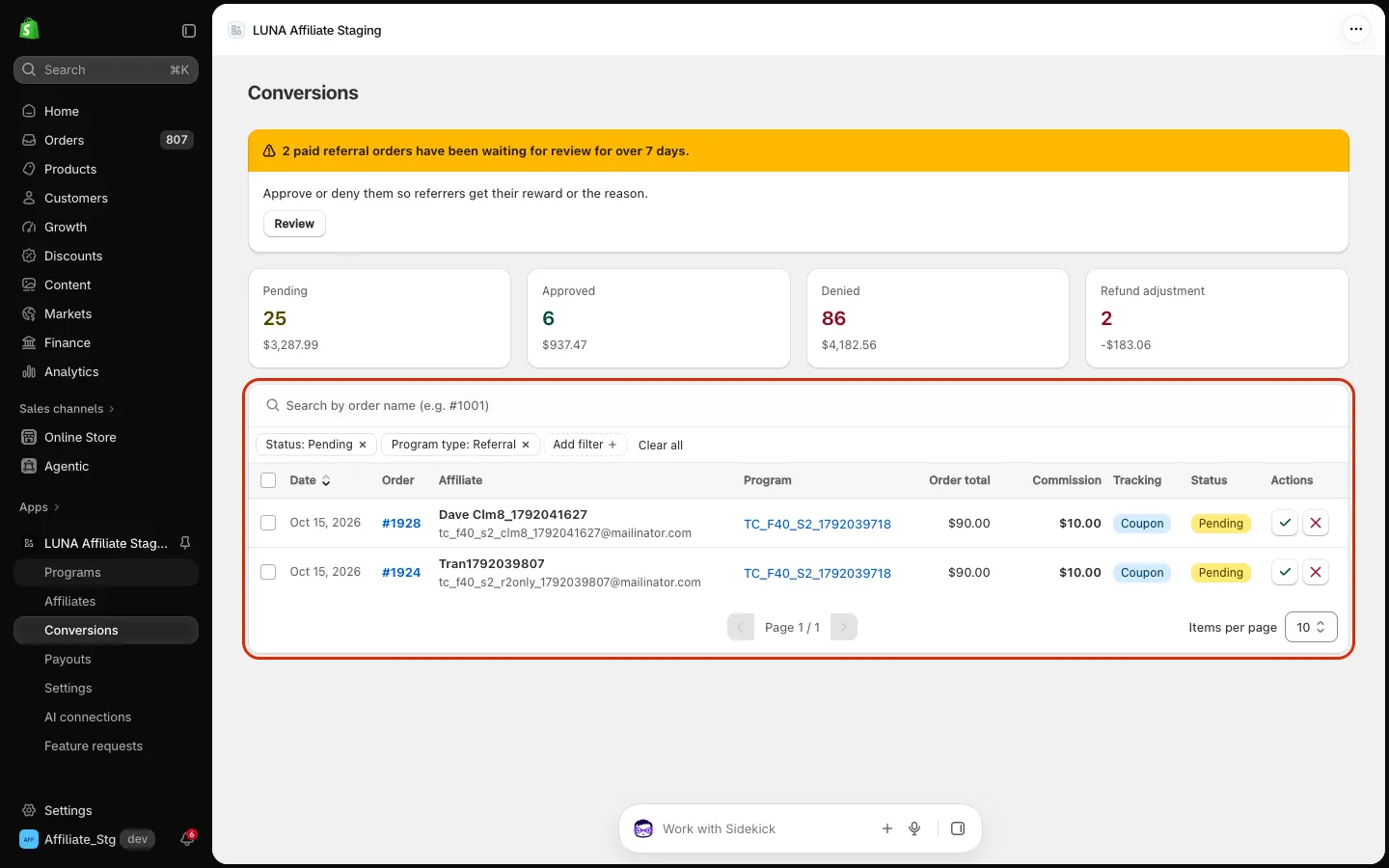
You have two shortcuts to the rows that need you:
- Programs shows a count such as 2 rewards waiting for review on the referral program row. Click it to open Conversions filtered to Pending referral orders.
- Conversions shows a banner when paid referral orders have been waiting for more than 7 days.
To see only referral orders, use Add filter → Program type → Referral.
Approve
Click ✓ on a Pending row, or select rows and use Approve selected.
- Approve only paid orders. ✓ works only when the order is Paid (or partially refunded). For unpaid orders (cash on delivery, bank transfer, payment authorized but not captured), ✓ is disabled with the tooltip Approve after payment. In a bulk approve, unpaid orders are skipped and the message tells you how many.
- Orders older than 60 days: the app can no longer read the order from Shopify. ✓ stays clickable with the tooltip Order is older than 60 days. Check payment in Shopify before approving.
- After you approve, the app creates the reward code and emails it. Hover over the Approved badge to see the progress: Sending reward code…, then Reward sent · THANKS-XXXXXX.
A reward is never taken back. If the friend's order is refunded or canceled after you approve it, the referrer keeps the reward code. Approve once you're confident the order is final.
Deny
Click ✕ and choose a reason. The referrer gets an email with it.
| Reason | Text in the referrer's email |
|---|---|
| Order canceled or refunded | Your friend's order was canceled or refunded. |
| Self-referral | The order was placed by you, so it can't count as a referral. |
| Not a new customer | Your friend had shopped with us before, and rewards are for new customers only. |
| Other | Your note (required, up to 200 characters) |
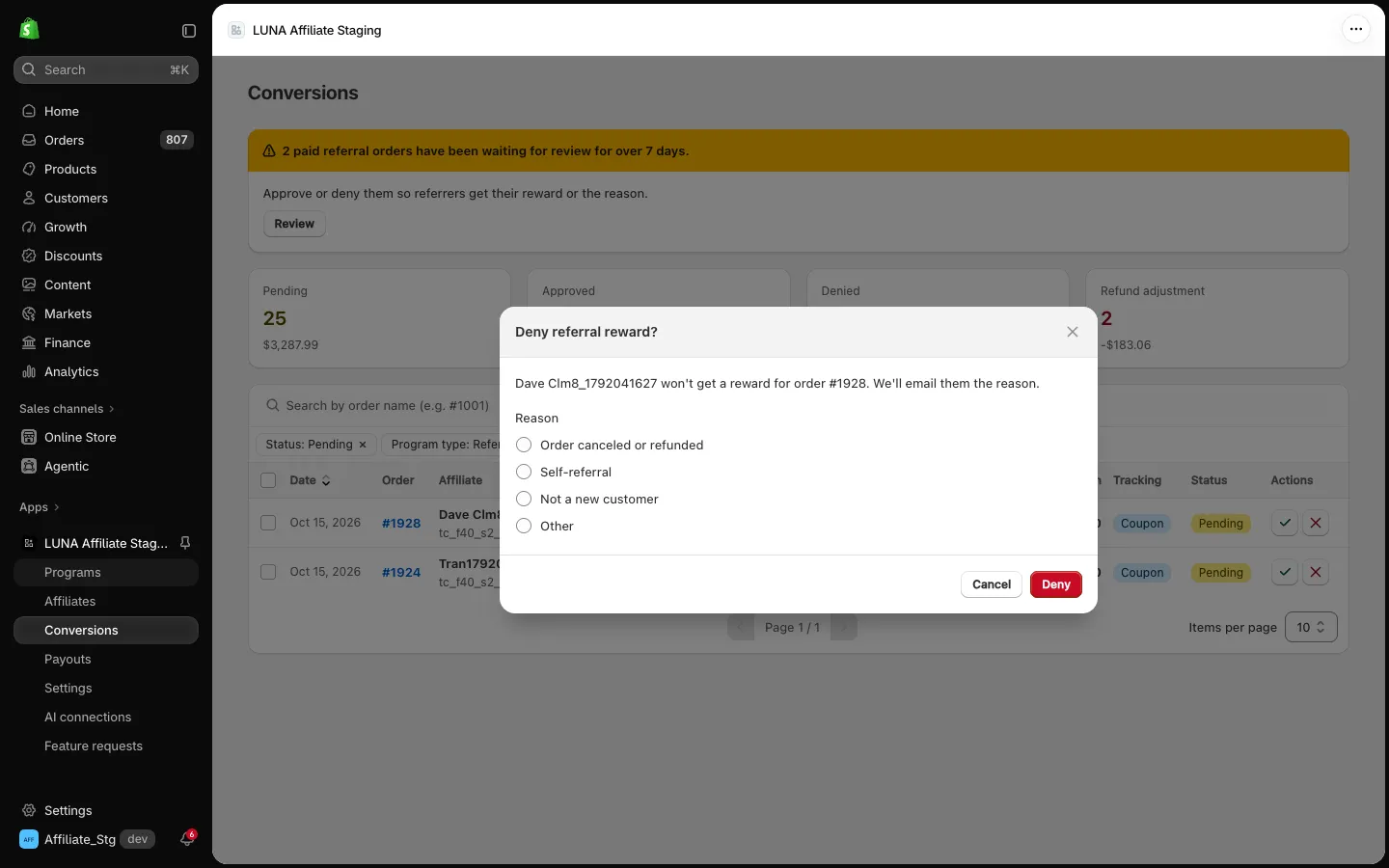
The note field appears when you choose Other.
You decide once per referral order. Referral rows have no Undo: an approved row can't be denied and a denied row can't be approved.
Rows the app decides for you
| What happened | Result | Email to referrer? |
|---|---|---|
| The friend is the referrer (same customer or email) | Denied · Self-referral | No |
| Same shipping address (down to the house or apartment number) and same recipient name as the referrer's first order | Denied · Same address and name as the referrer | No |
| The friend has ordered from you before | Denied · Not a new customer | No |
| The referrer is Inactive in Affiliates | Denied · Code was disabled | No |
| Same shipping address and same recipient name as an earlier friend order in the same program | Denied · Same address and name as an earlier friend order | No |
| The order is canceled while still Pending | Denied · Order canceled | Yes |
| The order is fully refunded while still Pending | Denied · Order refunded | Yes |
| The order is partly refunded while still Pending | Stays Pending, you decide | — |
Hover over a Denied badge to see the reason. A family member at the same address with a different name is not blocked: the order comes in as Pending and you decide.
If Shopify never told the app that an order was canceled or refunded, the row can stay Pending. Click ✓ anyway: the app checks the order first, denies it and shows This order was canceled or refunded, so it was denied.
When a reward code or email fails
| Status tooltip | What to do |
|---|---|
| Couldn't create code | Click the Try again icon (refresh) on the row. You see Creating the reward code again. |
| Email failed | Click the Resend reward email icon on the row. You can resend once every 10 minutes; the code is already created and works. |
Referrers in Affiliates
Every buyer who taps the block appears in Affiliates with a Referrer badge. Next to the email you also see Source: Thank you page · Order #1234 (the order where they tapped the block); it may be cut off in the list, and Edit referrer shows it in full. Use Add filter → Type (All / Affiliates / Referrers) to see referrers on their own.
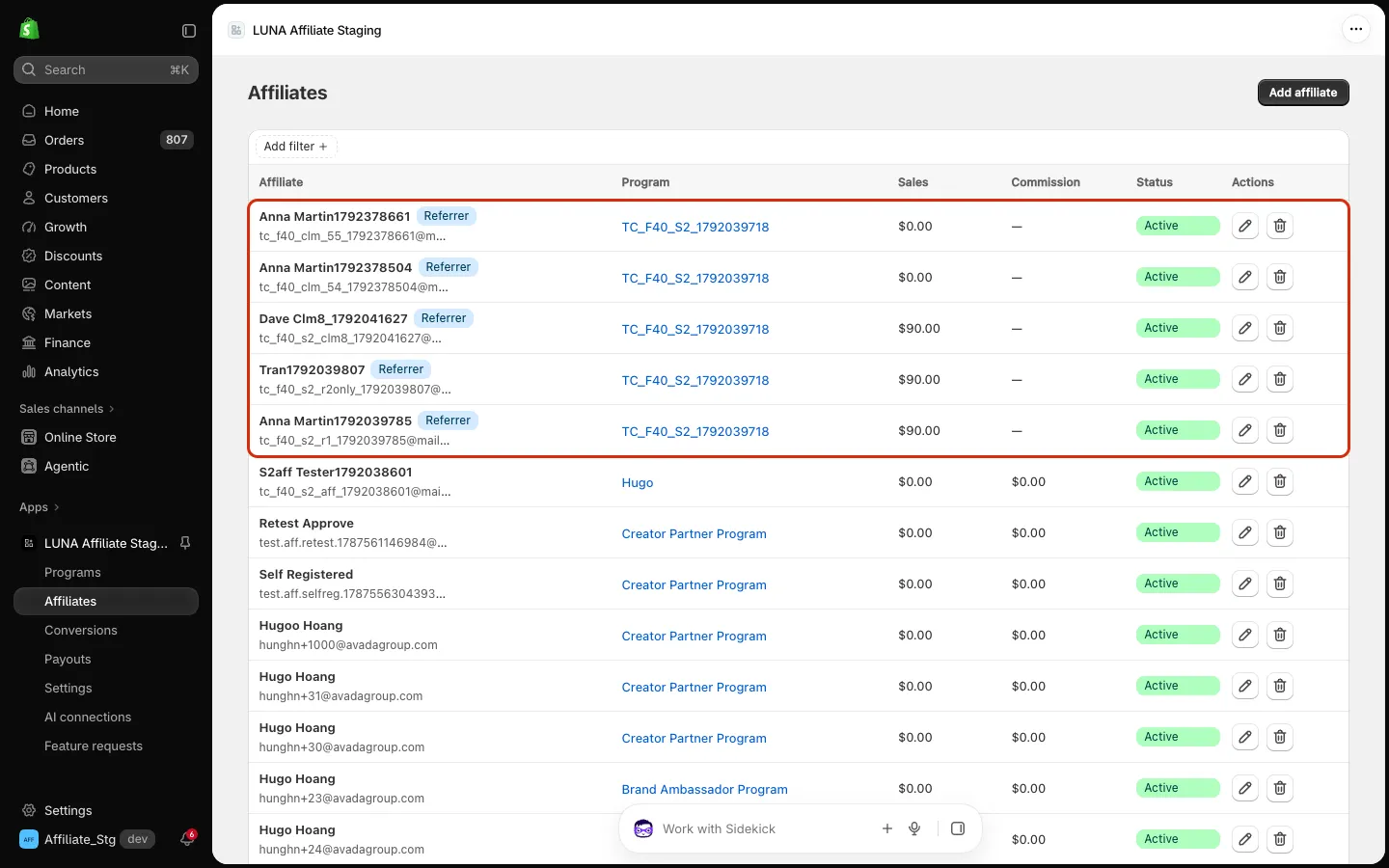
- Referrers have no partner portal. They follow their rewards through the 3 emails.
- Edit referrer lets you change the name and Status. Setting a referrer to Inactive removes their gift code, so friends can no longer use it. Their pending rewards can't be approved until you set them Active again (they get the same code back if it is still free).
- Delete referrer: codes this person shared stop working. Past orders stay in Conversions as Deleted referrer. You can only deny their pending rows, and no email is sent.
- A referrer's email can't be added as an affiliate for now (This email belongs to a referral customer...). Use a different email.
A gift code is being shared publicly (for example, on a coupon site)? Set that referrer to Inactive in Affiliates → Edit referrer. You still see every friend order in Conversions before you approve it.
Emails sent to referrers
| When it's sent | Default subject | |
|---|---|---|
| Friend order pending | A friend places a valid order with the gift code | Your friend just ordered from [store name] |
| Referrer reward | You approve the order and the reward code is created | You've got a [reward] gift from [store name] |
| Reward denied | You deny the order, or it was canceled or fully refunded while Pending | About your referral reward from [store name] |
- Every email includes the referrer's own link again, so they can keep sharing. No email shows the friend's name or email.
- Rows the app denies on its own for self-referral, returning customer, inactive referrer or duplicate address don't send an email.
- You can't turn these emails off, but you can edit their content in Settings → Emails, in the Refer a friend group (Sent to the referrer).
- If a referrer unsubscribes, they stop getting Friend order pending and Reward denied. They still get Referrer reward, because it carries a code you approved.
See Email Notifications for all app emails.
Codes at a glance
| Friend's gift code | Referrer's reward code | |
|---|---|---|
| Example | ANNA7K2Q (first name + 4 random characters) | THANKS-7KQ2MX |
| One per | Referrer: all their friends share it | Friend order you approve |
| How it's used | Applied automatically from the link, or typed at checkout | Typed at checkout on the referrer's next order |
| Who can use it | New customers only, once per customer | The referrer: they check out with the same email address. Single use |
| Expiry | None | 90 days after it's created |
| Combines with | Nothing | Other reward codes (up to 5 in one order). Not with product or shipping discounts |
| In Shopify Discounts | Part of your program's Refer a friend discount | A separate code titled Refer a friend reward |
How it actually works
- Only the code counts. A friend's order is linked to the referrer by the gift code on the order. If the friend opens the link but removes the code at checkout, the order is not counted.
- Affiliate codes win. If an order carries both an affiliate's coupon and a gift code, the affiliate gets the conversion and no referral row is created. If the gift code is blocked (for example, not a new customer) and the friend came through an affiliate's link, the affiliate gets the conversion.
- Several referral programs: you can create more than one. The Thank you page shows only the newest Active referral program. Referrers who joined an older program keep their link and that program's rewards.
- Changing reward values: Pending rows keep the reward that was valid when the friend ordered (the amount already promised by email). New orders use the new value, and the block updates right away.
- Program set to Inactive: the block stops showing that program (it hides if no other referral program is Active). Codes already shared keep working, friend orders still come in as Pending, and you can still review them.
- The link is offered for 24 hours after the order. A buyer who leaves the Thank you page without copying the link gets it again in every referrer email.
- Test orders are ignored. Orders placed with Shopify's test gateway never create a referral row or send an email.
- The referral program is switched off for your store: the block hides, codes already shared keep working, and you can still review Pending rows in Conversions.
Known limitations
- Don't turn off or delete the Refer a friend discount in Shopify → Discounts. Friends' gift codes stop working. To pause the program, set it to Inactive in the app. To stop one person's code, set that referrer to Inactive in Affiliates.
- Uninstalling and reinstalling the app can remove the block from your Thank you page, and the app can't tell whether it's still there. Add Refer a friend again in the checkout editor after reinstalling. While the app is uninstalled, friends' gift codes don't work, reward codes already sent still work, and Pending rows wait for you.
- The block text is English only and can't be edited yet.
- Referrers can't see their rewards in a portal. They are informed only by email.
- No automatic approval. Every reward waits for you in Conversions.
- A friend using a different email and a different address is not blocked automatically. Check suspicious rows before you approve.
Troubleshooting
| Symptom | Cause | Fix |
|---|---|---|
| No Referral program option when you click Create program, and no Home card | The referral program is not turned on for your store yet | Contact support to turn it on |
| Banner Buyers can't see your referral program yet. | No buyer has seen the block yet: it's not added to the Thank you page, or there's been no order since you added it | Add Refer a friend in the checkout editor (Thank you page), save, then place an order |
| Block doesn't show on the Thank you page | No Active referral program, the block isn't added, or the order has no email | Set the program to Active, add the block, check the order has an email |
| Two blocks on the Thank you page | The block was added both under the header and somewhere else | Remove one in the checkout editor |
| Buyer sees This gift isn't available for your order. | The order is older than 24 hours, or the buyer's referrer profile is Inactive | Expected. Set the referrer Active in Affiliates if it was a mistake |
| A friend says the code didn't work | The friend has ordered before (new customers only), already used it once, or the referrer is Inactive | Expected for returning customers. Otherwise check the referrer's status and that the Refer a friend discount is active in Shopify Discounts |
| A friend ordered but there's no row in Conversions | The order had no gift code, it was a test order, or it carried an affiliate's coupon | Check the order's discount codes in Shopify |
| ✓ is disabled on a referral row | The order isn't paid yet, or the referrer was deleted | Wait for payment, or deny the row |
| Activate this referrer in Affiliates before approving. | The referrer is Inactive | Set them Active in Affiliates, then approve |
| You can resend this email again in a few minutes. | You resent the reward email less than 10 minutes ago | Wait 10 minutes |
| The referrer says they never got the reward | The code or the email failed, or the email is in spam | Hover over the Approved badge, then use Try again or Resend reward email |
| The referrer can't use the reward code | They checked out with a different email, the code expired (90 days), or it was already used | Ask them to use the email they bought with the first time |
Data & privacy
- A referrer is created from the order's email, name and shipping address, only when the buyer taps Send a gift to friends. Nothing is created if they don't tap.
- The shipping address and name are kept only as a one-way fingerprint, used to spot self-referrals and duplicate friend orders. The app can't read the address back from it.
- Referrer emails never include the friend's name, email or order details.
Next step
- Approve or Deny Conversions — how the Conversions table works.
- Email Notifications — every email the app sends.
- Create a Program — set up an affiliate program for partners and influencers.