Approve or Disapprove
Every affiliate who signs up through the Portal Signup Link starts in Pending status. They cannot log in or earn commission until you decide what to do with them.
Most merchants review applications as they come in. For 1–20 signups a week this is quick. For higher volume, see bulk actions at the bottom of this page.
Reviewing an application
- Go to Affiliates.
- Find the row with a yellow Pending badge.
- The Actions column on a Pending row shows two icon buttons instead of the usual delete icon:
- A green check icon — tooltip Approve.
- A red X icon — tooltip Disapprove.
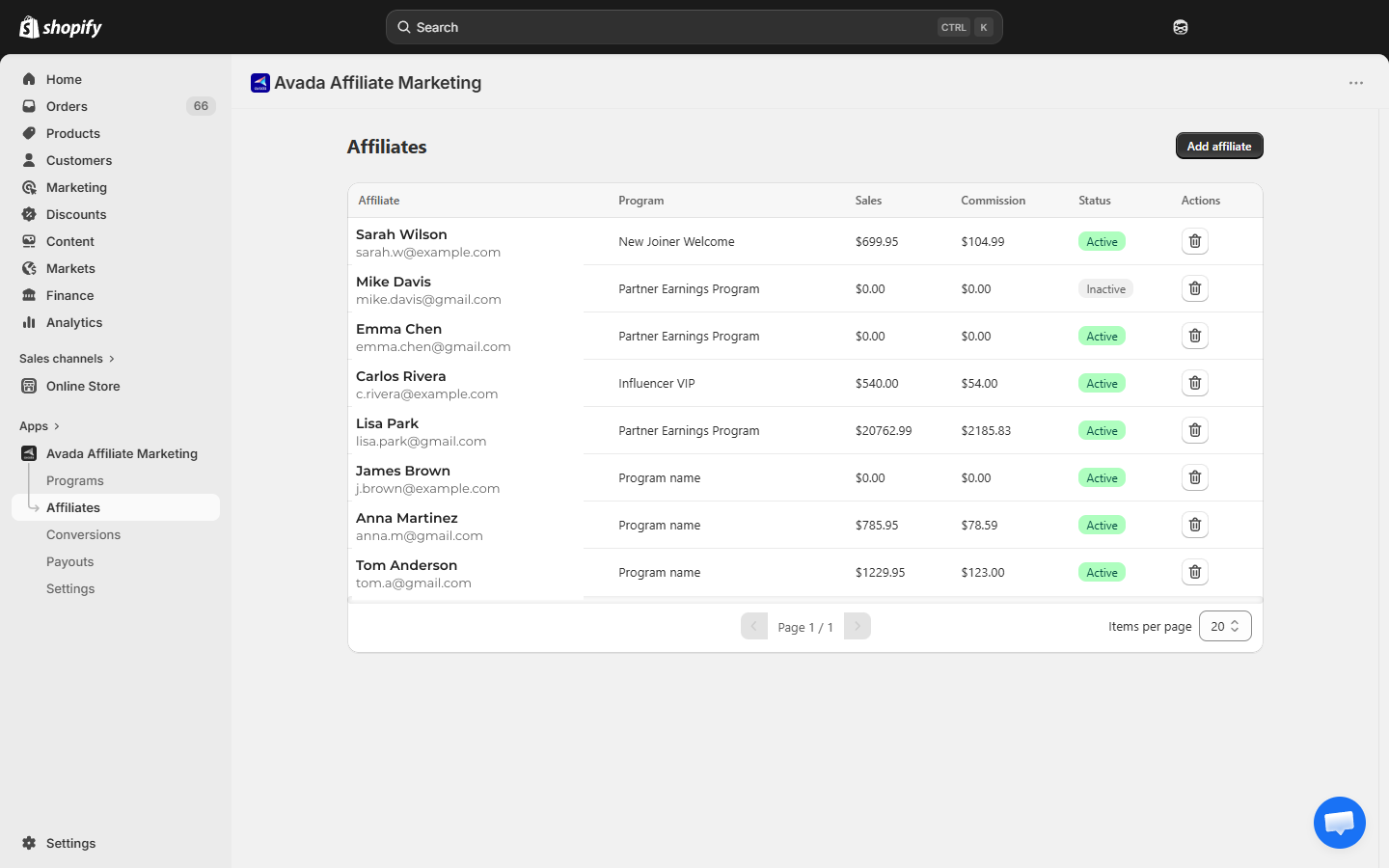
Click either icon. A confirmation modal opens explaining the change:
- Approve modal: "Approve affiliate
{name}? They will be able to start referring customers." - Disapprove modal: "Disapprove affiliate
{name}? Their account will be deactivated."
Click the Approve / Disapprove button in the modal to confirm.
What to check before approving
There is no automated check — the decision is yours. Things merchants typically verify:
- Email looks real — not
[email protected], not a disposable address. - Name is plausible — not
asdf asdf. - No red flags — if they signed up from a country where you don't ship, you may not want to approve.
If you're unsure, you can disapprove now (sets the affiliate to Inactive — keeps the record) and revisit later. Note that once an affiliate is Active, the merchant UI does not currently let you switch them back to Inactive — only Delete is available.
What happens on Approve
- Status becomes Active (green badge).
- Affiliate receives a welcome / approval email.
- They can log in to the portal immediately.
- The Actions column on their row now shows the regular delete (trash) icon instead of approve/disapprove.
What happens on Disapprove
- Status becomes Inactive (the app uses Inactive — there is no separate "Denied" status today).
- Affiliate cannot log in. Login attempts show "Your account is not active".
- They stay in your Affiliates list so you have a record, but they earn nothing.
Reactivating an Inactive affiliate is not supported in the merchant UI today. If you change your mind after disapproving, the path is to delete the Inactive row and ask the affiliate to register again — they'll come back as a new Pending application you can approve.
Bulk approve or deny
There is no built-in bulk-approve action today — the per-row icons are the only path. For high signup volumes, plan a daily 5-minute review window where you click through Pending rows one by one.
(If you need bulk approve as a feature, let support know.)
What Pending affiliates see
If someone tries to log in while pending, they see:
Your account is pending approval. You will receive an email when your application has been reviewed.
They cannot reset their password or access any portal page until approved. This is intentional — no data leaks for un-approved accounts.
Next step
- Edit or Delete — manage existing affiliates.
- Email Notifications — customize the approve/deny emails.