Create a Program
A program is the rulebook for how affiliates earn commission on your store. You can run one program for everyone, or several programs with different rates for different groups (influencers vs. friends-and-family, for example).
This page walks through creating a program from scratch. If you just want the fastest possible setup, see the Quick Start.
Before you start
You can skip this section if you already know what you want to offer. But if you are new to running an affiliate program, a few quick decisions make the rest of this page easier:
- How much commission will you pay? A common starting point on Shopify is 10% of order total. Higher rates (15–25%) attract more affiliates but eat into your margin.
- Percentage or flat amount? Percentage scales with the order (better for you on small orders, better for them on big ones). Flat amount is simpler to explain.
- One program, or several? Start with one. You can always add more later.
Step 1 — Open the Programs page
From the app sidebar, click Programs. If this is your first program, you will see an empty state inviting you to create one.
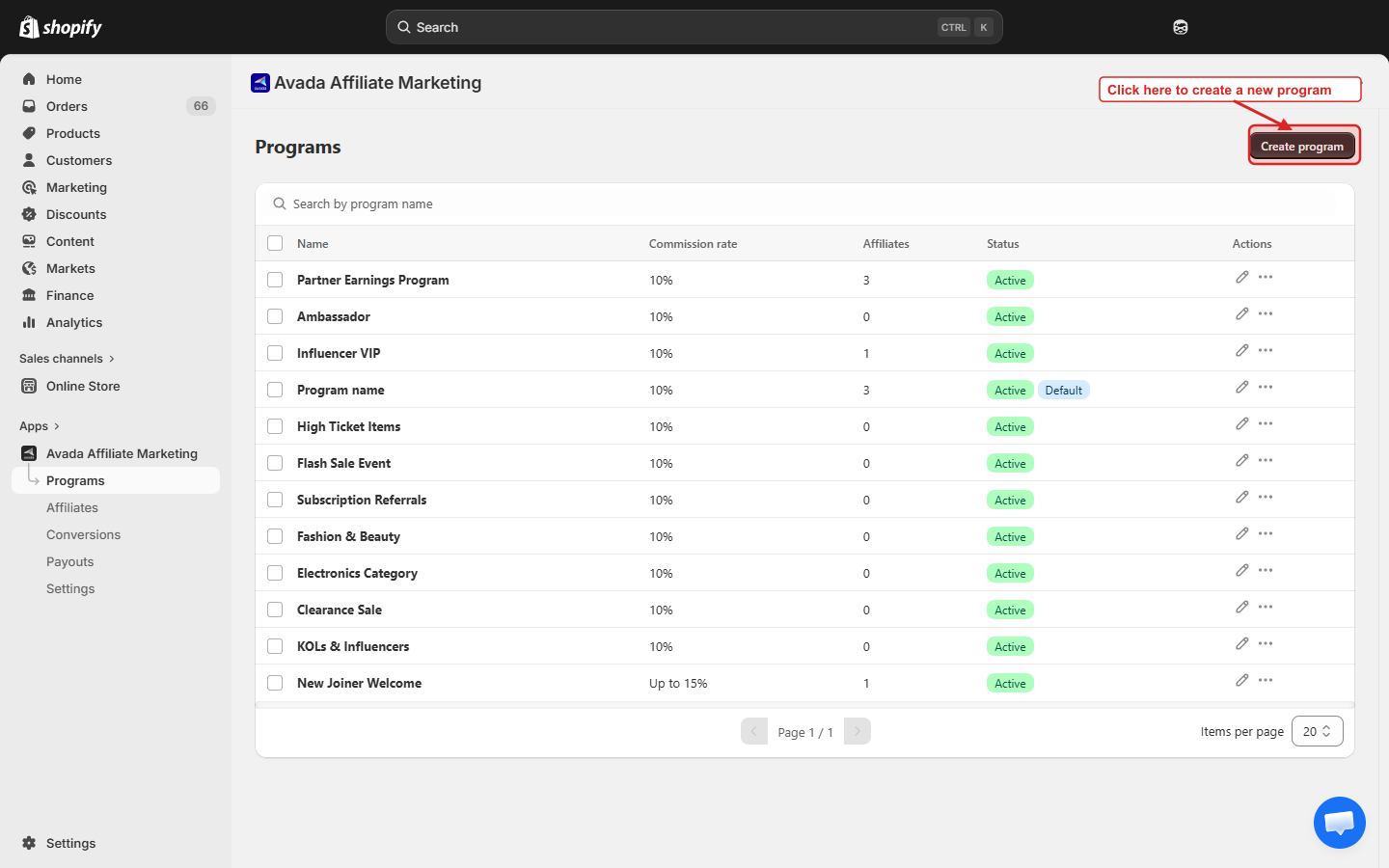
Click Create program in the top-right.
Step 2 — Fill in the General tab
The Create Program screen has two tabs — General and Discount — and the General tab is open by default. The page status (Active / Inactive) lives in the top-right of the page header.
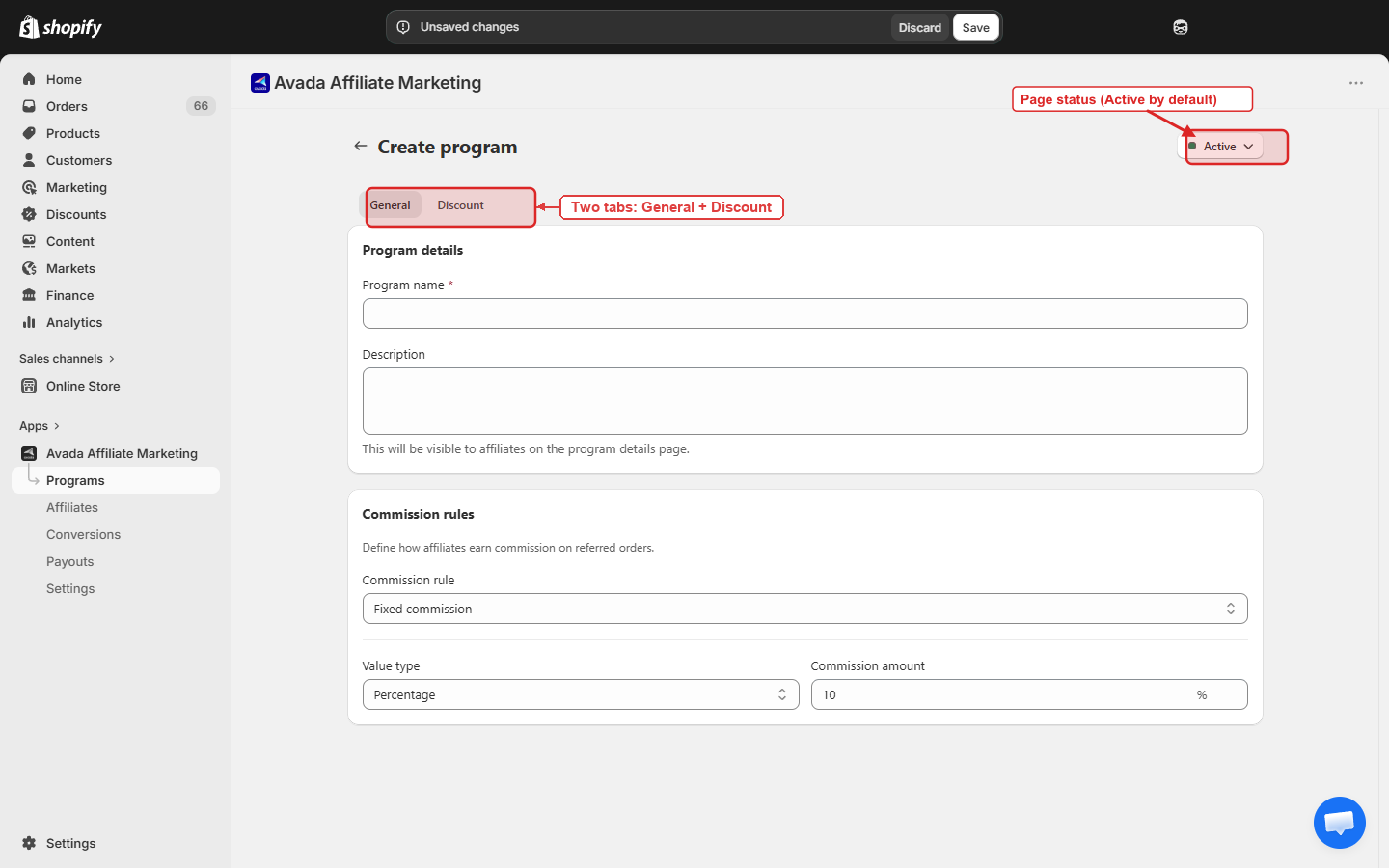
2.1 — Program details
| Field | Required | What to enter |
|---|---|---|
| Program name | Yes | Something descriptive. Affiliates see this in their portal. Examples: Standard 10%, VIP Partners, Influencer Tier |
| Description | No | Visible to affiliates on the program details page in the portal |
The page status defaults to Active. Switch it to Inactive in the top-right menu only if you want to draft the program without making it available yet.
2.2 — Commission rule
Pick one. You can change this any time.
| Commission rule | When to use it |
|---|---|
| Fixed commission | Everyone in this program earns the same rate on every sale. Simplest option. |
| Tiered by order value | Affiliates earn more on bigger orders — e.g. 5% on the first $100, 10% from $100, 15% from $500. |
For your first program, pick Fixed commission. See the Commission Types page when you are ready for tiered rules.
Need different rates for specific products? Not supported today. The rate you set here applies to every product in a referral order — there is no per-product override and no product scope setting.
2.3 — Commission value (Fixed only)
If you picked Fixed commission, two more fields appear:
- Value type —
PercentageorFlat amount. - Commission amount — e.g.
10means 10% (Percentage) or $10 (Flat).
Example: If an affiliate refers an order worth $120 and your program pays 10%, they earn $12. If it is a $5 flat program, they earn $5.
2.4 — Discount tab (optional)
The Discount tab lets you auto-generate a unique coupon code for every affiliate in this program. When a shopper uses that code at checkout, the order is credited to the right affiliate — even if they never clicked a referral link.
This is more advanced and includes coupon format with variables ({full_name}, {first_name}, {random_number}), purchase type (one-time / subscription), minimum requirements, usage limits, and discount combinations. Leave it disabled for now and come back to it on the Customer Discount page.
Cookie duration is not a per-program field. It is shop-wide and lives in Settings → Tracking (default: 30 days).
Step 3 — Save
Click Save in the top-right of the page (the bar appears as soon as you make changes). You are taken to the program's edit page and a Saved successfully toast appears. Click the back arrow to return to the Programs list — your new program appears there with an Active badge.
Step 4 — Set as default (recommended for your first program)
If this is the only program you plan to run, make it the default. New affiliates who sign up through your public signup link will automatically join this program.
- On the Programs list, hover over your program row.
- Click the ⋯ menu.
- Pick Set as default.
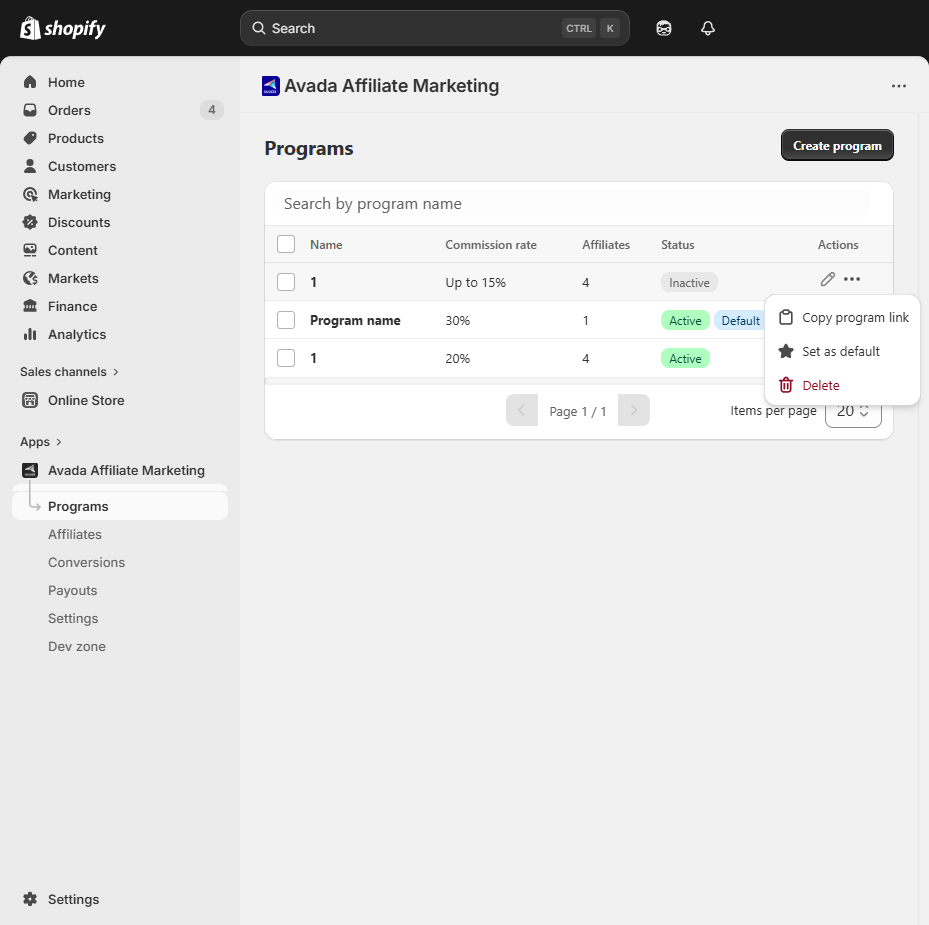
A Default badge appears next to the program name.
What to do next
Now that you have a program:
- Invite affiliates — add them manually or share the signup link.
- Review commission types — if a flat rate feels too simple, explore tiered commission.
- Attach a coupon — let shoppers get a discount while crediting the affiliate. See Customer Discount.
Editing or removing a program
You can change a program any time — rates, name, coupon, anything. Changes only apply to new conversions; existing conversions keep the rate they were created with.
See Edit or Delete a Program for details, including what happens to affiliates if you remove a program they belong to.