Registration & Login
This page covers everything about getting into your affiliate portal — first-time signup, returning logins, and password recovery.
First time — signing up
There are two ways you might end up here:
Case A — The merchant added you directly
You will receive a welcome email titled something like "Welcome to [Store Name]'s affiliate program". In that email:
- Click the Set your password button.
- A new tab opens on the portal password-setup page.
- Enter a password (minimum 6 characters) twice.
- Click Save.
You are now logged in. Go to Dashboard and start promoting.
The link expires in 15 minutes — if you waited too long, see password reset below.
Case B — You signed up via a public link
The merchant shared a signup URL with you (from their emails, social bio, etc.). When you open it, you see a registration page with the program details on the left and a Create your account form on the right:
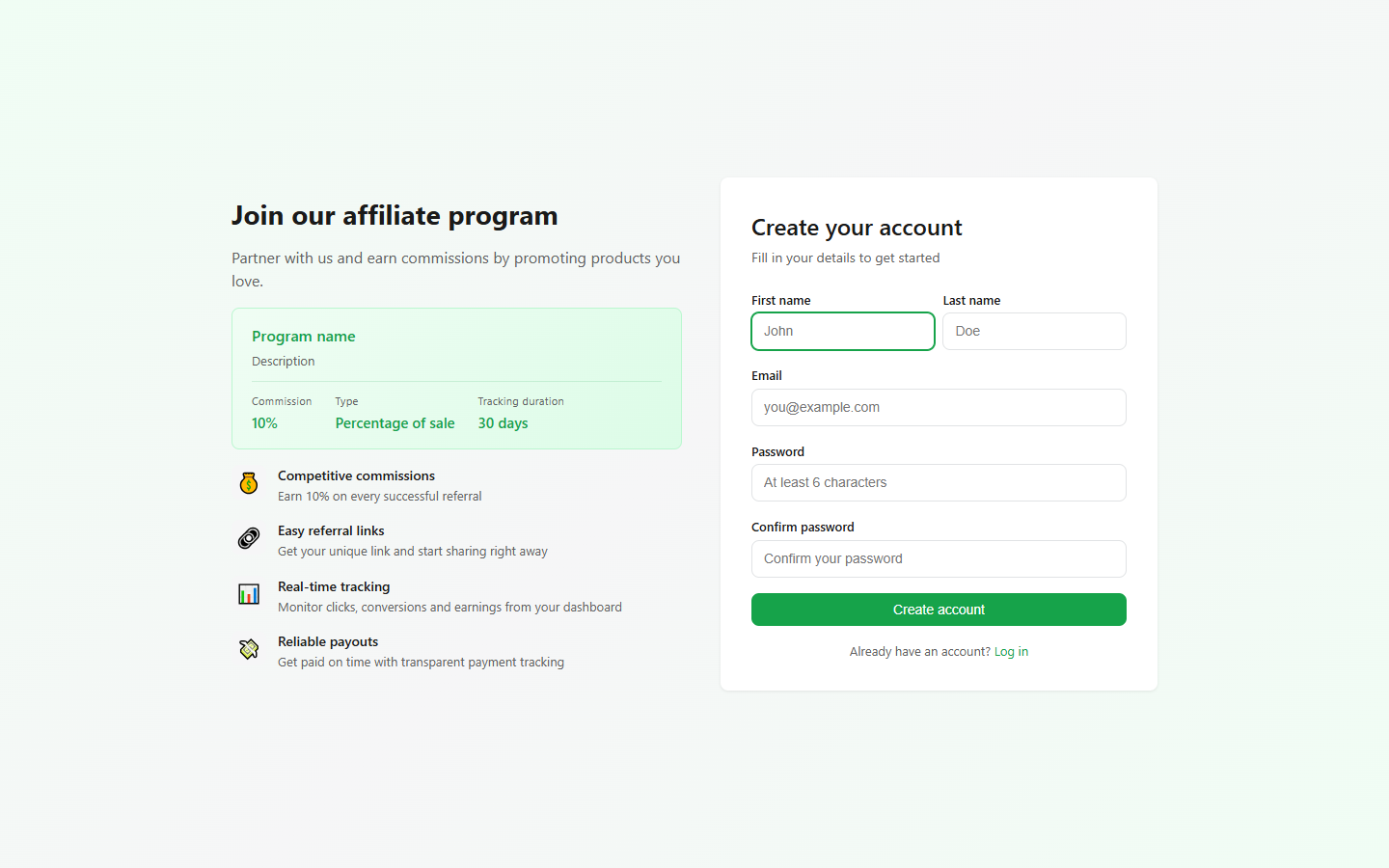
The left side shows the program you will join (name, description, commission rate, value type, tracking duration) so you know what you are signing up for.
Fill in the form on the right:
| Field | Notes |
|---|---|
| First name | Shown in the portal and on the merchant's reports. |
| Last name | — |
| Your contact email. Used for login and all notifications. | |
| Password | Minimum 6 characters. Use something strong — this is how you log in. |
| Confirm password | Must match the password above. |
Click Create account.
Payment method is not asked at signup. You add it later in your Profile — and the merchant cannot pay you until you do.
What happens next:
- Your application is submitted with Pending status.
- You cannot log in yet. The merchant has to approve you first.
- When approved, you receive an email — then you can log in normally.
Daily login
Once approved, logging in is simple:
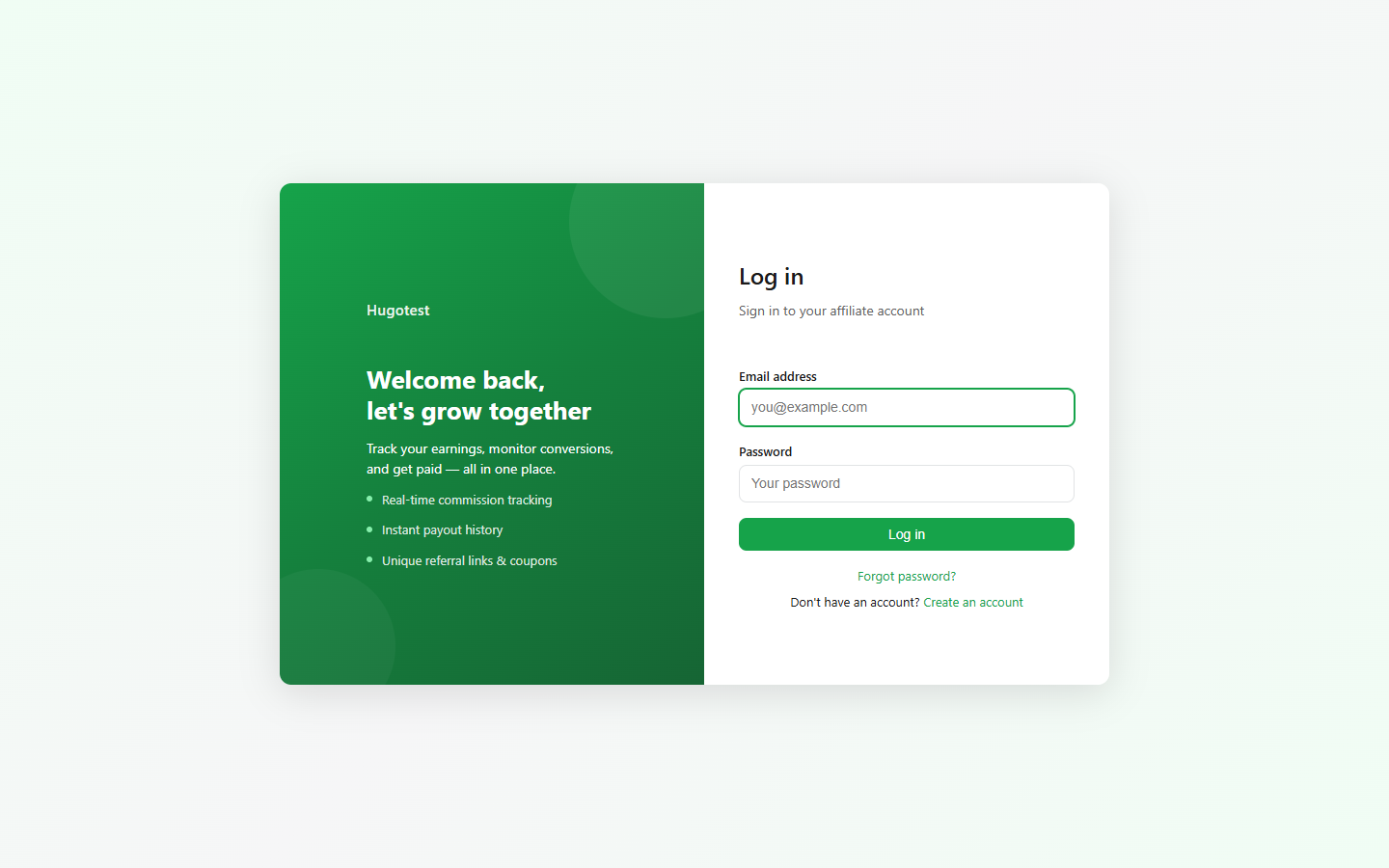
- Go to your portal URL —
https://luna-affiliate.firebaseapp.com/portal/<shop-handle>/login. The merchant gives you the exact one (their shop handle, e.g.acme-store). - Enter your Email address and Password.
- Click Log in.
You land on your Dashboard.
Login errors
| Error message | What it means |
|---|---|
| "Invalid email or password" | Typo, or account does not exist for this merchant. |
| "Your account is pending approval" | Merchant has not approved you yet — wait for the approval email. |
| "Your account is not active" | Merchant deactivated your account. Contact them. |
| "Too many failed attempts" | Security lockout after 5 wrong passwords — wait 15 minutes. |
Forgot your password?
- On the login page, click Forgot password?
- Enter your email → click Send reset link.
- Check your inbox — the email arrives within a minute. Check spam if it doesn't.
- Click the reset link in the email.
- Enter a new password twice → click Save.
- Log in with the new password.
The reset link expires in 15 minutes. If you click an old one, you get "Link expired" — request a new one.
Rate limit: you can request up to 3 reset links per 15 minutes. Beyond that, the page shows "Too many requests" — wait 15 minutes before trying again.
Changing your password later
Once logged in, go to Profile → Update Password card. You need to enter your current password, then the new password twice, then click Update password.
I work with multiple merchants — do I need one account per merchant?
Yes. Each merchant maintains their own affiliate list. You need to sign up (or be added) for each program separately. They are completely independent:
- Different logins.
- Different referral codes.
- Different commissions.
- Different payouts.